Transferring contacts from a computer to your iQOO device is a common need, whether you're switching phones, backing up contacts, or organizing entries in bulk. iQOO, as a Vivo-subbrand smartphone, supports multiple transfer methods that cater to different preferences, from software-assisted bulk transfers to cloud sync and direct file imports. No matter if you use Windows or Mac, or prefer USB, Wi-Fi, or wireless sync, there's a hassle-free solution for you. Below, we detail 4 proven methods to help you move contacts from your computer to iQOO quickly and securely, with step-by-step instructions for each.
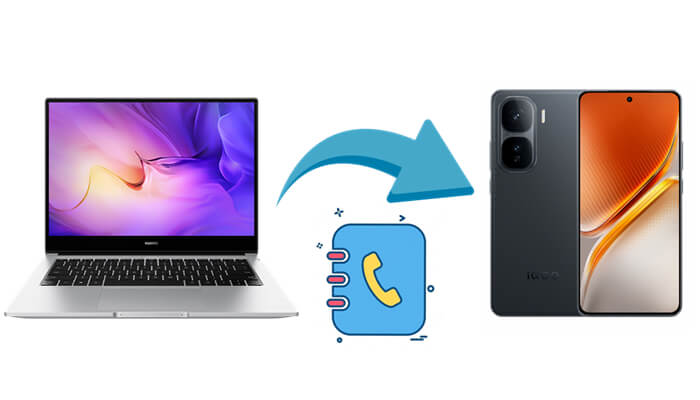
One of the most efficient and user-friendly methods to transfer contacts from your computer to your iQOO device is by using Coolmuster Android Assistant. This professional Android data management software lets you seamlessly manage contacts, as well as other data, directly from your computer. Whether you're looking to import, export, or organize your contacts, Coolmuster Android Assistant provides an easy solution.
Key features of Coolmuster Android Assistant:
Step-by-step guide to sync contacts from your computer to your iQOO:
01Begin by downloading and installing Android Assistant on your computer (available for both Windows and Mac).
02Use a USB cable to connect your iQOO to the computer. Ensure USB debugging is enabled on your iQOO by going to "Settings" > "Developer Options" > "USB Debugging".
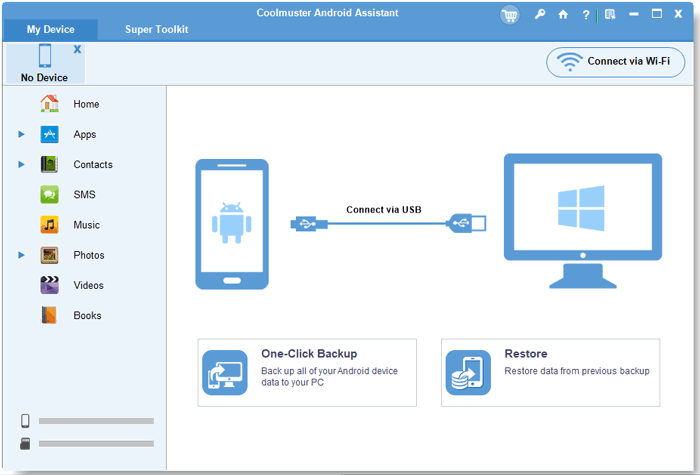
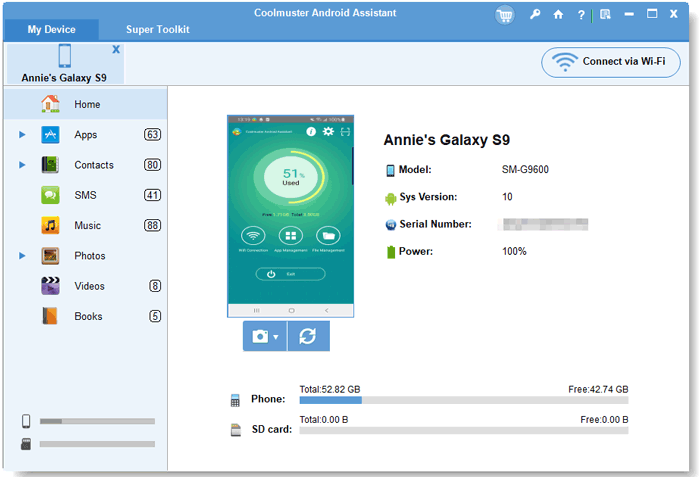
03Your iQOO device should automatically be detected.
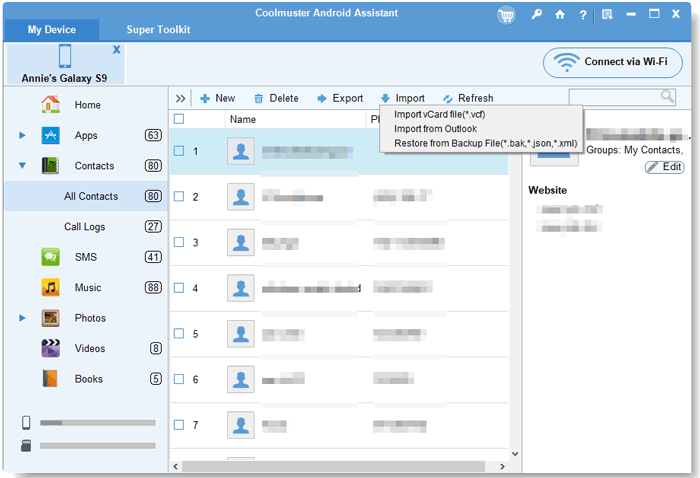
04On the left sidebar, click "Contacts" to access your iQOO's contact list, hit the "Import" button, choose the contact file (VCF or CSV) from your computer, and begin the transfer.
To see this process in action, check out the video tutorial below for a step-by-step guide.
If you're using a Google account (Gmail), this method is ideal for wireless synchronization and automatic backup of your contacts. It works by uploading your computer's contacts to Google Contacts and then syncing them with your iQOO device. No cables or third-party software are needed, making it a great solution for users who are already integrated into the Google ecosystem.
Here is how it works:
Step 1. On your computer, open a web browser and navigate to Google Contacts. Sign in with your Google account (the same one you'll use on your iQOO).
Step 2. In Google Contacts, click the "Import" button on the left sidebar. A pop-up window will appear, select "Select file" and choose the contact file from your computer (either .vcf or .csv format is supported).
Step 3. After selecting the file, click "Import" to upload your contacts to Google Contacts. Wait for the upload to finish, and you'll see the contacts appear in your Google Contacts list.
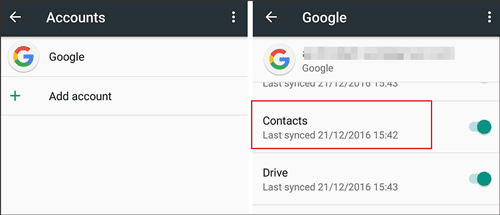
Step 4. On your iQOO, go to Settings and scroll down to select "Accounts & Sync" (or just "Accounts" on some models).
Step 5. Tap "Add account", select "Google" from the list, and sign in with the same Google Account used for uploading contacts.
Step 6. Once your Google account is added, tap on the account name, then enable the "Contacts" toggle to allow syncing. Finally, tap "Sync now" to begin syncing contacts from Google to your iQOO.
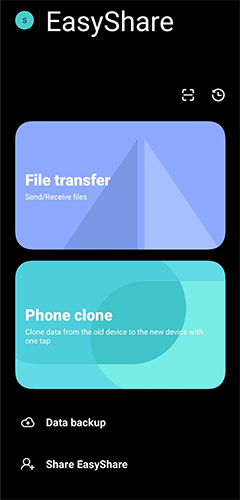
EasyShare is a built-in tool for iQOO and Vivo devices, designed for fast local file transfer between your computer and phone, without requiring an internet connection or any third-party software fees. It supports quick transfers via Wi-Fi or QR code, making it an ideal solution for iQOO users who want a native, cost-free way to move data.
Follow these steps to move contacts from a computer to iQOO:
Step 1. On your computer, open a web browser and go to the Vivo EasyShare Official Website. Download and install the EasyShare client for either Windows or Mac.
Step 2. On your iQOO device, open the "Tools" folder (or search for EasyShare in the app drawer). Most iQOO models come with EasyShare pre-installed, but if it's not there, you can download it from the Google Play Store.
Step 3. Launch EasyShare on both your computer and iQOO. On the iQOO, tap "Transfer Files" (or "Connect to PC") and select your preferred connection method:
Step 4. Once the devices are connected, you will see your iQOO device listed in the EasyShare window on your computer. Locate the contact file (preferably in .vcf format) on your computer, then drag and drop it into the EasyShare window to send it to your iQOO.
Step 7. When the transfer is complete, your iQOO will show a notification. Tap the notification to open the .vcf file and follow the prompts to import the contacts into your Contacts app.
Using a VCF (vCard) file is another straightforward way to transfer contacts from your computer to your iQOO device. This method is simple, especially if you already have your contacts stored in a .vcf file. Here's how to do it:
Step 1. On your computer, export your contacts into a VCF file format. You can do this using contact management software like Outlook or by exporting from your phone or email account.
Step 2. Once the VCF file is ready, transfer it to your iQOO using a USB cable, Bluetooth, or cloud storage (Google Drive, Dropbox, etc.).
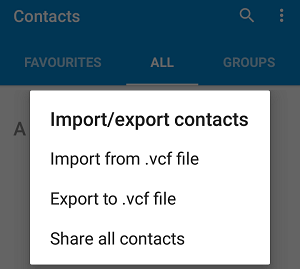
Step 3. On your iQOO device, open the Contacts app, then go to "Settings". Look for the "Import/Export" option and select "Import from .vcf file". Locate the VCF file you transferred, and follow the prompts to import the contacts into your iQOO.
In conclusion, there are several effective ways to transfer contacts from your computer to your iQOO device. While a Google account provides wireless syncing, it requires a stable internet connection and may not always be as fast as other methods. EasyShare is a great native solution, but it may require both devices to be on the same Wi-Fi network, limiting its flexibility. The VCF file method is simple, but it's manual and requires you to transfer the file first, which can be a hassle for larger contact lists.
For a more seamless and efficient experience, Coolmuster Android Assistant is the best option. It offers an easy way to transfer contacts and manage other data types, like messages, photos, and videos, all with a few clicks. We highly recommend using Coolmuster Android Assistant for the most reliable and hassle-free solution.
Related Articles:
How to Edit iQOO Phone Contacts on Computer [4 Easy Methods]
Transfer Contacts from iQOO to iQOO: 5 Easy & Reliable Methods
Top 6 Methods to Sync IQOO to PC [A Comprehensive How-to Guide]
How to Transfer Contacts from iQOO to iPhone in 3 Simple Ways





 Free Download for PC
  Free Download for Mac


