TL;DR:
This guide explains how to transfer files from OPPO to a USB flash drive using different methods based on whether you have an OTG adapter:
As OPPO phones continue to offer larger storage capacities, users still need a reliable way to back up important files, free up space, or move data to another device. A USB flash drive is a convenient option for storing photos, videos, documents, and other files because it is portable and easy to access.
However, many OPPO users may wonder how to connect a USB flash drive to their phone and transfer files successfully. Fortunately, there are several ways to complete the transfer, whether you want to connect the flash drive directly through OTG, use a USB-C flash drive, or transfer files with the help of a computer. In this guide, we will show you how to transfer files from OPPO to a USB flash drive step by step.
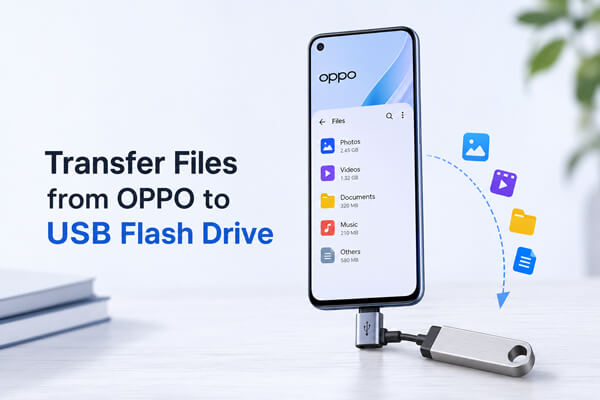
The most direct way to transfer files from an OPPO phone to a USB flash drive is by using an OTG adapter. This method allows your phone to recognize the USB flash drive as external storage without needing a computer.
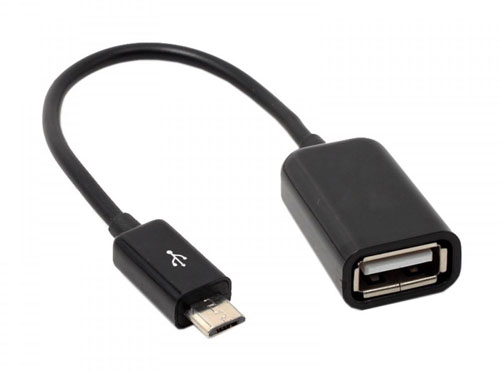
Before starting, make sure you have:
Follow these steps to transfer files from an OPPO phone to a USB flash drive using an OTG adapter:
Step 1. Enable OTG Connection on Your OPPO Phone
First, make sure the OTG feature is enabled on your device.
Depending on your ColorOS version, the exact path may be slightly different.
Step 2. Connect the USB Flash Drive to OPPO
Connect the USB flash drive to the OTG adapter, then plug the adapter into your OPPO phone's USB-C charging port.
Once connected, your phone should detect the external storage device.
Step 3. Move Files from OPPO to USB Flash Drive
After the transfer finishes, safely disconnect the USB flash drive to prevent file corruption.
If you do not want to use an OTG adapter, a USB-C flash drive can be a more convenient option. These flash drives are designed with a USB-C connector, allowing you to plug them directly into compatible OPPO phones.
Compared with using an OTG adapter, this method requires fewer accessories and is easier for users who frequently move files between their phone and a flash drive. This method is especially useful for newer OPPO models with USB-C ports.
Step 1. Connect the USB-C Flash Drive to Your OPPO Phone
Insert the USB-C flash drive directly into your OPPO phone's charging port.
Your phone should recognize it as an external storage device automatically.
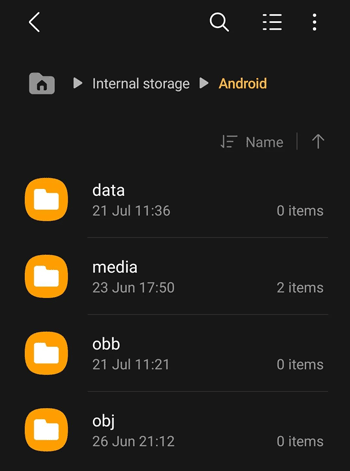
Step 2. Open File Manager and Select Files
Step 3. Copy Files to the USB-C Flash Drive
If you need to transfer a large number of files from your OPPO phone to a USB flash drive, using a computer-based Android management tool can make the process more convenient. Coolmuster Android Assistant allows you to manage Android data on your computer and transfer files to a USB flash drive without requiring an OTG adapter.
Highlights of Coolmuster Android Assistant:
How to transfer files from OPPO to USB Flash Drive with Android Assistant?
01Download and install Android Assistant on your computer.
02Connect your OPPO phone to the computer using a USB cable, then launch the software. Follow the on-screen instructions to enable USB debugging on your phone and allow the program to recognize your device.
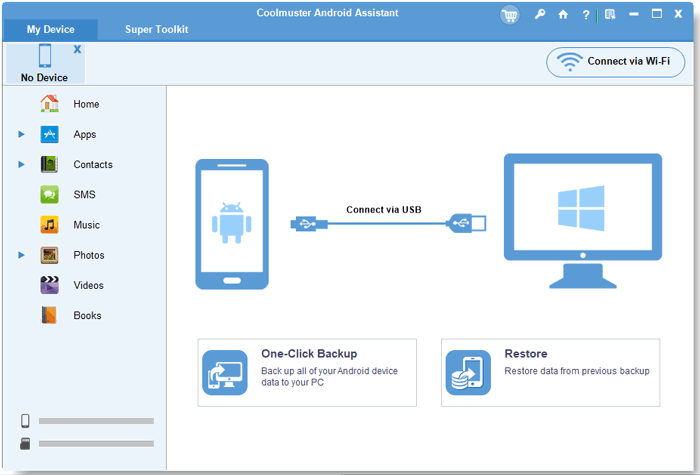
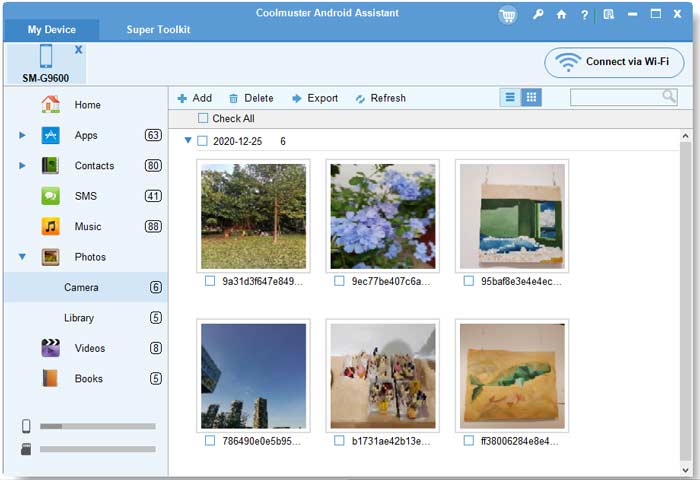
03After your OPPO phone is detected, the software will automatically scan and display your phone data in different categories. Open the category containing the files you want to transfer, such as Photos, Videos, Music, or Files, and select the items you need.
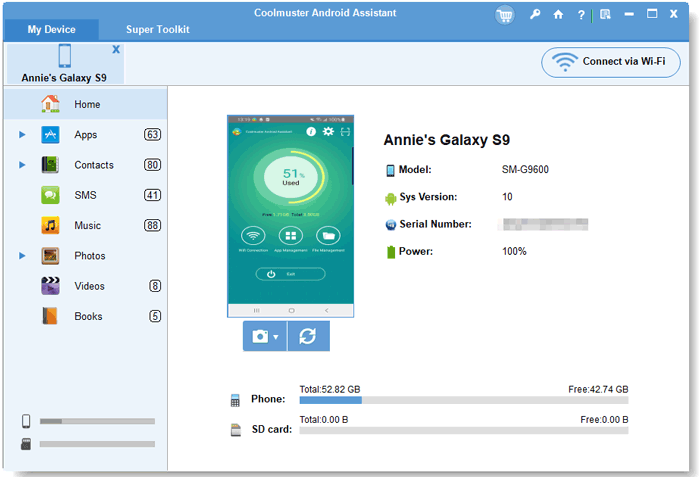
04Insert the USB flash drive into your computer. Click the "Export" button in Coolmuster Android Assistant and choose the USB flash drive as the destination. The selected files will then be transferred from your OPPO phone to the flash drive.
If you'd prefer a step-by-step video demonstration, take a look at this tutorial:
1. What type of USB flash drive works with OPPO phones?
Most USB flash drives can work with OPPO phones when used with a compatible OTG adapter. USB-C flash drives are also a good option because they can connect directly to OPPO phones with USB-C ports. Make sure the flash drive uses a supported file system, such as FAT32 or exFAT.
2. Why is my OPPO USB drive not showing up?
If your OPPO phone cannot detect the USB flash drive, possible reasons include a disabled OTG function, an incompatible adapter, unsupported USB format, or a faulty flash drive. Try enabling OTG, reconnecting the device, or testing another USB flash drive.
3. Why can't I copy large files from OPPO to a USB flash drive?
The issue may be caused by the file system of the USB flash drive. For example, FAT32 drives cannot store a single file larger than 4GB. Switching to exFAT or another compatible format can help transfer larger files.
The best method to transfer files from OPPO to USB flash drive depends on your device setup and the amount of data you need to move. For occasional transfers, an OTG adapter or USB-C flash drive can help you quickly copy files directly from your OPPO phone. However, if you need to transfer a large number of files or manage your Android data more efficiently, a computer-based solution can be a better choice.
In this case, Coolmuster Android Assistant provides a convenient way to manage OPPO files on your computer and export photos, videos, music, and other data to a USB flash drive. With its simple transfer and backup features, you can handle your Android files more easily without relying on an OTG adapter.
Related Articles:
How to Transfer Files from Android to Flash Drive via OTG or Without It
How to Transfer Data from OPPO to PC: A Step-by-Step Guide
How to Transfer Photos from Android Phone to External Hard Drive Directly?
Top 5 Ways on OPPO to OPPO Data Transfer: Making Moves in Minutes





 Free Download for PC
  Free Download for Mac


