Text messages often contain important information such as verification codes, personal conversations, business details, and addresses. If you want to back them up, print them, or manage them more easily, transferring messages from your Xiaomi phone to a computer is a practical solution.
Fortunately, there are several ways to complete this task. You can use professional Android management software for direct export, rely on Xiaomi's official tools, or sync messages through the cloud. In this guide, we will introduce four effective methods to help you transfer messages from a Xiaomi phone to a computer.
One of the easiest ways to transfer messages from Xiaomi to a computer is by using a professional Android management tool like Coolmuster Android Assistant. This software allows you to scan your Xiaomi device and export SMS conversations directly to your computer in readable formats such as HTML, TEXT, CSV, or XML. It also lets you preview messages before exporting, making it convenient to select specific conversations.
Key features of Coolmuster Android Assistant:
How to transfer Xiaomi messages to your computer?
01Download and install Coolmuster Android Assistant on your computer. Launch the program and connect your Xiaomi phone to the computer with a USB cable.
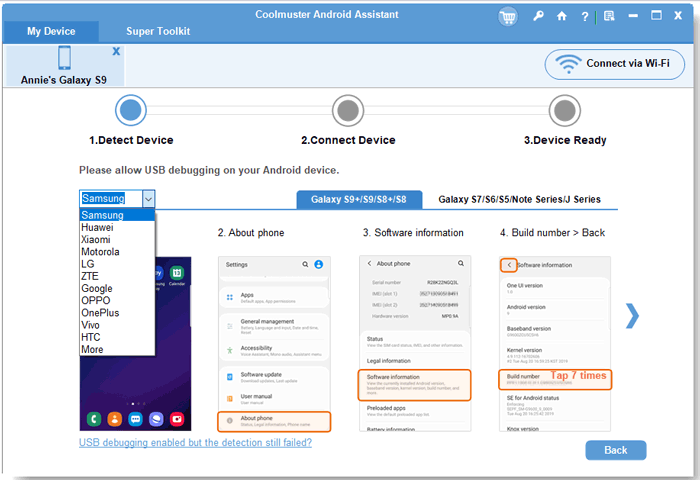
02Enable USB debugging on your Xiaomi device when prompted so that the software can successfully detect your phone.
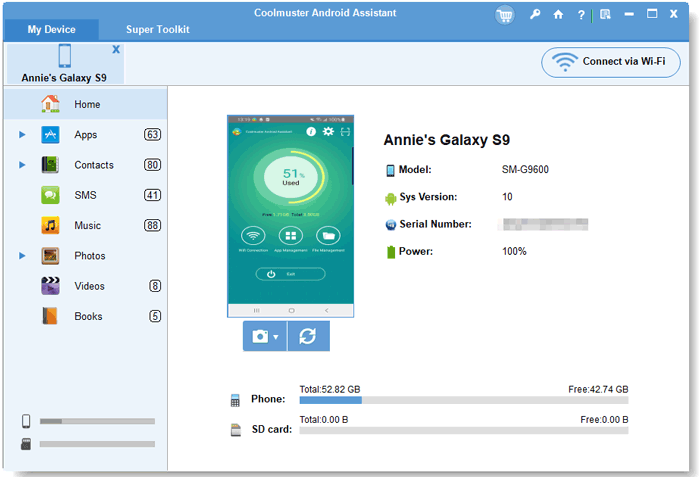
03After the connection is established, you will see your device information displayed on the main interface. Click "SMS" in the left panel to load all text messages stored on the Xiaomi phone.
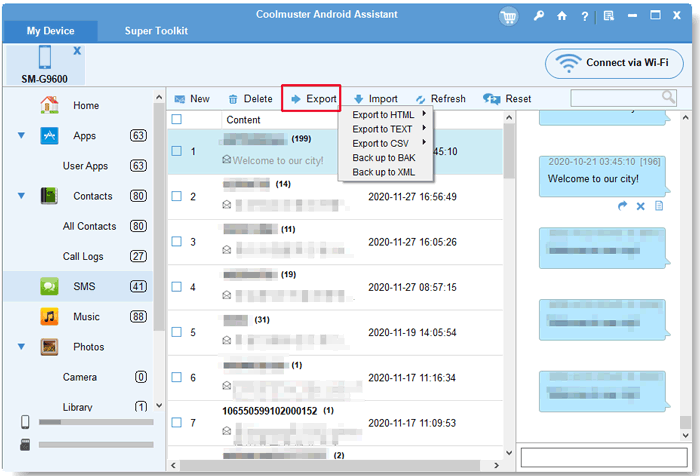
04Preview the messages and select the conversations you want to export, then click "Export" and choose the desired format to save them on your computer.
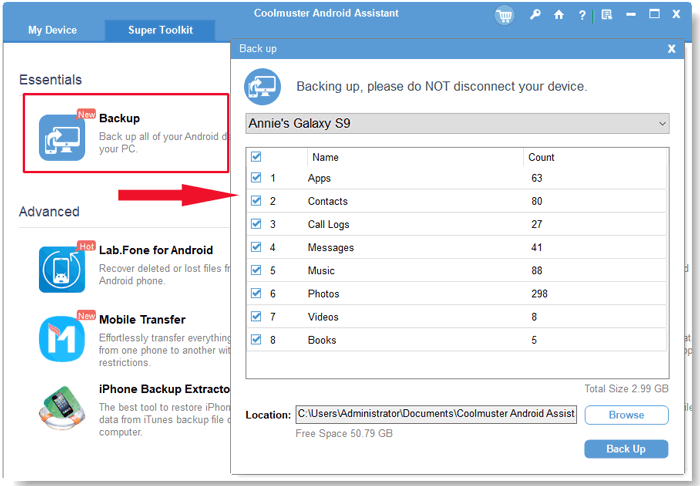
Certainly, you can also transfer all messages to your computer with a single click. Simply go to "Super Toolkit" on the main interface, choose "Backup", select "Messages" from the data types, and click "Back Up". The program will immediately start transferring all messages from your Xiaomi phone to the computer.
If you prefer a visual guide, you can also follow the video tutorial below to learn how to export Xiaomi messages to a computer step by step.
Mi PC Suite is Xiaomi's official desktop management software designed to help users manage and back up data from Xiaomi devices. With this tool, you can connect your phone to a computer and create backups of important data, including text messages.
How to move messages from Xiaomi to computer with Mi PC Suite?
Step 1. First, install Mi PC Suite on your computer and launch the program.
Step 2. After that, connect your Xiaomi phone to the computer using a USB cable. The software will automatically detect the device once the connection is established.
Step 3. After the phone appears in the program interface, navigate to the "Backup" or "Messages" section depending on the version of the software.
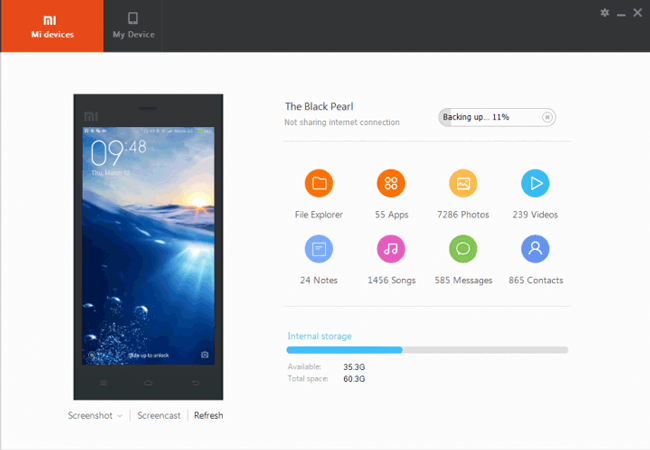
Step 4. Select the text messages you want to save and choose the option to back them up to your computer. The messages will then be stored in the backup file created by Mi PC Suite.
Note: Although this method works with some Xiaomi devices, it may not fully support newer MIUI or Android versions.
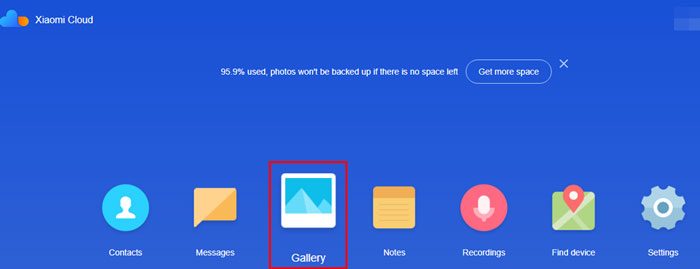
Another option is using Xiaomi's cloud service, Mi Cloud, which allows users to sync messages and other data to the cloud and access them later on a computer. However, the free storage space is limited, and additional storage needs to be purchased if there are too many messages.
How to sync Xiaomi messages via Mi Cloud?
Step 1. Open Settings on your Xiaomi phone and sign in with your Mi account.
Step 2. After logging in, go to "Mi Account" > "Mi Cloud" and enable the Messages sync option so that your SMS data will be backed up automatically.
Step 3. Once the messages are synchronized, open a web browser on your computer and visit the Mi Cloud website. Log in using the same Mi account that is connected to your phone.
Step 4. After signing in, locate the "Messages" section, where you can view your synchronized text messages directly from the computer.
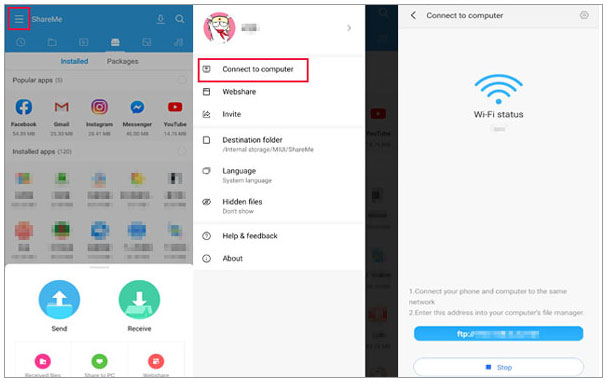
ShareMe is Xiaomi's built-in file transfer tool (pre-installed on most Xiaomi phones), which was originally used for file transfer between mobile devices, but it also supports transferring files (including message backups) from Xiaomi phones to computers via Wi-Fi. It does not require a USB cable or network traffic, and the transfer speed is nearly 200 times faster than Bluetooth, making it suitable for users who need to transfer message backup files wirelessly.
Here is how it works:
Step 1. Install ShareMe from the Google Play Store if it is not already available on your Xiaomi device. Launch the app and follow the prompts to complete the basic setup.
Step 2. Tap the menu icon in the top-left corner of the screen, select "Connect to computer", and then tap "Start". After that, choose the connection type. The app will generate an FTP address for your device.
Step 3. On your computer, open File Explorer and type the FTP address displayed on your Xiaomi phone into the address bar.
Step 4. Once the connection is established, your Xiaomi phone storage will appear in File Explorer. You can browse the folders, locate the message backup files, and copy them to your computer.
Transferring messages from a Xiaomi phone to a computer can help you keep important conversations safe and make them easier to manage. Among the methods introduced above, Mi PC Suite, Mi Cloud, and ShareMe can handle basic message backup or synchronization, but they may have limitations in compatibility, readability, or message management.
If you want a more flexible and reliable solution, Coolmuster Android Assistant is often the better choice. It allows you to preview, select, and export Xiaomi messages directly to your computer in readable formats, making it especially useful for long-term backup, printing, or record keeping.
Related Articles:
How to Transfer Files from Xiaomi to PC with or without USB? [5 Easy Ways]
Transfer Music from Xiaomi to Computer: 4 Easy Methods You Should Know
How to Transfer Data from Mi to Mi in 5 Possible Ways (Proven Tips)
How to Transfer Data from Xiaomi to Samsung? A Full Tutorial





 Free Download for PC
  Free Download for Mac


