Xiaomi smartphones are popular for their powerful performance and generous storage, making them a great choice for storing large music libraries. Whether you want to back up your favorite songs, free up phone storage, or listen to music on your computer with better sound quality, transferring music from your Xiaomi to a computer is a common and necessary task.
Unlike Apple devices with a closed ecosystem, Xiaomi (running Android) offers multiple flexible ways to transfer music, catering to different user needs, whether you prefer third-party tools for efficiency, official software for compatibility, wireless transfer for convenience, or manual operation for simplicity. In this article, we will detail 4 practical methods to help you transfer music from Xiaomi to computer easily, step by step.
If you have a large music library on your Xiaomi phone, manually transferring songs one by one can be time-consuming. In addition, some methods may not allow you to preview or selectively export music files. In this situation, using a professional Android management tool can make the process much easier and more efficient.
Coolmuster Android Assistant is a powerful data management program designed for Android devices. It allows you to easily transfer music from Xiaomi to a computer, manage files, and even back up important data with just a few clicks. With its intuitive interface, you can preview and export selected songs without complicated steps.
Key features of Android Assistant:
Steps to transfer music from Xiaomi to computer using Android Assistant:
01Download and install Android Assistant on your computer. Launch the program and connect your Xiaomi phone to the computer using a USB cable. Follow the on-screen instructions to enable USB debugging so the software can recognize your device.
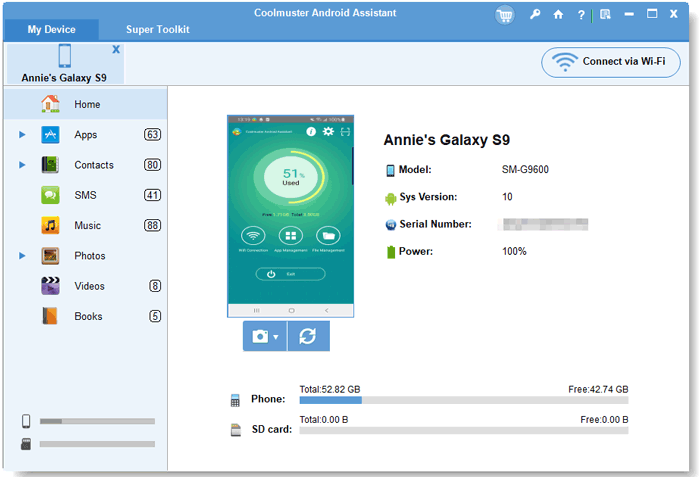
02Once the connection is established, your phone information will appear on the main interface. From the left sidebar, click "Music" to view all the songs stored on your Xiaomi device.
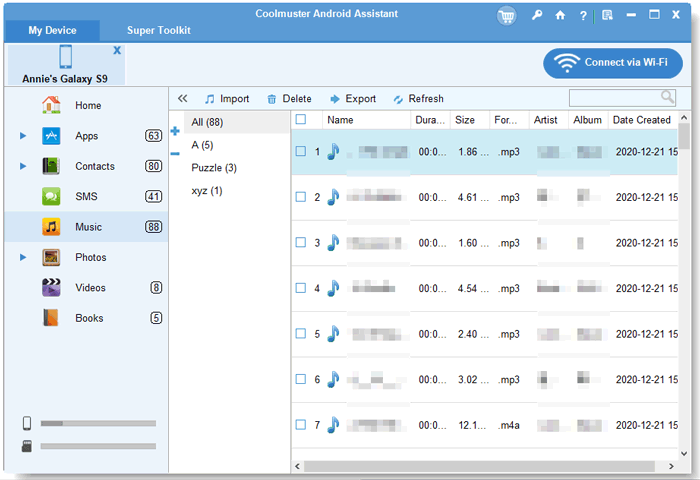
03Select the music files you want to transfer, then click the "Export" button. Choose a location on your computer to save the files, and the selected songs will be transferred immediately.
For a more intuitive guide, check out the video tutorial below:
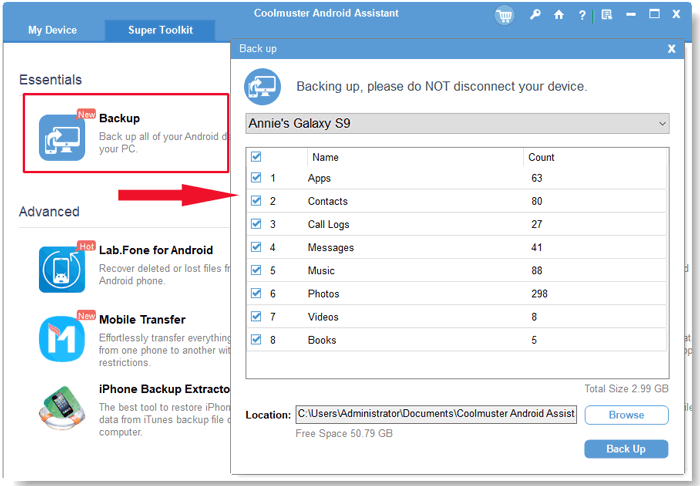
Coolmuster Android Assistant also supports one-click backup of all music files. Go to "Super Toolkit" > "Backup" > Select "Music" > Choose the storage path > Click "Back Up" to transfer all music with one click.
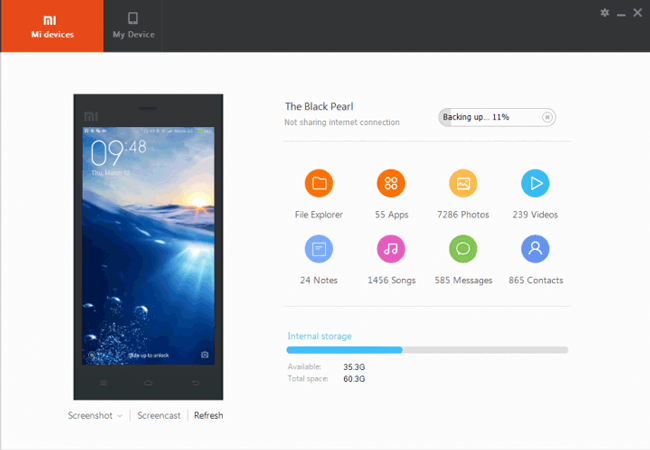
Mi PC Suite is the official software developed by Xiaomi for managing Xiaomi devices on computers. It is free to use and supports file transfer, backup, and device management. However, it should be noted that Mi PC Suite has not been updated for a long time and is more suitable for Xiaomi devices running older Android versions (such as Android 4.0 and above). If you have a new Xiaomi model, such as Xiaomi 17, this method may have compatibility issues, but it is still a reliable option for users with older devices.
Follow these steps to transfer music:
Step 1. Visit the official Xiaomi website to download Mi PC Suite for Windows (it does not support Mac). Install the software and launch it on your computer.
Step 2. Use a USB cable to connect your Xiaomi device to the computer. The software will automatically detect your phone. If the detection fails, ensure that USB debugging is enabled on your phone and use the original USB cable (some cables only support charging).
Step 3. After the phone is connected successfully, the main interface of Mi PC Suite will appear. Click the "Music" icon on the interface to view all music files stored on your Xiaomi phone.
Step 4. Select the music files you want to transfer, then click the "Export" button (usually a downward arrow icon) at the top of the window. Choose a folder on your computer to save the music, and click "OK" to start the transfer. Once the transfer is complete, you can find the music files in the selected folder.
Mi Cloud is Xiaomi's official cloud storage service, which provides 5GB of free storage space for users to back up and sync data (including music, photos, contacts, etc.) between Xiaomi devices and computers. This method is wireless, so you don't need a USB cable, and it is suitable for users who want to transfer music anytime and anywhere as long as there is a network connection. You can also upgrade your Mi Cloud storage if you need more space.
Here's how to do it:
Step 1. Unlock your Xiaomi phone, go to "Settings" > "Mi Account" (log in with your Mi account if you haven't already) > "Mi Cloud".
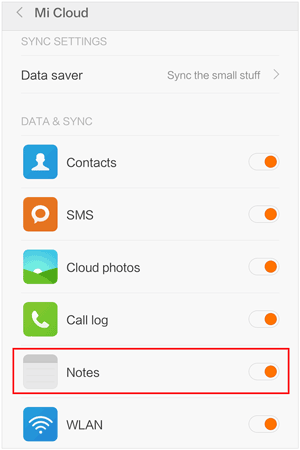
Step 2. Scroll down and find "Music", then toggle the switch to enable music sync. Your Xiaomi phone will automatically sync music files to Mi Cloud (this may take some time depending on your network speed and the number of music files).
Step 3. Open a web browser on your computer and visit the official Mi Cloud website (i.mi.com). Log in with the same Mi account you used on your Xiaomi phone. You can also download the Mi Cloud desktop client for easier operation.
Step 4. After logging in, click the "Music" icon on the Mi Cloud interface. You will see all the music files that have been synced from your Xiaomi phone.
Step 5. Select the music files you want to transfer, then click the "Download" button. The music files will be downloaded to your computer. You can choose the download path in your browser settings.
The manual drag-and-drop method is the most straightforward way to transfer music from Xiaomi to computer, requiring no third-party software or cloud services, only a USB cable. This method is suitable for users who are familiar with file management and want to transfer music quickly without installing additional software. However, it should be noted that this method only supports transferring music files stored in the phone's internal storage or SD card, and you may need to find the music folder manually.
Follow these simple steps:
Step 1. Connect Xiaomi Phone to Computer
Use a USB cable to connect your Xiaomi device to the computer. Once connected, a notification will appear on your phone's screen. Swipe down the notification panel and select "File Transfer (MTP)" or "Transfer Files" (do not select "Charging Only" or "Photo Transfer").
Step 2. Access Phone Storage on Computer
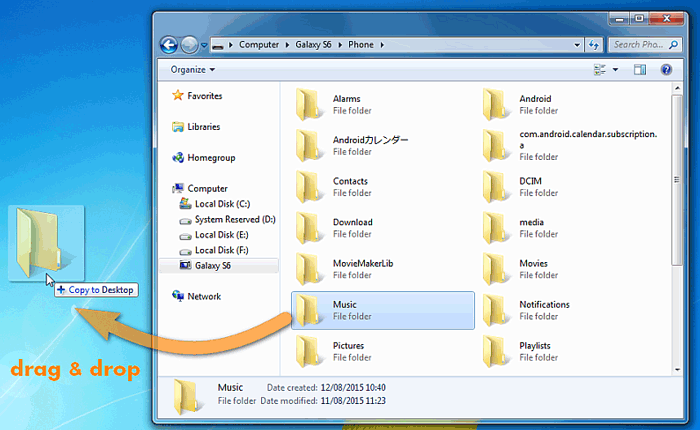
On a Windows computer, open "This PC" (or "My Computer"), and you will see your Xiaomi device listed under "Devices and Drives". Double-click to open it. On a Mac computer, you may need to install Android File Transfer first to access the phone's storage.
Step 3. Find the Music Folder
Open the internal storage or SD card of your Xiaomi phone, then find the folder where music files are stored. Common music folders include "Music", "MIUI/Music", "Download/Music", or folders named after music apps. If you are not sure where the music is stored, you can use the search function to find files with extensions such as .mp3, .flac, or .wav.
Step 4. Drag and Drop Music to Computer
Select the music files or folders you want to transfer, then drag them directly to a folder on your computer (such as the "Music" folder on your desktop). Alternatively, you can right-click the selected files, choose "Copy", then navigate to the target folder on your computer, right-click and choose "Paste". The transfer will start immediately, and you can check the progress in the file explorer.
Transferring music from your Xiaomi phone to a computer doesn't have to be a complicated task. Whether you choose Coolmuster Android Assistant for its efficiency, Mi PC Suite for seamless integration, Mi Cloud for cloud-based syncing, or the simple drag-and-drop method, each option has its benefits. For quick and reliable transfers, Coolmuster Android Assistant is highly recommended. It not only makes transferring music easy but also helps you manage other important data on your Xiaomi phone.
Related Articles:
How to Transfer Files from Xiaomi to PC with or without USB? [5 Easy Ways]
How to Transfer Music from Android Phone to Computer [4 Methods]
How to Transfer Music from Android to Android [Easy and Helpful]
Xiaomi Data Recovery Software: How to Recover Deleted Data from Mi Phone






 Free Download for PC
  Free Download for Mac


