When you need to transfer photos to free up storage, export contacts for backup, move music to a new device, or manage files without iTunes restrictions, third-party iOS transfer tools become extremely useful. One of the commonly searched options is Apeaksoft iPhone Transfer.
In this comprehensive Apeaksoft iPhone Transfer review, we will analyze what the software does, whether it is free, its pros and cons, how it works step by step, and whether there is a better alternative available. If you're deciding whether this tool is worth your money, this guide will help you make an informed choice.
Apeaksoft iPhone Transfer is a data transfer and management tool specifically designed for iOS devices, allowing free data transfer between iPhone, iPad, iPod, and Windows/Mac computers. It serves as an alternative to iTunes, but with a more intuitive interface and more flexible features.
Unlike iTunes, this software enables individual file transfers without the need for synchronization, avoiding the risk of data overwriting, making it more suitable for users who want to manage their data more precisely.
Its main features are as follows:
After learning about the features, many users' most concerned question is: Is it free? Apeaksoft iPhone Transfer offers a free trial version, but with certain limitations. For example:
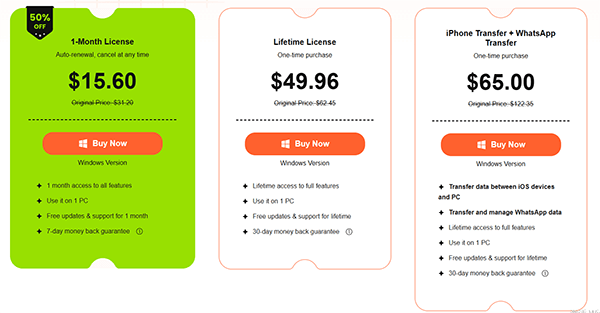
To use all transfer functions without limitations, users need to purchase the full licensed version. The price is typically based on the license duration (1 year/lifetime) and the number of supported devices. Its pricing is as follows:
Before choosing software, it is important to understand its pros and cons. Below is an objective analysis of Apeaksoft iPhone Transfer.
Pros:
* Intuitive and clean interface, easy for beginners to operate.
* Wide compatibility with latest iPhones and iOS systems.
* Multiple transfer directions: iOS to PC, PC to iOS, iOS to iOS, iOS to iTunes.
* No data loss or overwriting during transfer and sync.
* Extra useful tools: HEIC converter, ringtone maker, contact deduplication.
* Stable connection and fast transfer speed for large files.
* Support various common file types.
* Compatible with both Windows and Mac systems.
* More flexible than iTunes.
Cons:
* Full functions require paid license, free trial has strict limits.
* Occasional minor delays when scanning large photo libraries.
* Advanced technical support may take longer to respond.
* Relatively high price.
* Cannot perform system-level full backups.
* Stability is average on some older devices.
Using Apeaksoft iPhone Transfer is straightforward. Below are the detailed steps to transfer files from an iPhone to a computer (the most common usage).
Step 1. Install and Launch the Program
Download Apeaksoft iPhone Transfer from its official website, install and launch it on your Windows PC or Mac. Keep the software open during the whole process.
Step 2. Connect iPhone to Computer
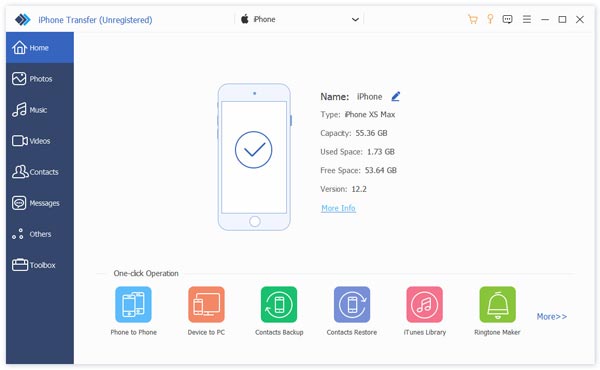
Use a USB cable to connect your iPhone to the computer. Unlock your iPhone and tap "Trust" when the trust prompt appears. The software will detect your device automatically and show device info on the main interface.
Step 3. Select Data Types to Transfer
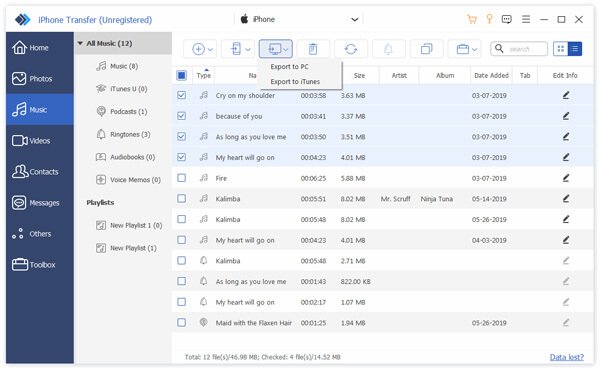
On the left sidebar, choose the data type you want to move, such as Photos, Music, Contacts, Messages, or Videos. The software will load and display all items in the right window with preview support.
Step 4. Select Specific Files and Start Transfer
Tick the boxes next to the files you want to transfer. Click the "Export to PC" button on the top menu. Choose a local folder to save the exported files, then wait for the transfer to finish. You will get a completion notice when done.
If you feel that Apeaksoft iPhone Transfer lacks certain features, such as full backup and recovery, or if you're looking for a more stable, professional data management tool with broader data type support, you might want to consider Coolmuster iOS Assistant. Coolmuster iOS Assistant is a professional software focused on iOS data management and backup, offering more complete features and suitable for long-term use. It is designed for all iOS users, allowing you to manage and transfer data with just one click, without the need for complex setups.
The core features of iOS Assistant:
Here's how to transfer files from your iPhone to a computer using iOS Assistant:
01Download and install iOS Assistant on your PC, then open the program.
02Connect your iPhone to the computer with a USB cable and tap "Trust" on your device when prompted. Once connected, the software will recognize your iPhone and display its basic information on the screen.
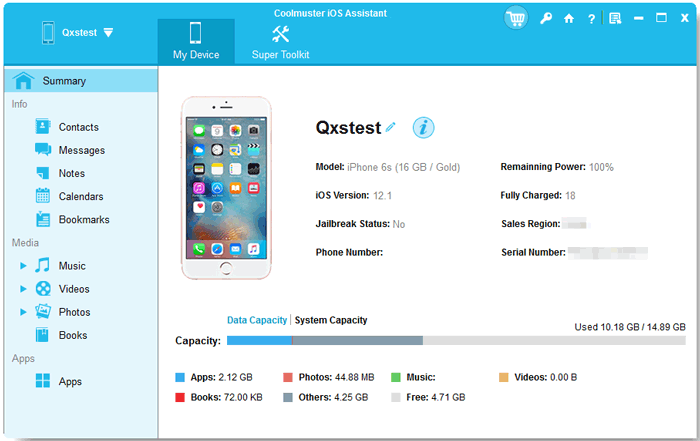
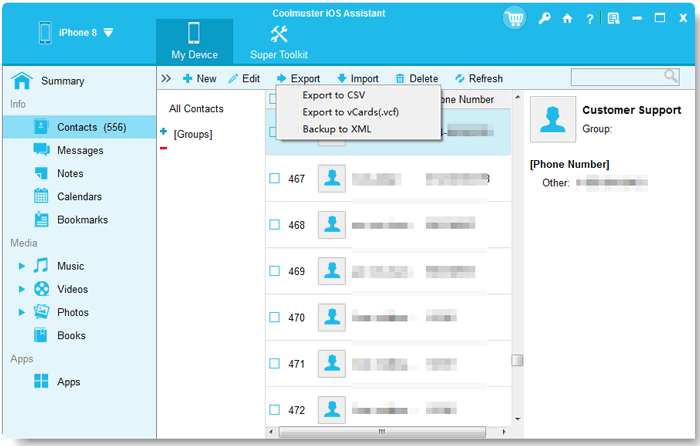
03Select the file category you want to transfer from the left panel. Preview and choose the specific files on the right. Then click the "Export" button in the top menu, select a folder on your PC to save the files, and begin the transfer.
Video Tutorial:
Q1. Is Apeaksoft iPhone Transfer safe?
Yes, it is developed by a legitimate software company and does not contain malicious programs. However, it is recommended to download the official version from the company's website.
Q2. Is Apeaksoft iPhone Transfer free?
Apeaksoft iPhone Transfer provides a free trial that lets you transfer up to 20 photos at no cost. To unlock all features and remove limitations, you'll need to subscribe to a paid plan.
Q3. Why do I need to install iTunes to use Apeaksoft iPhone Transfer?
iTunes must be installed on your computer in order to use Apeaksoft iPhone Transfer. The software relies on certain system components and drivers provided by iTunes to detect and communicate with your iOS device. Without iTunes installed, your device may not be recognized.
However, please make sure iTunes is not running while you are using Apeaksoft iPhone Transfer.
Q4. What should I do if my computer doesn't recognize my device?
Q5. Can I use iPhone Transfer to transfer data from an iPhone to an Android?
No, Apeaksoft iPhone Transfer currently does not support transferring data from an iPhone to an Android device. However, you can use another tool called Coolmuster Mobile Transfer to complete the transfer.
This detailed Apeaksoft iPhone Transfer review shows that the software is suitable for users who need selective file transfers between an iPhone and a computer. It is easy to use and supports common data types, but the free version is limited, and it lacks advanced backup capabilities.
If you want a more complete iOS management solution with full backup and restore options, Coolmuster iOS Assistant is a stronger and more reliable alternative for long-term use.
Related Articles:
Apeaksoft Phone Mirror Review: Features, Price, Pros & Cons, and Best Alternative
Top 8 iPhone File Transfer Apps to Transfer Files from iPhone to PC/Mac
8 Best iPhone Transfer Software for Windows 11/10 and Mac
[2026 List] 11 Best Apps to Transfer Photos from iPhone to PC







 Free Download for PC
  Free Download for Mac


