TL;DR:
Getting a new iPhone is exciting, but transferring data from your old device can sometimes be confusing. This guide explains everything about iPhone Quick Start, including whether it needs Wi-Fi, how to use it, and what to do if it fails.
Quick Start makes it easy to move your apps, settings, and personal data from an old iPhone to a new one without complicated backups or manual transfers. But does Quick Start use Wi-Fi? Can you transfer data without an active internet connection? In this guide, we'll explain how Quick Start works, whether it needs Wi-Fi, how to use it, and what alternatives are available if Quick Start doesn't work.
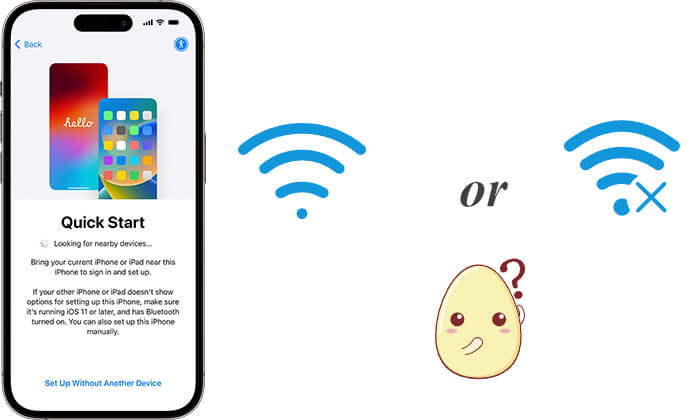
Quick Start is a built-in Apple feature that helps users set up a new iPhone more easily by moving information from an existing iPhone. It is mainly designed for people who upgrade to a new device and want to keep their personal data, settings, and preferences without starting from scratch.
When a new iPhone is placed near an old iPhone, Quick Start creates a connection between the two devices and guides users through the setup process. It can help transfer various types of content, such as contacts, photos, messages, apps, and device settings, making the transition to a new iPhone faster and more convenient. (Does Quick Start transfer everything?)
Unlike traditional data migration methods that require users to manually move files or restore everything separately, Quick Start provides a simpler way to prepare a new iPhone. It is one of the most commonly used options for transferring data when switching from an old iPhone to a new one.
The answer is no, Quick Start does not require an external Wi-Fi network or cellular data connection to transfer data directly between two iPhones. Instead, it uses Bluetooth to detect nearby devices and establishes a direct wireless connection to move your data.
This means you do not need to connect both iPhones to a home Wi-Fi network or public hotspot during the transfer process, and Quick Start will not consume your mobile data. However, both devices should have Wi-Fi and Bluetooth enabled to ensure the connection works properly.
Quick Start uses both Bluetooth and wireless technology during the data migration process, but they serve different purposes. Bluetooth is mainly used to discover nearby devices and start the connection between the old and new iPhone. After the devices are paired, Quick Start uses a direct device-to-device wireless connection to transfer data.
Unlike traditional downloads that require an internet connection, this direct transfer does not rely on a Wi-Fi router. Therefore, you can move your photos, contacts, messages, apps, and other data without connecting to external Wi-Fi.
Yes, Quick Start can work without an active internet connection in most cases. Since the data is transferred directly from one iPhone to another, you do not need Wi-Fi access or cellular data for the main migration process.
However, an internet connection may still be required for certain tasks after or during setup, such as:
Although Quick Start itself does not require external Wi-Fi, connecting to Wi-Fi can be helpful in some situations. For example, if your new iPhone needs to download a large iOS update, restore additional content from iCloud, or reinstall apps that are not transferred directly, a Wi-Fi connection may be required.
To ensure a smoother transfer experience, it is recommended to keep both iPhones connected to power, place them close together, and make sure they have enough storage space before starting Quick Start.
Quick Start makes it easy to move your data from an old iPhone to a new one during the setup process. Before starting, make sure both iPhones are placed close together, have Bluetooth and Wi-Fi enabled, and are connected to power if possible. Then follow the steps below to transfer your data using Quick Start.
Step 1. Turn on your new iPhone and place it next to your old iPhone. A Quick Start screen will appear on your old iPhone, asking whether you want to use your Apple ID to set up the new device. Tap "Continue" to proceed.
Step 2. An animation will appear on the screen of your new iPhone. Hold your old iPhone over the new one and use the camera viewfinder to scan the animation. This helps securely connect the two devices.
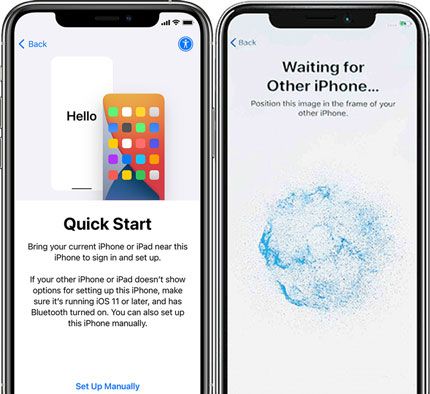
Step 3. When prompted, enter the passcode from your old iPhone on the new device. Then follow the instructions to set up Face ID or Touch ID, depending on your iPhone model.
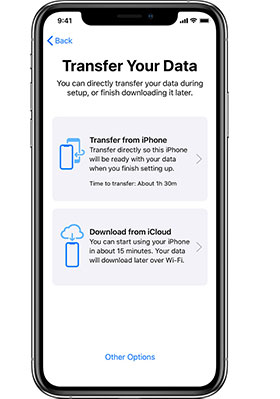
Step 4. When you see the "Transfer from iPhone" option, tap "Continue" to start moving your data directly from the old iPhone to the new one. Keep both devices close to each other during the transfer.
Step 5. The transfer time depends on the amount of data you have. Keep both iPhones connected to power and avoid using or restarting them until the process is finished.
Although Quick Start makes iPhone-to-iPhone data transfer much easier, some users may run into problems during the setup process. For example, Quick Start may not appear, the two iPhones may fail to connect, or the transfer may get stuck unexpectedly. If Quick Start is not working on your iPhone, try the following solutions.
Quick Start relies on Bluetooth and a wireless connection between the two iPhones. If either Wi-Fi or Bluetooth is turned off, the devices may not detect each other.
Open "Settings" on both iPhones and make sure Wi-Fi and Bluetooth are enabled. Also, keep the two devices close together during the transfer.
Temporary system glitches can prevent Quick Start from working properly. Restarting both the old and new iPhone can refresh the connection and fix minor setup issues.
After restarting, place the devices next to each other again and try Quick Start once more.
Using different or outdated iOS versions may cause compatibility problems during data transfer. Before using Quick Start, check whether both iPhones are running a compatible version of iOS.
You can go to "Settings" > "General" > "Software Update" to check for available updates.
If the new iPhone does not have enough storage space, Quick Start may fail or stop during the transfer process.
Before starting the migration, check your available storage and make sure it is enough to hold the data from your old iPhone.
A weak connection or interrupted transfer can cause Quick Start to freeze or take too long. During the process:
If Quick Start continues to fail, you can try another way to transfer data between iPhones. Tools designed for iPhone data migration can help move contacts, photos, messages, and other files without relying on Quick Start. Just keep on reading.
If Quick Start is not working properly or you prefer a more flexible way to transfer your data, using a professional data transfer tool can be a helpful alternative. Coolmuster Mobile Transfer allows you to transfer data directly between iPhones and also supports transfers between iOS and Android devices.
With Coolmuster Mobile Transfer, you can move your important files without complicated backup and restore steps. It provides a simple way to transfer commonly used data types, making it easier to set up a new iPhone when Quick Start is unavailable.
Highlights of Coolmuster Mobile Transfer:
Here is how to transfer data from iPhone to iPhone without Quick Start using Mobile Transfer:
01Download and install Coolmuster Mobile Transfer on your computer. Launch the program and connect both iPhones to the computer using USB cables.
02Unlock your iPhones and tap "Trust" when prompted. Once connected, the program will display both devices and identify the source and target iPhone.
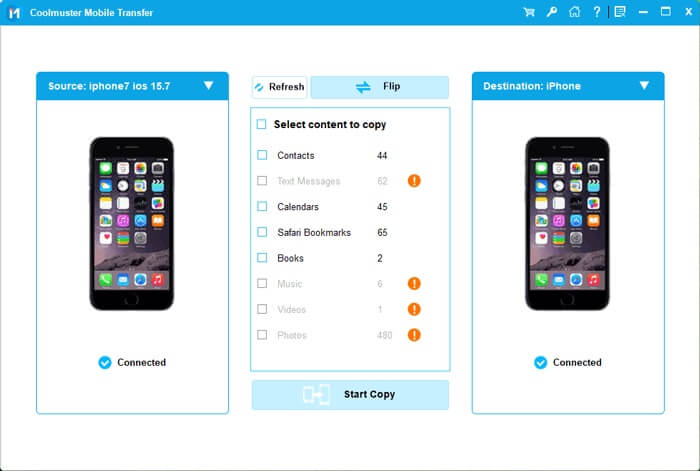
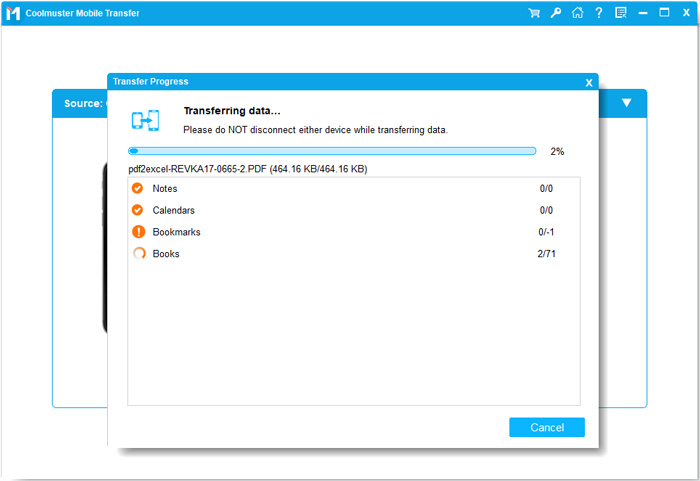
03Choose the data types you want to transfer, then click "Start Copy" to begin moving data from the old iPhone to the new one. Keep both devices connected until the transfer process is complete.
Video Tutorial:
Q1. Does Quick Start delete data from the old iPhone?
No. Quick Start only copies data from your old iPhone to the new one. It does not remove or erase anything from the original device. Your old iPhone will remain unchanged after the transfer is complete.
Q2. Can I use Quick Start if my new iPhone is already set up?
No. Quick Start is mainly designed for setting up a new or erased iPhone. If you have already completed the setup process, you usually need to erase the device before using Quick Start again. (How to Transfer iPhone to iPhone After Setup?)
Q3. What data does Quick Start transfer to a new iPhone?
Quick Start can transfer many types of personal data and settings, including photos, contacts, messages, apps, device settings, and more. Some content may need to be downloaded again depending on the source and account settings.
Q4. How long does iPhone Quick Start take?
The time required depends on how much data you are transferring, the iPhone models involved, and the connection quality between the devices. A small transfer may finish quickly, while a device with a large amount of photos, videos, and apps may take much longer.
Q5. Can I cancel Quick Start after the transfer begins?
Yes, you can stop the transfer process if necessary. However, canceling the migration may leave the new iPhone without all transferred data, so it is recommended to restart the process and complete it whenever possible.
Q6. Can Quick Start transfer data from an old iPhone to an iPad?
Yes. Quick Start can also help set up other Apple devices, such as an iPad, by transferring settings and supported data from a nearby iPhone or another Apple device.
Quick Start provides a simple and convenient way to transfer data from an old iPhone to a new one. In most cases, it does not require an external Wi-Fi network or cellular data because the transfer happens directly between the two devices. However, an internet connection may still be needed for tasks such as downloading apps, restoring iCloud content, or completing system updates.
If Quick Start is unavailable or you are looking for a more flexible way to move your data, Coolmuster Mobile Transfer is a practical alternative. It allows you to transfer data between iPhones and across different platforms with a simple connection process, helping you set up your new device more easily.
Related Articles:
Best Ways to Transfer Messages from iPhone to iPhone [Can't Miss]
Does Move to iOS Need Wi-Fi? Solving Puzzle and Mastering Data Transfer
How Long to Transfer Data from iPhone to iPhone? Find Out Here
Does Smart Switch Need Wi-Fi to Send Data? Can It Send Data without Wi-Fi?






 Free Download for PC
  Free Download for Mac


