TL;DR:
Can't approve this iPhone? This guide explains why your iPhone may get stuck on the "Approve This iPhone" screen and provides 4 proven solutions:
Follow these steps to fix the issue and regain full access to your iPhone quickly and safely.
"In my iPhone settings, when I try to update my Apple ID settings, I get stuck on the approve this iPhone message. No message to approve my iPhone pops up on my other devices. I do have two-factor authentication on, and I'm unable to turn it off. I have iCloud Keychain off. I would rather not reset my encrypted data if that could be avoided. My iPhone is an iPhone 6, and it has the most recent software update: 12.1.2. I realize that this has been asked before, but I have found no solutions that work for me. Thank you in advance."
- from Apple Community
"Approve This iPhone" is a feature of Apple's two-factor authentication, allowing users to sign in on a new device by entering a security code sent from a trusted device. If you can't approve this iPhone, the device will remain unresponsive until it's approved either directly or via another Apple device.
But why does your iPhone keep waiting for approval, and how can you resolve the issue when it gets stuck on the "Approve This iPhone" screen? This article will analyze the reasons in detail and provide 4 effective solutions to help you successfully complete the iPhone approval verification.
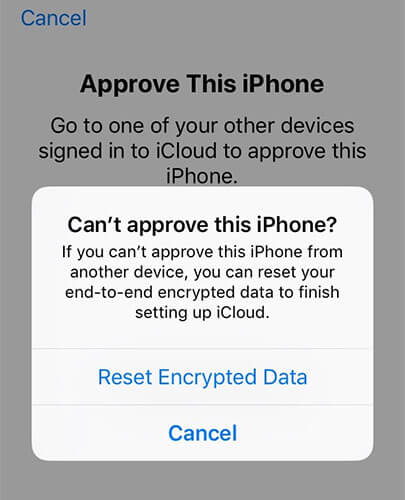
The "Can't approve this iPhone" message appears when your iPhone fails to complete Apple's security verification process. Common causes include:
So, how can you get rid of the "Approve This iPhone" issue? Below, we'll go over several solutions you can try to fix the problem.
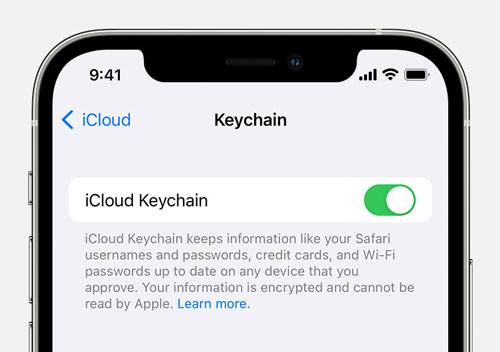
iCloud Keychain is designed to securely store passwords, login credentials, credit card information, and other sensitive data, making it easier to sign in across your Apple devices. However, in some cases, it can contribute to the "Approve This iPhone" issue.
For example, if you've recently changed your Apple ID password but iCloud Keychain still attempts to sign in using outdated credentials, Apple may be unable to verify your identity. As a result, your iPhone may remain stuck on the approval screen. To rule out this possibility, try temporarily disabling iCloud Keychain and then attempt the approval process again.
Here is how to do it:
Step 1. On the Approve This iPhone screen, tap "Cancel".
Step 2. Open "Settings" and tap [Your Name] at the top of the screen, then select "iCloud".
Step 3. Scroll down and tap "Keychain" or "Passwords & Keychain".
Step 4. Toggle "iCloud Keychain" or "Sync this iPhone" off.
Two-Factor Authentication is a security feature designed to protect your privacy and data on Apple devices. However, it can sometimes contribute to the "Approve This iPhone" issue if the device authentication process cannot be completed successfully. In such cases, disabling Two-Factor Authentication may help resolve the problem.
Follow these steps:
Step 1. If you are stuck on the "Approve This iPhone" screen, tap "Cancel" in the upper-left corner to exit.
Step 2. Open the "Settings" app on your iPhone and tap your "Apple ID" at the top of the screen.
Step 3. Select "Password & Security".
Step 4. Locate "Two-Factor Authentication" and turn it "Off".
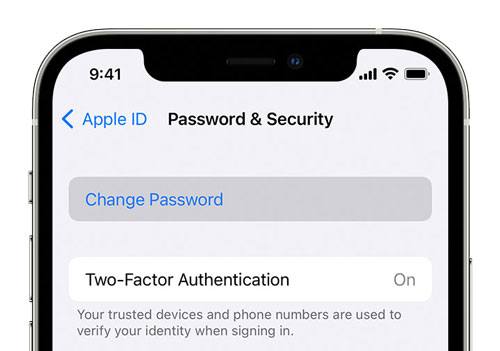
Once disabled, try setting up or accessing your device again to see if the issue has been resolved.
Another way to resolve this issue is to use a verification code to approve your iPhone. To fix "Can't approve this iPhone" using a verification code, follow the steps below:
Step 1. Tap "Cancel" on the "Approve This iPhone" screen.
Step 2. Use another iPhone, iPad, or Mac that is signed in with the same iCloud account.
Step 3. On the trusted device, go to "Settings" > [Your Name] (Apple ID) > "Password & Security" and then tap "Get Verification Code".
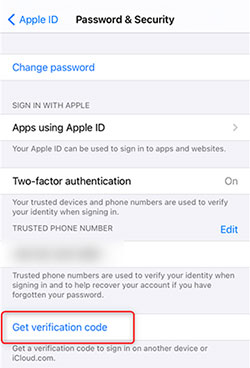
Step 4. A verification code will appear on the screen. Tap "OK" to close the pop-up.
Step 5. Return to the iPhone that is stuck on the "Approve This iPhone" screen and enter the verification code when prompted.
If the approval process is successful, the "Approve This iPhone" screen will disappear, indicating that your iPhone has been approved.
If all the methods above fail to resolve the issue, the "Can't approve this iPhone" problem may be caused by a system error, such as a corrupted verification module, a failed iOS update, or software conflicts. In this case, iOS System Recovery can help quickly repair the system and fix the "approve this iPhone stuck" issue while keeping your data safe and intact.
Main features of iOS System Recovery:
Here is how to fix can't approve this iPhone using iOS System Recovery:
01Download and install iOS System Recovery on your computer, then launch the program.
02Connect your iPhone to the computer with a working USB cable. On the main interface, select "iOS System Recovery" and click "Start".

03Choose "Standard Mode" to repair the system without data loss, or select "Advanced Mode" for a more thorough repair. Click "Confirm" to continue.

04Verify your device information. If prompted, download the appropriate firmware package and click "Repair". Wait for the process to complete. Once finished, your iPhone will restart normally.

If your iPhone is stuck on the "Approve This iPhone" screen, you can try the solutions above to resolve the issue. If the problem persists, iOS System Recovery can be an effective solution. It not only helps fix the "can't approve this iPhone" error but also repairs a wide range of iOS system issues without data loss.
Related Articles:
iPhone Won't Restore? 11 Effective Fixes for Your iPhone Woes
Why My iPhone Keeps Freezing? Reasons and Solutions Inside!
How to Fix "Computer Not Recognizing iPhone"? 5 Solutions You Can Try
Easy Guide to Fix iPhone Won't Connect to the Internet: 11 Ways




 Free Download for PC
  Free Download for Mac


