TL;DR: com.apple.mobilephone error 1035 is an iPhone voicemail error that usually occurs due to network connectivity issues, voicemail configuration problems, or iOS system glitches. To fix it, try switching from Wi-Fi to cellular data, toggling Airplane Mode, resetting network settings, resetting voicemail, force restarting your iPhone, or updating iOS. If the error persists, use iOS System Recovery to repair underlying iOS system issues without data loss and restore normal voicemail functionality.
If the "com.apple.mobilephone error 1035" message suddenly appears on your iPhone, it may indicate a visual voicemail issue. This common error can prevent you from saving or changing your voicemail greeting.
What does the com.apple.mobilephone error 1035 actually mean? Why does it occur, and how can you fix it quickly? In this guide, we'll explain the causes of this error in detail and walk you through 7 proven solutions to help restore your iPhone's normal functionality and get your visual voicemail working properly again.
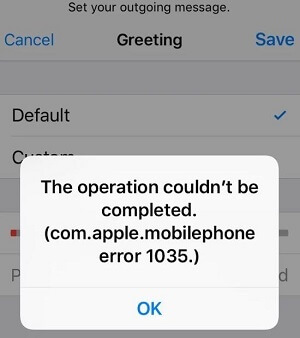
The "com.apple.mobilephone error 1035" is a common iPhone voicemail issue that usually appears when you try to set up or update your voicemail greeting. This error is often related to network connectivity problems, especially when your iPhone is connected to Wi-Fi rather than cellular data.
It can also result from glitches in your visual voicemail settings, preventing you from saving your greeting or accessing your voicemail messages.
You may encounter the error message "The operation couldn't be completed. (com.apple.mobilephone error 1035.)" on your iPhone for several reasons. The most common causes include:
Now that you understand the possible causes of the com.apple.mobilephone error 1035 voicemail issue on iPhone, here are several effective solutions you can try to fix it.
The issue is often related to your Wi-Fi connection, which may interfere with setting up or updating your voicemail greeting. Many users have successfully resolved this problem by disabling Wi-Fi and switching to cellular data, which typically works more reliably for voicemail services.
To switch from Wi-Fi to cellular data, follow these steps:
Step 1. Open "Settings", tap "Wi-Fi", and turn it off.
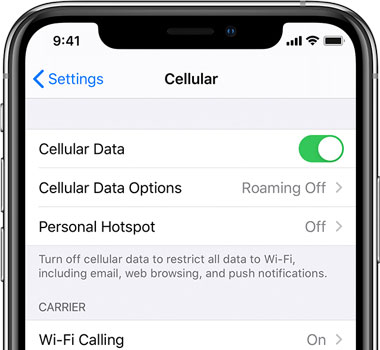
Step 2. Return to "Settings" and select "Cellular" (or Mobile Data).
Step 3. Toggle "Cellular Data" on to enable it.
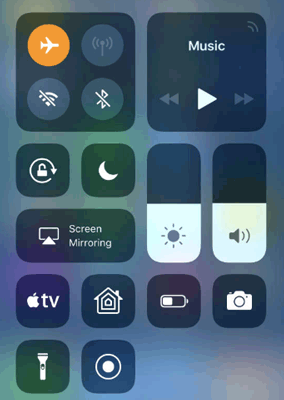
If you're already using cellular data and the issue persists, toggling Airplane Mode on and off can help. This forces your iPhone to reconnect to the network, which may resolve cellular-related problems affecting voicemail.
Here's how to do it:
Step 1. Open the "Control Center" and tap the "Airplane Mode" icon to turn it on. Alternatively, go to "Settings" > "Airplane Mode" and enable it.
Step 2. Wait about 30 seconds, then repeat the steps to turn "Airplane Mode" off.
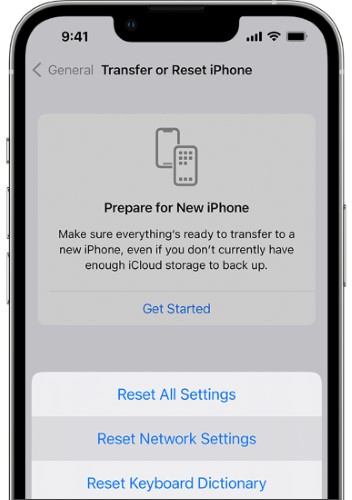
You can also try resetting your network settings to resolve the issue, as this will refresh all saved network configurations on your iPhone. Follow these steps:
Step 1. Open the "Settings" app and go to "General".
Step 2. Tap "Transfer or Reset iPhone", then select "Reset".
Step 3. Choose "Reset Network Settings" from the list.
Step 4. Enter your passcode if prompted to confirm the action.
If your voicemail is already set up but the "com.apple.mobilephone error 1035" message continues to appear, resetting your voicemail settings may help. Before proceeding, make sure you know your voicemail password.
Follow these steps:
Step 1. Open the "Phone" app and tap the "Keypad" tab.
Step 2. Press and hold the "1" key to access your voicemail settings.
Step 3. Enter your voicemail password when prompted.
Step 4. Follow the on-screen instructions to reconfigure or reset your voicemail.
Once the setup is complete, restart your iPhone and check whether the error message has been resolved.
Sometimes "com.apple.mobilephone error 1035" is caused by temporary system glitches. A force restart can resolve minor software issues affecting voicemail. Steps to follow:

After restarting, check if voicemail works normally.
iOS bugs can also cause "com.apple.mobilephone error 1035". Updating to the latest iOS version can fix known issues in the Phone app and voicemail system.
Here are the steps:
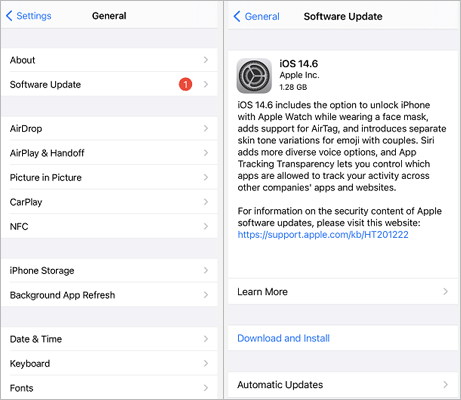
Step 1. Open "Settings" > "General" > "Software Update" to see whether a newer version of iOS is available. (iPhone software update failed?)
Step 2. If an update is available, tap "Download and Install" and wait for the installation process to finish.
Step 3. Once the update is complete, restart your iPhone and check whether your voicemail is working properly and the com.apple.mobilephone error 1035 has been resolved.
If all previous methods fail, the issue may involve system-level corruption. At this time, you can try using a third-party iOS system repair tool. One reliable option is iOS System Recovery. This software can resolve a wide range of iOS system issues, including com.apple.mobilephone error 1035, without causing data loss. It offers a user-friendly interface, making it easy to use even for those without technical expertise.
The highlights of iOS System Recovery:
Here is how to fix com.apple.mobilephone error 1035 using iOS System Recovery:
01Download and install iOS System Recovery on your computer. Once the installation is complete, open the program and select "iOS System Recovery" from the main interface.
02Connect your iPhone to the computer using a working USB cable, then click "Start". Select "Standard Mode" to fix the com.apple.mobilephone error 1035 without data loss. If the issue is more severe, choose "Advanced Mode" for a deeper repair.

03Verify the detected device information and click "Repair" to begin fixing the iOS system. Once the process finishes, your iPhone will restart automatically, and the com.apple.mobilephone error 1035 should be resolved.

Don't worry if your iPhone shows the com.apple.mobilephone error 1035; it's usually easy to fix. By following the troubleshooting steps outlined above, you should be able to resolve the error quickly.
If the problem persists, consider using iOS System Recovery. This powerful tool can repair various iOS system issues. With just a few clicks, this tool can restore your iPhone to normal operation without any data loss.
Related Articles:
[100% Work] How to Fix iPhone Voicemail Won't Delete Quickly?
How to Retrieve Deleted Voicemail on iPhone with/without Backup?
[Step-by-Step Guide] Do Voicemails Transfer to New iPhone?
[Step-by-Step Guide] How to Delete Voicemail on iPad/iPhone?




 Free Download for PC
  Free Download for Mac


