Importing contacts from iCloud to your iPhone is straightforward when you're using the same Apple ID on both your iCloud account and your device. However, if you're using different Apple IDs for iCloud and your iPhone, the process becomes trickier. Fortunately, with the right third-party tool, you can still transfer your iCloud contacts to your iPhone without much hassle. Keep reading to discover how you can easily sync your contacts, even in these more complex situations.
Suppose you previously synced contacts from your old iPhone to your iCloud account. In that case, you can sign in to the same Apple ID on your new iPhone and sync the iCloud contacts to your iPhone. However, if iCloud account sync is not enabled or if iCloud storage is insufficient, the sync may not be completed.
How to import contacts from iCloud to iPhone from Settings?
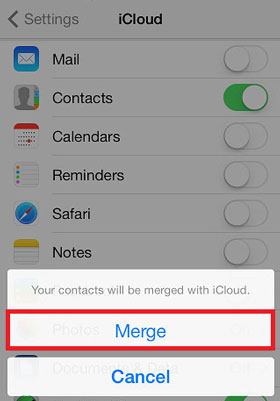
Step 1. Ensure your iPhone is connected to a stable Wi-Fi network and you have signed in with the same Apple ID.
Step 2. Open your iPhone's "Settings" > tap your name > click "iCloud".
Step 3. Turn on "Contacts" and hit "Merge" from the popup. It will start downloading iCloud contacts to your iPhone's Contacts app. (iCloud contacts not syncing?)
You can also restore the entire iCloud backup to your iPhone, which includes contacts. Note that all the existing content and settings on your new iPhone will be erased and overwritten by the iCloud backup files. If you don't mind, continue with the following steps.
Here is how to sync iPhone contacts from iCloud:
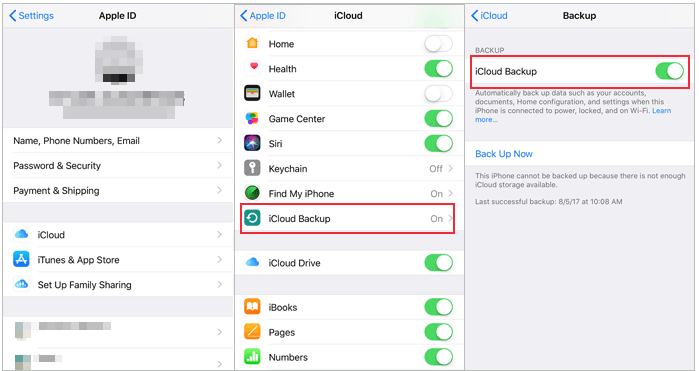
Step 1. Open "Settings" on your old iPhone, tap your name, and choose "iCloud". Then, click "iCloud Backup" > enable "iCloud Backup" > tap "Back Up Now" to back up your contacts to iCloud.
Step 2. On your new iPhone, go to "Settings" > "General" > "Reset" < "Erase All Content and Settings" > tap "Erase iPhone" to confirm the operation. (iPhone won't erase?)

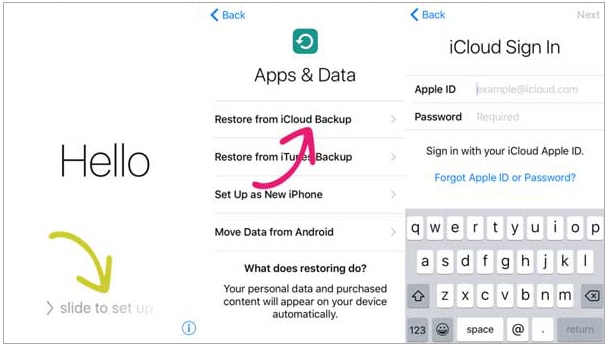
Step 3. Set up your iPhone as new. When you reach the "Apps & Data" screen, tap the "Restore from iCloud Backup" option, select the latest backup file, and hit "Restore" to download iCloud content to your iPhone.
Want to restore from iCloud backup but don't want to reset your iPhone? You can use Coolmuster iCloud Backup Recovery to do it effortlessly or read this step-by-step guide to learn how to do it.
How to Restore from iCloud Backup Without Reset? [2 Quick Solutions]If you don't want to reset your iPhone but still need to import contacts from iCloud, you can first download the contacts file (vCard) to your computer and then use Coolmuster iOS Assistant to import it to your iPhone. iOS Assistant is a professional iOS device management tool that helps users easily manage various data on iPhones and iPads, including contacts. This method is suitable for users who wish to selectively restore contacts without clearing existing data.
Key features of iOS Assistant:
Here is how to move contacts from iCloud to iPhone using iOS Assistant:
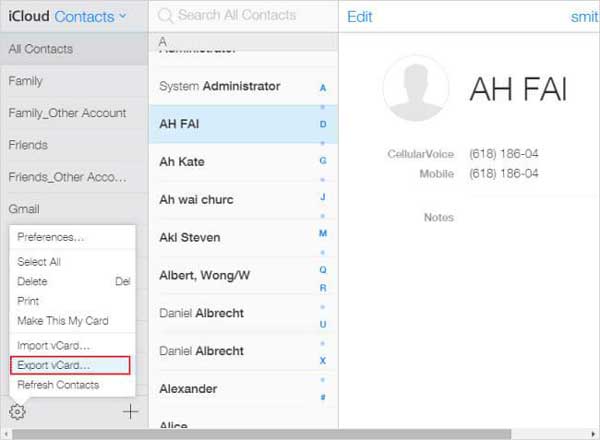
01Open the iCloud website in your browser and log in with your Apple ID > Go to "Contacts" and click the "Settings" (gear icon) > Select "Select All" to choose all contacts, or manually select the ones you want to restore > Choose "Export vCard" to download a .vcf file containing all the selected contacts to your computer.
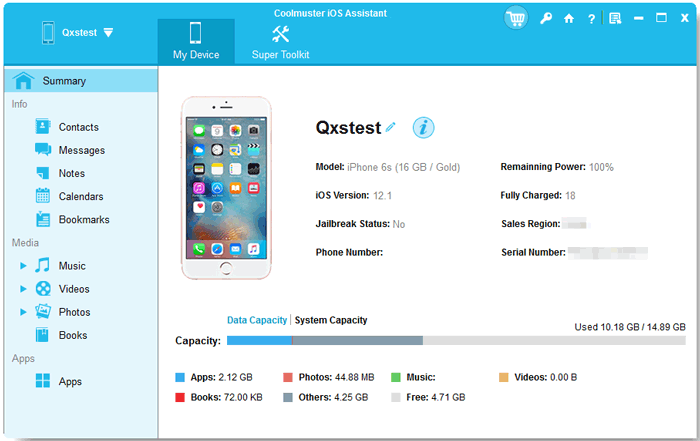
02Download and install iOS Assistant on your computer, then connect your iPhone using a USB cable. Once your device is detected by the software, the main interface will appear as shown below. As you can see, all the various file folders are organized on the main screen.
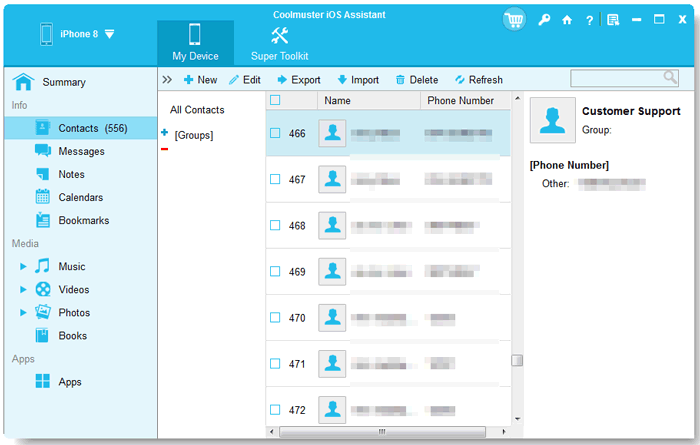
03Go to the "Contacts" management interface > Click the "Import" button and select the vCard (.vcf) file you just downloaded. Once confirmed, all contacts will be immediately restored to your iPhone's contact list.
Video Guide:
That's how to get contacts from iCloud to iPhone. It is convenient to back up contacts to iCloud and restore contacts from your iCloud account to your iPhone. If you wish to selectively access and restore the iCloud contacts, Coolmuster iOS Assistant will help you out. It not only safely imports contacts but also supports backup management, making it a recommended and more flexible solution!
If you think this post is helpful, please share it with more people.
If you're wondering how to download contacts from iCloud to your iPhone, check out these commonly asked questions for some quick answers.
Q1: How Can I Sync All My Apple Devices?
To sync your devices, ensure they're all signed into the same iCloud account and connected to a stable Wi-Fi network. Then, enable iCloud sync for the apps you want to keep in sync, like Photos, Mail, Messages, Calendars, and Contacts. Any changes you make on one device will automatically update across all your devices.
Q2: How Do I Transfer Contacts from Mac to iPhone?
You can transfer contacts from your Mac to your iPhone by connecting both devices with a USB cable. Open Finder on your Mac, select your iPhone, then click on the "Info" tab. From there, follow the on-screen instructions to sync your contacts. Alternatively, you can use Coolmuster iOS Assistant for Mac to transfer contacts from your Mac to iPhone.
Q3: Can I Transfer Contacts from Android to iPhone via Bluetooth?
No, Bluetooth cannot be used to transfer contacts between Android and iPhone, as they run on different operating systems. Bluetooth transfers are only possible between Android devices or between iPhones. To move contacts from Android to iPhone, you'll need to use other methods like syncing with Google or using third-party apps.
Related Articles:
How to Access iCloud Contacts? 6 Proven Ways You Can Try
iPhone Transfer New Phone Number Not Working: A Troubleshooting Guide
How to Restore Contacts from iCloud? - 4 Easy and Effective Ways
iCloud Contacts Missing? Here Are the Reasons and What to Do







 Free Download for PC
  Free Download for Mac


