After upgrading to iOS 26, many iPhone users have reported an annoying issue: the lock screen clock is not showing up or disappears completely. Since the lock screen clock is one of the most frequently checked elements on an iPhone, this problem can seriously affect daily use.
If you're searching for solutions to the iOS 26 lock screen clock not working, you're not alone. In this guide, we'll walk you through why the clock may not appear, and provide 9 proven solutions to help you quickly return to normal.
iOS 26, released on September 15, 2025, brings a variety of exciting new features, giving users more ways to personalize their iPhone lock screen. Here's a breakdown of the key updates:
If you encounter the issue of the lock screen clock not displaying in iOS 26, common causes include:
Below are 9 proven fixes, arranged from simple adjustments to advanced solutions. Each method includes a brief explanation and detailed steps.
If the font color is too light or the style is removed, the clock may "appear as if it's not displaying". Resetting the lock screen style can force the system to reload the clock component, resolving display issues caused by style errors.
Long-press the "Lock Screen" > tap "Customize" > tap the "clock" > switch the style (Glass or Solid) or font > tap "Done" to save. If it doesn't apply, try switching again and saving.
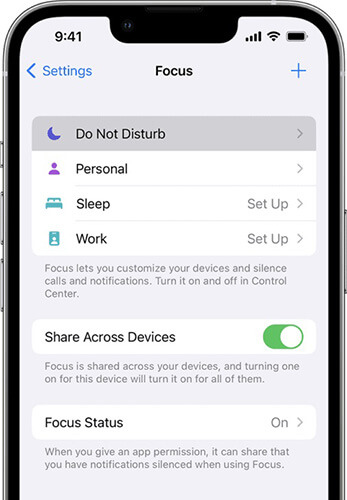
Focus and Sleep Modes can sometimes cause the "iOS 26 clock size not working" issue by applying custom lock screens, suppressing notifications, or altering system settings. Turning off these modes restores the default behavior, clears any potential conflicts, and can fix display problems. Here's how to do it:
Step 1. Go to "Settings" on your iPhone, then tap "Focus".
Step 2. Select each Focus mode (e.g., Sleep, Work, Personal) and toggle them all off.
System cache errors can also cause the iOS 26 lock screen clock to not work. A force restart will clear the system cache and reload the interface components. To force restart the iPhone, follow these steps:

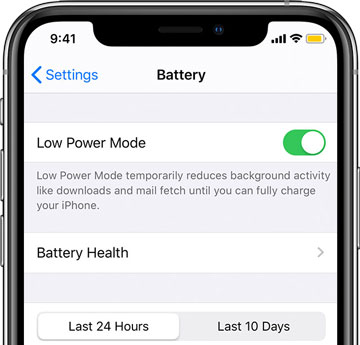
Low Power Mode limits background activities and some display effects, which may affect lock screen elements in iOS 26. Turning off Low Power Mode restores the full lock screen rendering process.
Steps to turn off Low Power Mode:
Step 1. Open "Settings" > "Battery".
Step 2. Turn off "Low Power Mode".
Step 3. Check the lock screen to see if the clock displays correctly.
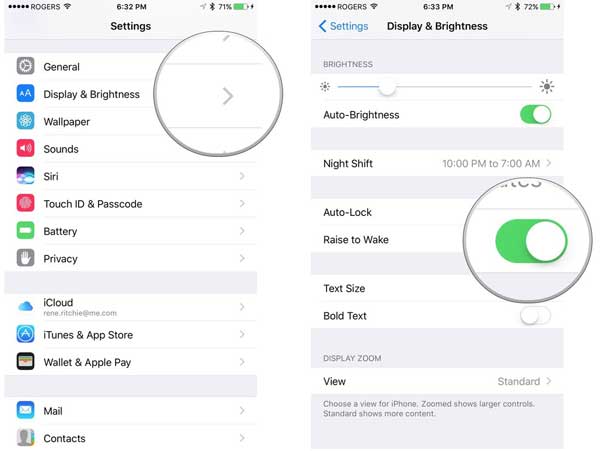
Display Zoom alters the screen's resolution and layout, which can impact the appearance of the lock screen clock. This might cause the "iOS 26 lock screen clock size not working" issue. However, toggling between Standard and Zoomed forces iOS to refresh the interface, often fixing glitches or resolving conflicts with widgets, wallpapers, or visual effects.
Here's how to do it:
Step 1. Open "Settings" on your iPhone, then tap "Display & Brightness".
Step 2. Tap "View" under "Display Zoom". Switch to the opposite setting (Zoomed ↔ Standard).
Step 3. Confirm the change when prompted. You can switch back if needed. Then, check if the clock works correctly.
If this is a known bug in iOS 26, Apple will typically fix it in a later minor update. Follow the steps below to update to the latest iOS version:
Step 1. Open "Settings" > "General" > "Software Update". (iPhone won't update?)
Step 2. Download and install the latest available version.

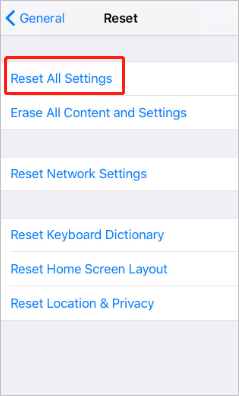
If the issue persists, you can try resetting the system settings. This will not delete photos or data, but it will reset Wi-Fi, wallpapers, and system settings.
Here is how to reset all settings on your iPhone:
Step 1. Open "Settings" > "General" > "Transfer or Reset iPhone".
Step 2. Select "Reset" > "Reset All Settings".
Step 3. Enter your lock screen password to confirm.
If the above methods don't resolve the issue, it means the problem has likely reached the system level of iOS. iOS System Recovery is a powerful tool that can help fix system-level issues, including iOS 26 lock screen clock not working, without causing any data loss.
The highlights of iOS System Recovery:
* Fix iOS 26 lock screen clock not working without losing data.
* Fix a variety of iOS system issues, such as iPhone stuck on the Apple logo, stuck in headphone mode, water damage, screen problems (black, red, blue, or white screen of death), freezing, unresponsive systems, and more.
* Offer both Standard Mode (no data loss) and Advanced Mode.
* Support iOS upgrades and downgrades to compatible versions.
* High success rate with no data loss.
* Fully compatible with the latest iPhone 17 series and iOS 26.
Here's how to fix the iOS 26 lock screen clock not working using iOS System Recovery:
01Launch the software on your computer and connect your iPhone using a USB cable. In the interface, click on "More Tools", then select "iOS System Recovery".

02The software will automatically detect your iPhone's issue, displaying problems such as being stuck on the Apple logo, a disabled iPhone, Error 27, Recovery mode, etc. Click "Start" to proceed.

03Verify your iPhone's information before starting the repair. If everything looks correct, click "Repair" to begin the process. If not, manually update the information and then click Repair to start the fix.

If you're unable to resize the clock on iOS 26 or if the clock isn't working at all, even after trying all the solutions, reach out to Apple Support. Explain your issue to them, and their experts can help troubleshoot hardware problems, guide you through more complex solutions, or report software bugs to Apple engineers. If your device is under warranty, they may offer a replacement or arrange for repairs.
The issue of the iOS 26 lock screen clock not working is usually caused by changes in display logic after a system update or system abnormalities. Minor problems can often be resolved through settings adjustments and a restart, but if the issue persists, it indicates a deeper system error.
In this case, iOS System Recovery is a more efficient and safer solution. It can fix the iOS 26 lock screen clock not displaying issue without losing data, making it one of the most time-saving and hassle-free solutions.
Related Articles:
How to Fix iPhone Recovery Mode Not Working? - 5 Reliable Fixes
Troubleshooting the Bottom of iPhone Screen Not Working - 2025 Update
Troubleshooting for iPhone Stuck on Preparing Update [Top 10 Fixes]







 Free Download for PC
  Free Download for Mac


