TL;DR: Lost iPhone contacts after deleting an email account? The contacts are often not permanently deleted—they simply disappear because the email account that synced them (such as Gmail, Outlook, or Exchange) was removed from your iPhone.
To recover your contacts, first try re-adding the deleted email account and enabling Contacts syncing. If that doesn't work, restore your contacts from an iCloud or iTunes/Finder backup created before the deletion. If you don't have a suitable backup or want to avoid resetting your iPhone, Coolmuster iPhone Data Recovery lets you scan your device or backups, preview recoverable contacts, and restore only the data you need without overwriting your current files.
"Contacts disappeared after removing email accounts from iPhone. I have done everything I can think of to get my contacts back. I have added the email accounts back, but the contacts weren't saved there. I have tried to restore the iCloud backup of my contacts, but it apparently only started saving this after I lost everything a few hours ago. Is there something I can do other than trying a hard reset to my full phone backup that was taken last night? Please help me."
- from Apple Community
Losing your iPhone contacts after deleting an email account can be frustrating, especially if those contacts suddenly disappear without warning. Does deleting an email account delete contacts? In many cases, the contacts weren't actually stored on your iPhone but were synced through an email service like iCloud, Gmail, Outlook, or Exchange. When the associated account is removed, the synced contacts may also disappear.
The good news is that missing contacts are often recoverable. In this guide, you'll learn how to recover lost iPhone contacts after deleting email account using multiple effective methods.
The main reason for this issue lies in how iPhone contact syncing works. Contacts on an iPhone are not always stored locally. Instead, they are often synced from cloud-based accounts such as Gmail, Outlook, or iCloud.
When you delete an email account from your iPhone, the system also stops syncing data associated with that account—including contacts. As a result, the contacts that were linked to that account disappear from your Contacts app.
However, this does not mean the data is gone. In most cases, your contacts still exist in the cloud account; they are just no longer displayed on your iPhone.
Common reasons for lost contacts on iPhone after removing an email account:
If you are facing lost iPhone contacts after deleting an email account, don't worry. You can try the following methods to recover them.
If your contacts were originally synced with an email account, the easiest way to restore them is to add the account back to your iPhone and let it sync your contacts again. Here are the steps:
Step 1. Open "Settings" on your iPhone, scroll down, and tap "Mail" (or "Contacts" depending on iOS version).
Step 2. Tap "Accounts" > "Add Account" and choose your email provider, such as Gmail, Outlook, or Exchange.
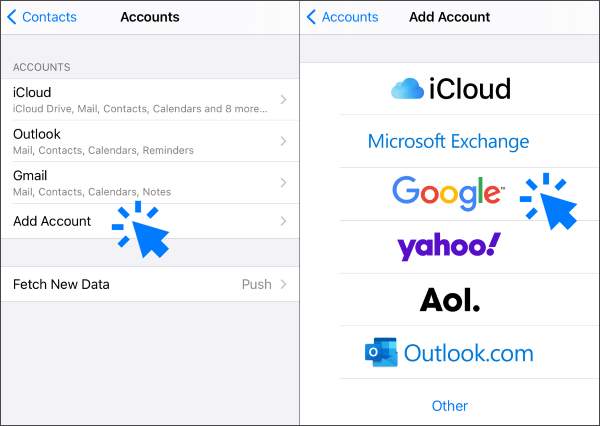
Step 3. Sign in with your email address and password.
Step 4. After signing in, make sure the "Contacts" toggle is turned on.
Step 5. Wait a few minutes for your contacts to sync back to your iPhone.
If re-adding the email account does not recover your contacts, the data may no longer exist in the email server. In this case, you can use a professional iPhone data recovery tool to perform a deep scan for lost contacts.
Coolmuster iPhone Data Recovery is designed to recover lost iOS data directly from the device or from iTunes/iCloud backups, including contacts. It also lets you preview recoverable data before restoring it.
The highlights of Coolmuster iPhone Data Recovery:
Here is how to recover deleted contacts from your iPhone without a backup using iPhone Data Recovery:
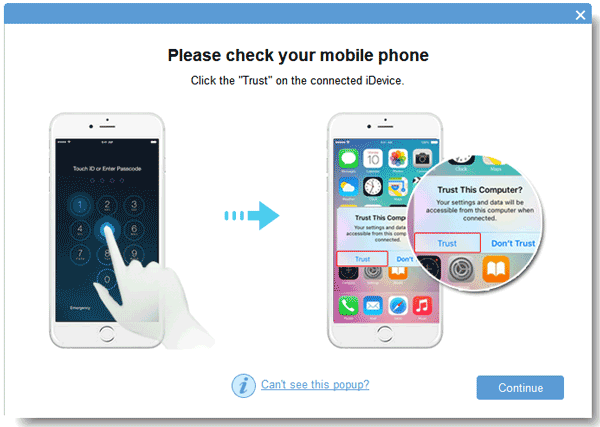
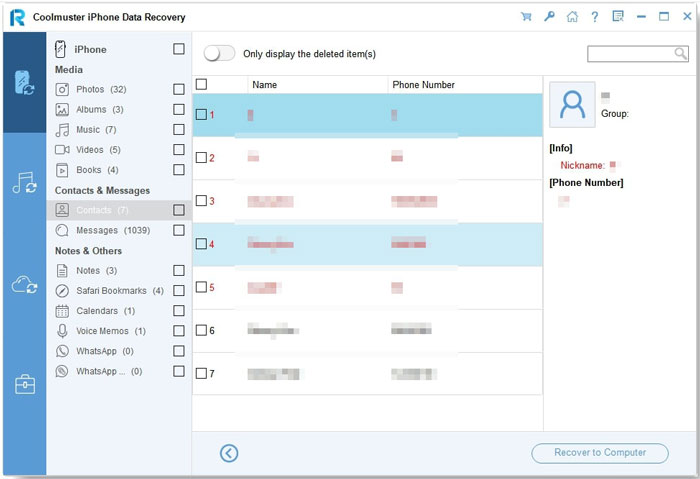
01Download and install the program on your computer, then launch it. Connect your iPhone to the computer using a USB cable. When prompted, tap "Trust" on your iPhone to allow the software to detect your device.
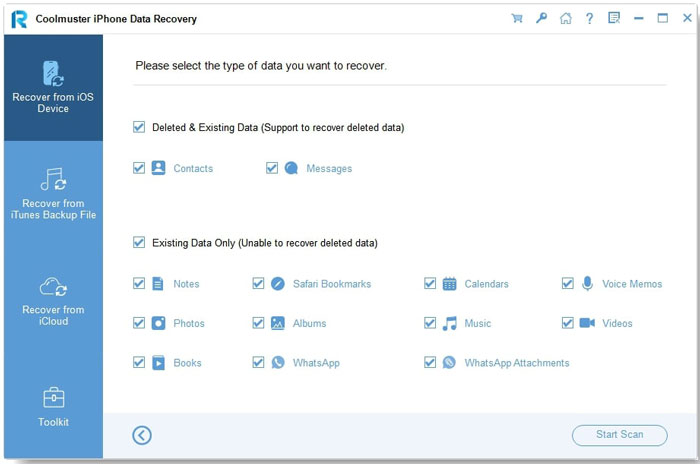
02After your iPhone is recognized, select "Contacts" and click "Start Scan".
03Once the scan is complete, you can preview all recoverable contacts. Finally, choose the contacts you want to restore and click "Recover to Computer" to save them to your computer.
Video Tutorial:
If you have backed up your iPhone to iCloud before deleting the email account, you can also restore all lost contacts on iPhone from the iCloud backup. To do it, follow the steps below:
Step 1. Open your iPhone and go to "Settings" > "General" > "Transfer or Reset iPhone". Tap "Erase All Content and Settings" to begin resetting your device. (iPhone won't erase?)

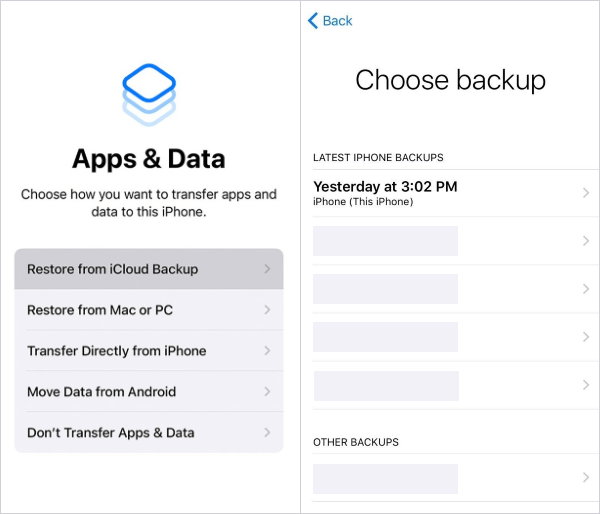
Step 2. After the reset process is complete, your iPhone will restart and display the setup screen. Follow the on-screen instructions until you reach the "Apps & Data" page.
Step 3. From there, select "Restore from iCloud Backup". Sign in with your Apple ID and choose the most recent backup that was created before your contacts were lost.
Step 4. Wait for the restoration process to finish, and keep your device connected to Wi-Fi and power during the entire process to ensure a successful recovery.
If you have previously backed up your iPhone to a computer, you can restore your contacts using iTunes or Finder. This method is suitable for users who regularly back up their device on a computer.
Here is how to recover all lost contacts on iPhone after deleting the email account from iTunes backup:
Step 1. Connect iPhone to computer using a USB cable.
Step 2. Open iTunes (Windows or older macOS) or Finder (macOS Catalina and later).
Step 3. Click the iPhone icon in the top-left corner of iTunes or select your iPhone from the sidebar in Finder.
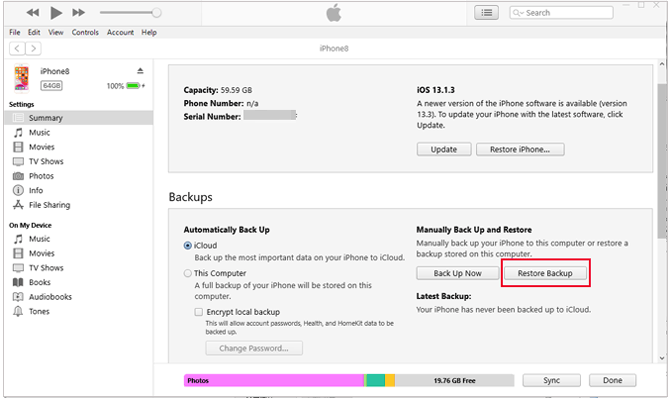
Step 4. In iTunes, go to "Summary" and click "Restore Backup" on the right. In Finder, go to the "General" tab and click "Restore Backup".
Step 5. Select the backup created before you deleted your email account, then click "Restore".
If you lost your iPhone contacts after deleting an email account, you can choose one of the methods above to recover them. If you don't have a backup and don't want to restore your entire device via iCloud or iTunes, which may overwrite your data, it is recommended to use a professional tool such as Coolmuster iPhone Data Recovery.
Related Articles:
iPhone Deleted Contacts Randomly? Solved in 7 Effective Ways
[Solved] How to Recover Contacts/SMS from iPhone with No iCloud Backup?
12 Tricks to Fix iPhone Contacts Missing Names (Comprehensive Guide)
How to Recover All Lost Data on iPhone After Updating to iOS 26/27?







 Free Download for PC
  Free Download for Mac


