"How do I clean my iPhone of junk files? Hello, I am new to iPhone; before I used an HTC. I've had it for a week only, but anyway, I am quite curious how to clean the phone from all the junk files that are downloaded via mail, web browsing, Facebook, etc., which are stored somewhere and occupy some space which could be cleaned? I don't want to buy any software for this, because I suppose Apple should count on this and create some free programme which the user could use for free... (??)."
- from Apple Community
After using an iPhone for a long time, it often becomes slower and runs low on storage. This usually isn't because the hardware is insufficient, but because the system has accumulated a large amount of junk files. These include app caches, browsing data, system temporary files, duplicate photos in your album, and more. If you're looking for simple methods on how to clean junk files on iPhone, this article will guide you step-by-step to clean them effectively, helping your phone run smoothly again while freeing up additional space.
Even if your iPhone seems tidy, you might be surprised at how much junk can build up—often in places you'd least expect. While third-party iPhone cleaners can help, you can also remove junk manually if you know where to look. Here are key areas to check:
By knowing where to look, you can target these areas when decluttering. In the next section, we'll show you how to clean junk files on your iPhone quickly and effectively.
Now that you know where junk files tend to hide on your iPhone, it's time to roll up your sleeves and get cleaning.
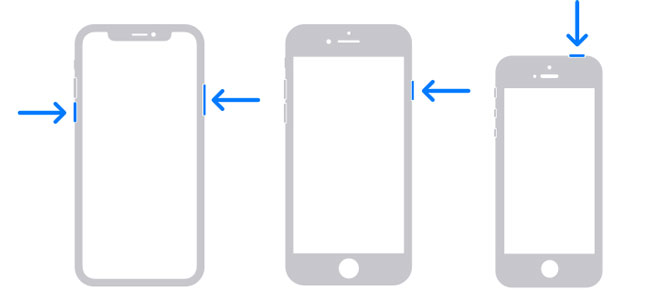
Among all the cleaning methods, restarting is the simplest yet most easily overlooked. Every time you restart your iPhone, the system automatically frees up some temporary caches, RAM, and background files. While it can't replace a deep clean, it's enough to make your device run more smoothly for a short time.
For iPhone X, 11, 12, 13, or later:
For iPhone 6, 7, 8, or SE (2nd or 3rd generation):
For iPhone SE (1st generation), 5, or earlier:
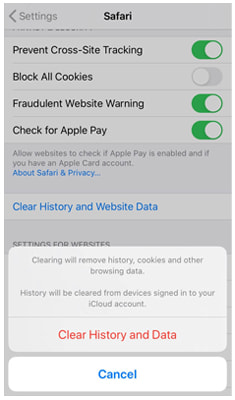
If you often browse the web using Safari, it automatically stores a large amount of history, website data, and cookies to help pages load faster the next time you visit. However, over time, these caches can take up considerable storage space. Clearing Safari's cache can effectively free up storage and improve your browser's performance.
Here is how to clear browser cache on iPhone:
Step 1. Open the "Settings" app on your iPhone.
Step 2. Scroll down and tap "Safari".
Step 3. In the Safari settings, tap "Clear History and Website Data".
Step 4. When prompted, tap "Clear History and Data" to confirm.
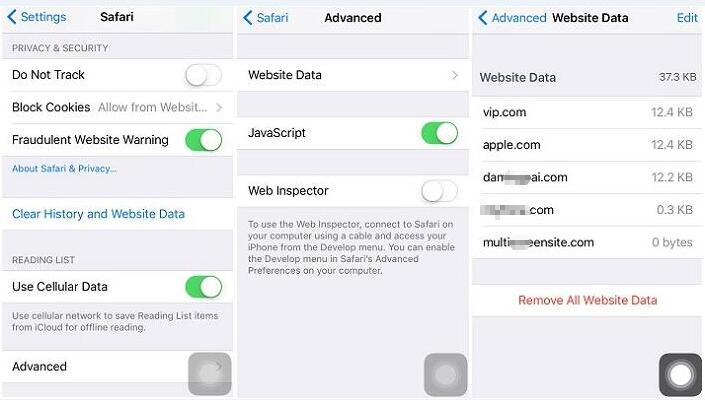
If you prefer to keep your browsing history, you can choose to delete only cookies instead:
Step 1. Go back to the Safari "Settings" section.
Step 2. Scroll down and tap "Advanced", then select "Website Data".
Step 3. Tap "Remove All Website Data", then confirm by tapping "Remove Now". You can also tap "Edit" in the top-right corner to delete website data for specific sites.
Note: If you prefer to browse without leaving any history behind, you can simply enable "Private Browsing". In this mode, all cache files are automatically deleted once you close the private tab. For Google Chrome users, the equivalent feature is called "Incognito Mode", and the steps for clearing cache and data are quite similar.
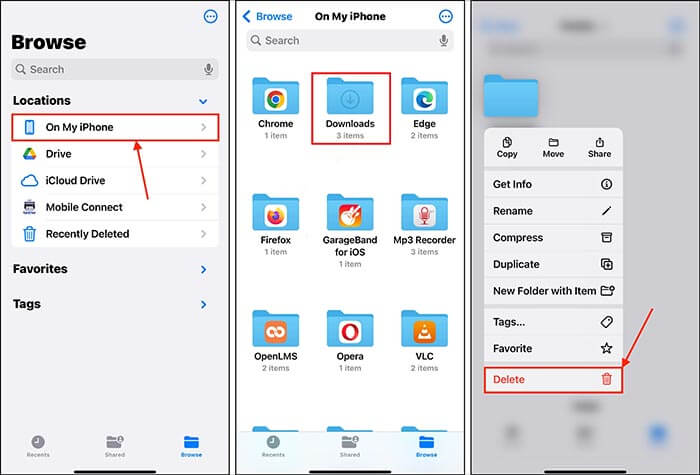
Many users download files through browsers, emails, or apps without realizing that these files remain stored locally in the Downloads folder. If you frequently save PDFs, images, or documents, this folder can quickly grow.
Here's how to delete downloaded files on iPhone:
Step 1. Open the Files app on your iPhone.
Step 2. Tap "Browse" > choose "On My iPhone" or "iCloud Drive".
Step 3. Locate the "Downloads" folder.
Step 4. Long-press or swipe left on files you no longer need, then tap "Delete". You can also select multiple files using the "More" (…) icon > "Select" > "Delete".
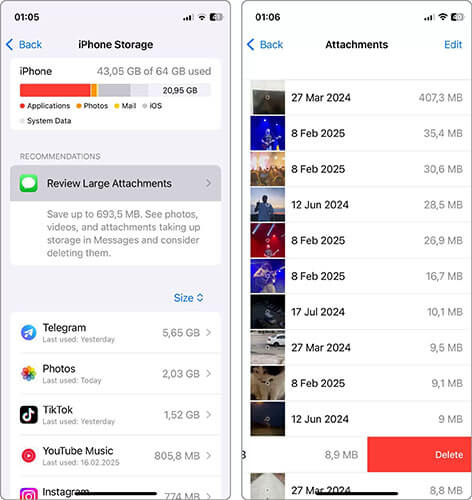
When it comes to removing junk files from your iPhone, message attachments are often overlooked. To remove large message attachments, follow these steps:
Step 1. Open the "Settings" app and tap "General".
Step 2. Select "iPhone Storage".
Step 3. Under "Recommendations", tap "Review Large Attachments". If you don't see it there, scroll down, tap "Messages", and you should find the option.
Step 4. Review the list of large attachments. You can tap any item for a detailed view.
Step 5. For a single item, swipe left on it and tap "Delete". For multiple items, tap "Edit" in the top-right corner, select the attachments you want to remove, and tap the "trash can" icon.
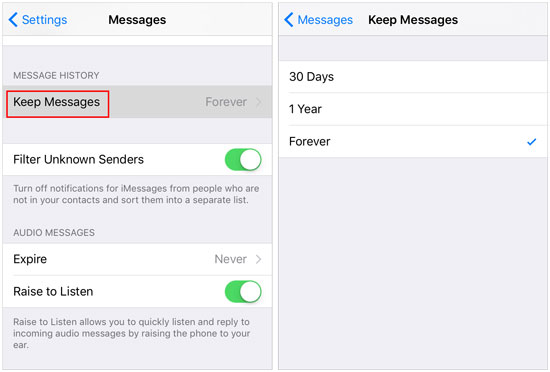
To prevent messages from taking up too much storage, you can set your iPhone to automatically delete them after a certain period. Go to "Settings" > "Messages" > "Keep Messages", and choose either "30 Days", "1 Year", or "Forever". This way, older messages and attachments will be deleted automatically, reducing the need for manual cleanup.
One of the best ways to clear junk files from your iPhone is by managing your photo library. Photos and videos typically take up the most storage space. Let's look at two effective methods to help you clean up your photo collection.
Merge Duplicate Photos on iPhone
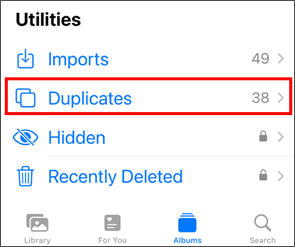
Apple's Photos app includes a useful feature that can detect duplicate photos and videos in your library. It not only identifies them but also lets you merge them into a single high-quality version. Here's how to merge duplicate photos on iPhone:
Step 1. Open the "Photos" app on your iPhone.
Step 2. Tap "Albums" at the bottom.
Step 3. Under "Utilities", select "Duplicates".
Step 4. Tap "Merge" next to each photo pair you want to combine
Remove Unnecessary Photos on iPhone
Although the Merge feature is great for managing duplicates, you'll probably need to do some manual cleanup as well. Fortunately, deleting unnecessary photos and videos is simple:
Step 1. Open the "Photos" app and go to your "Library".
Step 2. Tap "Select" in the top-right corner.
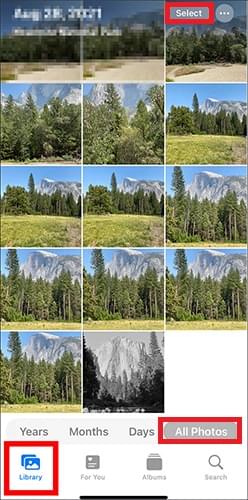
Step 3. Choose all the photos and videos you want to delete.
Step 4. Tap the "trash" icon in the bottom-right corner.
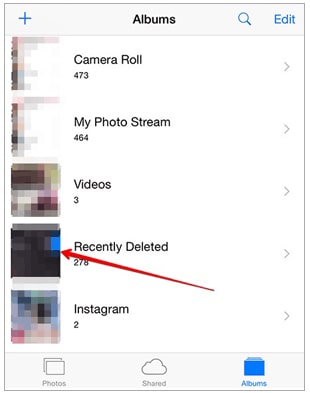
Step 5. To empty the Recently Deleted folder, open the "Photos" app, go to "Albums", tap "Recently Deleted", then tap "Delete All".
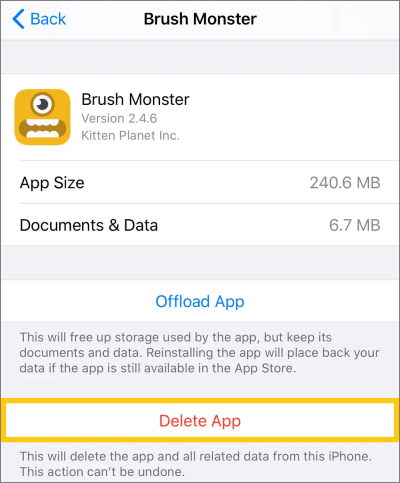
Some apps remain unused for long periods after installation, yet they continue to generate cache, taking up a large amount of storage space. Deleting these apps not only frees up the app's size but also clears the associated cache files. To do it, follow the steps below:
Step 1. Go to "Settings" > "General" > "iPhone Storage".
Step 2. Check which apps occupy the most space.
Step 3. Tap an unused app.
Step 4. Select "Delete App" to remove it completely. Alternatively, enable "Offload Unused Apps" for automatic cleanup.
While manual cleaning helps reduce some storage usage, these methods cannot reach deeper system caches or hidden app data. If you want a faster, more thorough solution for how to clean junk files on iPhone, a dedicated cleaning tool like Coolmuster iOS Cleaner is highly recommended.
Key features of Coolmuster iOS Cleaner:
How do I clear junk files from my iPhone? Here are the steps:
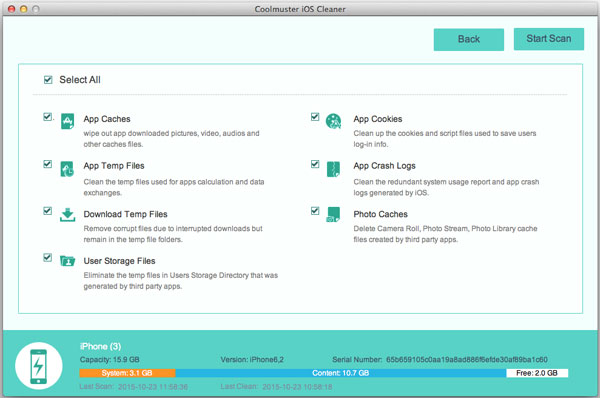
01Connect your iPhone to your computer. After you have downloaded the software, click on the icon that pops up on your desktop. When it opens, you will see a window of the program that looks like the following picture. It will detect the connected iPhone and show it on its window.
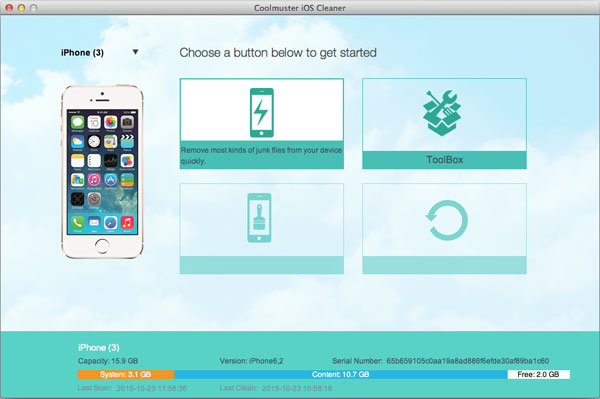
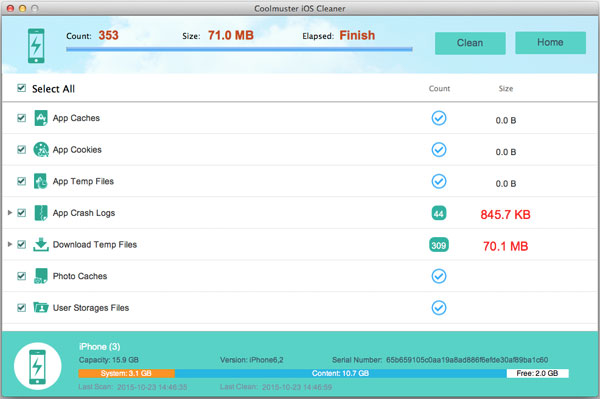
02When you are ready, hit the "Start Scan" button, and iOS Cleaner will scan your iPhone for all junk files. After the scan, it will then list all the files it is able to delete and still allows you to preview these files to see if you want to keep them or not.
03Select the ones you want to delete, then tap the "Clean" button in the top-right corner. A confirmation prompt will appear—click "OK" to proceed with the cleanup.
Knowing how to clean junk files on an iPhone is essential for maintaining smooth performance, preventing storage issues, and increasing overall device lifespan. While iPhone offers several built-in cleaning options, these methods still leave behind deep system junk. If you want a complete and automated cleanup, Coolmuster iOS Cleaner is the best all-in-one solution. It removes hidden files, optimizes storage, and helps your iPhone run like new again.
If you want your iPhone to run smoothly and have more storage space, start cleaning up your junk files now!
Related Articles:
How to Delete Download Temp Files from iPad/iPhone to Free Space?
[4 Ways] How to Delete Email Caches on iPhone Completely
How to Delete Recent on iPhone with Simple Steps? [Can't Miss]
Which Is the Best iPhone Data Eraser Software? [A Comprehensive Review]






 Free Download for Mac

 Download for PC

