Samsung Smart Switch is a convenient tool for transferring contacts, photos, messages, and other data between devices. However, many users encounter the "Smart Switch failed to connect the device" error, which prevents successful data transfer. This problem can stem from hardware issues, software incompatibility, missing permissions, or network problems. In this guide, we'll explore the reasons behind the connection failure and provide detailed, step-by-step solutions to fix it. If all else fails, we will also introduce a reliable alternative tool to complete your data transfer efficiently.
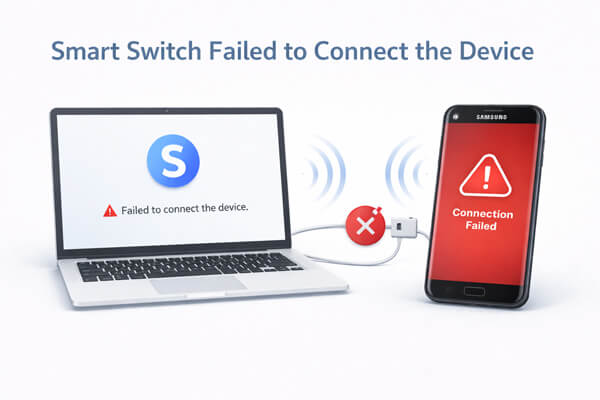
The "Smart Switch failed to connect the device" error rarely occurs without reason. By identifying which category your problem falls into, you can troubleshoot more efficiently.
Now that you know the common causes, let's walk through step-by-step solutions to fix the "Smart Switch failed to connect the device" error.
Before troubleshooting further, ensure both devices (and your computer, if using) meet Smart Switch's minimum requirements. This step is often overlooked but can save you time:
Device compatibility:
Smart Switch works with most Samsung Galaxy devices, as well as iOS devices (iPhone/iPad) and other Android devices. Check Samsung's official website to confirm your device is supported.
OS version:
Ensure the source device runs Android 5.0+ or iOS 5.0 (When using Wi-Fi, Smart Switch supports iOS 12 or later versions), and the target device (especially Samsung) runs the latest available OS. Outdated OS versions often cause compatibility issues.
Smart Switch version:
Verify that Smart Switch is up-to-date on both devices (phone/tablet) and your computer (if using the desktop app). You can update the mobile app via Google Play Store or Galaxy Store, and the desktop app via Samsung's website.
Available storage:
Both devices need at least 500MB of free storage to run Smart Switch and transfer data. Insufficient storage can cause connection failures or transfer halts.
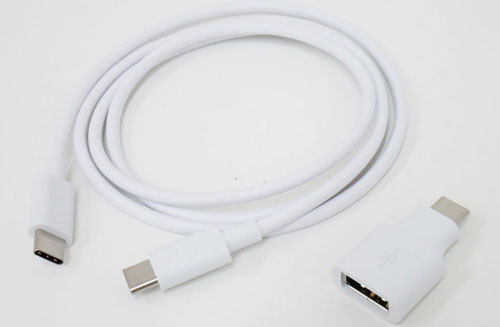
If you are using a wired connection, the USB cable and port play a critical role in whether your device can be detected by Smart Switch. Even a small issue with the cable or connection can lead to connection failure.
Try the following checks:
If you are using a wireless connection, network stability is essential for Smart Switch to detect and connect devices properly. Even minor network issues can interrupt the connection process.
Follow these steps to ensure a stable connection:
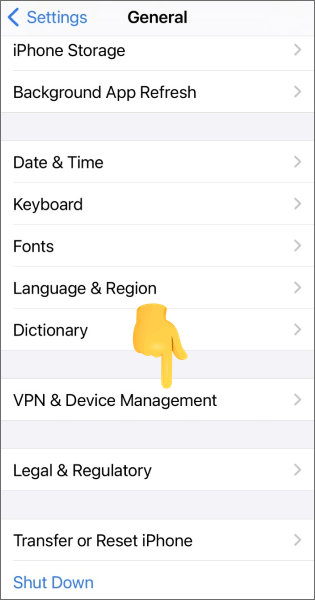
A simple restart can fix temporary glitches (e.g., frozen apps, network bugs) that cause Smart Switch connection failures. This is one of the most effective and easiest troubleshooting steps:
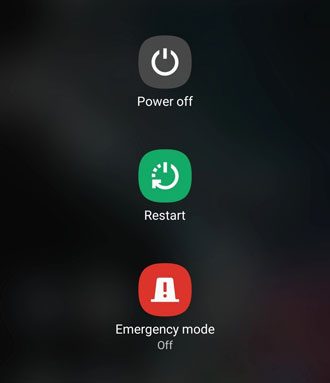
For Android devices:
Press and hold the "power" button, then select "Restart" (or "Reboot"). If the device is unresponsive, press and hold the "power" + "volume down" buttons for 10-15 seconds to force a restart.
For iOS devices:
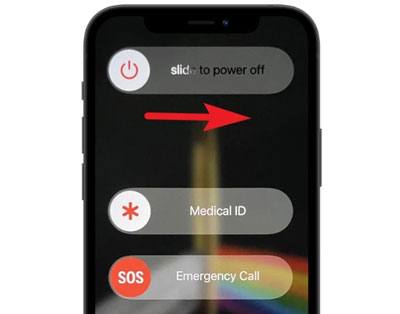
Press and hold the "power" button (and "volume down" button for newer iPhones) until the slider appears, then slide to power off. Wait 30 seconds, then turn the device back on.
For computers:
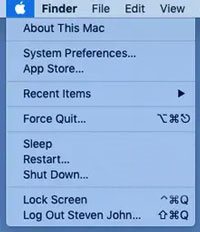
Restart your PC or Mac to fix any software glitches that may be blocking Smart Switch.
After restarting, open Smart Switch again and try connecting the devices.
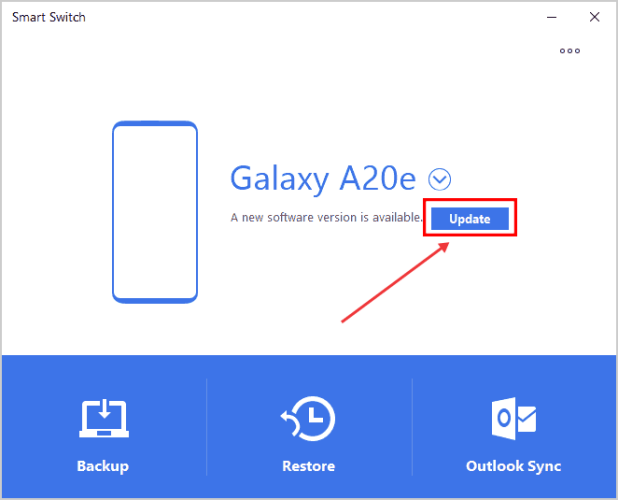
Outdated or corrupted Smart Switch installations are a common cause of connection issues. Updating or reinstalling the app can fix bugs and restore functionality:
Update Smart Switch:
- Mobile app: Open Google Play Store (Android) or App Store (iOS), search for "Smart Switch", and tap "Update" if available.
- Desktop app: Open the Smart Switch desktop app, go to "Settings", and select "Check for updates". Follow the prompts to install updates.
Reinstall Smart Switch:
- Mobile app: Uninstall Smart Switch from your device, restart the device, then reinstall it from the app store.
- Desktop app: Uninstall the app from your computer (via Control Panel on Windows or Applications folder on Mac), restart the computer, then download and install the latest version from Samsung's website.
Smart Switch needs specific permissions to access your device's data and establish a connection. If these permissions are not granted, the app will fail to connect. Here's how to grant the necessary permissions:
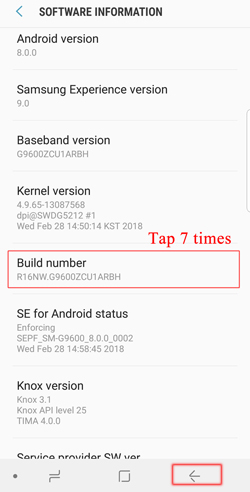
USB debugging (Android devices):
File transfer permission:
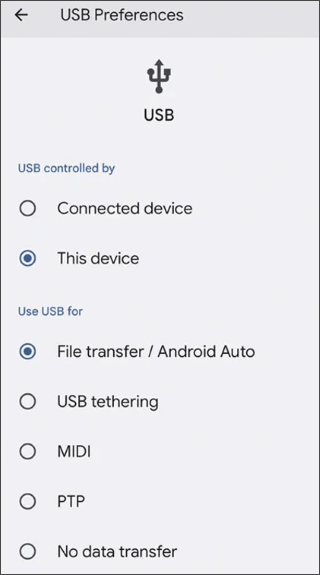
Allow access notifications:
Trust this computer (iOS devices):
Security software (antivirus, firewall, anti-malware) on your computer or mobile device can block Smart Switch, as it may mistake the app's data transfer for suspicious activity. Temporarily disabling these tools can fix the connection issue:
Computer security software:
Disable your antivirus or firewall temporarily (check the software's settings for instructions). Remember to re-enable it after troubleshooting.
Mobile security software:
If you have a third-party antivirus app on your phone/tablet, disable it temporarily. You can also check your device's built-in security settings (e.g., Samsung Knox) to ensure it's not blocking Smart Switch.
If you've tried all the fixes above and Smart Switch still fails to connect your device, switching to a more stable and straightforward tool is often the fastest solution. Coolmuster Mobile Transfer is a reliable alternative that allows you to transfer data between devices without complicated setup or connection issues.
Why choose Coolmuster Mobile Transfer?
Follow these steps to transfer data smoothly:
01Download and install Coolmuster Mobile Transfer on your computer, then open the program. You will see a clean interface prompting you to connect your devices.
02Use USB cables to connect your source device (old phone) and target device (new phone) to the computer. On Android devices, enable USB debugging when prompted; on iOS devices, trust this computer. Once connected, the program will automatically detect both devices.
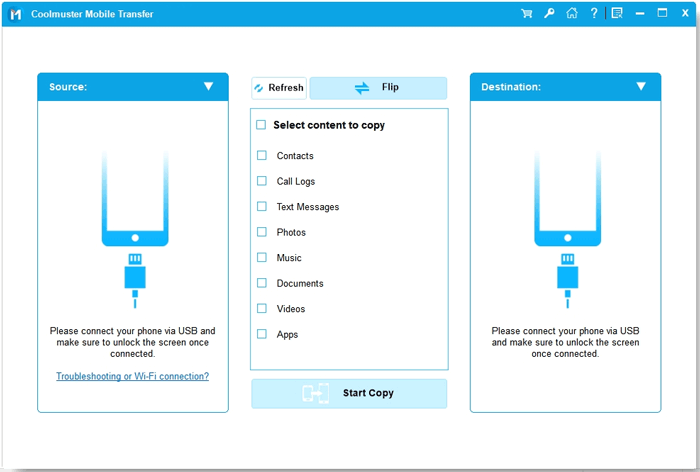
03After detection, make sure the old device is displayed as Source and the new device as Destination. If they are reversed, click the "Flip" button to switch their positions.
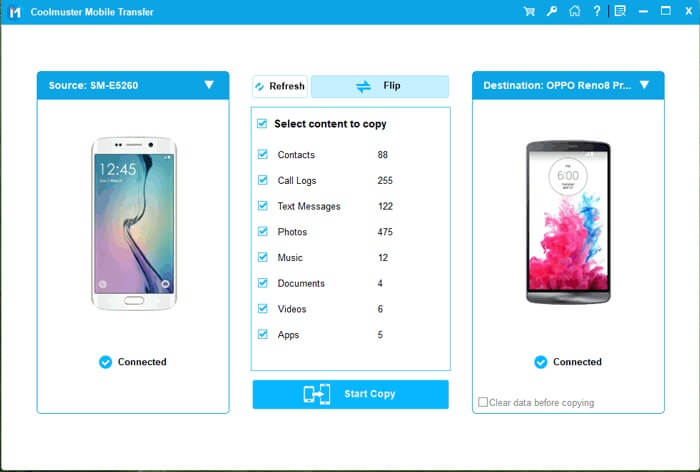
04Choose the types of data you want to transfer and click the "Start Copy" button to begin transferring data. Keep both devices connected during the process until it is completed.
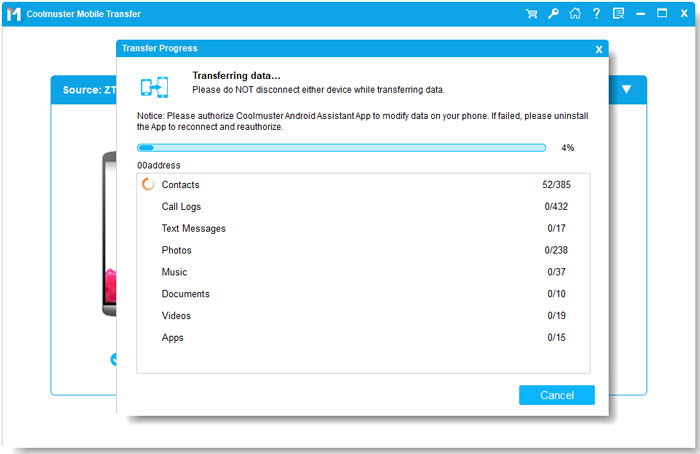
You can check out the video tutorial for Coolmuster Mobile Transfer below.
The "Smart Switch failed to connect the device" error can be frustrating, but in most cases, it can be resolved by checking your USB connection, updating the software, granting the necessary permissions, or fixing network issues. By following the methods above, you should be able to restore a stable connection and complete your data transfer smoothly.
However, if Smart Switch continues to fail or feels too complicated to troubleshoot, using a reliable alternative like Coolmuster Mobile Transfer can save you time and effort. With its simple interface and high success rate, it offers a quick and hassle-free way to transfer your data without connection issues.
Related Articles:
Samsung Smart Switch Not Working: Troubleshooting and Solutions
Samsung Smart Switch Stuck? Here's How to Fix It Effectively
Does Smart Switch Need Wi-Fi to Send Data? Can It Send Data without Wi-Fi?
The Top 9 Samsung Smart Switch Alternatives Worth Trying Out







 Free Download for PC
  Free Download for Mac


