"Trying to transfer data from my iPhone 11 to the S20 Ultra and Smart Switch keeps saying connection lost during the 'Copying your data' phase, just after 0.2%".
- From Reddit
Samsung Smart Switch is an official and user-friendly tool designed for Samsung users to transfer photos, contacts, apps, messages, and other data between mobile devices or between a phone and a computer. It supports both wireless Wi-Fi connections and wired USB connections, providing great convenience for data migration. However, many users frequently encounter a frustrating issue: Smart Switch keeps disconnecting during the transfer process. Unexpected connection drops can interrupt data migration, result in incomplete file transfers, or even cause data corruption.
In this article, we will explore the main reasons behind this disconnection problem, provide detailed step-by-step solutions to fix it, and recommend a reliable alternative tool to help you complete your data transfers smoothly.
Before troubleshooting, it is essential to figure out the main causes of persistent disconnection on Samsung Smart Switch. Most connection failures are not caused by hardware damage but by improper settings and unstable transmission environments. The common reasons are summarized as follows:
Smart Switch wireless transfer relies on a temporary peer-to-peer Wi-Fi connection. Network congestion, signal interference, or frequent Wi-Fi switching will directly cause sudden disconnection. Moreover, dual-band routers that mix 2.4GHz and 5GHz frequency bands often trigger compatibility failures.
Many users use cheap charging-only USB cables or loose ports for wired connections. Broken internal wires and poor contact will cut off the connection intermittently.
Outdated Smart Switch applications or mobile phone systems contain hidden bugs and compatibility loopholes, which fail to maintain a stable data transmission channel.
Built-in firewalls and third-party antivirus programs often mistakenly intercept Smart Switch data transmission as risky behavior, forcibly blocking the connection between devices.
Mobile power-saving modes will automatically freeze background applications. Once Smart Switch is limited to running in the background, the connection will drop immediately.
Based on the above causes, here are seven practical and straightforward solutions. You can follow the steps one by one to eliminate the disconnection problem of Samsung Smart Switch.
Temporary system glitches, background process conflicts, or minor bugs can cause Smart Switch to disconnect. Restarting the phone clears the temporary cache, terminates problematic processes, and often restores connection stability.
Step 1. Power off both the sending and receiving devices completely.
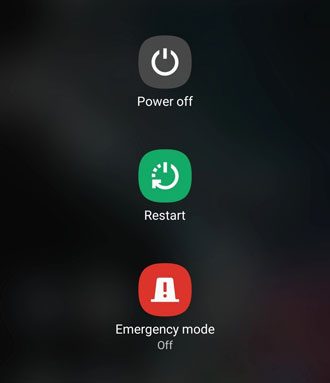
Step 2. Wait for at least 30 seconds.
Step 3. Restart both devices.
Step 4. Close redundant background apps, disable power-saving mode, and lock Smart Switch in the background to prevent it from being cleaned by the system.
Wireless transfers in Smart Switch rely on a temporary peer-to-peer Wi-Fi connection. Any instability in the network, such as interference, congestion, or switching between networks, can cause sudden disconnections. Ensuring a stable and compatible network environment is the first step to preventing connection drops during data transfer.
Step 1. Ensure both devices are connected to the same 2.4GHz Wi-Fi network, as Smart Switch may have poor compatibility with 5GHz networks.
Step 2. Turn off VPN, cellular data, and Wi-Fi assistant to prevent automatic network switching.
Step 3. Keep the two devices within 20 centimeters during the transfer and avoid moving them.
Step 4. Turn off other electronic devices that may cause interference, such as Bluetooth devices or microwaves.
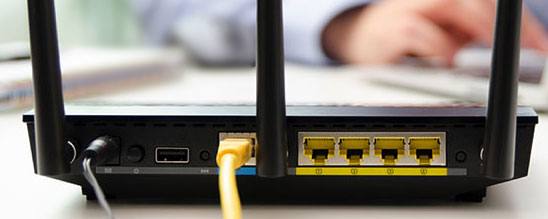
Step 5. Restart your router to reduce network congestion and clear redundant device connections.
For wired connections, the quality of the USB cable and the stability of the ports are critical. Cheap or damaged cables or loose ports can interrupt the connection intermittently. Using the official Samsung USB data cable and proper ports can ensure smooth and continuous data transmission.
Step 1. Use the official Samsung USB data cable instead of cheap charging-only cables.
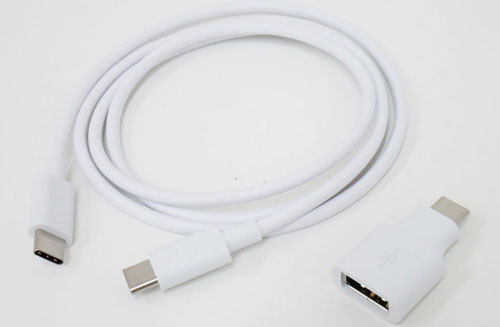
Step 2. Inspect the cable for cracks, bends, or internal damage.
Step 3. For computers, use a stable rear USB 2.0 port rather than an unstable front port.
Step 4. For phones, clean the charging port to ensure tight contact.
Step 5. Avoid moving the devices during transfer to prevent loose connections.
If wired connections are unstable, switching to wireless transfer can be a reliable alternative. Wireless peer-to-peer connections allow Smart Switch to establish a direct communication channel between devices without depending on cables, but proper pairing and proximity are required.
Step 1. Disconnect all external USB accessories.
Step 2. Open Smart Switch on both devices and select the wireless transfer mode.
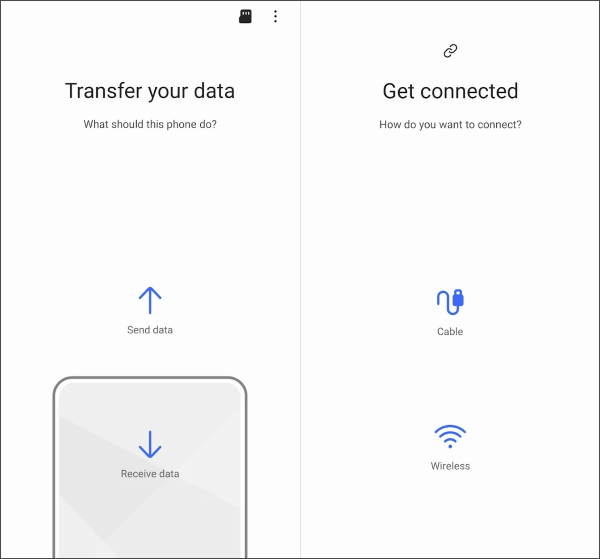
Step 3. Follow on-screen prompts to pair devices.
Step 4. If pairing fails, clear the connection cache and re-pair the devices at a close distance.
Step 5. Avoid operating the phone or switching interfaces during transmission to prevent interruptions.
Outdated Smart Switch versions may contain compatibility bugs and unstable connection codes. Updating the app and software ensures you have the latest fixes, performance improvements, and enhanced stability during data transfer.
Step 1. On your phone, check for updates on Google Play or Samsung Galaxy Store and install the latest Smart Switch version.
Step 2. On your computer, download the latest version from the official Samsung website. Uninstall old versions to avoid conflicts.
Step 3. If connection issues persist, clear the app cache in phone settings without deleting user data to resolve abnormal program errors.
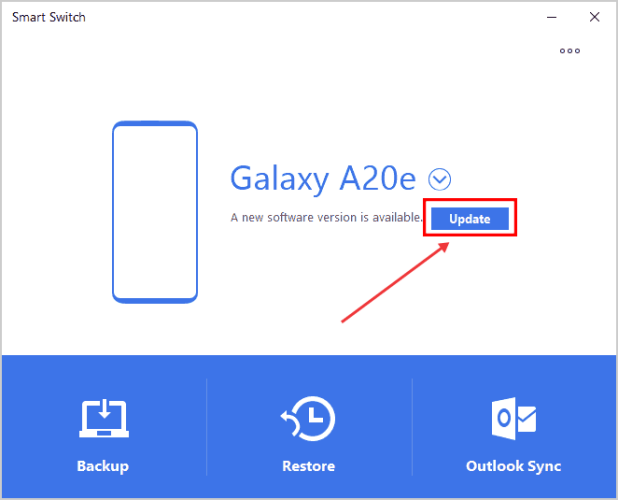
An outdated phone system may conflict with the latest Smart Switch version, causing instability. Updating the system improves compatibility, fixes bugs, and optimizes performance, ensuring smoother and more reliable transfers.
Step 1. Enter phone "Settings" > "Software Update".

Step 2. Download and install all available updates.
Step 3. Keep the device powered on during installation.
Step 4. Restart the phone after updating, then launch Smart Switch to perform the transfer.
Firewalls and antivirus programs are designed to protect your system, but they may mistakenly block Smart Switch’s data transmission, identifying it as risky behavior. Temporarily disabling them during transfer can remove this obstacle while maintaining safety precautions.
Step 1. Temporarily turn off the computer firewall.
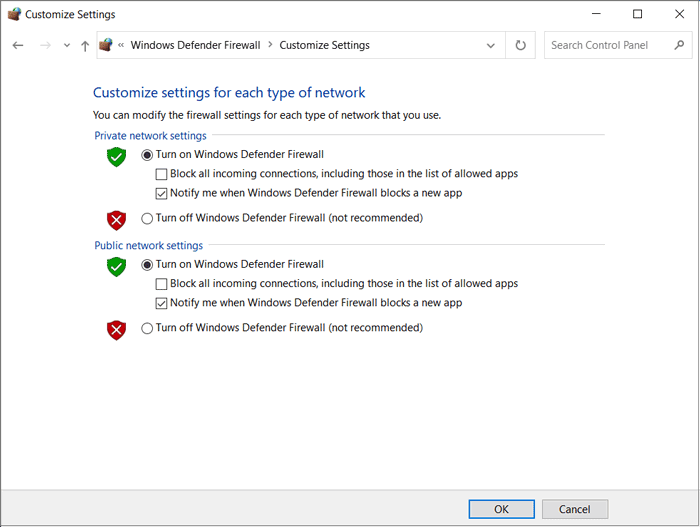
Step 2. Pause real-time protection on antivirus software.
Step 3. Ensure no other management software (like Samsung Kies) is running simultaneously to avoid conflicts.
Step 4. After completing the transfer, re-enable all security protections.
If Samsung Smart Switch continues to disconnect even after trying all the fixes above, the issue may come from Smart Switch itself rather than your devices or network environment. In this situation, using a more stable and flexible phone transfer tool can save you a lot of time and frustration.
One reliable alternative worth considering is Coolmuster Mobile Transfer. Unlike Smart Switch, it offers a more stable wired connection and supports multiple transfer modes between Android and iOS devices. The transfer process is simple, fast, and less likely to be interrupted during large data migrations.
Key features of Coolmuster Mobile Transfer:
The operation steps below use Android-to-Samsung transfer as an example, but the process is almost identical for the other three transfer modes.
01Download, install, and open Coolmuster Mobile Transfer on your computer.
02Connect both phones to the computer using suitable USB cables. Follow the on-screen instructions to enable USB debugging and grant the required permissions on each device.
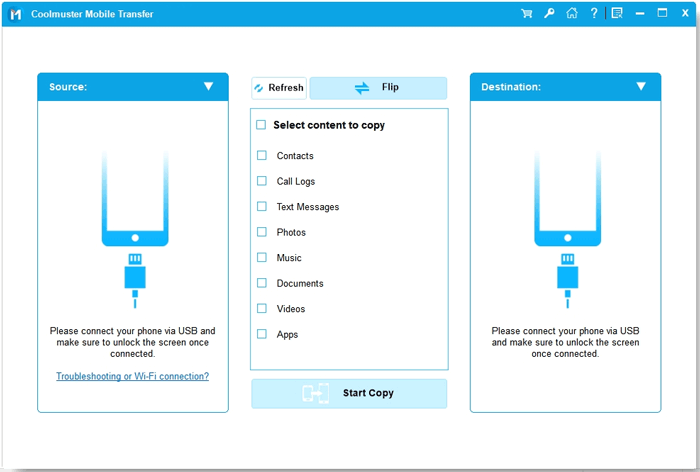
03Once connected successfully, the program will display Connected under both devices. Make sure the old Android phone appears in the Source position. If the phones are displayed incorrectly, click the "Flip" button to switch their positions.
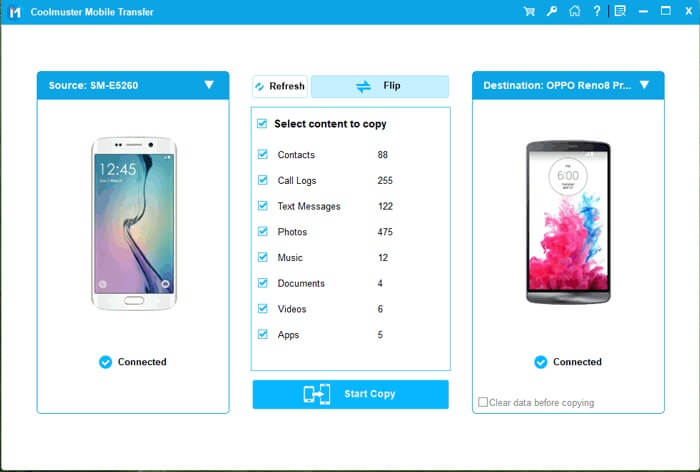
04Under the Select content to copy section, choose the data types you want to transfer, then click the "Start Copy" button to begin moving data from Android to Samsung.
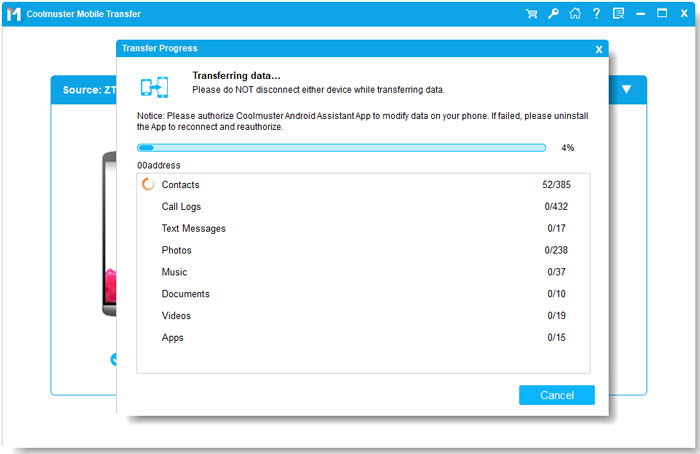
If you prefer a more visual guide, you can also follow the official video tutorial below to see the entire transfer process in action.
Smart Switch disconnecting issues can be frustrating, especially when transferring important files between devices. In most cases, the problem is related to unstable networks, faulty USB connections, outdated software, or system restrictions. By following the troubleshooting methods above step by step, you can usually restore a stable connection and complete the transfer successfully.
However, if Samsung Smart Switch continues to disconnect or fails to work properly, switching to a more reliable alternative like Coolmuster Mobile Transfer can make the entire process much easier. Its stable connection, broad compatibility, and simple one-click transfer process help you move data smoothly without repeated interruptions. No matter whether you are transferring files between Android devices or across different platforms, choosing the right transfer tool can save time and avoid unnecessary data transfer failures.
Related Articles:
Samsung Smart Switch Stuck? Here's How to Fix It Effectively
Smart Switch Failed to Connect the Device? Step-by-Step Fix Guide
How Long Does Smart Switch Take? An Ultimate Guide with Answer
Samsung Smart Switch Not Working: Troubleshooting and Solutions







 Free Download for PC
  Free Download for Mac


