When you switch from an iPhone to an HONOR phone, one of the most important tasks is transferring your messages. Whether you're upgrading or simply switching devices, retaining your SMS and iMessages can be crucial. If you're wondering how to transfer messages from iPhone to HONOR, you're in the right place! In this guide, we will walk you through three easy methods to transfer messages from iPhone to HONOR. Let's dive into these methods to find the one that suits you best. (If you want to know how to transfer messages from your HONOR to your iPhone, you can click here.)
Coolmuster Mobile Transfer is a software designed specifically for data migration between iPhone and Android devices. It allows seamless transfer of messages, contacts, photos, and other data from an iPhone to an HONOR phone, with an easy-to-use interface that requires no technical expertise.
Key features of Coolmuster Mobile Transfer:
* Transfer text messages from iPhone to Android (HONOR) with just one click.
* Effortlessly move contacts, text messages, music, videos, eBooks (PDFs & ePubs), and photos from iOS to Android in only a few steps.
* Choose from four flexible transfer options: iOS to iOS, Android to iOS, iOS to Android, or Android to Android.
* Fully compatible with the latest iOS 26 and Android 16 systems.
* Enjoy fast, smooth, and secure transfers with no data loss.
How do I transfer messages from iPhone to HONOR with a single click? Follow the steps below:
01Download and install the tool on your computer. Launch the program and connect both your iPhone and HONOR phone to the computer using their USB cables. Make sure the software detects both devices.
02Once connected, your iPhone will be set as the source device and your HONOR phone as the target. If this isn't the case, simply click the "Flip" button to swap the devices.
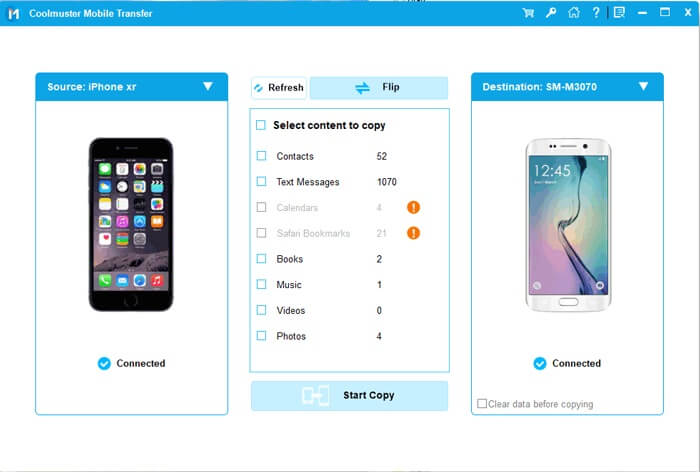
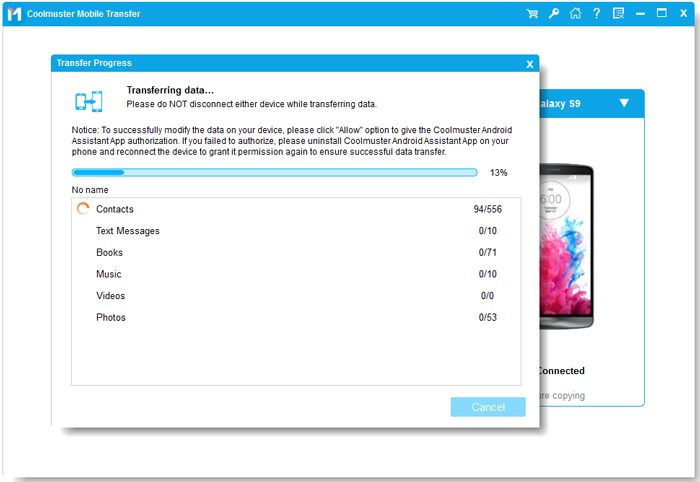
03The program will display a list of files from your iPhone. Select the "Text Messages" category. After choosing the SMS messages you want to transfer, click the "Start Copy" button. The transfer will begin, moving the selected messages from your iPhone to your HONOR phone.
Video guide
HONOR Device Clone is the official migration tool launched by HONOR, specifically designed for HONOR phone users. It helps you quickly transfer data, including text messages, from an iPhone to an HONOR device.
Here is how to copy messages from an iPhone to an HONOR with HONOR Device Clone:
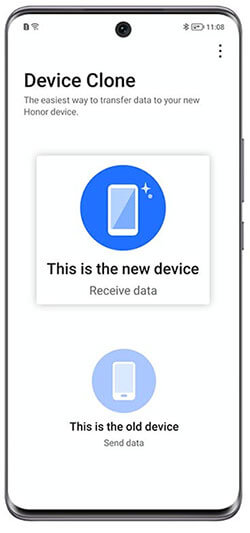
Step 1. On your new HONOR phone, open Device Clone ("Settings" > "System & updates" > "Device Clone) and select "This is the new device".
Step 2. Select "iPhone/iPad" as the type of your old device.
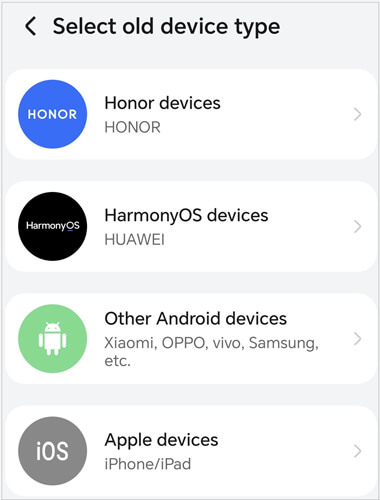
Step 3. Download and install the Device Clone app on your iPhone.
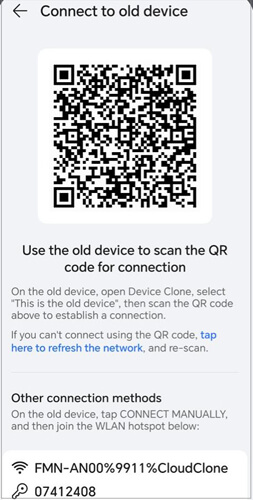
Step 4. Open the app on your iPhone, select "This is the old device", and follow the prompts to connect your iPhone to the HONOR device via Wi-Fi or QR code.
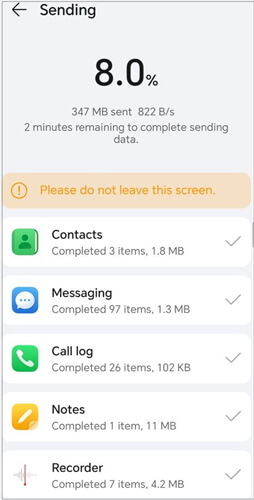
Step 5. Choose "Messages" (SMS/MMS) along with any other data you want to transfer, then start the transfer process.
You can also use iSMS2droid to transfer iPhone text messages to your HONOR phone. Unlike the previous two methods, this one primarily uses your iPhone backup to import and save messages to your Android device. In simple terms, it extracts messages from the iPhone backup and restores them to your Android phone. While it's a bit more complex, it's still a viable option.
Here is how to transfer messages from iPhone to HONOR via iSMS2droid:
Step 1. Connect your iPhone to your computer and open iTunes. Go to the "Summary" tab and click on "Back Up Now" to create a backup of your iPhone. Be sure not to encrypt your backup, or this method won't work.
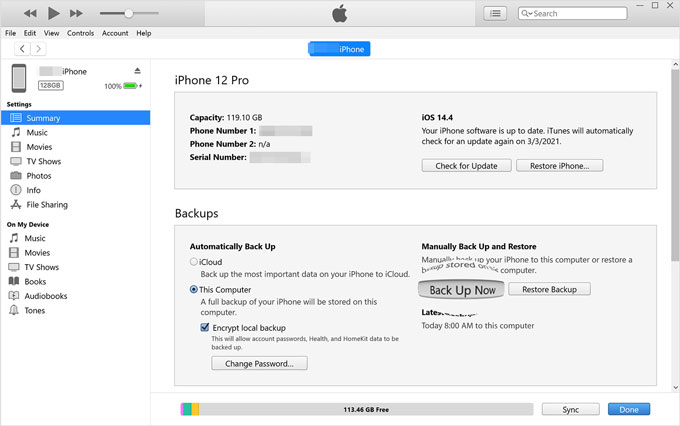
Step 2. Navigate to the following path on your computer and copy the file named "3d0d7e5fb2ce288813306e4d4636395e047a3d28" to your HONOR device:
Step 3. Download and launch the iSMS2droid app on your HONOR phone. Tap "Import Messages" to begin.
Step 4. Select the file you just copied to your phone and tap "Import All" to transfer all your iPhone messages to your HONOR device.
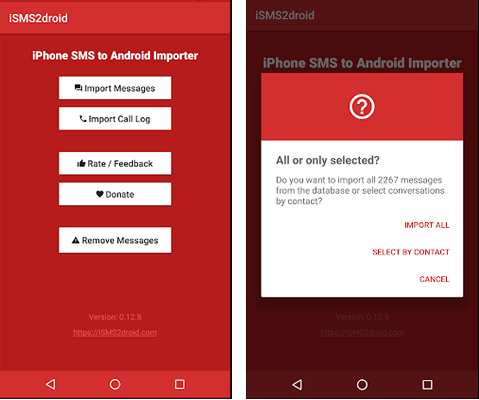
Step 5. Your messages should now be restored on your HONOR phone. You can confirm this by opening the Messages app on your device.
That's all about how to transfer messages from iPhone to HONOR. After exploring all available methods, we recommend Coolmuster Mobile Transfer as the best option for transferring messages from an iPhone to HONOR. It is user-friendly, fast, and supports various data types, ensuring that you can easily transfer messages. Whether you're transferring just messages or other types of data, Coolmuster Mobile Transfer is a reliable tool to ensure a smooth transition to your new HONOR phone.
Related Articles:
[Full Guide] How to Transfer Contacts from iPhone to HONOR?
5 Useful Ways to Send Videos from iPhone to HONOR: Step-by-Step
How to Conduct HONOR Backup and Restore with 4 Effective Ways







 Free Download for PC
  Free Download for Mac


