When you switch from an iPhone to a Redmi phone, how to transfer important text messages is a very common issue. Fortunately, there are several ways to help you transfer messages from an iPhone to a Redmi phone. Below, we will explain these methods in detail and provide you with specific steps to follow.
Coolmuster Mobile Transfer is a very practical mobile data transfer tool that helps you easily transfer SMS, contacts, photos, videos, and other data from your iPhone to a Redmi phone. Compared to other methods, the biggest advantage of Coolmuster is its simple and fast operation. You can complete the data transfer in just a few minutes, with a straightforward and intuitive process that doesn't require any technical background.
Key features of Coolmuster Mobile Transfer:
* Transfer text messages from iPhone to Android (Redmi) in 1 click.
* Easily transfer contacts, text messages, music, videos, eBooks (PDFs & ePubs), and photos from iOS to Android with just a few clicks.
* Choose from four flexible transfer options: iOS to iOS, Android to iOS, iOS to Android, or Android to Android.
* Fully compatible with the latest iOS 26 and Android 16 systems.
* Enjoy fast, smooth, and secure transfers with zero data loss.
How do I transfer messages from iPhone to Redmi in one click? Here's how:
01Download and install the tool on your computer. Open the program and connect both your iPhone and Redmi phone to the computer using their USB cables. Ensure the software recognizes both devices.
02Once connected, your iPhone will be set as the source device and the Redmi phone as the target. If not, simply click "Flip" to switch the devices.
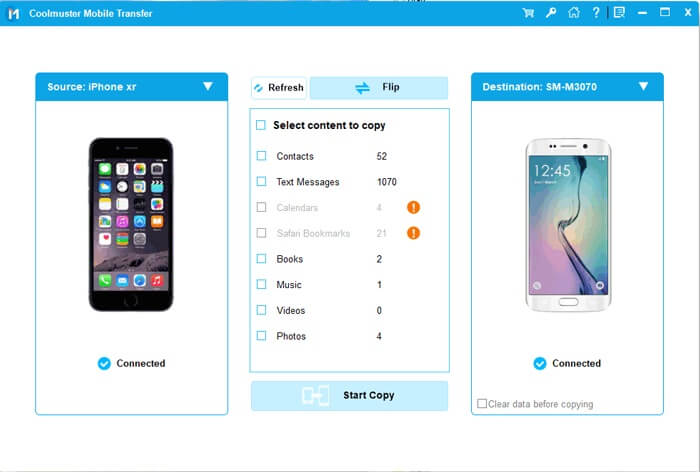
03The program will display a list of files from your iPhone. Select the "Text Messages" category. After choosing the SMS you wish to transfer, click the "Start Copy" button. The transfer will begin, moving the SMS from your iPhone to your Redmi.
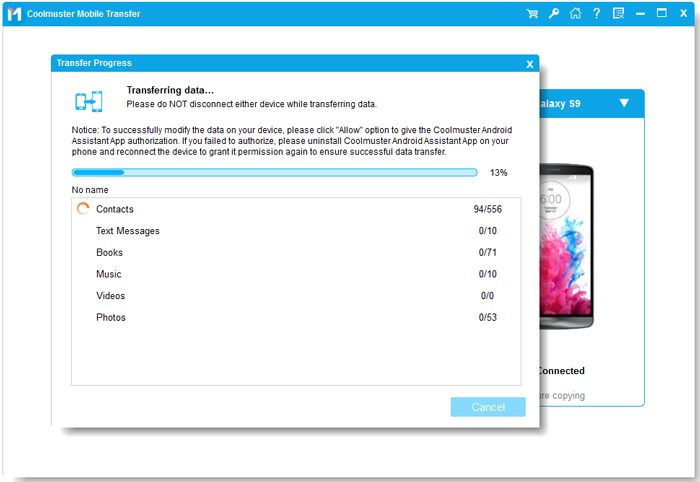
Video guide
Mi Mover is a data transfer tool officially launched by Xiaomi, and it supports transferring data from iPhone to Redmi phones. It is suitable for quick wireless transfer of basic data, and the operation is simple.
Here is how to move messages from iPhone to Redmi via Mi Mover:
Step 1. Install Mi Mover on both the iPhone (from the App Store) and Redmi (pre - installed or available on the Mi App Store).
Step 2. Launch Mi Mover on both the iPhone and Redmi devices.
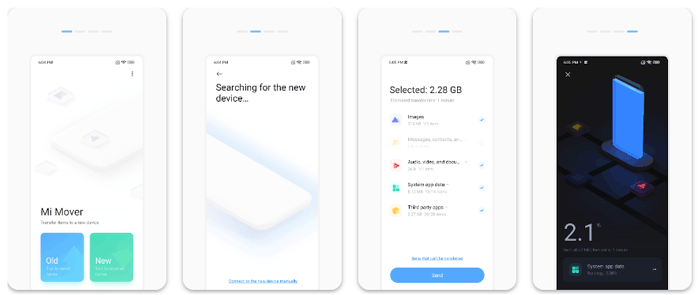
Step 3. On the Redmi phone, tap "New," and on the iPhone, select "Old." The devices will connect via a personal hotspot.
Step 4. Select "Messages" and other desired data, then tap "Send" to start the transfer.
Note: If you are looking for the alternatives to Mi Mover, you can click here.
The SMS Backup & Restore app allows you to back up your call logs, as well as MMS and SMS messages currently stored on your phone. It also lets you restore your messages and call logs from an existing backup. To transfer messages from iPhone to Redmi, follow these steps:
Step 1. Download and install the app on both your Redmi phone and iPhone. Once installed, open the app on both devices and proceed to the next step.
Step 2. On your iPhone, open the app and tap the "Backup" icon. You'll be prompted to select the files you want to back up. Choose "Messages" and then tap "OK" to continue.
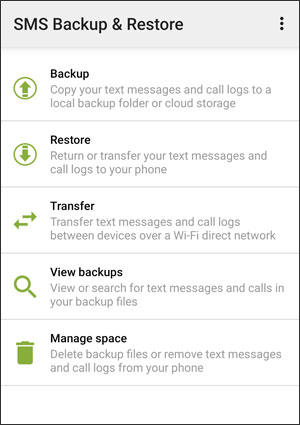
Step 3. Next, open the SMS Backup & Restore app on your Redmi device and tap "Restore". Your messages will be transferred and restored to your new Redmi phone.
You can also use the iSMS2droid app to transfer iPhone messages to a Redmi phone. This method is suitable for transferring all messages, including historical ones, but it is a bit more complicated.
Here is how to transfer messages from iPhone to Redmi using iSMS2droid:
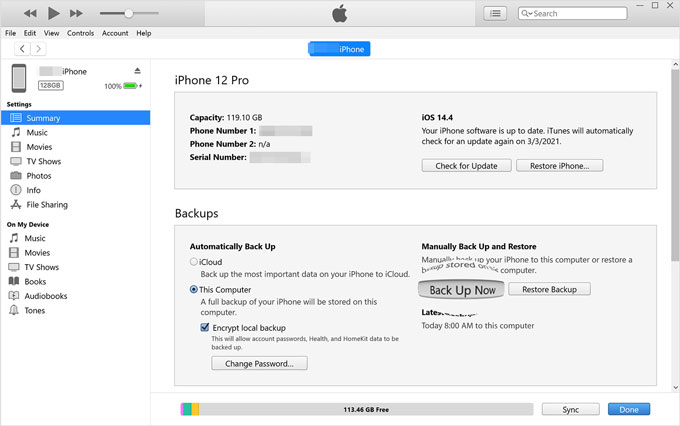
Step 1. Connect your iPhone to the computer via USB, open iTunes, click on the iPhone icon, go to "Summary", and select "Back Up Now" under "Manually Back Up and Restore". (iTunes Back Up Now button greyed out?)
Step 2. Download and install the iSMS2droid app on your phone.
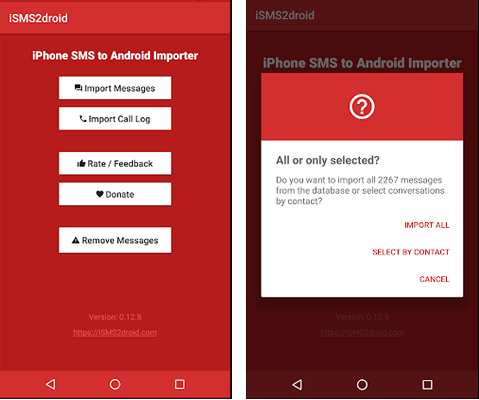
Step 3. Open the app and tap "Import Messages" from the main screen. Follow the on-screen instructions to proceed.
Step 4. Choose the SMS backup file that was downloaded to your computer. Then, tap "IMPORT ALL" to transfer the messages.
That's all about how to transfer messages from iPhone to Redmi. While all of the methods mentioned above are effective in transferring messages from iPhone to Redmi, the best and easiest solution is to use Coolmuster Mobile Transfer. It provides a one-click solution that is both quick and efficient, ensuring that your messages are transferred seamlessly without any technical hassle.
Related Articles:
How to Transfer iPhone Data to Xiaomi: iPhone to Xiaomi Transfer in 5 Ways
How to Transfer Contacts from iPhone to Redmi in 4 Easy Ways?
[Solved] How to Transfer Text Messages from Redmi to iPhone Easily?
How to Transfer Photos from iPhone to Redmi Easily? [2026 Guide]







 Free Download for PC
  Free Download for Mac


