TL;DR:
Whether you're setting up a new Google Pixel or have already started using it, there are several reliable ways to transfer messages from Samsung without losing your important conversations.
A new phone can feel like a fresh start, until you realize that years of conversations are still stored on your old device. From important verification codes and work-related messages to personal chats and memorable moments, text messages often contain valuable information that you may not want to leave behind.
Fortunately, moving these conversations to your new device does not have to be complicated. Whether you are setting up a new phone or have already started using it, there are several reliable ways to transfer messages from Samsung to Google Pixel safely. This guide will walk you through the most practical methods and help you choose the right solution based on your situation.
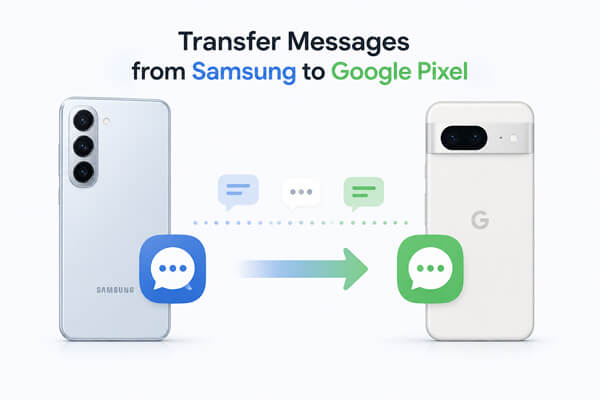
Yes, you can transfer text messages from Samsung to Google Pixel. Since both Samsung Galaxy phones and Google Pixel devices run on Android, you can move SMS and MMS messages using built-in Android migration features or third-party transfer tools.
The best method depends on your situation:
Before transferring, make sure both phones have enough battery, update them to the latest system version, and keep your Samsung device available until the process is complete.
Below are 4 step-by-step methods to move messages from Samsung to Google Pixel. Each method has unique advantages: official tools offer safety and simplicity, wireless methods need no cables, cloud backup supports cross-device restoration, and third-party tools work for post-setup migration.
Google Pixel includes a built-in Copy apps & data feature that makes it easy to transfer data from an old Android phone, including Samsung devices. This is Google's official migration solution and is the best option if you're setting up a new Pixel for the first time.
With this feature, you can transfer not only SMS and MMS messages but also contacts, photos, videos, apps, and other supported data. Depending on your situation, you can connect the two phones using either a USB cable or a wireless connection. A wired transfer is generally recommended because it is faster and more stable, while the wireless option is convenient when a cable isn't available.
Option 1. Transfer Messages Using a USB Cable
Using a USB cable provides the most reliable transfer experience, especially if you have a large number of messages or other files to move.
Step 1. Turn on your new Google Pixel and begin the setup process.
Step 2. When you reach the Copy apps & data screen, tap "Next" to start transferring data from your old phone.
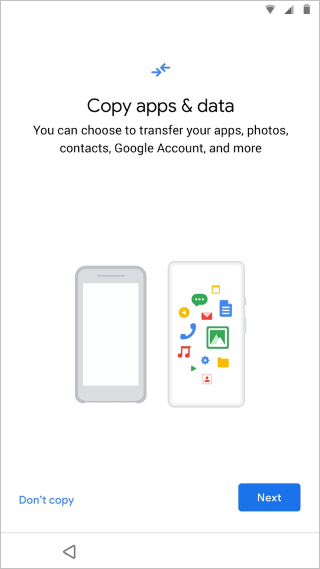
Step 3. Connect your Samsung phone to the Pixel using a compatible USB cable or the adapter included with your Pixel.
Step 4. Unlock your Samsung phone and follow the on-screen prompts to allow the connection.
Step 5. Select the data you want to transfer, make sure Messages is checked, and then start the transfer.
Step 6. Wait until the process is complete before disconnecting the two devices.
Pros:
Cons:
Option 2. Transfer Messages Wirelessly
If you don't have a USB cable, you can still use the same Copy apps & data feature to move messages over Wi-Fi. Although the process is similar, the phones connect wirelessly instead of through a cable.
Step 1. Turn on your Google Pixel and start the initial setup.
Step 2. On the Copy apps & data screen, choose the option to transfer data without a cable.
Step 3. Follow the on-screen instructions to connect your Samsung phone to the Pixel over Wi-Fi.
Step 4. Confirm the connection on your Samsung device and grant the required permissions.
Step 5. Choose Messages along with any other data you want to transfer, then begin the migration.
Step 6. Keep both devices connected to the same network and close to each other until the transfer finishes.
Pros:
Cons:
If you've already finished setting up your Pixel, some newer Pixel models also let you import data later. Go to "Settings" > "System" > "Backup" > "Restore data" (or search for Android Switch) and follow the on-screen instructions to reconnect your Samsung phone. Availability may vary depending on your Pixel model and Android version.
If you regularly back up your Samsung phone to your Google account, you can restore your messages when setting up your Google Pixel. Unlike the built-in transfer tool, this method restores data from a cloud backup rather than transferring it directly between two devices.
Before you begin, make sure your Samsung phone has been backed up recently and that you'll sign in to your Pixel using the same Google account.
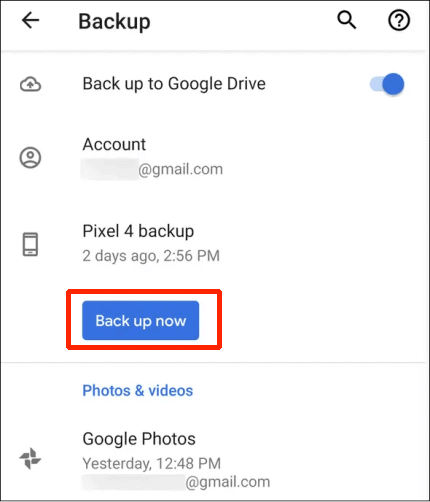
Step 1. Back up your Samsung phone
Open "Settings" > "Google" > "Backup", then tap "Back up now" and wait for the backup to finish.
Step 2. Set up your Google Pixel
Turn on your Pixel and complete the initial setup until you're prompted to restore data.
Step 3. Sign in to your Google account
Use the same Google account that you used on your Samsung phone.
Step 4. Restore your backup
Choose the latest available backup, select "Messages", and continue with the restoration process.
Pros:
Cons:
Although Google offers official ways to transfer messages, they may not work for every situation. For example, some Pixel devices don't support importing data after setup, the built-in transfer feature may fail to detect your Samsung phone, or you may simply prefer a more straightforward desktop solution.
In these cases, Coolmuster Mobile Transfer is a practical alternative. It lets you transfer messages directly from Samsung to Google Pixel after setup without performing a factory reset. Besides SMS, it also supports transferring other commonly used data between Android devices, making it a convenient choice when you need a more flexible migration solution.
Key features of Mobile Transfer:
How to transfer messages from Samsung to Google Pixel?
01Download, install, and launch Mobile Transfer on your computer.
02Connect your Samsung phone and Google Pixel to the computer using USB cables. Follow the on-screen instructions to enable USB debugging if prompted.
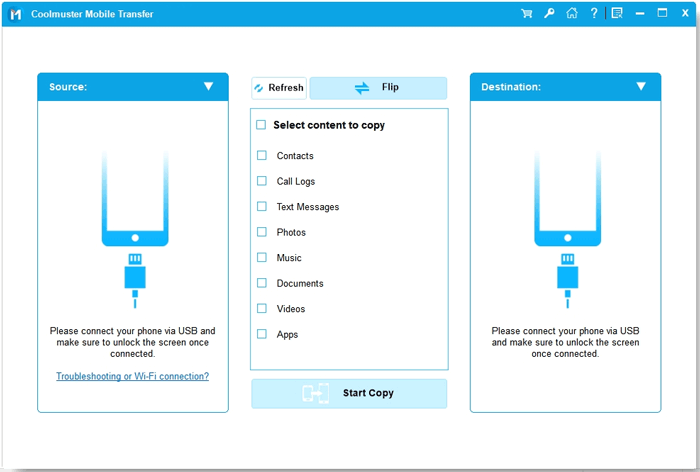
03Once both devices are recognized, make sure your Samsung phone appears as the Source device and your Pixel is the Destination device. If they are reversed, click "Flip" to switch their positions.
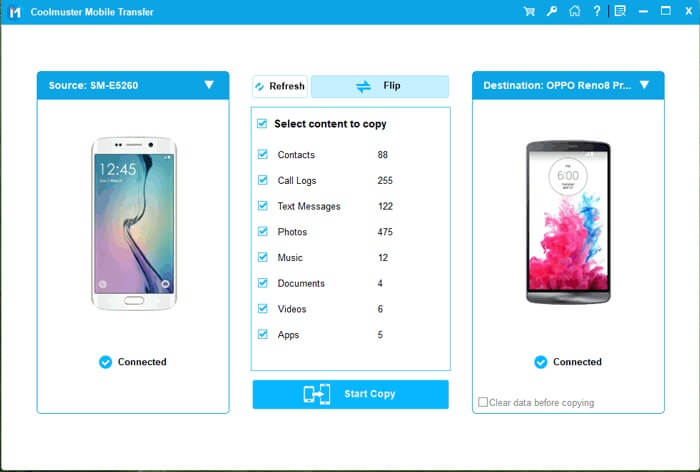
04Select "Messages" from the list of transferable data and click "Start Copy" to begin the transfer.
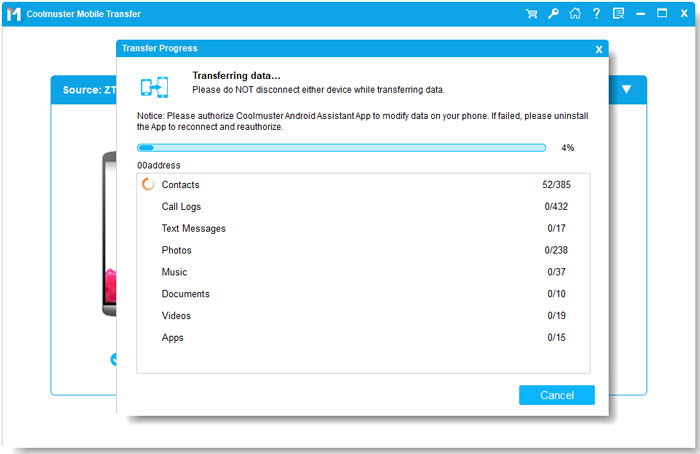
Prefer watching instead of reading? You can also follow the official video tutorial to complete the transfer step by step.
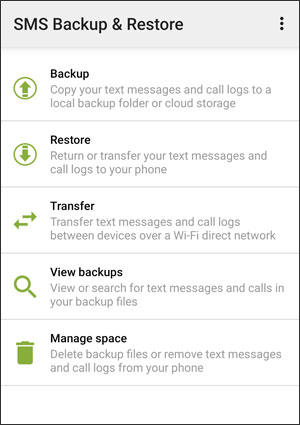
If you only need to move text messages and your Pixel has already been set up, SMS Backup & Restore is another practical option. Instead of transferring data directly between two phones, this app creates a backup of your messages and restores it on your Google Pixel.
Steps to transfer messages with SMS Backup & Restore:
On your Samsung phone:
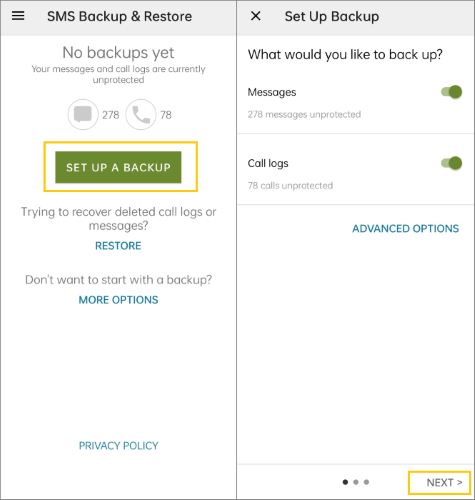
On your Google Pixel:
Pros:
Cons:
1. Does Google Pixel transfer Samsung messages automatically?
No. Google Pixel does not automatically transfer Samsung messages unless you start the Copy Apps & Data process during setup or restore a previous backup. You need to manually select the messages you want to move.
2. Will my old messages be deleted from Samsung after transfer?
No. Transferring messages from Samsung to Google Pixel normally creates a copy of your messages on the new device. Your original messages will remain on your Samsung phone unless you delete them manually.
3. Why are my messages not transferred to Google Pixel?
Messages may fail to transfer because of several reasons:
You can try reconnecting devices, updating both phones, or using another transfer method.
4. Does Samsung Smart Switch transfer messages to Google Pixel?
No. Samsung Smart Switch is designed to transfer data to Samsung Galaxy devices, not from Samsung phones to other brands. It supports migrations such as Samsung to Samsung, iPhone to Samsung, and other Android phones to Samsung. However, it doesn't support transferring messages directly from a Samsung phone to a Google Pixel.
Transferring messages from Samsung to Google Pixel doesn't have to be complicated. If you're setting up a new Pixel, Google's built-in transfer tool is the best place to start, whether you prefer a USB cable or a wireless connection. If you've already completed the setup, you can still move your messages using Google Backup, a dedicated transfer tool like Coolmuster Mobile Transfer, or SMS Backup & Restore, depending on your situation and preferences.
Each method has its own advantages, so the right choice depends on your device status and how you want to migrate your data. Whichever option you choose, transferring your messages before retiring your old Samsung phone helps ensure that important conversations, verification codes, and personal memories stay with you on your new Google Pixel.
Related Articles:
How to Transfer Data from Samsung to Pixel? (7 Hassle-Free Options)
How to Transfer Data from Android to Pixel with 4 Easy Methods
How to Transfer Data to Pixel [Support both Android and iPhone]
How to Restore Samsung Backup to New Phone? A Comprehensive Guide






 Free Download for PC
  Free Download for Mac


