TL;DR:
Transferring text messages from iQOO to iQOO can be done through built-in tools, cloud backup, or third-party apps, depending on your needs for speed, convenience, or control over data.
Upgrading to a new iQOO 15 phone is exciting, but many users worry about losing important text messages during the transition. Whether your SMS contains personal conversations, verification codes, business information, or important records, transferring them to your new device is essential.
Fortunately, there are several effective ways to transfer text messages from iQOO to iQOO. You can use iQOO's built-in EasyShare app, a professional phone transfer tool, your Google account, or a dedicated SMS backup application. In this guide, we'll walk you through each method step by step so you can choose the one that best fits your needs.
EasyShare is the official data migration tool developed by vivo for iQOO and vivo devices. For users who want to transfer text messages from iQOO to iQOO, it provides a convenient wireless solution without requiring a computer or third-party software. By using Wi-Fi Direct technology, EasyShare creates a direct connection between two phones, allowing messages, contacts, call logs, photos, apps, and other data to be transferred quickly and securely. Because the transfer occurs locally between the devices, it is often considered one of the most convenient methods for everyday users. (Here are 7 iQOO EasyShare alternatives for you.)
Here's how to transfer SMS from iQOO to iQOO using EasyShare:
Step 1. Open the EasyShare app on both iQOO phones. If it's not installed, download it from the app store.
Step 2. On the old iQOO device, tap "Phone Clone" and select "Old Phone".
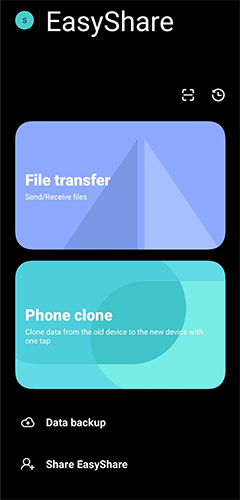
Step 3. On the new iQOO phone, tap "Phone Clone" and choose "New Phone".
Step 4. Use the new phone to scan the QR code displayed on the old phone to establish a connection.
Step 5. Once connected, select "Messages" from the list of transferable data.
Step 6. Tap "Start Transfer" and wait for the process to complete.
Pros:
Cons:
If you want the fastest and most reliable way to transfer text messages between iQOO phones, Coolmuster Mobile Transfer is highly recommended. It allows you to transfer data directly from one Android device to another with a single click, including SMS, contacts, call logs, photos, music, videos, apps, and more.
Why choose Mobile Transfer?
How to transfer text messages from iQOO to iQOO with Mobile Transfer?
01Download and install Mobile Transfer on your computer. Launch the software afterward.
02Connect both iQOO phones to the computer using USB cables. Enable USB debugging on both devices when prompted.
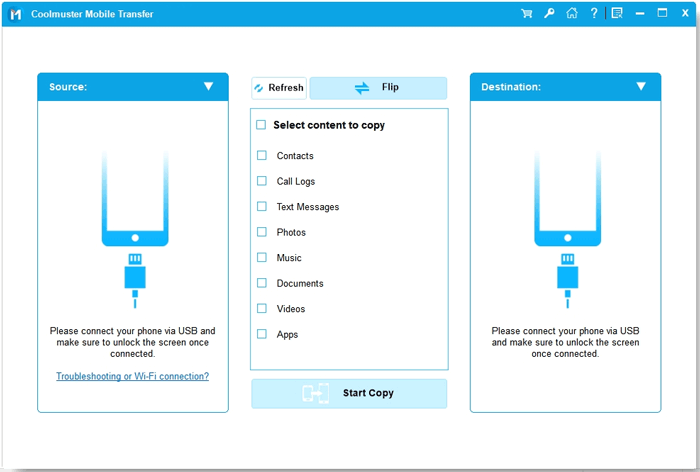
03After detection, make sure the old iQOO phone appears in the Source position and the new iQOO phone appears in the Destination position. If not, click "Flip" to switch them.
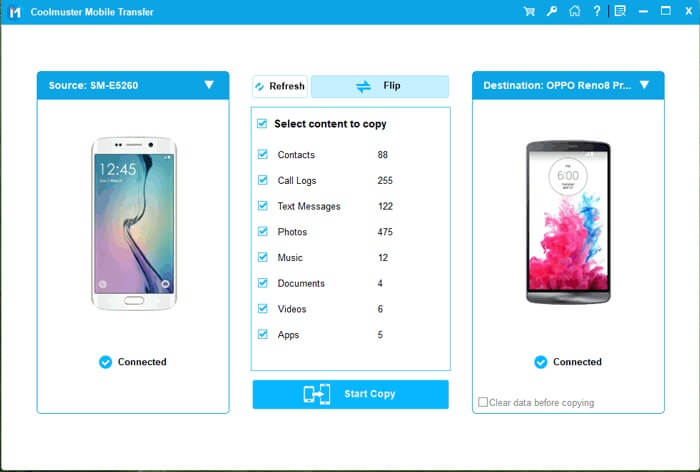
04Select "Text Messages" from the data categories displayed in the middle panel. Then, click "Start Copy" to begin transferring SMS from the old iQOO phone to the new one.
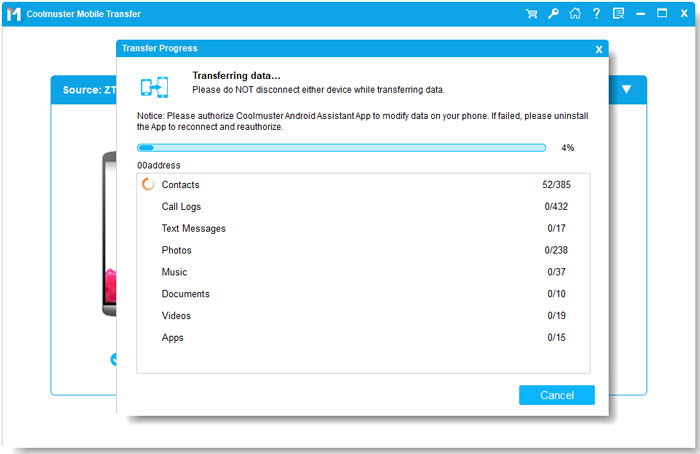
The entire transfer process only takes a few minutes. For a clearer demonstration, you can also watch the following video tutorial:
If you already use Google services on your iQOO phone, transferring text messages through a Google account can be a convenient option. By enabling Android's built-in backup feature, your SMS messages can be stored in Google cloud storage together with contacts, app data, device settings, and other information. When setting up your new iQOO phone, simply sign in with the same Google account and restore the available backup to recover your messages. Since the entire process is cloud-based, no USB cable or direct phone-to-phone connection is required.
Here's how:
Step 1. On the old iQOO phone, open "Settings" > "Google" > "Backup".
Step 2. Enable "Back up to Google One" and ensure that SMS are included in the backup.
Step 3. Tap "Back Up Now" and wait for the backup process to finish.
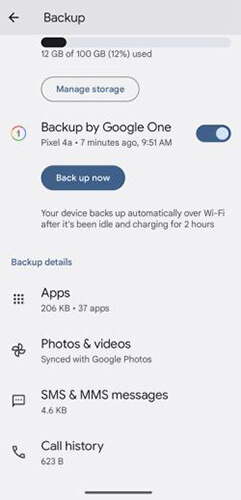
Step 4. Turn on your new iQOO phone and sign in with the same Google account during setup.
Step 5. When prompted, choose to restore data from the Google backup.
Step 6. Select the available backup and continue the setup process.
Once the restoration is complete, your text messages should appear on the new iQOO device.
Pros:
Cons:
SMS Backup & Restore is a widely used Android app that specializes in backing up and restoring text messages. It enables users to create SMS backups and store them locally or in cloud services such as Google Drive, OneDrive, and Dropbox. When switching to a new iQOO phone, you can simply restore the backup to recover your messages. Because it also supports scheduled backups, this method is especially suitable for users who want to transfer text messages from iQOO to iQOO and maintain regular SMS backups at the same time.
Follow these steps:
Step 1. Install SMS Backup & Restore on both iQOO phones.
Step 2. Launch the app on the old phone and tap "Set Up a Backup".
Step 3. Select "Messages" and choose where to save the backup file.
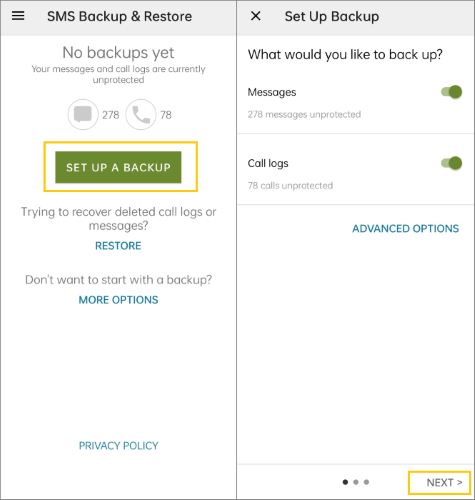
Step 4. Tap "Back Up Now" to create the SMS backup.
Step 5. Install and open the app on the new iQOO phone.
Step 6. Sign in to the same cloud account or transfer the backup file to the new phone.
Step 7. Tap "Restore", locate the backup file, and start restoring the messages.
Step 8. Follow the on-screen instructions and temporarily set the app as the default SMS application if required.
After the restoration is complete, all backed-up messages will be available on the new iQOO phone.
Pros:
Cons:
Transferring text messages from iQOO to iQOO is not a complicated task, as long as you choose the right method based on your needs. Whether you prefer the built-in EasyShare tool for quick wireless transfer, a one-click solution like Coolmuster Mobile Transfer for batch migration, Google account for cloud-based backup and restore, or SMS Backup & Restore for flexible local and cloud backups, each method can help you move your important SMS data safely to a new device.
If you want the simplest and most time-saving option, a professional tool like Coolmuster Mobile Transfer is usually the most efficient choice. However, for users who prefer free or built-in solutions, EasyShare and Google account are also reliable alternatives.
No matter which method you choose, you can easily complete the transfer and keep all your important messages when switching to a new iQOO phone.
Related Articles:
How to Transfer Data from iPhone to iQOO? [Complete Guide]
How to View iQOO Text Messages on Computer (4 Easy Ways)
2 Best Ways to Transfer Text Messages from iQOO to iPhone
Top 6 Methods to Sync IQOO to PC [A Comprehensive How-to Guide]







 Free Download for PC
  Free Download for Mac


