TL;DR:
If Move to iOS WhatsApp is stuck at 99 percent, don't panic; this doesn't always mean the transfer has failed. Here's what you should know before troubleshooting:
Apple's Move to iOS app makes it easier than ever to transfer data from an Android phone to an iPhone, including your WhatsApp chats. However, many users encounter a frustrating issue where the WhatsApp transfer gets stuck at 99%, leaving them wondering whether the migration has failed.
The good news is that Move to iOS WhatsApp stuck at 99 percent doesn't always mean something is wrong. In this guide, we'll explain why Move to iOS gets stuck at 99% when transferring WhatsApp, walk you through 9 proven fixes to complete the migration successfully, and introduce a reliable alternative if Move to iOS keeps getting stuck at 99 percent after multiple attempts.
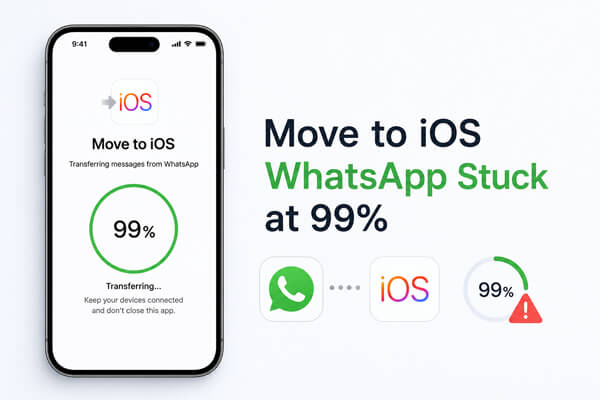
If your Move to iOS WhatsApp transfer is stuck at 99%, it doesn't necessarily mean the migration has failed. In many cases, the app is still verifying and converting your WhatsApp database before importing it to your iPhone. This final stage can take much longer than expected, especially if you have a large backup containing years of chats, photos, videos, and voice messages.
However, if the progress remains at 99% for several hours without any change, there may be an underlying issue preventing the transfer from completing. The most common causes include:
If Move to iOS is stuck at 99% while transferring WhatsApp, don't cancel the process immediately. Start with the simplest solutions below, then work your way down the list if the issue persists.
One of the biggest mistakes users make is stopping the transfer too soon. Although the progress bar shows 99%, Move to iOS may still be verifying your WhatsApp database, converting chat history, or importing media files to your iPhone.
The larger your WhatsApp backup, the longer this final stage can take.
| WhatsApp Backup Size | Estimated Transfer Time |
| Less than 2 GB | 20 - 40 minutes |
| 2 - 5 GB | 40 - 90 minutes |
| 5 - 10 GB | 1 - 3 hours |
| More than 10 GB | 3 hours or longer |
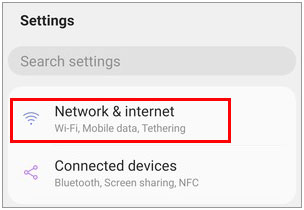
Move to iOS creates a direct wireless connection between your Android phone and iPhone. If that connection becomes unstable, the WhatsApp transfer may freeze or stop responding.
Follow these tips to maintain a stable connection:
Step 1. Place both devices close together during the entire transfer.
Step 2. Turn off VPN services and mobile data.
Step 3. Disable Wi-Fi Assistant, Smart Network Switch, or similar features that automatically change networks.
Step 4. Stay connected to the Wi-Fi network created by Move to iOS and don't connect either device to another network.
Step 5. Avoid making phone calls or using other network-intensive apps until the transfer is complete.
Insufficient storage is another common reason why Move to iOS gets stuck at 99%. During the migration, your iPhone needs extra space to unpack and organize WhatsApp data before it can be restored.
As a rule of thumb, it's best to have at least 1.5 to 2 times the size of your WhatsApp backup available on your iPhone.
| WhatsApp Backup Size | Recommended Free Space |
| 5 GB | 10 GB or more |
| 10 GB | 20 GB or more |
| 20 GB | 40 GB or more |
To check your iPhone storage:
Step 1. Open "Settings" on your iPhone.
Step 2. Tap "General" > "iPhone Storage".
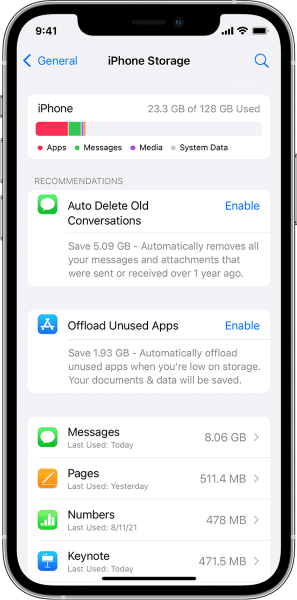
Step 3. Check the available storage space.
Step 4. If necessary, remove unused apps, videos, or other large files before trying the transfer again.
WhatsApp migration with Move to iOS only works when both devices meet Apple's and WhatsApp's requirements. If one of these conditions isn't satisfied, the transfer may fail or remain stuck.
Before retrying, confirm that:
Once you've verified these requirements, start the migration again to see if the issue is resolved.
Using outdated versions of Move to iOS, WhatsApp, or your device's operating system can lead to compatibility issues during migration. Updating everything to the latest version helps eliminate known bugs and improves the chances of completing the WhatsApp transfer successfully.
Follow these steps to check for updates:
Step 1. On your Android phone, open the Google Play Store, search for Move to iOS, and tap "Update" if a newer version is available.
Step 2. Search for WhatsApp in the Google Play Store and update it to the latest version.
Step 3. On your iPhone, open the App Store, tap your profile icon, and update WhatsApp if an update is available.
Step 4. Check for system updates on both devices:
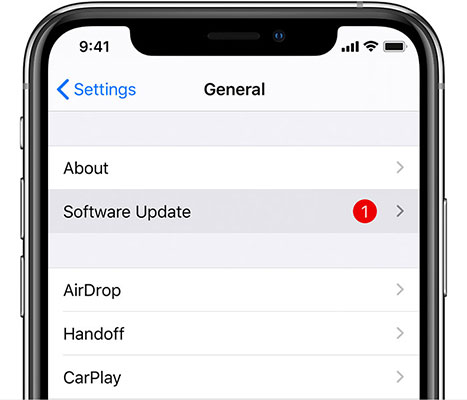
Step 5. Restart both devices after the updates are installed, then launch Move to iOS and try transferring your WhatsApp data again.
Sometimes, the issue isn't caused by your WhatsApp data at all but by a temporary software glitch. If Move to iOS is stuck at 99% for an extended period with no progress, restarting both devices can refresh the system and clear temporary errors that may be preventing the transfer from completing.
Follow these steps:
Step 1. Cancel the current transfer if it has remained at 99% for several hours without any activity.
Step 2. Restart both your Android phone and iPhone.
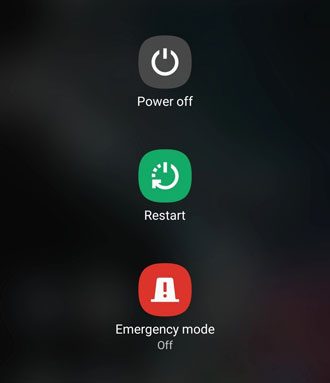
Step 3. Reconnect both devices to the same Wi-Fi network created by Move to iOS.
Step 4. Launch Move to iOS again and restart the WhatsApp migration.
Large WhatsApp backups take significantly longer to verify and import. If your backup contains years of chats, videos, documents, and other media files, reducing its size can make the transfer faster and less likely to fail.
To free up WhatsApp storage on Android:
Step 1. Open WhatsApp and tap "Settings" > "Storage and data" > "Manage storage".
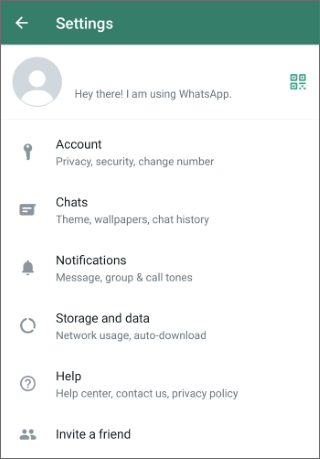
Step 2. Review conversations that occupy the most space.
Step 3. Delete unnecessary large videos, duplicate photos, forwarded files, or unwanted chat history.
Step 4. Restart the Move to iOS transfer.
Note: Before deleting important chats or media, create a WhatsApp backup to avoid accidental data loss.
If you've attempted the migration multiple times, Move to iOS may have stored temporary cache files or incomplete transfer data that interfere with new transfer attempts. Clearing the app cache, and, if necessary, the app data, can help reset the app without affecting your WhatsApp chats.
Here's how:
Step 1. Open "Settings" on your Android phone.
Step 2. Go to "Apps" > "Move to iOS" > "Storage".
Step 3. Tap "Clear Cache".
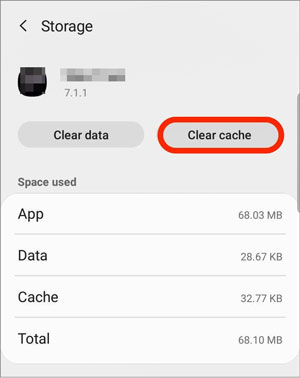
Step 4. If the problem persists, tap "Clear Data" or "Clear Storage" (the option name may vary depending on your Android device).
Step 5. Restart your Android phone, reopen Move to iOS, and begin the WhatsApp transfer again.
If you've already set up your iPhone or attempted the migration several times, WhatsApp transfer through Move to iOS may no longer be available. This is because Apple only allows WhatsApp migration during the initial iPhone setup.
If you don't have important data on your iPhone yet, resetting it and starting over may resolve the issue.
Step 1. Back up your iPhone if it contains important data.
Step 2. Go to "Settings" > "General" > "Transfer or Reset iPhone".
Step 3. Tap "Erase All Content and Settings" and follow the on-screen instructions.
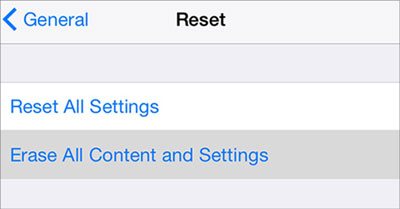
Step 4. After the iPhone restarts, complete the initial setup until you reach the Apps & Data screen.
Step 5. Choose "Move Data from Android", reconnect both devices, and try transferring WhatsApp again.
If you've tried all the fixes above but Move to iOS still gets stuck at 99%, repeatedly restarting the migration can be both frustrating and time-consuming. In this case, using a dedicated WhatsApp transfer tool can be a more reliable solution.
One of the best options is WhatsApp Transfer, which lets you transfer WhatsApp directly from Android to iPhone without relying on Move to iOS. It offers a higher success rate for large WhatsApp backups and simplifies the migration process with an intuitive interface.
Key features of WhatsApp Transfer:
If Move to iOS WhatsApp gets stuck at 99 percent, you can use WhatsApp Transfer to transfer your WhatsApp data directly from Android to iPhone.
01Install WhatsApp Transfer and connect both devices.
Download and launch WhatsApp Transfer on your computer, then connect your Android phone and iPhone using USB cables. Enable USB debugging on your Android device and tap "Trust" on your iPhone if prompted.
02Set up the transfer.
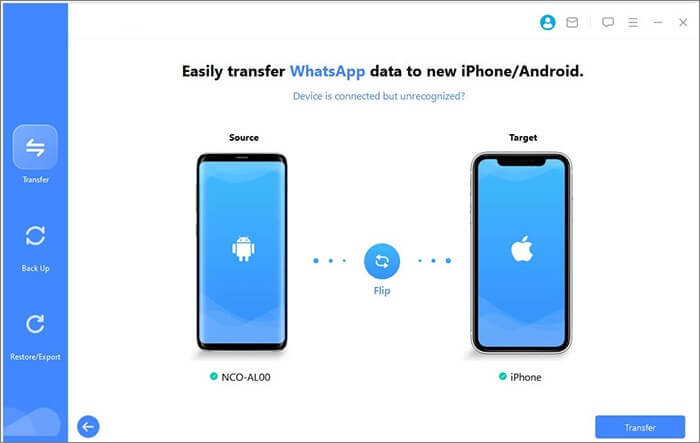
Open the "Transfer" module and make sure your Android phone is selected as the Source device while your iPhone is the Destination. If they're in the wrong order, click "Flip" to switch them.
03Start the transfer.
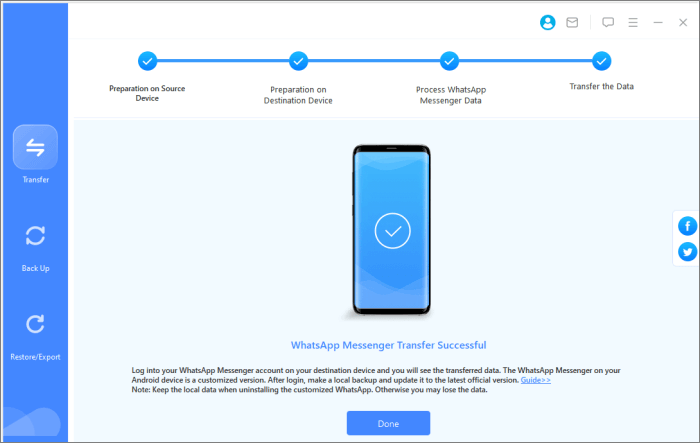
Click "Transfer" to begin moving your WhatsApp chats and media. Keep both devices connected until the process finishes.
Seeing Move to iOS WhatsApp stuck at 99 percent can be frustrating, but in most cases, the issue is caused by large WhatsApp backups, unstable network connections, insufficient storage, or temporary software glitches. By following the troubleshooting methods in this guide, you can resolve the problem and complete your WhatsApp migration successfully.
If you've tried the official solution several times without success, WhatsApp Transfer offers a more reliable alternative. It lets you transfer WhatsApp directly from Android to iPhone without depending on Move to iOS, making it a great option for users with large chat histories or repeated transfer failures. Whichever method you choose, making sure both devices are properly prepared beforehand can help ensure a smooth and successful migration.
Related Articles:
7 Useful Methods to Fix the Move to iOS Low Battery Issue
3 Ways to Transfer WhatsApp from Android to iPhone Without PC
How to Fix Move to iOS Unable to Migrate Issue without a Hitch?
9 Ways | How to Fix The Issue of Move to iOS Stuck on Preparation







 Free Download for PC
  Free Download for Mac


