"My phone screen broke in the upper right part, and it's unresponsive, right where the access to settings is, meaning I can't access the backup option. What happens if I keep using WhatsApp on another phone? Would I still be able to restore the backup in the future?"
- From Reddit
WhatsApp has become an essential tool for communication, holding countless messages, photos, videos, and important documents shared with family, friends, and colleagues. More than just a messaging app, WhatsApp carries our valuable memories and essential work information. However, when a phone screen breaks unexpectedly, we might lose access to these precious data in an instant. With a damaged screen making it nearly impossible to operate the phone, recovering WhatsApp data becomes a major challenge. In this guide, we'll explore how to recover WhatsApp from a broken phone without losing any important information.
If your Android phone is broken, there are several ways to retrieve WhatsApp data. The options vary depending on your phone's condition and backup settings.
For the easiest and most efficient recovery, you can use a professional Android data recovery tool. Broken Android Data Extraction is highly recommended for retrieving WhatsApp messages, media, and other data from broken Android devices. Even in situations such as a black screen or system crash, this software can scan and extract files.
Key features of Broken Android Data Extraction:
How to recover WhatsApp messages from broken phones?
01To use this Android data recovery tool, install it on your PC and launch it. Select "Broken Android Data Extraction" from the sidebar and click "Start".
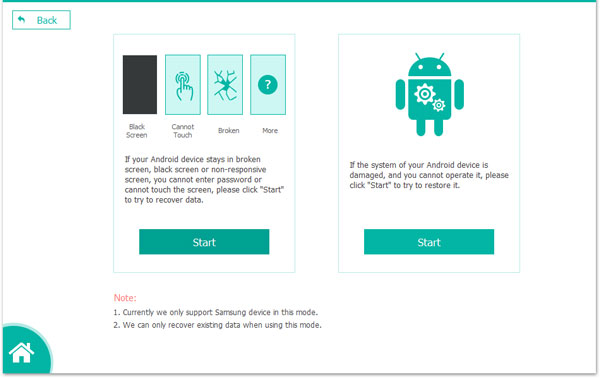
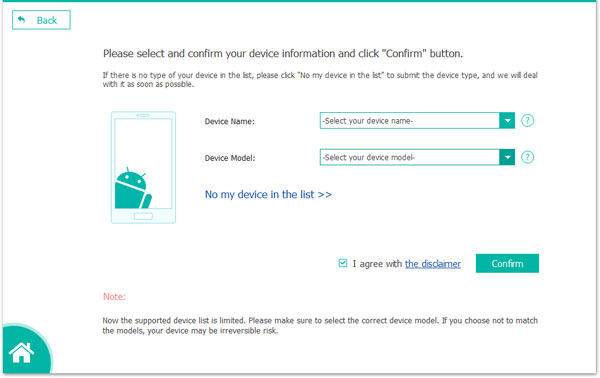
02Initiate the recovery process by choosing your preferred repair mode and clicking "Start". Select your phone model and click "Confirm". If you're unsure of your device's model, use the question mark icon for assistance.
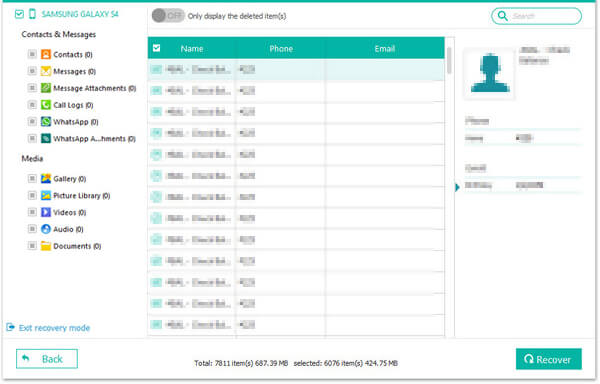
03After repairing the phone, the recovery tool will scan the device data. Once completed, tick "WhatsApp" or "WhatsApp Attachments", choose the specific content you wish to restore and click "Recover" to transfer the data from your phone to your computer.
If you have enabled WhatsApp backups on Google Drive, recovering data from there is straightforward. This method is convenient, but you'll need the same Google account and phone number for it to work. Here are the steps:
Step 1. On a new Android device, install WhatsApp and verify your phone number.
Step 2. Sign in to the Google account used for the backup.
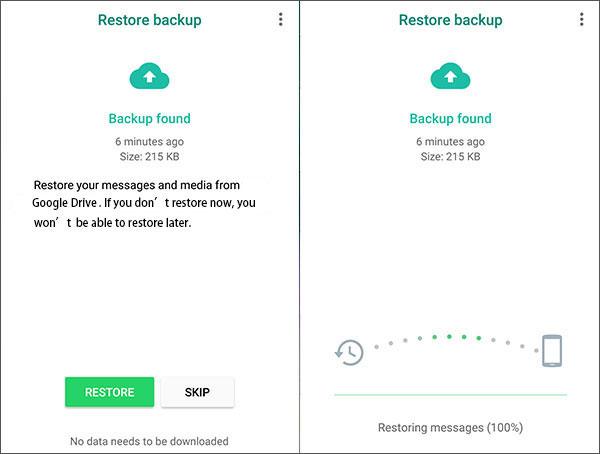
Step 3. WhatsApp will prompt you to restore from Google Drive. Confirm by tapping "RESTORE". Wait for the restoration to complete, and your chats and media will appear in the app.
How can I recover my WhatsApp messages if my phone is broken? If you have previously manually backed up your WhatsApp data to your phone's local storage, you can locate and restore those backup files through your file manager.
Step 1. Connect your phone to your computer using a USB cable, or attach a USB flash drive to your phone via an OTG cable.
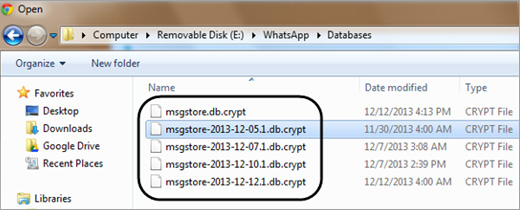
Step 2. Using your computer or your phone's built-in file manager, navigate to the WhatsApp backup folder (typically located at /sdcard/WhatsApp/Databases/).
Step 3. Identify the backup files that end with ".db.crypt" and copy them to a safe location.
Step 4. Install WhatsApp on your new Android phone and, during the setup process, select the option to "Restore from local backup".
Step 5. Navigate to the location where you previously copied the backup files and complete the restoration process.
For broken iPhones, iCloud and iTunes offer solid options to retrieve WhatsApp messages and media files. Choose the method that best matches your backup preferences.
If your iPhone has iCloud backup enabled, and WhatsApp data is included in the backup, you can recover your WhatsApp messages by restoring the iCloud backup. Below are the specific steps to recover WhatsApp messages from a broken iPhone using iCloud backup:
Step 1. Set up your new iPhone and log into your iCloud account.
Step 2. Download WhatsApp and verify your phone number.
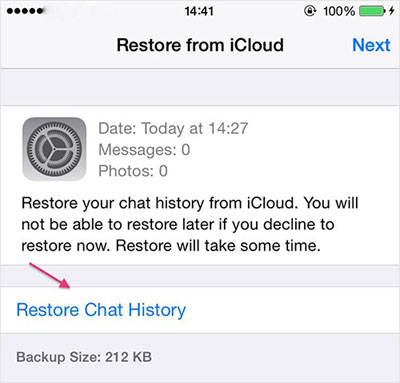
Step 3. WhatsApp will prompt you to restore from iCloud. Tap "Restore Chat History". Wait for the data to load, and your chats should be restored.
If you used iTunes to back up your iPhone, you can restore WhatsApp messages by restoring an iTunes backup to a new device. However, traditional data recovery from iTunes requires a full device restore, which will overwrite the current data on your new iPhone with the backup data. Therefore, you'll need a specialized recovery tool, such as Coolmuster iPhone WhatsApp Recovery.
Coolmuster iPhone WhatsApp Recovery allows you to recover WhatsApp data from an iTunes backup without affecting other data on your device. Here are the key features of Coolmuster iPhone WhatsApp Recovery:
Below is the guide on how to recover WhatsApp data from a broken iPhone using an iTunes backup:
01First, click the button below to download and install Coolmuster iPhone WhatsApp Recovery on your computer.
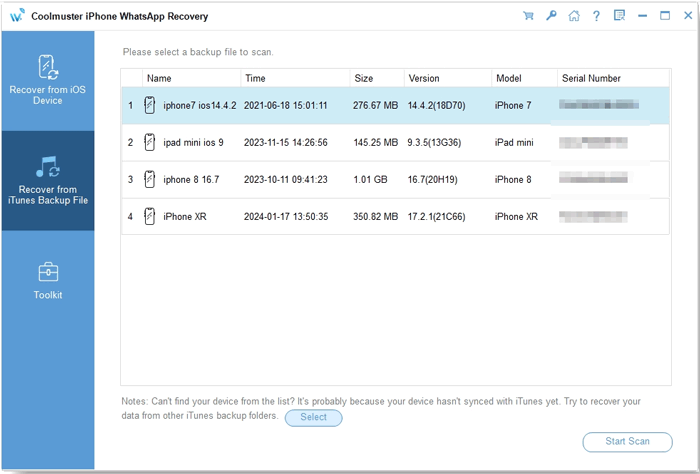
02Launch the program and go to the "Recover from iTunes Backup File" module. Select the desired backup file and click "Start Scan". If you can't find the backup file, click "Select" to search for it.
03Choose the type of data you want to recover, then click "Start Scan".
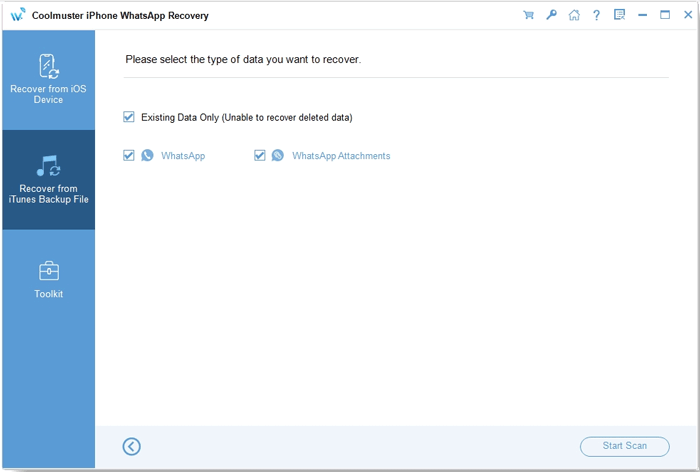
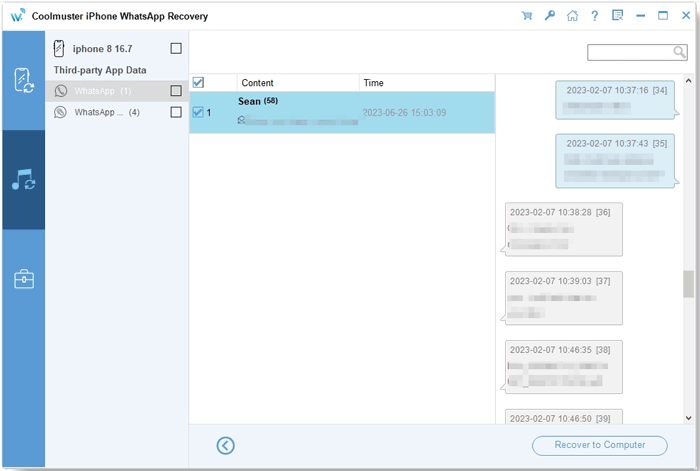
04Once the scan is complete, preview the WhatsApp files, select the ones you want to recover, and click "Recover to Computer" to start restoring from the iTunes backup.
For a more intuitive guide, check out the video tutorial below:
In this article, we covered effective methods on how to recover WhatsApp from a broken phone for both Android and iPhone users. Whether you're using a professional tool, cloud-based backups, or local backups, there are plenty of solutions to help you retrieve important messages, photos, and media.
For Android users, tools like Broken Android Data Extraction offer a convenient and reliable way to restore WhatsApp data, even from a damaged device. Meanwhile, iPhone users can recover WhatsApp messages using iCloud or iTunes backups, with Coolmuster iPhone WhatsApp Recovery providing a seamless experience without overwriting other data.
Related Articles:
3 Methods to Recover Deleted WhatsApp Messages on Android?
How to Restore WhatsApp Chat After Uninstall? Step-by-Step Guide
A Comprehensive Guide on How to Recover Deleted Files from WhatsApp






 Free Download for PC
  Free Download for Mac


