TL;DR:
Struggling with the "Unable to Restore WhatsApp Backup from Google Drive" issue? This guide explains the main reasons why WhatsApp backups sometimes fail to restore and provides 10 practical fixes, including checking your Google account, phone number, internet connection, storage space, and app settings. For users who need a more reliable solution, it also introduces a professional WhatsApp transfer tool that can restore backups from Google Drive to both Android and iOS devices with ease.
WhatsApp is something most of us rely on every day, and Google Drive backup makes it easier to keep chats and media safe when switching phones. But things don't always go smoothly. A common problem many users run into is being unable to restore WhatsApp backup from Google Drive when setting up a new device or reinstalling the app.
In this guide, we'll go through the real reasons behind the issue and show you practical ways to fix it. If nothing works, there's also an alternative method that can help you restore your WhatsApp data more reliably using WhatsApp Transfer.
Before attempting any fixes, it's helpful to understand what might be causing the problem. Here are some common reasons why WhatsApp is unable to restore a backup from Google Drive:
Below are the most effective fixes you can try when WhatsApp fails to restore your backup from Google Drive. Most issues are related to account mismatch, connectivity problems, or sync errors, and can usually be resolved with a few simple checks.
WhatsApp backups are tied to the Google account used when the backup was created. If you're signed in with a different account, the backup simply won't show up.
Step 1. Open Settings on your phone and go to "Accounts" or "Google".
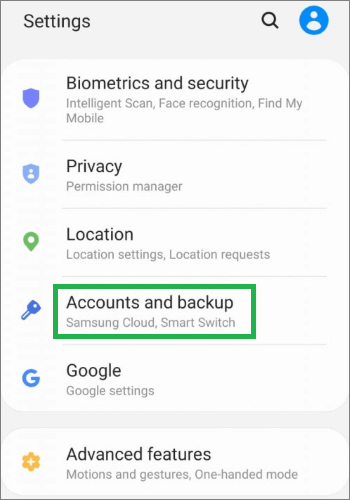
Step 2. Check all Google accounts currently signed in.
Step 3. Identify the one linked to your WhatsApp backup.
Step 4. Switch to the correct account and reopen WhatsApp to try restoring.
Besides the Google account, WhatsApp also uses your phone number as a verification key for backups. If you are using a different number, even with the correct Google account, the restore process will fail.
Step 1. Start WhatsApp setup and enter your phone number.
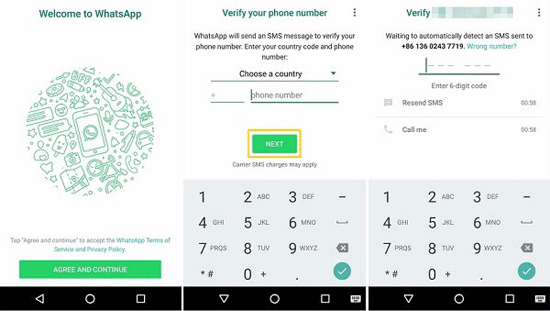
Step 2. Make sure the country code and number are the same as before.
Step 3. If you changed your number, complete WhatsApp number verification first.
Step 4. Try restoring the backup after verification.
Restoring a WhatsApp backup involves downloading and decrypting a large amount of data, so a stable internet connection is essential. If your connection is weak or unstable, the process may freeze, fail, or restart unexpectedly.
Step 1. Turn off VPN or proxy services if they are enabled.
Step 2. Switch to a stable Wi-Fi network instead of mobile data.
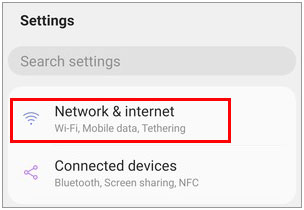
Step 3. Restart your router if the connection seems unstable.
Step 4. Disable battery saver mode to avoid background network restrictions.
Sometimes the problem isn't the restore process itself, but simply that no valid backup is available in Google Drive. Backups may expire, fail during creation, or be stored under a different account. Because WhatsApp backups are stored in a hidden section of Google Drive, many users assume a backup exists when it actually doesn't.
Step 1. Open Google Drive on your phone or browser.
Step 2. Go to "Settings" > "Manage apps".
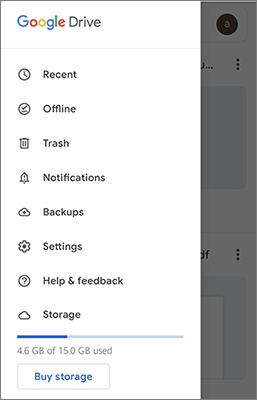
Step 3. Look for "WhatsApp Messenger" in the list.
Step 4. Check whether a backup exists and verify its date and file size.
An outdated version of WhatsApp may not fully support the latest Google Drive backup format or encryption method. This can lead to restore failures or the app getting stuck during the loading process. Keeping WhatsApp updated ensures compatibility with Google services and reduces unexpected errors during restoration.
Step 1. Open the Google Play Store.
Step 2. Search for WhatsApp.
Step 3. Tap "Update" if the option is available.
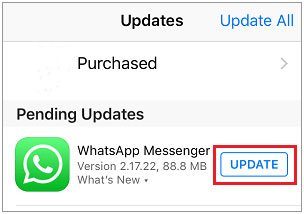
Step 4. Restart your phone and try restoring.
Google Play Services is responsible for handling communication between WhatsApp and Google Drive. If its cached data becomes outdated or corrupted, it can interfere with the backup restoration process. Clearing the cache helps refresh system-level synchronization without affecting your personal data.
Step 1. Go to "Settings" > "Apps" > "Google Play Services".
Step 2. Tap "Storage & cache".
Step 3. Select "Clear cache" (avoid clearing data).
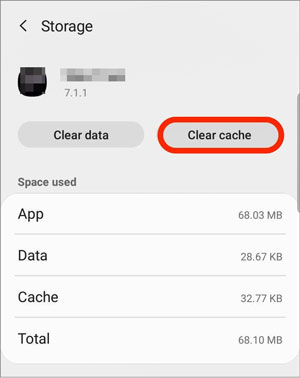
Step 4. Restart your phone and try restoring.
WhatsApp needs extra temporary storage space to download, decrypt, and unpack your backup. If your phone storage is nearly full, the restore process may fail halfway or stop without warning. This is especially common when restoring large backups with media files like photos and videos. So, you need to free up more storage space on your device to solve the issue.
Step 1. Open "Settings" > "Storage".
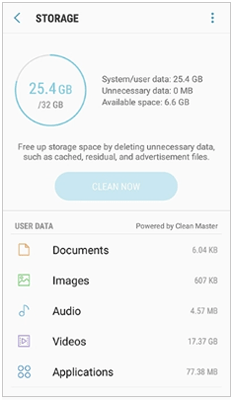
Step 2. Check how much free space is available.
Step 3. Delete unused apps, large videos, or unnecessary files.
Step 4. Ensure you have at least double the backup size in free space.
In some cases, the issue of "unable to restore WhatsApp backup from Google Drive" comes from corrupted app data or incorrect permissions within WhatsApp itself. Reinstalling the app can reset these settings and give you a clean restore attempt.
Step 1. Uninstall WhatsApp from your device.
Step 2. Restart your phone.
Step 3. Reinstall WhatsApp from the Google Play Store.
Step 4. Log in with the correct account and retry the restore process.
If Google account synchronization is broken or has expired, WhatsApp may not be able to access your Drive backup properly. Reconnecting your account refreshes the authentication and sync permissions.
Step 1. Go to "Settings" > "Accounts".
Step 2. Remove your Google account from the device.
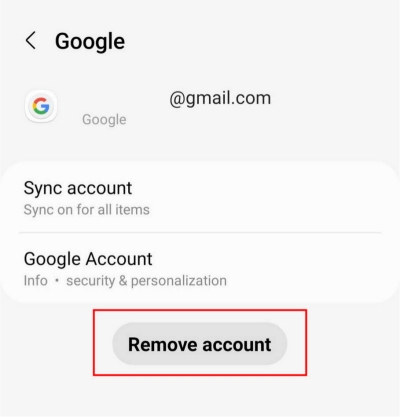
Step 3. Restart your phone.
Step 4. Add the Google account again and sign in.
Step 5. Open WhatsApp and try restoring.
If Google Drive restoration continues to fail, your phone may still have a local backup stored internally. These backups are created automatically and can be used when cloud restoration is not possible.
Step 1. Open your File Manager.
Step 2. Go to "WhatsApp" > "Databases folder".
Step 3. Check for available backup files.
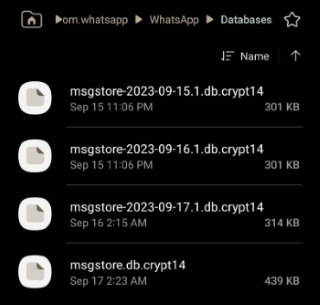
Step 4. Reinstall WhatsApp and choose "Restore from local backup" when prompted.
Step 5. Complete the setup process.
After trying all the above fixes, most Android users should be able to restore their WhatsApp backup successfully. However, sometimes the Google Drive restore process can still fail due to account issues, corrupted backups, or other unexpected errors. This is especially true if you're switching between devices or using an iPhone, since direct Google Drive restoration is only available on Android.
In these situations, using a dedicated WhatsApp transfer tool can save time and ensure a complete recovery. WhatsApp Transfer is designed to securely retrieve your backups from Google Drive and restore them to both Android and iOS devices, offering a more reliable alternative when the standard restore process doesn't work.
With this tool, you can:
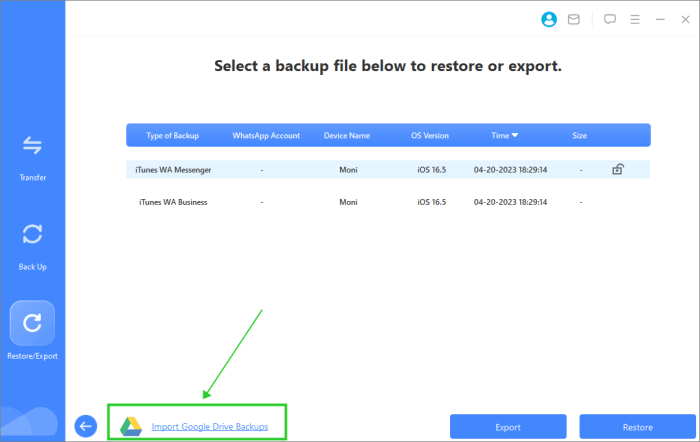
Here's how you can restore your Google Drive backup to an iPhone using WhatsApp Transfer:
01Download, install, and launch WhatsApp Transfer on your computer. Connect your iPhone using a USB cable and click "Import Google Drive Backups".
02Sign in to the Google account that contains your backup and follow the prompts to allow access.
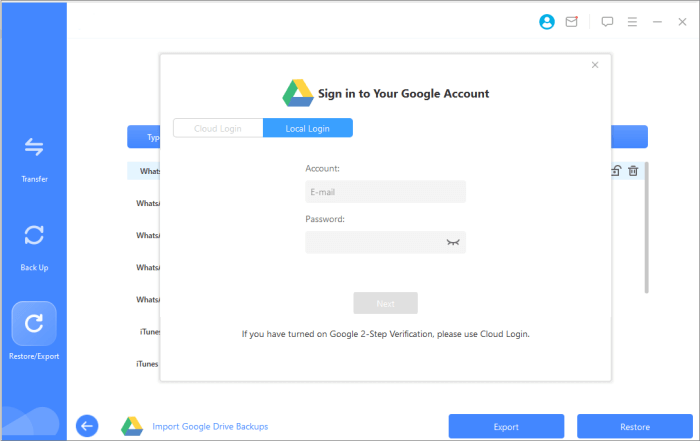
03Once logged in, select the backup you want to restore. The tool will parse the backup, letting you preview messages, photos, videos, audio, and other files. You can choose to restore everything or select specific items.
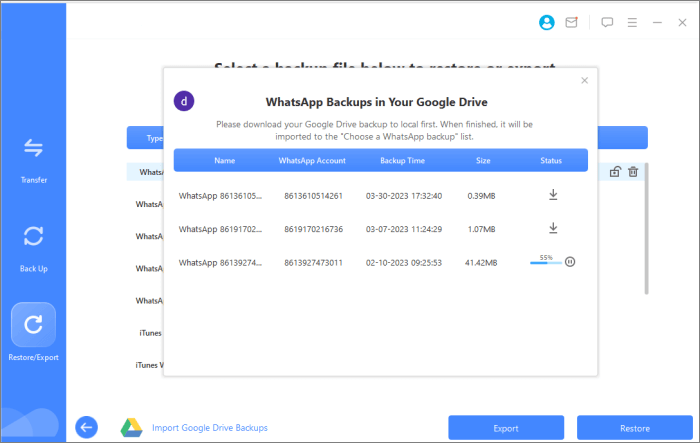
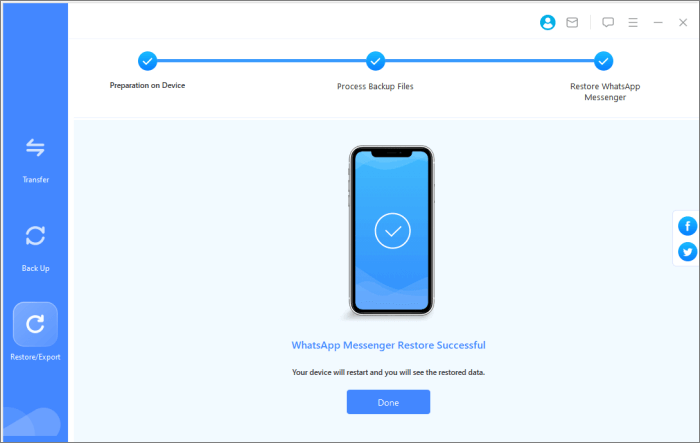
04After making your selection, click "Restore", and WhatsApp Transfer will begin moving your backup from Google Drive to your iPhone.
Encountering the "Unable to Restore WhatsApp Backup from Google Drive" error can be frustrating, but in most cases, it can be resolved by carefully checking your Google account, phone number, network connection, and storage space, or by following the other step-by-step fixes outlined above.
For users who frequently switch devices or want a more reliable recovery method, using WhatsApp Transfer can simplify the process and ensure that all your chats and media are restored safely, even across Android and iOS. By following these solutions, you can get your WhatsApp data back quickly and avoid the stress of lost messages or media.
Related Articles:
Fast Fix WhatsApp Backup Stuck with Practical Tips [Android & iPhone]
Fast Repair WhatsApp Restoring Media Stuck on Android and iPhone
How to Restore WhatsApp Backup Without Uninstalling on Android & iOS?
3 Ways to Transfer WhatsApp Backup from Google Drive to iCloud






 Free Download for PC
  Free Download for Mac


