TL;DR:
This guide introduces several effective ways to unlock a phone with a forgotten password, depending on whether you are using an Android device or an iPhone.
Forgetting your phone password can be frustrating, especially when you urgently need access to important data. Many users often wonder how to unlock phone with forgotten password without losing their valuable information. Whether it's an Android device or an iPhone, there are several safe and effective ways to regain access to your phone using built-in features, official tools, or professional unlocking software.
In this guide, you will learn step-by-step methods to unlock both Android phones and iPhones with a forgotten password. We will cover several proven solutions for different devices and system versions, helping you choose the most suitable way to regain access to your phone quickly and easily.
Yes, you can unlock your phone even if you forget your password, but the method depends on your device type and operating system. On modern Android phones, options like Find My Device, Smart Lock, or third-party tools can help. On iPhones, iCloud, iTunes, and iOS unlock tools are available. However, some methods may erase your data, so understanding the options before proceeding is essential. Always back up your device when possible to prevent permanent data loss.
Android devices are highly compatible and diverse, with different unlocking methods applicable to different system versions and device brands. Below are four mainstream and effective ways to unlock an Android phone with a forgotten password, covering third-party professional tools, old system built-in features, official cloud services, and manual hard reset.
If you are looking for a quick and beginner-friendly solution, Android Unlock is one of the easiest ways to unlock an Android phone with a forgotten password. It can remove different screen locks, including PINs, patterns, passwords, fingerprints, and face unlock. The software supports many Android brands, including Samsung, Motorola, Xiaomi, OPPO, vivo, Huawei, and more.
Key features of Android Unlock:
Steps to unlock an Android phone without a password with Android Unlock:
01Download and install Android Unlock on your computer, then launch the program and select "Remove Screen Lock".
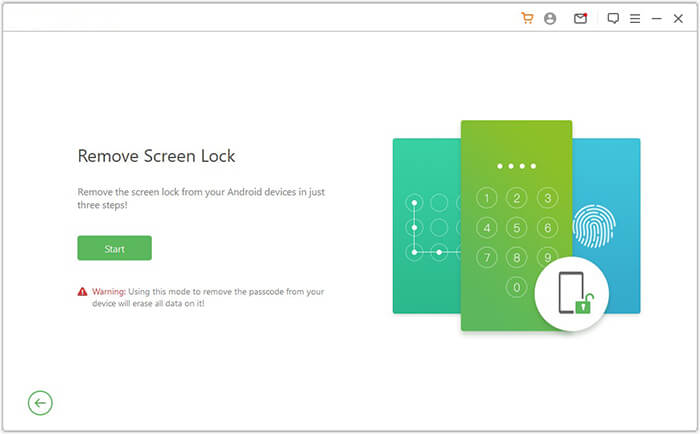
02Connect your locked Android phone to the computer using a USB cable. Once detected, click "Start" to continue.
03Choose your device information from the list. The software will automatically prepare the required data package for your phone.
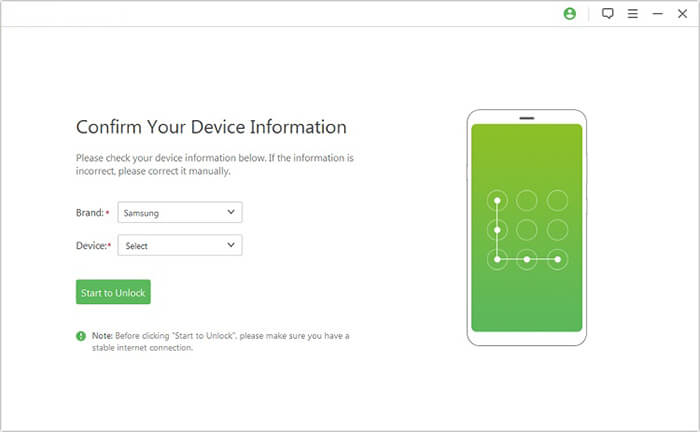
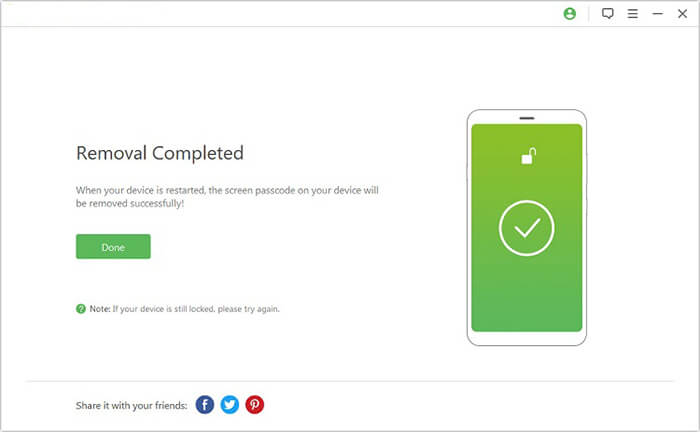
04Follow the on-screen instructions to put your Android device into Recovery Mode or Download Mode if required. After the unlocking process is completed, your Android phone will restart without the screen lock.
Older Android phones running Android 4.4 or earlier include a built-in "Forgot Pattern" or "Forgot Password" feature. After multiple failed unlock attempts, users can log in with their Google account to reset the screen lock.
Steps to use the Forgot Password feature:
Step 1. Enter the wrong password, PIN, or pattern several times until the "Forgot Pattern" or "Forgot Password" option appears on the screen.
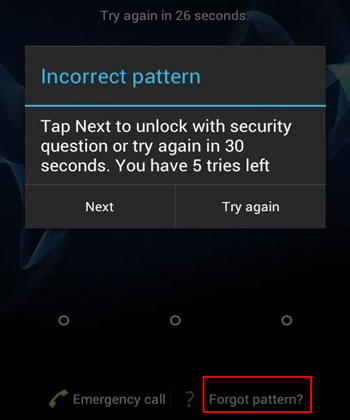
Step 2. Tap the option and select "Enter Google Account Details".
Step 3. Sign in using the Google account previously linked to the locked Android phone.
Step 4. Once verified, follow the instructions to create a new screen lock password or pattern.
Note: This method only works on older Android versions. Most modern Android devices no longer support this feature.
Google Find My Device allows users to remotely erase a locked Android phone, which also removes the screen password. This method requires the device to be connected to the internet and linked to a Google account.
Steps to unlock an Android phone using Find My Device:
Step 1. Open the Google Find My Device website on another phone or computer.
Step 2. Sign in with the same Google account associated with your locked Android phone.
Step 3. Select the locked device from the list.
Step 4. Click the "Erase Device" option and confirm the action.
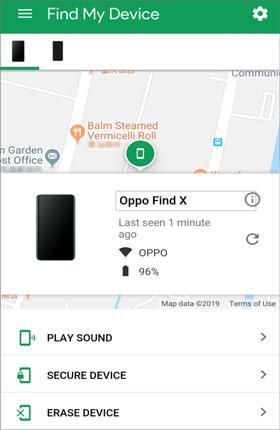
Step 5. Wait for the reset process to finish. After rebooting, you can set up the device again without the previous password.
If you have a Samsung phone, you can also use Samsung Find My Mobile to unlock your device remotely without losing data. Simply log in with your Samsung account at the Find My Mobile website, select your device, and choose the "Unlock" option.
If you cannot access your Google account or use unlocking software, performing a factory reset through Recovery Mode is another effective method. However, this process will erase all data stored on the phone.
Steps to hard reset an Android phone:
Step 1. Turn off your Android device completely.
Step 2. Press and hold the required button combination to enter Recovery Mode. On most devices, this is usually the "Power" button and "Volume Up" button together, but the combination may vary depending on the brand.
Step 3. Once the Recovery Mode menu appears, use the volume buttons to highlight "Wipe Data/Factory Reset".
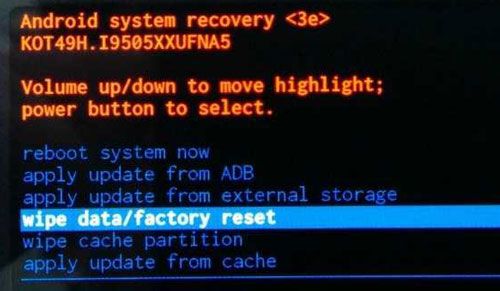
Step 4. Press the Power button to confirm your selection.
Step 5. Select "Yes" to begin the factory reset process.
Step 6. After the reset is complete, choose "Reboot System Now". Your Android phone will restart without the previous screen lock.
iOS systems have more rigorous security mechanisms than Android. Below are four mainstream unlocking solutions for iPhones, covering professional iOS unlocking tools, built-in security lockout, iCloud cloud erasure, and official iTunes/Finder recovery.
If you cannot remember your iPhone passcode, iOS Unlock can help you remove the lock screen and regain access to your device. This tool is designed for users who are locked out of their iPhones or iPads due to forgotten passwords, disabled devices, or unavailable Face ID and Touch ID. With a simple interface and broad compatibility, it provides an efficient solution for unlocking iOS devices without requiring professional skills.
Key features of iOS Unlock:
Follow these steps to unlock an iPhone without a passcode using iOS Unlock:
01Open iOS Unlock on your computer and choose "Unlock Screen Passcode". Then click "Start to Unlock" and connect your iPhone to the computer with a USB cable.
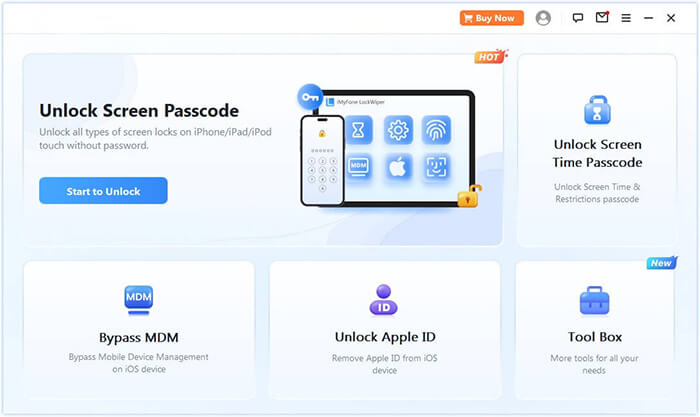
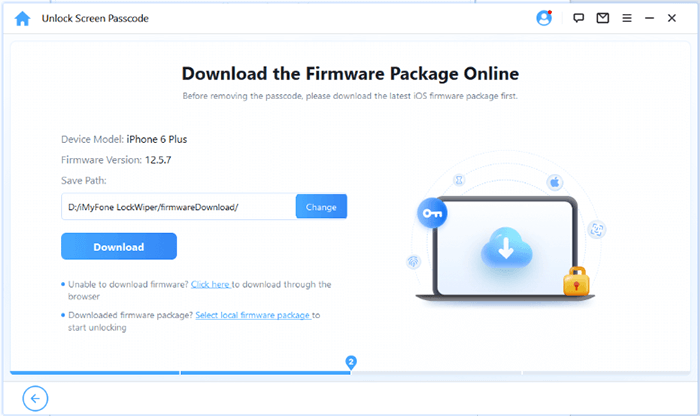
02Follow the on-screen instructions to place your iPhone into Recovery Mode or DFU Mode. After the device is recognized, select a folder for the firmware package and click "Download".
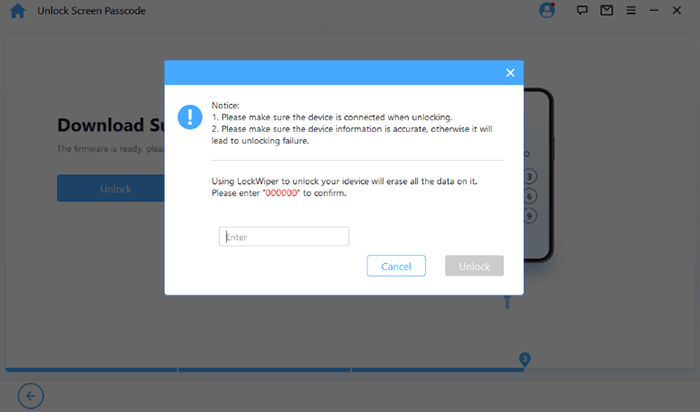
03Once the firmware package has been downloaded successfully, click "Unlock". Read the warning message carefully, type "000000" to confirm the operation, and click "Unlock" again.
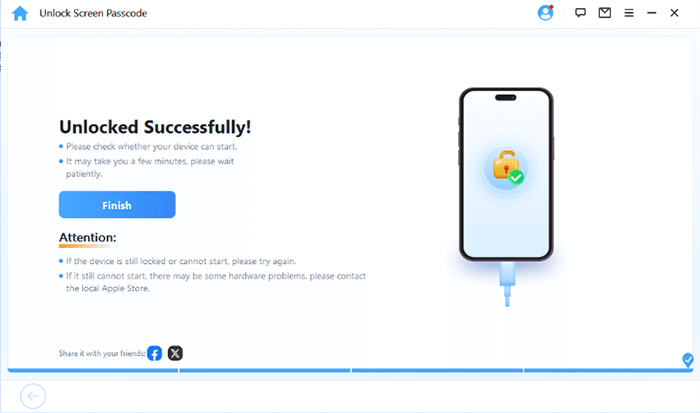
04Wait for the unlocking process to complete. Afterward, your iPhone will restart, allowing you to create a new passcode or set up Face ID and Touch ID again.
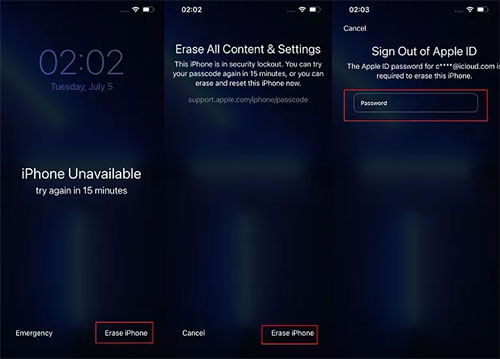
For devices running iOS 15.2 or later, Apple provides a built-in Security Lockout feature that allows users to erase and reset a locked iPhone directly from the lock screen.
Steps to use Security Lockout:
Step 1. Continue entering the wrong passcode until the "iPhone Unavailable" or "Security Lockout" screen appears.
Step 2. Tap the "Erase iPhone" option at the bottom-right corner of the screen.
Step 3. Enter your Apple ID password to sign out of your Apple account on the device.
Step 4. Confirm the erase action to remove all data and settings, including the lock screen password.
Step 5. Once the process is complete, restart the iPhone and set it up again.
Another effective way to unlock an iPhone with a forgotten password is by using iCloud Find Devices. If the "Find My iPhone" feature was previously enabled on your device, you can remotely erase the iPhone through iCloud. This method removes the screen passcode together with all data and settings on the device, allowing you to set it up again afterward.
Follow these steps to unlock your iPhone using iCloud Find Devices:
Step 1. Open iCloud.com from a computer, tablet, or another smartphone, then sign in with the Apple ID associated with the locked iPhone.
Step 2. Click "Find My iPhone" and select "All Devices" at the top of the page. From the device list, choose the locked iPhone you want to erase.
Step 3. Select "Erase iPhone" to remotely wipe the device, including the forgotten passcode and all stored data.
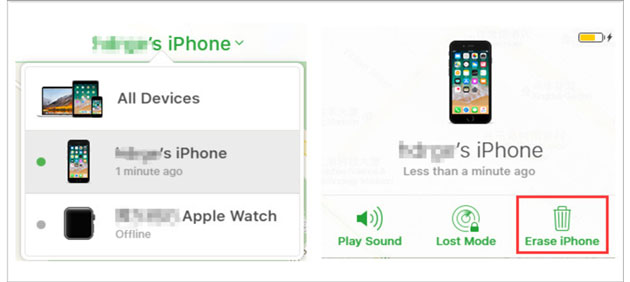
Step 4. After the erase process is complete, restart your iPhone and follow the setup instructions. You can then restore data from an iCloud or iTunes backup, or configure the device as new.
iTunes (on Windows and older macOS versions) and Finder (on macOS Catalina or later) are official recovery tools provided by Apple. If you forgot your iPhone password, you can use these tools to restore the device and remove the screen lock. This method works for most iPhone models and iOS versions, but it will erase all existing data on the device.
Here is how to unlock an iPhone using iTunes or Finder:
Step 1. Install the latest version of iTunes on your Windows PC, or open Finder if you are using a Mac running macOS Catalina or later.
Step 2. Connect your locked iPhone to the computer using a USB cable.
Step 3. Put your iPhone into Recovery Mode. The button combination may vary depending on your iPhone model. Once successful, you will see the recovery mode screen on the device.
Step 4. After the computer detects your iPhone, a pop-up window will display "Update" and "Restore" options. Choose "Restore".
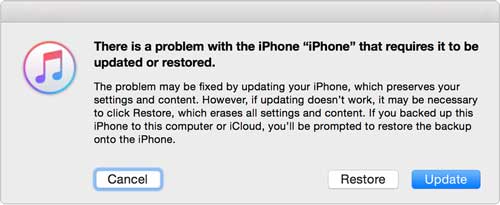
Step 5. iTunes or Finder will download the appropriate firmware package and reinstall iOS on your device. This process may take a while depending on your internet connection speed.
Step 6. When the restoration is complete, your iPhone will restart automatically without the old screen password. You can then set up the device again or restore data from a previous backup.
Forgetting your phone password can be frustrating, but there are still several ways to regain access to your device, including official recovery options and built-in unlock features for both Android and iPhone. However, some methods may be complicated or lead to data loss.
If you want a faster and more straightforward solution, Android Unlock and iOS Unlock can help unlock your device with simple steps. No matter which method you choose, always try to back up your data when possible to avoid unnecessary loss.
Related Articles:
Forgot Pattern Lock? Here's How to Unlock Pattern Lock on Android
What If You Locked Out of Android Phone? 6 Easy Ways May Help
What To Do If Forgot Android PIN? [Solved with 6 Effective Ways]
[Ultra Guide] How to Unlock Samsung Phone Forgot Password Without Losing Data




 Free Download for PC
  Free Download for Mac


