When you connect your iPhone to a computer, you're usually asked to tap "Trust This Computer" on the iPhone screen. This step is essential because it allows the computer to access your device for data transfer, backup, updates, or system repairs. However, things become complicated when your iPhone is disabled. If the device shows messages like "iPhone is disabled. Try again later" or "iPhone is disabled. Connect to iTunes", you won't be able to unlock the screen or tap the trust prompt at all. As a result, many users get stuck wondering how to trust computer when iPhone is disabled.
In this guide, we'll explain whether it's possible to bypass the trust request and walk you through several practical solutions step by step.
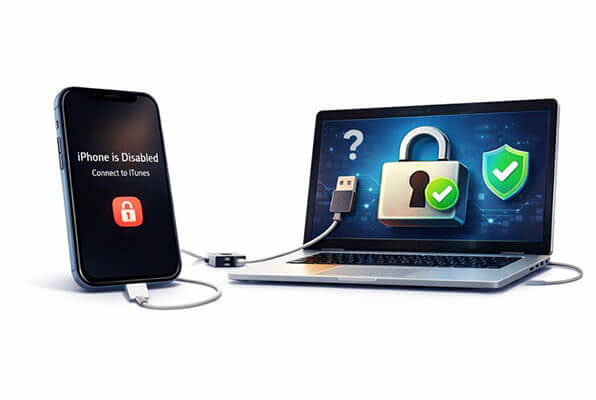
Yes, bypassing the "Trust This Computer" prompt on a disabled iPhone is possible. In the following chapters, we will explore various methods of trusting a computer when the iPhone is disabled. However, please note that if you haven't backed up your device, all of these actions will result in data loss. (How to back up your iPhone to a computer?)
If your iPhone is disabled and can't trust computer, below are three common and feasible solutions. You can choose the most suitable method based on your actual situation.
If you're unable to access your iPhone and can't select "Trust This Computer", using Recovery Mode is a dependable method to reset the device and restore the connection with your computer. This approach is officially recommended by Apple, but be aware that it will erase all data on your device.
Here is how to trust computer when iPhone is disabled using Recovery Mode:
Step 1. Connect your iPhone to the computer using a data cable.
Step 2. Follow these steps to enter Recovery Mode based on your model:
Step 3. A prompt will appear on your computer in iTunes/Finder. Select "Restore", which will erase the device and install the latest version of iOS.
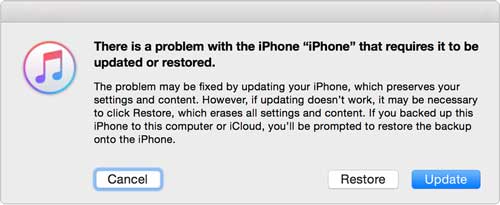
Step 4. Wait for the process to complete. Once restoration is finished, your iPhone will restart. You can then set it up as a new device.
Step 5. During the setup, when you reconnect your iPhone to the computer, the "Trust This Computer" prompt will appear. At this point, you can tap "Trust" and continue as usual.
If "Find My iPhone" was enabled on your iPhone before it was disabled, iCloud offers a remote solution. By remotely erasing the device, you can remove the "disabled" status and reset it, allowing you to trust the computer again.
Note: For this solution to work, you must ensure the following:
Here is how to trust computer when iPhone is disabled with Find My iPhone:
Step 1. Go to iCloud.com in a web browser and sign in with the Apple ID associated with the disabled iPhone.
Step 2. Once logged in, click on "Find iPhone" from the main iCloud dashboard. This feature allows you to locate any device linked to your Apple ID, even if it's disabled.
Step 3. At the top of the screen, click on "All Devices", then select your disabled iPhone from the drop-down list. Make sure to choose the correct device if you have multiple devices listed.
Step 4. In the device info window, click "Erase iPhone". This will start the remote wiping process, and a confirmation prompt will appear.
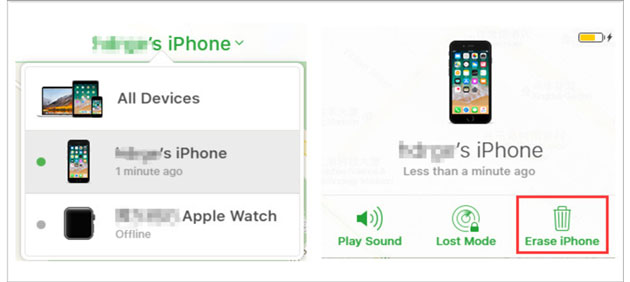
Step 5. Click "Erase" again and enter your Apple ID password. You may also be asked to answer security questions to verify your identity. Once confirmed, the erase process will begin.
Step 6. After the device has been fully erased, it will restart and display the initial setup screen. Follow the setup instructions to create a new passcode and sign in again with your Apple ID. When prompted, tap "Trust This Computer" to reconnect with your computer.
For many regular users, the official method can be cumbersome, with many limitations, and if certain conditions are not met, you can't proceed. In such cases, using a professional iOS unlocking tool is often a more efficient choice.
iPhone Unlocker is one such tool. It can help you bypass and remove the disabled iPhone's password, allowing you to access the device so that you can trust the new computer once you're inside. Additionally, both disabled and unusable iPhone can be unlocked and accessed without needing to tap the "Trust" button.
What can iPhone Unlocker do for you?
Here is how to use iPhone Unlocker to help you access your disabled iPhone and trust your computer:
01Download and launch iPhone Unlocker on your computer. Select "Unlock Screen Passcode" and click "Start to Unlock". Then, connect your iPhone to the computer via USB.
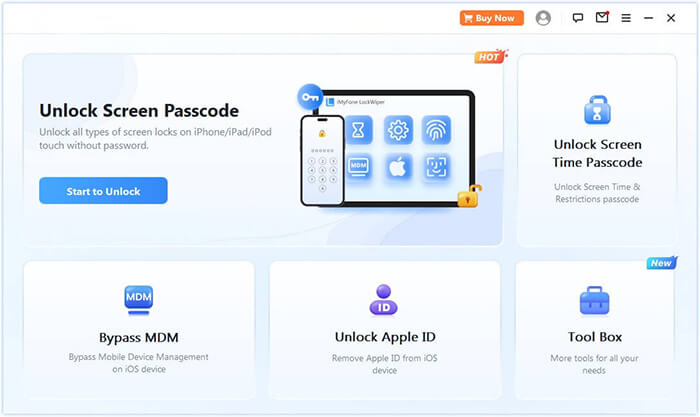
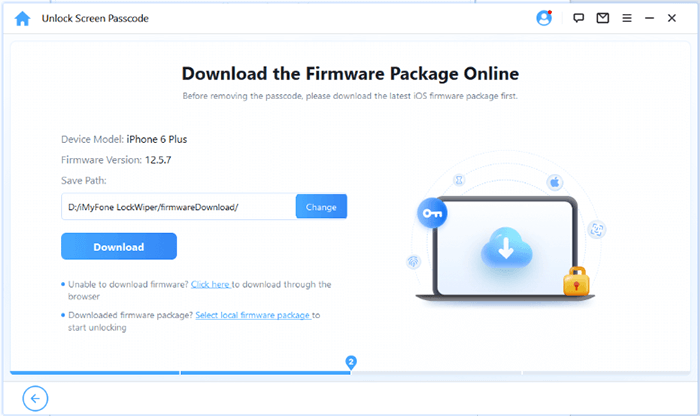
02Follow the on-screen instructions to put your iPhone or iPad into Recovery Mode or DFU Mode. Once detected, choose a location to save the firmware package and click "Download".
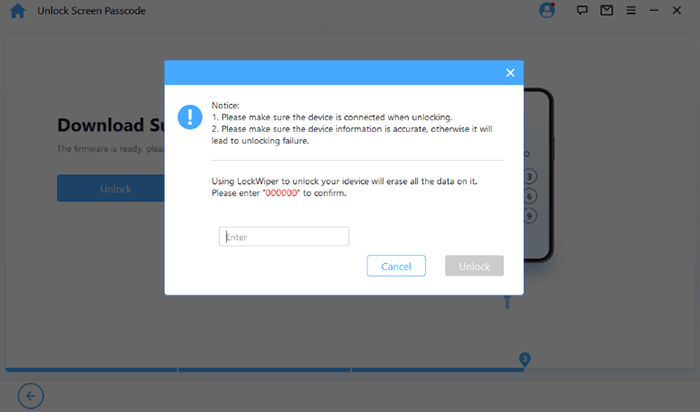
03After the firmware is downloaded, click "Unlock". Carefully read the warning, type "000000" to confirm, and click "Unlock" again to proceed.
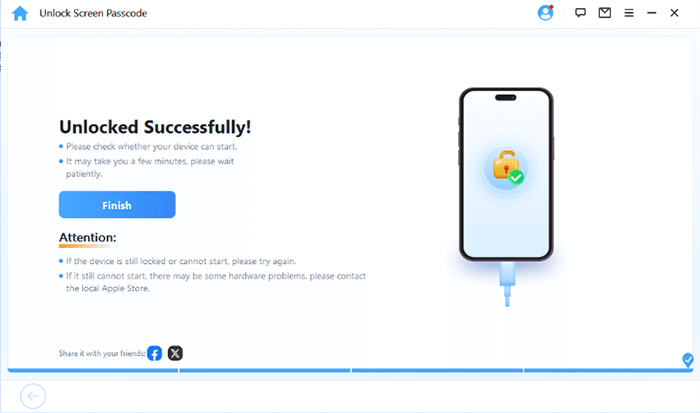
04In just a few minutes, your iPhone's screen passcode will be completely removed. You can now set up a new passcode, Face ID, or Touch ID as desired. After that, you can connect the device to iTunes and trust the computer.
Q1. How to fix "Trust This Computer" not showing on iPhone?
If the "Trust This Computer" prompt isn't appearing on your iPhone, it could be because the Trust settings have already been established, or there might be an issue with the cable or port. Ensure that the USB connection is secure, and try restarting both devices before reconnecting. If possible, try connecting your iPhone to a different computer.
Q2. What to do if I accidentally select "Don't Trust" after connecting my iPhone to a computer?
If you accidentally tap "Don't Trust" after connecting your iPhone to a computer, just disconnect your iPhone and wait for a moment before reconnecting it. When the "Trust This Computer" prompt appears again, select "Trust".
Q3. Why does my iPhone keep asking to trust this computer, even though I've already trusted it?
If your iPhone keeps asking to trust the computer every time you connect, the cable or connection between your iPhone and the computer might be loose or not properly connected. Try using a different cable or port, or if needed, reset the Trust settings by going to "Settings" > "General" > "Reset" > "Reset Location & Privacy".
It's really frustrating when your iPhone is disabled and can't trust computer. But don't worry, we've listed solutions to help fix these issues. While Apple's official methods work in many cases, they often have limitations.
If you're looking for a simpler and more reliable solution, iPhone Unlocker is worth considering. It simplifies the process, helping you bypass the password on a disabled iPhone, quickly and easily regain access to your device, and reconnect it to your computer with ease.
Related Articles:
How to Trust Computer on iPhone with Broken Screen [2026 Updated]
[3 Ways] How to Back Up A Locked/Disabled iPhone without Passcode?
The Device Is Unreachable on iPhone Error: Fixed in 7 Ways
How to Fix iTunes Could Not Connect to This iPhone? (8 Effective Solutions)




 Free Download for PC
  Free Download for Mac


