In daily office work, teaching presentations, game recording, or video creation, a stable and easy-to-use screen recording tool is essential. Apowersoft Screen Recorder, a well-known screen recording software, has attracted a lot of attention from users due to its simple operation and comprehensive features. But is it really worth purchasing? This article will provide a detailed Apowersoft Screen Recorder review, offering a comprehensive analysis of its features, pros and cons, and user experience.
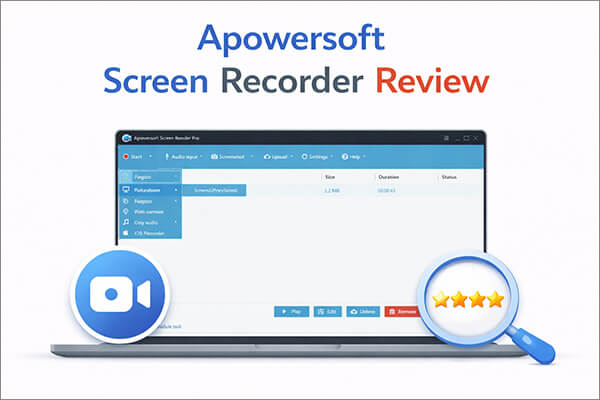
Apowersoft Screen Recorder is a screen recording tool that supports both Windows and Mac, focusing on ease of use and multi-scenario compatibility. Users can record full screen, selected areas, webcam footage, as well as system sound or microphone audio. Additionally, the software includes basic editing features, allowing users to trim videos or make simple adjustments without the need for third-party tools. It is designed to be user-friendly, enabling even beginners to get started quickly. It also offers a free web-based version for browser-only use.
Key Features:
* Multiple recording modes: Full screen, custom area, around mouse, and window selection.
* Simultaneous screen and audio recording: Supports system audio, microphone audio, or both synchronized.
* Webcam video recording support.
* Support various video formats: MP4, AVI, WMV, FLV, MKV, etc.
* Built-in real-time annotation tools: Allows adding text, arrows, shapes, etc.
* Professional video editor: Supports trimming, merging, special effects, adding watermarks, and more.
* Scheduled recording: Allows setting start time and duration for recordings.
* Support recording live streaming videos and webinars.
* Upload videos to FTP, YouTube, or Showmore.com.
* Built-in video converter: Supports conversion to various formats.
When choosing software, many users first focus on pricing.
The web-based version of Apowersoft Screen Recorder is completely free, requires no installation, produces recordings without watermarks, and has no strict time limits for basic screen capture. It is ideal for quick, one-off recording needs such as short tutorials, small meeting clips, or simple screen captures directly in a browser. However, the web version lacks advanced features like scheduled recording, real-time annotation, and full HD export optimization, and it relies on a stable internet connection to function properly.
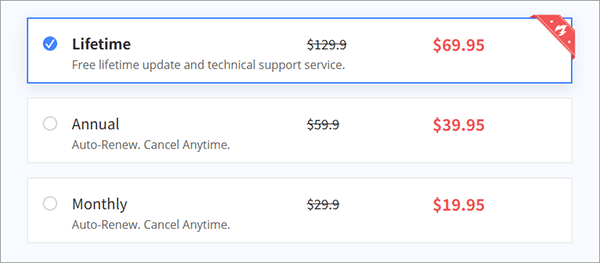
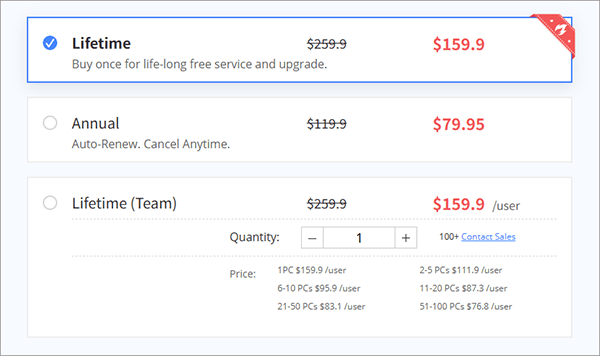
The desktop free trial version (for Windows and Mac), on the other hand, comes with stricter limitations: recording duration is typically limited to 1–3 minutes (depending on the device), and exported videos include a visible watermark. Most advanced features—including unlimited recording, watermark-free exports, scheduled tasks, and batch processing—are only available through a paid subscription.
For Personal:
For Business:
Every screen recording tool has its strengths and weaknesses, and Apowersoft Screen Recorder is no exception. In this section of our Apowersoft Screen Recorder review, we'll outline the honest pros and cons based on real user testing and feedback, helping you weigh its benefits against its drawbacks before downloading or purchasing.
Pros:
* Intuitive, Beginner-Friendly Interface: The layout is clean and straightforward, with no complicated settings or technical jargon. Even first-time users can start recording within minutes without watching tutorials.
* Wide Compatibility: Works seamlessly on Windows 7/8/10/11 and macOS, plus a web version for Chrome, Firefox, and Edge browsers, making it accessible across most devices.
* All-In-One Recording & Basic Editing: Combines screen recording, audio capture, webcam overlay, and quick editing in one tool, eliminating the need for multiple software downloads.
* Stable Performance with Low CPU Usage: Runs smoothly even on low-spec computers, with minimal lag or frame drop during HD recording, ideal for gaming and live stream capture.
* Flexible Free Web Version: No installation, no watermarks, and no strict time limits for quick recordings, making it a great free option for occasional users.
* Responsive Customer Support: Offers detailed FAQs, video tutorials, and email support for premium users, helping resolve technical issues quickly.
Cons:
* Strict Free Trial Limitations: Desktop free trial has short recording time limits and mandatory watermarks, making it unusable for professional or long-form content.
* Advanced Features Locked Behind Paywall: Key tools like scheduled recording, full annotation, and batch export are only available for premium users, limiting free version functionality.
* Occasional Web Version Glitches: The browser-based recorder may crash or lose audio sync on unstable internet connections, and it can't record offline screen activity.
* Limited Advanced Editing: Only basic trimming and cropping are available; users need separate video editing software for advanced cuts, transitions, or effects.
* Relatively High Lifetime License Cost: Compared to some competitors, the lifetime subscription is slightly pricier, which may deter budget-conscious users.
One of the biggest advantages of Apowersoft Screen Recorder is its ease of use, and this step-by-step guide will walk you through using the desktop version (the most popular option for full-featured recording) with clear, actionable steps. Follow these instructions to start recording your screen, audio, and webcam seamlessly, whether you're making a tutorial, recording a meeting, or capturing gaming footage.
Step 1. Visit the official Apowersoft website to download the latest version of ApowerREC for Windows or Mac, then double-click to install and launch the software.
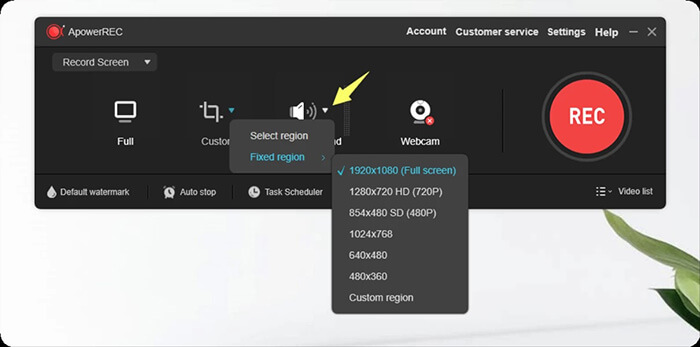
Step 2. Click on "Full" to record the entire desktop screen by default. Alternatively, you can click the downward arrow next to "Custom" to expand the menu and choose from available fixed regions or select a custom area.
Step 3. Under the "System sound" menu, you can choose to record system sound, microphone sound, both, or no audio. Go to "Settings" under "System sound" to verify that the correct default system sound source is selected in your PC sound settings, as well as the microphone device you've plugged in, to avoid any audio issues after recording.
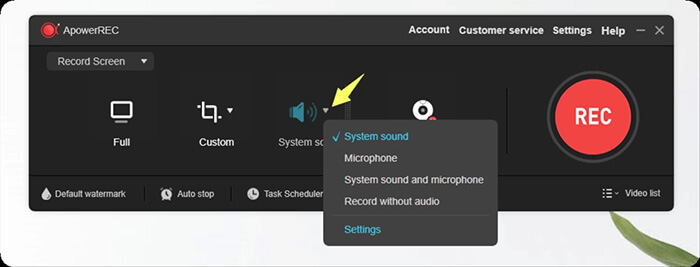
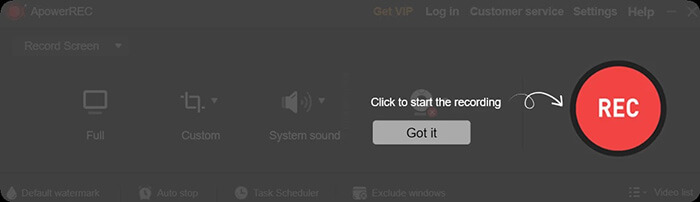
Step 4. Once all settings are configured, click "REC" to start recording.
Besides Apowersoft Screen Recorder, another screen recording tool worth trying is Coolmuster Screen Recorder. It is designed for users who want a simple and stable way to record screen activities on Windows PCs. Whether you need to record online meetings, gameplay, streaming videos, presentations, or tutorial videos, it provides a smooth recording experience with easy-to-use controls.
It supports both full-screen and custom-area recording, and allows you to choose whether to record system audio, microphone audio, or neither during recording. One of its key advantages is the ability to export HD recordings without complicated settings. Even beginners can start recording in just a few clicks. In addition, its clean and lightweight interface makes it ideal for daily work, online learning, and content creation.
Key features of Coolmuster Screen Recorder:
Here is how to record a screen on your Windows computer:
01Launch the software and choose either "Full Screen" or "Custom" mode to set the recording area.
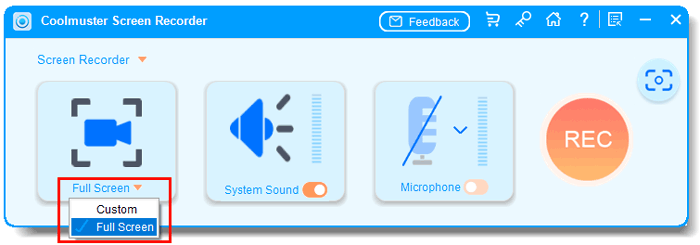
02Configure your audio settings by enabling "System Sound", "Microphone", or neither.
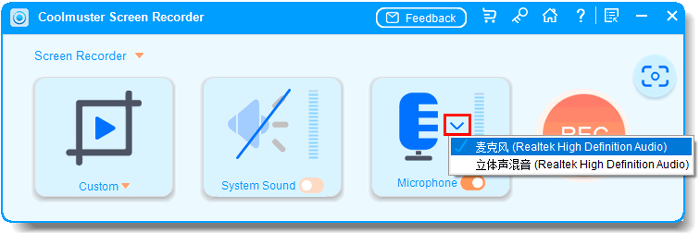
03Click the orange "REC" button and select "Start Recording". The recording will begin after a short countdown.

04Once finished, click "Stop Recording". Your video will be automatically saved locally as an MP4 file, and you can use the "Copy" option for quick sharing.

Video Tutorial:
Q1. Is Apowersoft Screen Recorder safe to download and use?
Yes, Apowersoft Screen Recorder is 100% safe and legitimate when downloaded from the official website. It contains no viruses, malware, or hidden tracking software, and it complies with privacy standards for screen recording. Avoid third-party download sites to prevent modified, unsafe versions.
Q2. What's the difference between Apowersoft Free Online Screen Recorder and the desktop version?
Online screen recorders require a stable internet connection, whereas the desktop version allows you to record screen video and audio offline. For tasks like recording gameplay or live streaming videos, it's recommended to use the full version of Apowersoft Screen Recorder or other professional offline recording software for a smoother experience.
Q3. Does Apowersoft Screen Recorder add a watermark?
Yes, the free version usually includes a watermark. The paid version removes it.
This Apowersoft Screen Recorder Review shows that Apowersoft Screen Recorder is a solid choice for beginners who need a simple and easy-to-use recording tool. However, if you want another reliable option with smooth HD recording and straightforward controls, Coolmuster Screen Recorder is also worth trying. It works well for recording online meetings, gameplay, tutorials, and streaming videos without requiring a complicated setup.
Related Articles:
Ultimate Guide to Screen Recorders for Windows: 8 Best Tools Inside!
Top 8 OBS Screen Recorder Alternative Tools for Easy Recording
10 Amazing MP4 Screen Recorder Options: Record MP4 Videos Easily
Best Screen Recorder for Mac: Top 10 Screen Recording Software for macOS






 Free Download for PC


