TL;DR:
This article provides a comprehensive review of the best screen recorders for Mac, including built-in tools (Screenshot App, QuickTime Player) and advanced third-party software such as OBS Studio, Snagit, Loom, Camtasia, Screen Studio, and others.
Overall, the guide helps users choose the right Mac screen recorder based on their needs, with Screen Recorder highlighted as a balanced solution offering strong performance, flexible recording modes, and professional-grade output for both beginners and advanced users.
Finding a reliable screen recorder for Mac is essential for many users today, whether you're creating tutorials, recording online meetings, capturing gameplay, or producing product demos. In this guide, we've rounded up the best screen recorders for Mac, covering everything from built-in solutions to professional-grade screen recording software for Mac. Each option is reviewed in detail to help you choose the best screen recorder for a MacBook based on your specific needs. (If you are looking for the screen recorder for Windows, you can click here.)
Screen Recorder is one of the best Mac screen recorders, designed for users who need high-quality video and precise audio control. It allows you to record your screen, specific windows, webcam footage, and both system sound and microphone audio simultaneously. This makes it one of the best screen recorders for Mac for tutorials, online courses, presentations, and professional demonstrations.
Key Features:
* Easily record your screen on both Windows and Mac.
* Select from multiple recording modes: Full-screen, Region, Camera, Game, and more.
* Export recordings in popular formats such as MP4, WMV, MOV, AVI, GIF, TS, and more.
* Enjoy high-quality, lossless video for sharp and clear recordings.
* Benefit from built-in tools like a compressor, merger, and format converter for added convenience.
* Record your iPhone or Android screen directly to your computer.
* Access a variety of editing tools during and after recording, including the ability to add images, stickers, arrows, text, lines, shapes (rectangles, ellipses), and more.
Here is how to record a screen on a MacBook with Screen Recorder:
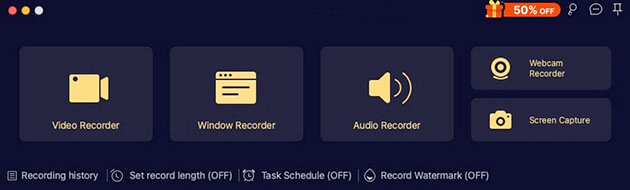
01Download, install, and run the Mac version of Screen Recorder on your MacBook. Click the "Video Recorder" button to start recording your screen.
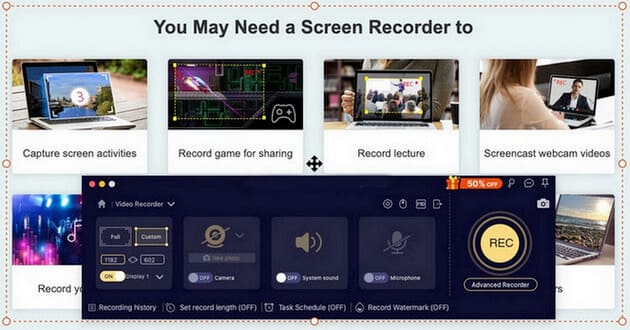
02Next, select your recording area (Full or Custom) and enable "System Sound" or "Microphone" as required.
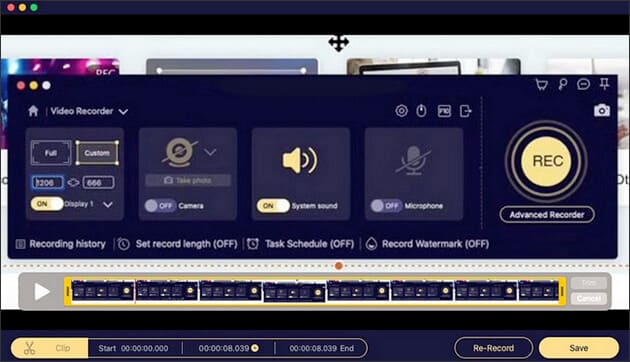
03Click the REC button to begin recording your Mac screen. Once finished, you can preview and trim the project to your liking.
Pros:
* Support high-quality screen and audio recording.
* Separate control for system audio and microphone.
* Support multiple output formats.
* User-friendly interface.
Cons:
* Free version has limited features.
* Require installation on the local device.
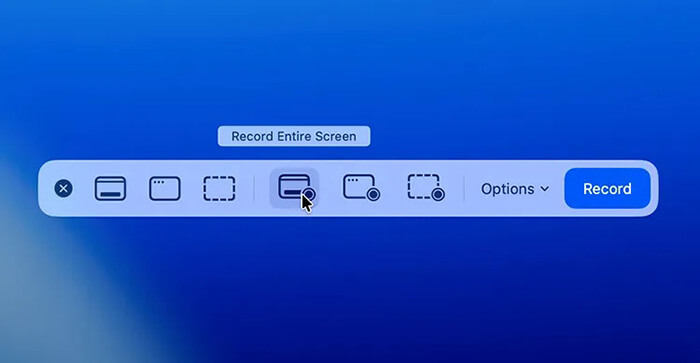
The Screenshot App is a built-in screen capture and recording tool for macOS Mojave 10.14 and above. It can be quickly accessed using the shortcut Cmd + Shift + 5. This tool is primarily designed for everyday, lightweight screen recording needs, allowing users to record the entire screen or a selected area and save the video directly to their local storage. The app requires no installation or additional setup, making it ideal for quick screen recording or for beginner users, although its features are relatively basic overall.
Key Features:
* Record full screen or selected area.
* Built-in macOS tool, no installation required.
* Save recordings directly to local storage.
Pros:
* Completely free and pre-installed.
* Extremely easy to use.
* Minimal system resource usage.
Cons
* The editing features are very limited.
* It does not support advanced audio management or annotations.
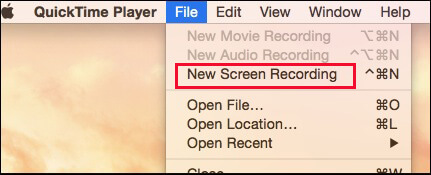
QuickTime Player is the default video player on macOS and also functions as a basic screen recorder software for Mac. Users can start recording by selecting "File" > "New Screen Recording" and choosing whether to record audio with the microphone. It is more suitable for recording simple workflows or instructional demonstrations, but its functionality is somewhat limited in terms of expandability.
Key Features:
* Basic screen recording functionality.
* Microphone audio recording support.
* You can play and export the recording directly after it's finished.
Pros:
* Built-in on macOS, no extra installation required.
* Intuitive workflow.
* Ideal for quickly recording short videos.
Cons:
* Does not support system audio recording (requires additional plugins).
* Cannot record both video feed and screen simultaneously.
* The recorded file size is large.
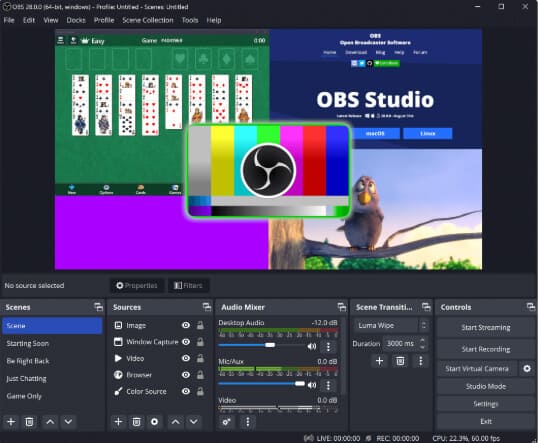
OBS Studio is a free, open-source screen recorder for Mac widely used by streamers and content creators. It supports advanced recording setups, including multiple scenes, audio tracks, and high-resolution output. Due to its complexity, OBS Studio is better suited for experienced users rather than beginners.
Key Features:
* Set up unlimited scenes and switch between them during screen recording.
* Adjust and control the audio settings for a personalized sound experience.
* Merge multiple video files and create custom transitions for smooth, seamless recordings.
* Support various video formats, including MKV, MP4, MOV, and more.
* Avaliable on Windows, macOS, and Linux.
Pros:
* Completely free and open-source.
* Extremely powerful features.
* Rich community resources.
* OBS Studio does not add a logo watermark to your videos.
Cons:
* Steeper learning curve.
* Interface is more professional and less intuitive.
* Not very beginner-friendly.
* Higher system performance requirements.
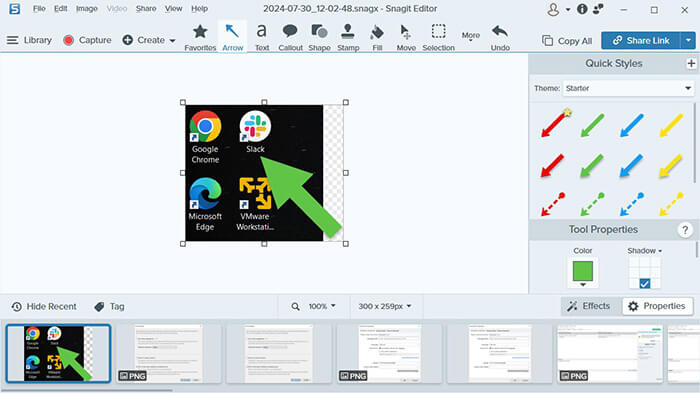
Snagit is best known as a screenshot tool, but it also offers basic screen recording capabilities. It is ideal for users who need quick recordings combined with annotation and visual explanations. Rather than being a full-scale screen recorder software for Mac, Snagit focuses on short instructional videos.
Key Features:
* Screen recording with annotations.
* Powerful screenshot and markup tools.
* Simple trimming and editing.
* Can capture scrolling screen content.
* Support recording both screen content and video feed simultaneously.
* Offer a one-click screenshot simplification feature.
* Convert videos to animated GIFs.
Pros:
* Powerful screenshot and annotation features.
* Simple and easy to use.
* Ideal for creating instructional content.
Cons:
* Not a dedicated screen recording tool.
* Not suitable for long-duration or high-frame-rate recordings.
* Relatively high price.
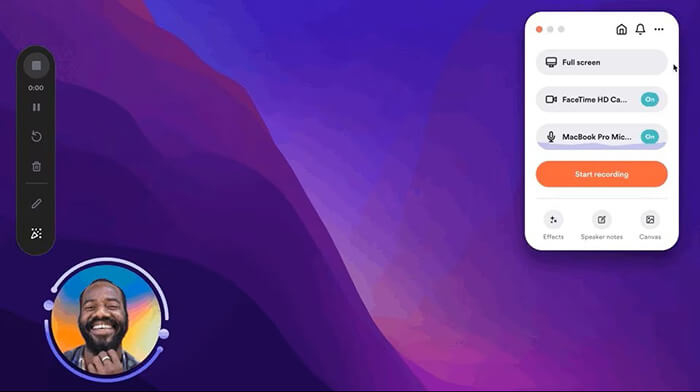
Loom is a cloud-based screen recorder for MacBooks that emphasizes fast recording and instant sharing. After recording, videos are automatically uploaded and shared via a link. This makes Loom especially useful for remote teams and asynchronous communication.
Key Features:
* Screen and camera recording.
* Easy sharing and embedding options.
* Trim and combine video clips.
* Download and upload functionality.
* Transcriptions and closed captions.
* Video privacy settings.
* Customizable backgrounds.
* Video and viewer analytics.
Pros:
* Screen + Camera simultaneous recording.
* Automatically generates online sharing links.
* Cloud storage.
Cons:
* Require an internet connection to use.
* The free version can only record up to five minutes of video.
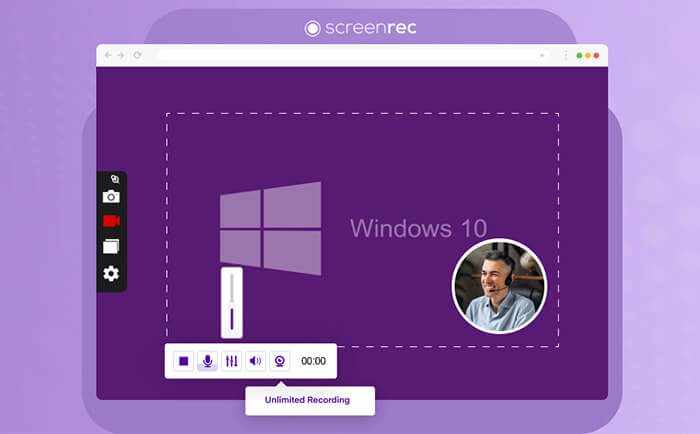
ScreenRec is a lightweight screen recording software for Mac focused on speed and simplicity. It allows you to quickly record and share video messages and annotated screenshots, so you can clearly show what's on your screen to teammates or AI. The platform's greatest advantage lies in its use of SSL encryption technology, which means you can securely share sensitive content with others without worrying about any risks. It's best suited for quick demonstrations rather than polished video production.
Key Features:
* One-Click Screen Recording: Instantly capture your screen, microphone, audio, and webcam with a single click.
* Annotated Screenshots: Easily add comments and highlight key areas of your screenshots to emphasize important details.
* Instant Sharing: Once you're done, a sharing link is automatically copied to your clipboard. You can either embed it or save the file for later use.
* Complete Privacy: Your content is encrypted, and you have full control over who can access it—share with anyone or limit access to just your team.
* Analytics: Track who views your videos, when, and for how long, providing valuable insights into engagement.
* Content Management: Organize your files with tags and collections. Choose to share privately or publish them publicly on the web.
Pros:
* Lightweight software.
* Easy to use.
* Free version available.
* One-click video sharing.
* No watermarks in the free version.
* No ads, no spam, and no viruses.
Cons:
* Very limited editing features.
* Few advanced settings.
* Not ideal for professional use.
* The free version only allows you to record videos up to five minutes long.
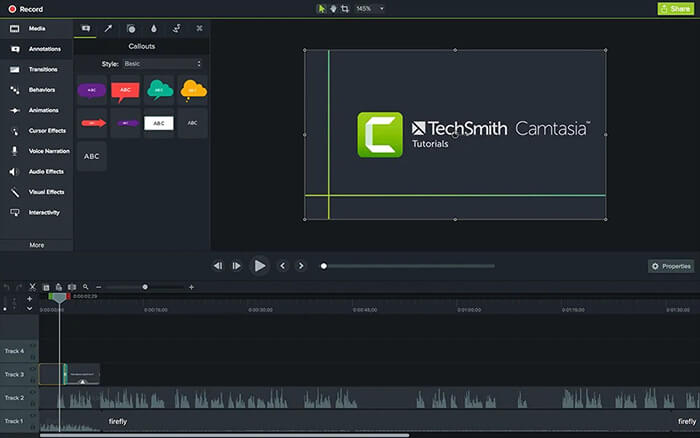
Camtasia is a professional-grade screen recorder for Mac, combined with a powerful video editor. It's widely used for creating online courses, training videos, and educational content. While it offers one of the most complete workflows, it also comes with a higher price and learning curve.
Key Features:
* Multitrack Recording: Capture screen, camera, audio, and mic separately for easy editing.
* Text-based Editing: Automatically transcribe audio, edit mistakes by deleting words.
* Drag-and-Drop Workflow: Simplify complex edits like zooms or callouts with a few clicks.
* Custom Themes & Templates: Create professional, consistent videos with personalized designs.
* Built-in Accessibility: Add captions and translations instantly to reach a broader audience.
* Cursor Effects & Annotations: Enhance tutorials with easy-to-use on-screen annotations and cursor effects.
Pros:
* All-in-one recording and editing solution.
* Professional output quality.
* Ideal for training and education.
Cons:
* Expensive license.
* Require time to learn.
* Large software footprint.
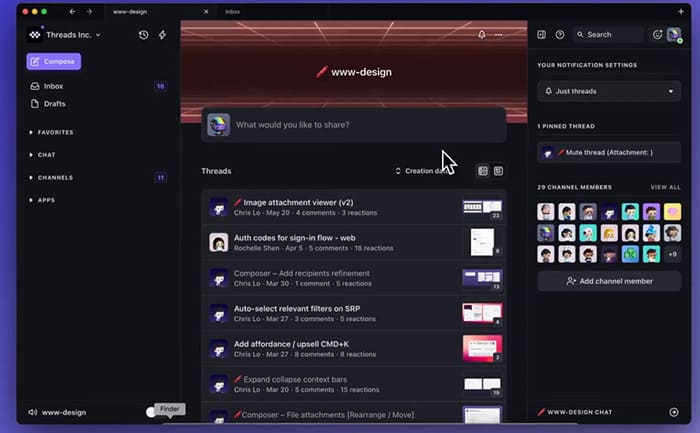
Screen Studio is a premium screen recorder for Mac designed for high-end presentations and product demos. It automatically adds smooth zoom effects and cursor animations, making recordings look highly polished.
Key Features:
* Automatic zoom and cursor tracking.
* High-resolution video output.
* Incorporate your style and brand.
* Screen Studio can record webcam, microphone, system audio, or any iOS device.
* Record iPhone or iPad videos on Mac.
Pros:
* Simple to use, powerful features.
* Perfect for product marketing.
* High-quality video effects.
* Automatic animations and zooming.
* Ideal for product demos.
Cons:
* Expensive.
* Limited use cases.
* High hardware requirements.
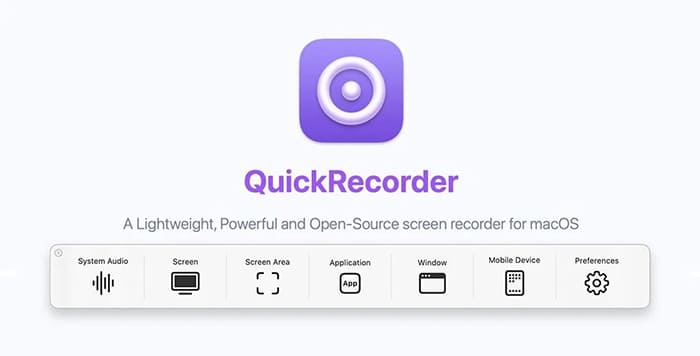
QuickRecorder is an open-source screen capture for Mac that focuses on simplicity and transparency. It offers basic screen and audio recording without unnecessary extras.
Key Features:
* "Presenter Overlay" feature in macOS 14 to transform into the presenter.
* Simultaneous recording of macOS and iPhone/iPad for creative projects.
* No third-party drivers required to record audio from any app.
* Record screens, windows, apps, and more with ease.
Pros:
* Lightweight and minimal.
* No cost.
* Clean interface.
Cons:
* No advanced features.
* No built-in editor.
* Limited updates.
Choosing the best screen recorder for Mac depends on how you plan to use it. Built-in tools work well for basic tasks, while advanced users may prefer feature-rich screen recording software for Mac. If you're looking for a balance between usability, performance, and recording quality, Screen Recorder stands out as a reliable and versatile option.
Related Articles:
Comprehensive Review: 7 Best Screen Recorders for Android
10 Amazing MP4 Screen Recorder Options: Record MP4 Videos Easily
5 Methods: How to Screen Record on Android [Hassle-Free Guide]
10 Best Game Recording Software to Record Gameplay Without Hassle






 Free Download for Mac
 Free Download for PC


