TL;DR: iMyFone UltraRepair is an AI-powered file repair tool for Windows and macOS that can repair corrupted videos, photos, audio files, and documents while also offering media enhancement features such as video upscaling, photo enhancement, dehazing, and AI colorization. It supports batch processing and is easy to use, but most repair and AI features require a paid subscription, and results may vary depending on the severity of file corruption. Overall, it's a solid all-in-one repair solution, while users primarily looking to fix damaged videos may benefit more from a dedicated tool like Video Repair.
File corruption is something almost everyone encounters at some point. Videos refuse to play, photos become blurry or unreadable, and important documents suddenly won't open. iMyFone UltraRepair positions itself as an all-in-one solution designed to repair damaged files and enhance media quality with the help of AI technology.
In this iMyFone UltraRepair review, we'll take a close look at what iMyFone UltraRepair offers, how much it costs, its strengths and weaknesses, real user feedback, and whether it's worth your money. We'll also introduce a solid alternative for users who mainly focus on video repair.
iMyFone UltraRepair is a file repair and enhancement tool available for both Windows and macOS. It supports repairing corrupted videos, photos, audio files, and documents, while also offering AI-powered features such as video enhancement, photo upscaling, and black-and-white photo colorization.
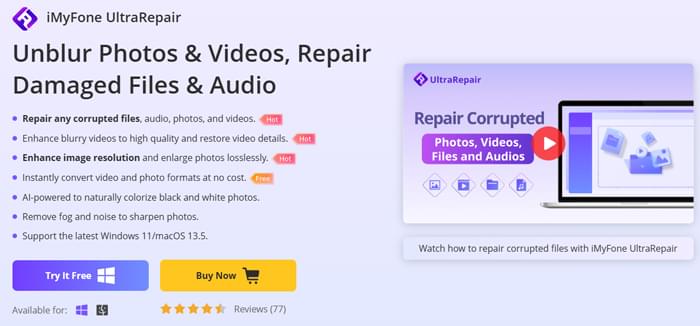
To understand what iMyFone UltraRepair is capable of, let's first take a look at its main features and supported functions:
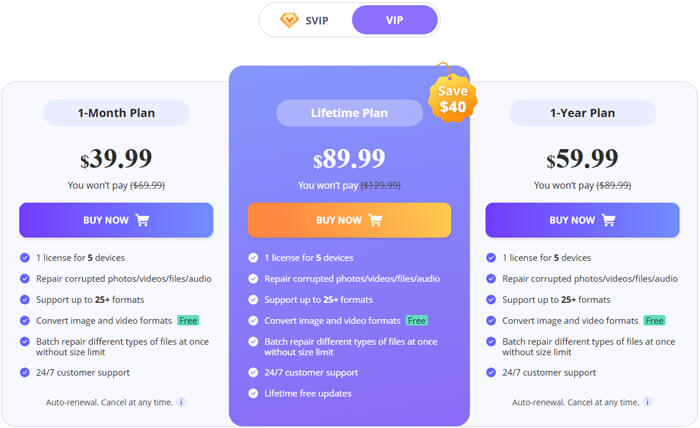
iMyFone UltraRepair offers a free trial version, but it only allows users to convert video and photo formats. To access repair and AI enhancement features, a paid plan is required.
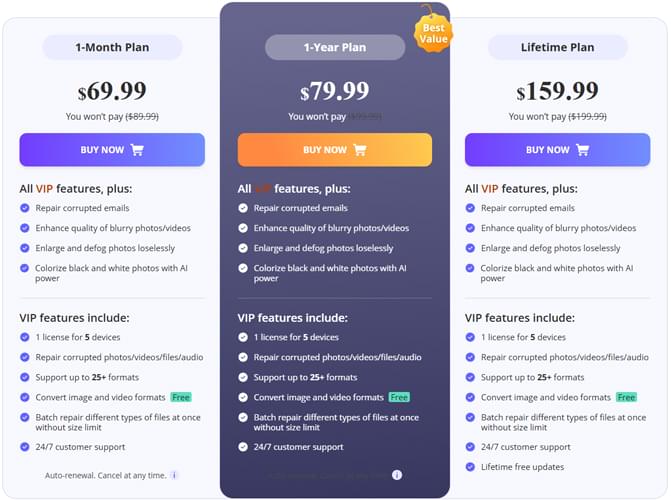
There are two paid versions available: VIP and SVIP, and both versions include 1-month plan, 1-year plan, and lifetime plan options.
The SVIP version includes all VIP features, plus additional advanced functions such as repairing corrupted email files, enhancing blurry photos and videos, lossless photo upscaling, dehazing images, and using AI to colorize black-and-white photos. For users who need more than basic file repair, SVIP provides a wider feature set.
After testing its features and considering pricing and usability, here is a balanced overview of the advantages and disadvantages of iMyFone UltraRepair.
Pros
Cons
From real user reviews across software review platforms and forums, iMyFone UltraRepair generally receives mixed but fairly realistic feedback.
Some users mention that the software works well for lightly corrupted videos and photos. One user noted that "UltraRepair fixed a video that wouldn't open after transfer, and the process was straightforward". Another user appreciated the AI photo enhancement feature, saying it "helped improve old, blurry images better than expected".
On the other hand, several users pointed out limitations. A few mentioned that severely damaged files could not always be repaired successfully, even with advanced mode enabled. Others commented on pricing, with one user stating that "the tool is useful, but most features are locked behind the higher-tier plan". Overall, feedback suggests that UltraRepair is effective in common scenarios but not a guaranteed fix for every type of file corruption.
As mentioned earlier, iMyFone UltraRepair offers multiple repair and enhancement functions. Below is an example showing how to repair a corrupted video using its commonly used repair mode.
Step 1. Download and install the software
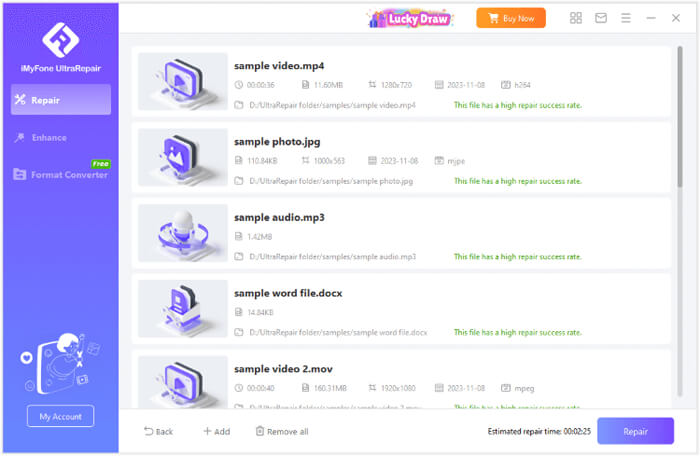
Download and install iMyFone UltraRepair on your computer, then launch the program. On the main interface, click the "Add" button to upload the videos, photos, files, or audio that need to be repaired. The software supports batch processing, allowing you to add and repair multiple files at the same time.

Step 2. Add corrupted files for repair
After clicking "Add", select the damaged video, photo, document, or audio file from your computer. Once the files are imported successfully, they will appear in the repair list and be ready for processing.
Step 3. Start the repair process
Click the "Repair" button to begin repairing the corrupted files. iMyFone UltraRepair will automatically analyze the file structure and attempt to fix the damage without requiring any manual configuration.
Step 4. Wait for the repair to complete
The repair process is usually fast and has a relatively high success rate. However, if the files are large or heavily damaged, the process may take longer to complete, and you will need to wait patiently until the repair finishes.
Step 5. Preview and save repaired files
Once the repair is complete, you can preview the repaired video, photo, file, or audio directly within the program. If the result meets your expectations, save the repaired files to your computer. If the repair fails or the result is unsatisfactory, you can switch to the advanced repair mode for deeper recovery.
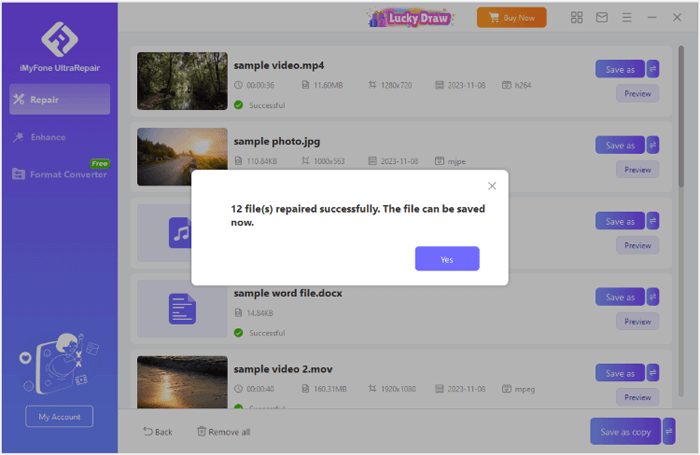
While iMyFone UltraRepair offers a comprehensive set of features for repairing and enhancing various file types, it may not always be the best solution for users who specifically need to repair corrupted videos. If video repair is your main concern, you might want to explore a more specialized tool like Video Repair.
Key features of Video Repair:
How to use the alternative of iMyFone UltraRepair to fix videos?
01Download and install Video Repair on your computer, then launch the program. Once installed, follow the on-screen instructions to activate the software.
02Click the "+" button on the left to add the damaged video. Next, click the other "+" button on the right to upload a sample video.
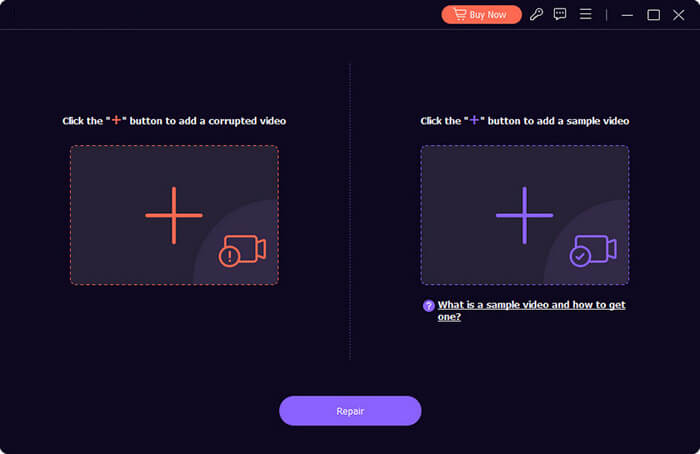
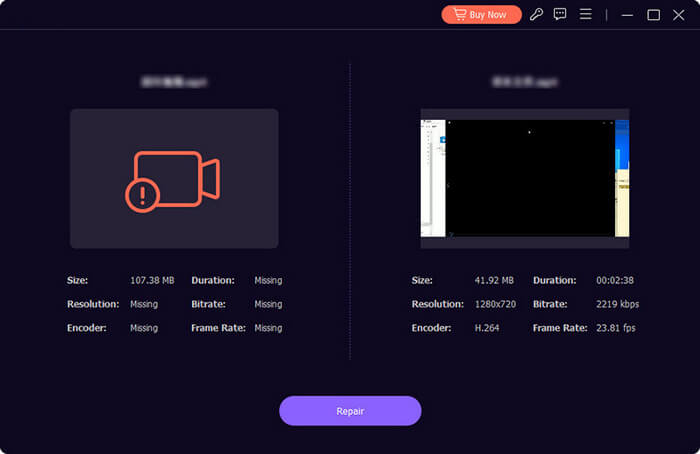
Note: The sample video should have the same format as the corrupted video. If the video was recorded on your device, you can record another video using the same device to serve as the sample. For the best repair results, ensure that the sample video and the corrupted video share similar duration, resolution, bitrate, encoder, and frame rate.
03Once both videos are uploaded, click the "Repair" button to start fixing the corrupted video. The software will use the reference video to repair the damaged one.
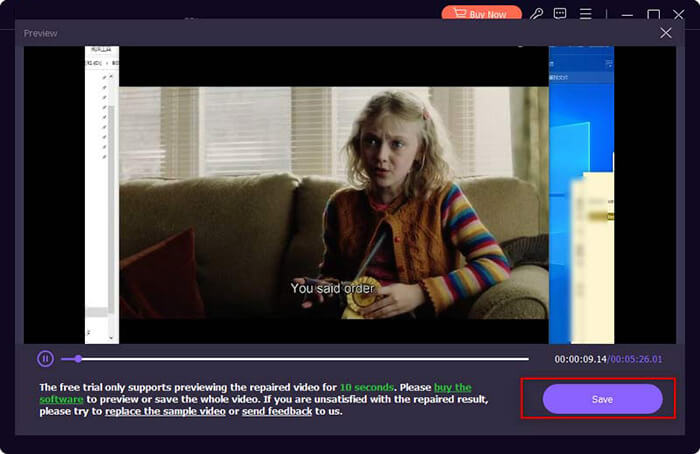
04After the repair is completed, click the "Preview" button to check the result. This allows you to view the repaired video and confirm if the quality meets your expectations.
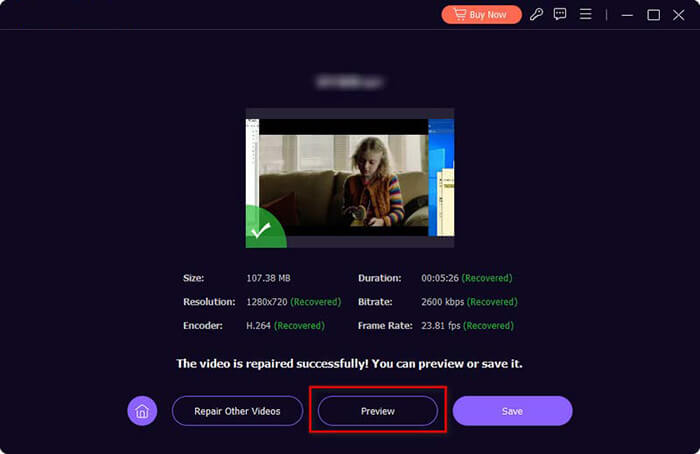
05If you're satisfied with the repair, click "Save" to keep the repaired video. If the result isn't what you expected, you can change the sample video and apply the repair process again to improve the results.
If you want to enhance your video quality, click the button below to download Video Enhancer. Equipped with the latest AI technology, it can improve video quality, increase resolution, and reduce noise. It's also an excellent video editor that allows you to rotate or flip videos, adjust video effects, create clips, crop video areas, and add watermarks to your videos.
In summary, iMyFone UltraRepair is an excellent all-in-one solution for repairing damaged files, videos, photos, and audio. Its AI-powered enhancements and broad file support make it a reliable choice for general file recovery. However, for users specifically looking to repair corrupted videos, Video Repair offers a more targeted and effective solution.
Ultimately, the best tool depends on your needs. If you require a comprehensive file repair tool, iMyFone UltraRepair is a great option. But if video repair is your primary concern, Video Repair provides a more focused and specialized approach for video recovery.
Related Articles:
How to Fix iPhone to Android Video Quality [All Possible Ways]
8 Best Video Recovery Apps for Android in 2026 [Comparative]




 Free Download for PC
  Free Download for Mac


