TL;DR: There are many ways to convert M4A to WAV, and the best choice depends on your needs.
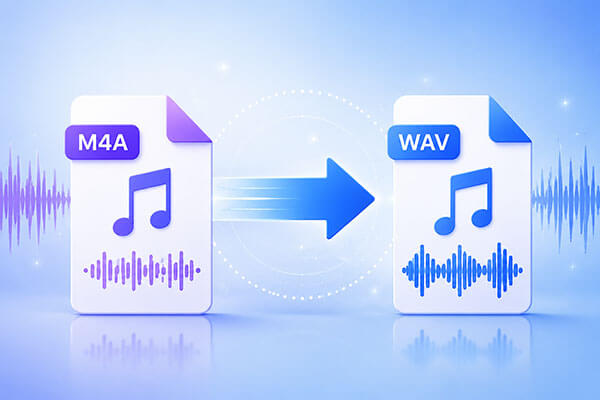
M4A files are widely used on Apple devices, but they are not always compatible with audio editors, media players, or professional recording tools. If you need better compatibility, higher audio quality, or easier editing, converting M4A to WAV is an effective solution. However, finding a reliable way to convert M4A to WAV without quality loss can be challenging.
In this guide, we will show you the 5 best methods to convert an M4A file to WAV, helping you quickly choose the right solution for your needs.
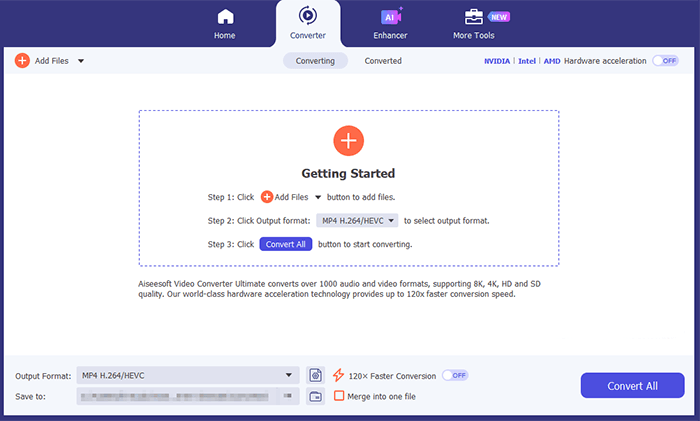
If you need to convert M4A files in batches or adjust audio parameters during the conversion process, a professional audio conversion tool can make the task much easier. Video Converter Ultimate supports conversion between more than 1,000 video and audio formats, including M4A, WAV, MP3, FLAC, and more. It not only completes format conversions quickly but also allows you to customize audio settings such as sample rate, bitrate, and channels.
Key features of Video Converter Ultimate:
Here is how to convert M4A to WAV without losing quality using Video Converter Ultimate:
01Download and install Video Converter Ultimate on your computer, then launch the program. Click the "Add Files" button to import the M4A audio file you want to convert.
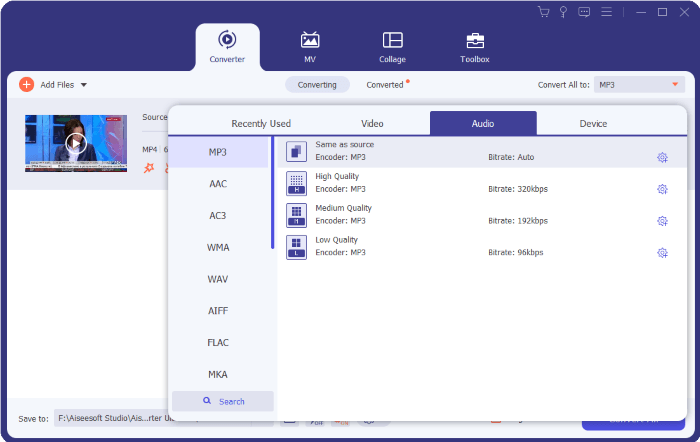
02Click the format drop-down menu next to the file and select WAV as the output format. Click the "Settings" icon to customize audio parameters. Choose a higher sample rate, bitrate, and the original number of channels to maintain the best possible audio quality.
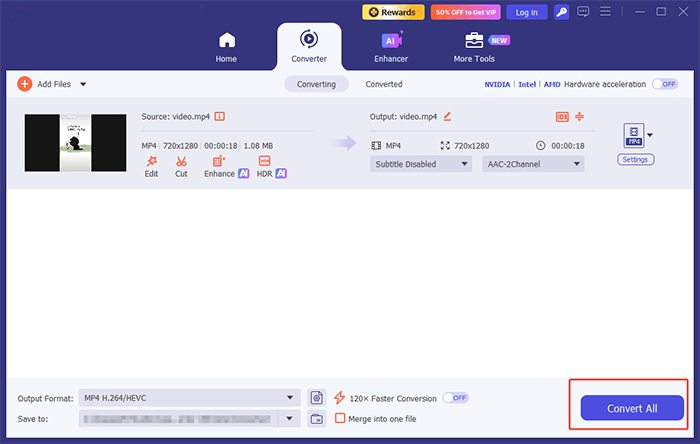
03Select a destination folder for the converted file and click the "Convert All" button to start converting M4A to WAV without quality loss.
VLC Media Player is not only a free multimedia player but also provides basic format conversion features. For users who already have VLC installed, it allows them to convert M4A to WAV directly without downloading additional software.
However, compared with professional audio conversion tools, VLC's conversion capabilities are mainly designed for basic needs. It works well for converting a small number of files, but if you need to process large batches of audio files or fine-tune output parameters, VLC may not fully meet your requirements.
Here is how to convert an M4A file to WAV using VLC:
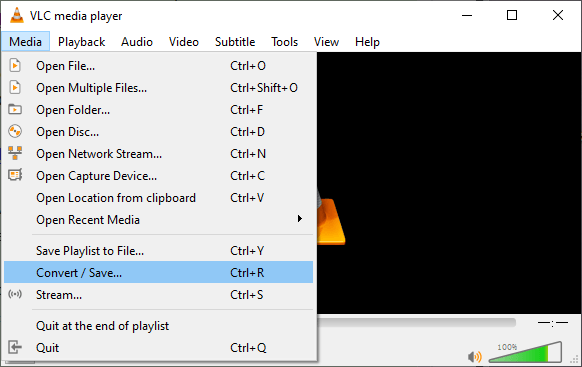
Step 1. Open VLC Media Player on your device and click "Media" from the top menu. Then, select "Convert/Save" to access the conversion feature.
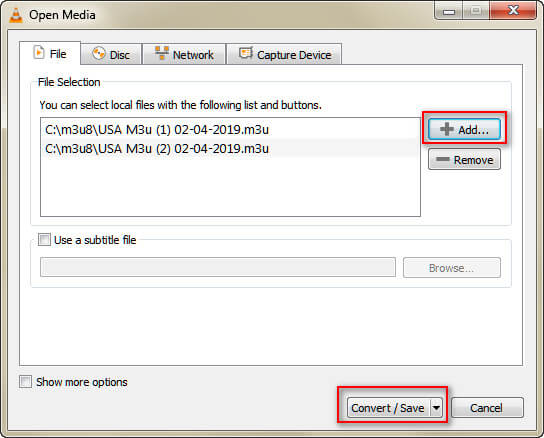
Step 2. In the "Open Media" window, click "Add" to import the M4A file you want to convert, then click "Convert/Save" to enter the conversion settings.
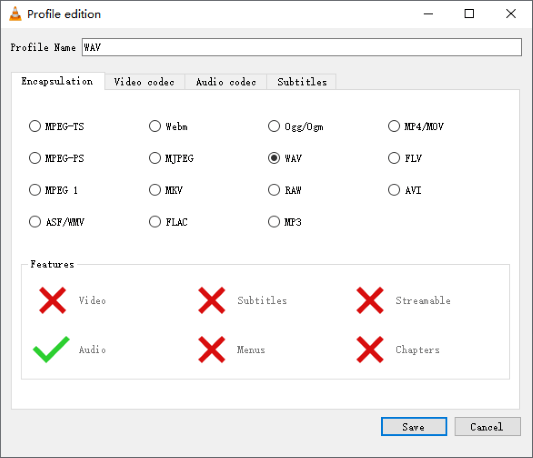
Step 3. In the "Profile" section, click the "wrench" icon to edit the output format, as VLC does not provide a direct WAV option in the default profile list.
Step 4. Go to the "Encapsulation" tab, select "WAV" as the output format, and adjust other audio settings if needed. Then, click "Save" to confirm the changes.
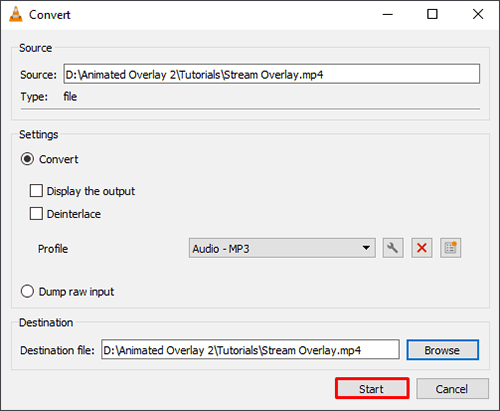
Step 5. Click the "Browse" button to choose a destination folder and rename the output file. Make sure the file name ends with the .wav extension.
Step 6. Click "Start" to begin converting the M4A file to WAV. Once the process is complete, you can find the converted WAV file in your selected folder.
For users who frequently use Apple devices, iTunes is also a convenient way to convert M4A to WAV. iTunes has built-in audio encoding settings that allow users to change the import format and convert M4A files in their music library to WAV. The biggest advantage of this method is that it does not require installing any additional third-party tools, making it especially suitable for users who already use iTunes to manage their music files. However, it is worth noting that iTunes offers only basic conversion features and is better suited for processing a small number of files.
Here is how to convert M4A to WAV on Mac using iTunes:
Step 1. Open iTunes on your Mac.
Step 2. Go to "Edit" > "Preferences", then select the "General" tab in the pop-up window.
Step 3. Click "Import Settings" and choose "WAV Encoder" from the "Import Using" drop-down menu.
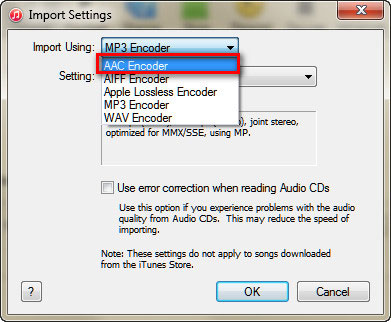
Step 4. Click "OK" to save the changes and apply the new audio format settings.
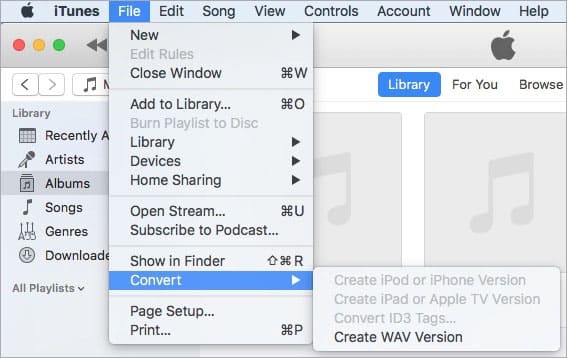
Step 5. Select the M4A file in your iTunes library, then go to "File" > "Convert" > "Create WAV Version" to convert the M4A file to WAV format.
FFmpeg is a powerful open-source audio and video processing tool widely used by professional users for format conversion, audio processing, and video editing. It supports almost all common media formats, making it easy to convert M4A to WAV.
Compared with graphical software, FFmpeg's biggest advantage is its flexibility. Users can precisely control the output results through command-line parameters, such as adjusting audio codecs, sample rates, and channels. However, since it requires command-line operations, beginners may need some time to learn how to use it.
Here is how to use FFmpeg to convert M4A to WAV:
Step 1. Download and install FFmpeg on your computer, then open Command Prompt (Windows) or Terminal (Mac/Linux).
Step 2. Go to the folder containing your M4A file or enter the file path directly.
Step 3. Enter the "ffmpeg -i input.m4a output.wav" command and press "Enter" to convert M4A to WAV. Replace the file names with your actual M4A and WAV file names.
Step 4. Wait for the conversion to finish, then find the WAV file in the output folder.
If you only need to convert M4A files occasionally and do not want to install any software, online conversion tools can be a good choice. CloudConvert is a popular online file conversion platform that supports various audio formats, including M4A and WAV.
The biggest advantage of online converters is convenience—you only need to upload your file and select the target format to complete the conversion. However, since files need to be uploaded to a server, the conversion speed may be affected by your internet connection. In addition, for audio files containing private information, you should consider potential data privacy concerns.
Here is how to convert M4A to WAV online for free via CloudConvert:
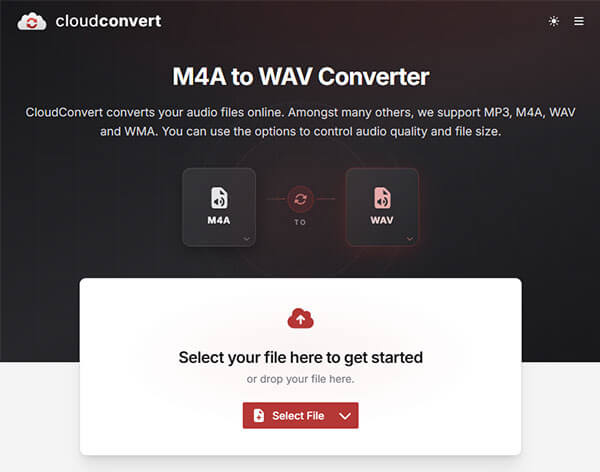
Step 1. Open the CloudConvert website in your browser and click "Select File" to upload your M4A file.
Step 2. Choose WAV as the output format from the format drop-down menu.
Step 3. Adjust the audio settings if needed, such as codec, sample rate, and bitrate.
Step 4. Click "Convert" to start converting your M4A file to WAV online.
Step 5. Wait for the conversion process to complete, then click "Download" to save the WAV file to your device.
There are multiple ways to convert M4A to WAV. If you frequently need to convert audio formats such as M4A to WAV, MP3, or FLAC, Video Converter Ultimate is a more comprehensive solution. It not only completes format conversions quickly but also offers audio editing, batch processing, and high-quality output features, making audio conversion easier and more efficient.
Related Articles:
How to Edit Audio: 5 Easy Ways for Windows, Mac & iPhone
How to Convert WAV to MP3: 5 Simple Methods for Beginners
How to Convert Video to Audio on Windows/Mac/Android/iPhone/Online?




 Free Download for PC
  Free Download for Mac


