TL;DR: You can record gameplay on Xbox One in three main ways: using the built-in Xbox capture tools for quick clips and short recordings, using the Xbox Game Bar on a Windows PC for more flexible recording, or using a professional tool like Coolmuster Screen Recorder for higher-quality, longer, and more advanced recordings.
The Xbox's built-in features are convenient but limited in duration, while external storage extends recording time. For the best results and full control over video and audio, a dedicated screen recorder is the most powerful option.
Xbox One is a popular home gaming console developed by Microsoft, offering a wide range of immersive games across action, sports, racing, adventure, and multiplayer genres. Many players enjoy sharing their gameplay moments, whether it's an exciting win, a funny in-game moment, or a full gameplay walkthrough.
In this guide, we will show you step-by-step methods for how to record gameplay on Xbox One so you can easily save and share your best gaming moments.
Xbox One includes built-in game recording features that make it easy to capture gameplay, whether you want to save an unexpected highlight or record a planned gaming session. You can also share your recorded clips on your activity feed, Twitter, OneDrive, and other supported platforms.
Here is how to record gameplay on Xbox One without a capture card:
Step 1. To record recent gameplay, press the "Xbox" button to open the guide, then press the "X" button to save the last 30 seconds of gameplay. Alternatively, you can say "Xbox, record that" to capture the most recent gameplay clip.
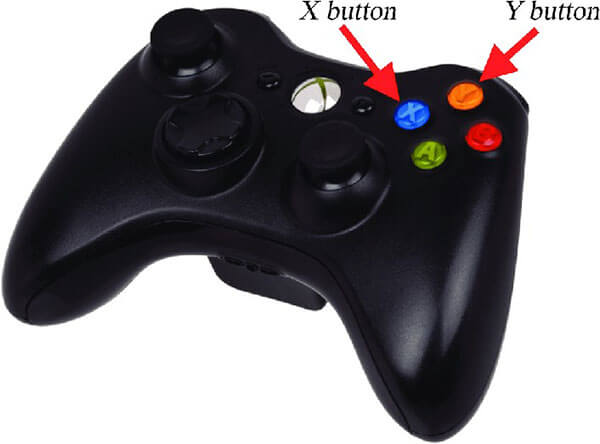
Step 2. If you want to save a longer clip, press the "View" button and choose your preferred recording length. Depending on your settings, you can capture up to 2 minutes of gameplay.
Step 3. To record upcoming gameplay, press the "Xbox" button to open the guide.
Step 4. Navigate to "Capture & share" > "Start recording". Xbox One will begin recording your gameplay, allowing you to capture up to 10 minutes of footage on internal storage or up to 1 hour when using supported external storage, depending on your recording resolution and available space.
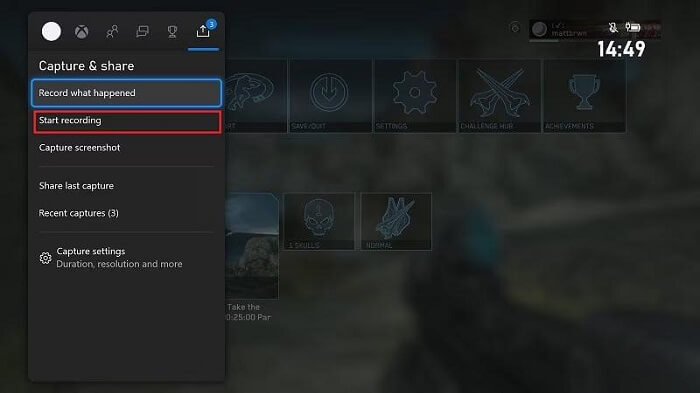
Step 5. When you're finished, open the guide again and press the "X" button to stop recording. Your gameplay video will then be saved automatically.
Many gamers are used to playing directly on their Xbox One consoles. However, an increasing number of players are choosing to enjoy Xbox games on Windows PCs or connect their Xbox consoles to a PC using a capture card for added flexibility and features.
The Xbox Game Bar is a built-in Windows screen recording tool that provides more advanced gameplay recording options than the Xbox console's built-in capture feature. Available on Windows 10 and later, it lets you record gameplay, capture screenshots, monitor system performance, and access gaming widgets without leaving your game.
Here is how to record gameplay on Xbox One with voice using Xbox Game Bar:
Step 1. Connect your Xbox One to a capture card using an HDMI cable, then connect the capture card to your PC. Open the capture card software on your computer and make sure your Xbox gameplay is displayed correctly.
Step 2. Next, press "Windows" + "G" to open the Xbox Game Bar. From the overlay, click the "Record" button in the "Capture" widget, or use the shortcut "Windows" + "Alt" + "R" to start recording.
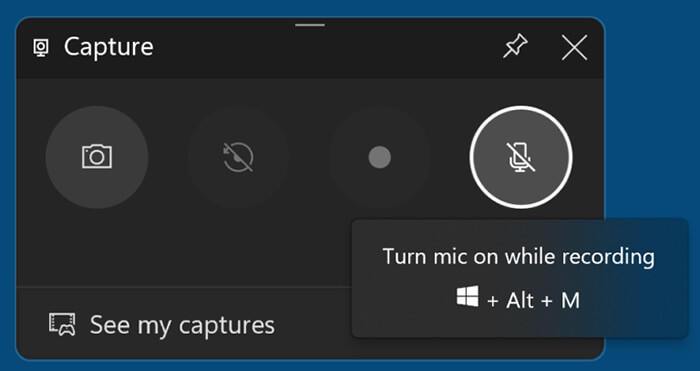
Step 3. When you finish, your clips will be automatically saved in the Captures folder within your PC's Videos library. You can also access them through the Game Bar by selecting "Show all captures".
If you want a more professional recording experience, such as longer recording sessions, high-definition output, or flexible audio control, you can use professional screen recording software like Coolmuster Screen Recorder. It can capture Xbox gameplay through a capture card or via streaming. In addition, with this software, you can record both the game footage and audio from your computer system as well as your microphone.
Key features of Coolmuster Screen Recorder:
Here is how to record long gameplay on Xbox One using Coolmuster Screen Recorder:
01Install Coolmuster Screen Recorder on your Windows. Launch the software and choose a recording mode (Full Screen or Custom).
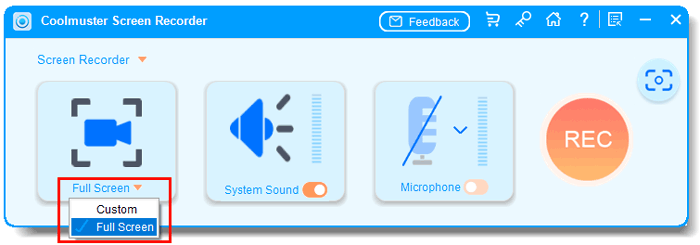
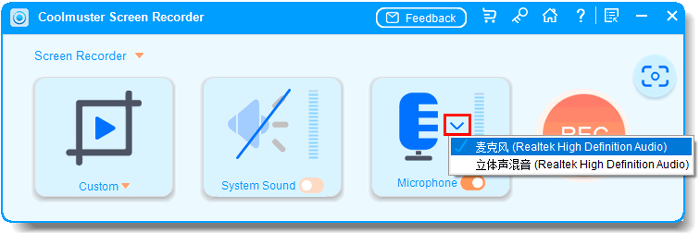
02Connect your Xbox One gameplay to your PC via a capture card or streaming, and then set audio sources (system sound, microphone, or neither).
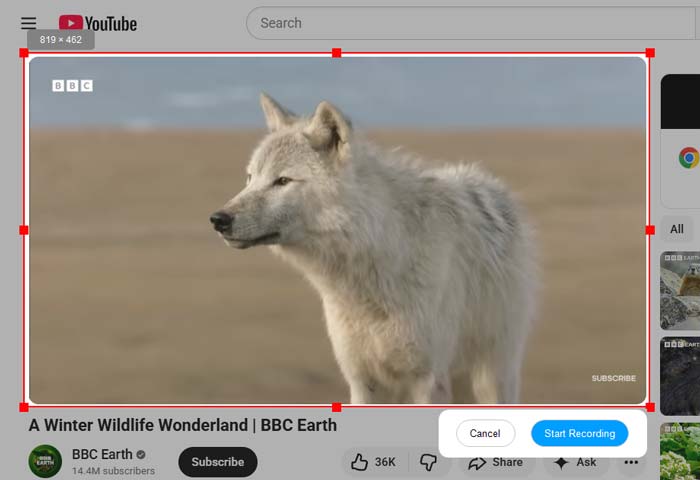
03Click the orange "REC" button and choose "Start Recording" after the countdown ends to begin recording your Xbox One.
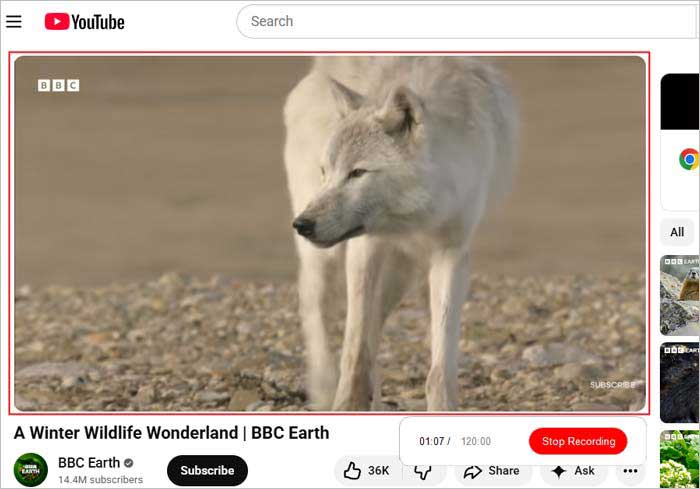
04When you're done, click "Stop Recording". The video will be automatically saved as an MP4 file in your selected folder, ready to copy and share easily.
Video Tutorial:
Q1. Where can I find my recorded gameplay clips?
You can find your recorded gameplay clips in the Capture section of the Xbox Guide. To access it, press the Xbox button on your controller and go to the Capture tab.
Q2. How long can Xbox record gameplay?
Xbox can record up to 10 minutes when saving to internal storage, or up to 1 hour when using an external hard drive.
Q3. How can you record longer than 10 minutes on Xbox?
To record beyond 10 minutes on Xbox, you'll need to use an external hard drive. Once connected, set it as the capture location in your capture settings, which allows recordings of up to 1 hour.
Q4. Can I record my voice while capturing gameplay on Xbox?
Yes, you can record your voice while capturing gameplay on Xbox. Simply connect a headset or microphone to your console, and your voice will be recorded along with the gameplay when you start a capture.
So far, we have introduced how to record gameplay on Xbox One for YouTube in three efficient ways. You can make full use of the built-in recording feature of the Xbox One app. However, if you are looking for higher quality, longer recording time, and more professional output, we recommend using Coolmuster Screen Recorder, which offers greater flexibility for game content creation and video production.
Related Articles:
3 Effective Methods to Screen Record Instagram Story: Step-by-Step
How to Record Roblox on PC, Mac & Mobile Easily: Step-by-Step
10 Best Game Recording Software to Record Gameplay Without Hassle
[Solved] How to Record Google Meet on Any Device Easily in 2026






 Free Download for PC


