TL;DR: Looking for how to screen record on a Lenovo laptop? This guide covers 5 easy ways to capture your screen with or without audio on Windows 10/11, including Lenovo Vantage, Lenovo Nerve Sense, Xbox Game Bar, Snipping Tool, and Coolmuster Screen Recorder. Whether you need to record online classes, meetings, gameplay, or tutorials, you can find the right screen recording method here. For users who want high-quality videos, flexible recording options, and clear audio capture, Coolmuster Screen Recorder offers a simple and professional solution.
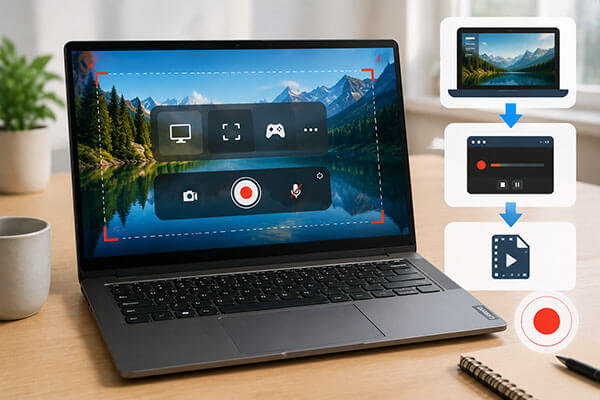
Want to know how to screen record on a Lenovo laptop? Whether you want to record online classes, save meeting content, create tutorial videos, or capture exciting gaming moments, learning how to screen record on a Lenovo laptop can be extremely useful. This article will introduce several simple and effective methods to help you record your screen on a Lenovo laptop and choose the most suitable screen recording solution based on your specific needs.
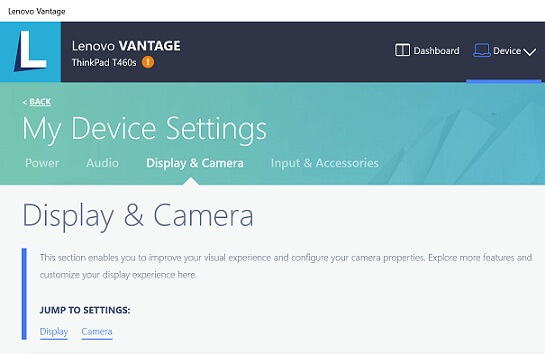
Lenovo Vantage is an official system management tool provided by Lenovo, mainly designed for device optimization, driver updates, and hardware settings management. Some Lenovo laptop models also include screen recording-related features, allowing users to quickly capture screen content. If your Lenovo laptop supports this feature, you can use Lenovo Vantage to record your screen.
Here is how to screen record on a Lenovo laptop with audio via Lenovo Vantage:
Step 1. Launch Lenovo Vantage from the "Start" menu, or download and install it from the Microsoft Store if it is not already available.
Step 2. Navigate to "My Device Settings" and select "Display & Camera" to access camera-related features.
Step 3. Look for options such as "Camera Privacy Mode" or any built-in recording-related features supported by your Lenovo laptop.
Step 4. If a recording feature is available, follow the on-screen instructions or use supported keyboard shortcuts, such as "Ctrl" + "Shift" + "R", to begin or stop recording.
Step 5. After recording, check your "Videos" folder or the default save location to find the recorded files.
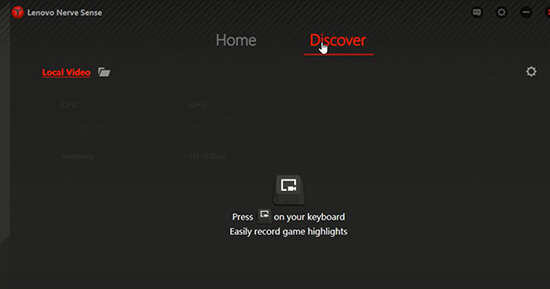
Lenovo Nerve Sense is a dedicated management software available on some Lenovo gaming laptops, such as select devices from the Legion series. In addition to performance optimization, fan control, and gaming mode adjustments, it also provides game recording and shortcut features. If your Lenovo laptop comes preinstalled with Lenovo Nerve Sense, you can use it to record screen activities.
Here is how to screen record on a Lenovo laptop without a Windows key:
Step 1. Open Lenovo Nerve Sense on your laptop and go to the "Discover" section.
Step 2. Click the "gear icon" to customize recording settings, including video quality, frame rate, audio source, and other preferences. You can also enable options to capture mouse movements and clicks.
Step 3. Choose a preferred folder or location where your recordings will be saved.
Step 4. Press the "Record" button on your keyboard to start recording your screen.
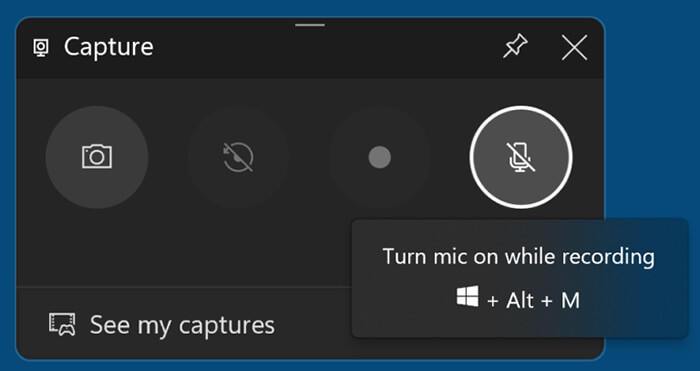
If your Lenovo laptop runs Windows 10 or Windows 11, one of the easiest ways to record your screen is by using the built-in Xbox Game Bar. It does not require any additional software installation and can quickly capture app windows, gameplay footage, and certain screen activities. However, keep in mind that Xbox Game Bar is mainly designed for recording individual app windows and cannot directly record the entire desktop or File Explorer.
Here is how to screen record on a Lenovo laptop on Windows 10/11 via Xbox Game Bar:
Step 1. To record a game or specific app on your Lenovo laptop, press "Windows" + "G" to launch the Xbox Game Bar overlay.
Step 2. Open the "Captures" widget and click the "Record" button to start capturing. Alternatively, use the shortcut "Windows" + "Alt" + "R" to begin recording instantly. A recording timer will appear on your screen.
Step 3. When you finish recording, click the "Stop" button on the timer or press "Windows" + "Alt" + "R" again. The recorded video will be automatically saved as an MP4 file in the default "Captures" folder.
The Snipping Tool in Windows 11 not only supports screenshots but also includes a screen recording feature. Therefore, Lenovo laptop users can use this built-in system tool to complete simple screen recordings directly.
Here is how to screen record on a Lenovo laptop on Windows 11 using Snipping Tool:
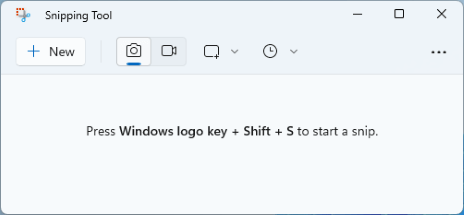
Step 1. Open the Snipping Tool from the Search bar, then switch from Snip mode to Record mode by selecting the "camera icon".
Step 2. Click "+ New" and drag your cursor to select the area of the screen you want to capture.
Step 3. Click "Start" to begin recording and select "Stop" when you finish. The recorded video will be saved automatically.
If you need a more professional way to screen record on a Lenovo laptop, Coolmuster Screen Recorder is a powerful solution. Compared with Lenovo's built-in tools and Windows default features, it provides more recording modes and flexible settings to meet various needs, including creating tutorial videos, saving online meetings, recording gameplay, and producing content.
It supports recording the entire screen as well as customized areas, while also capturing system sound and microphone audio. In addition, the software offers a simple and intuitive interface, allowing beginners to start recording quickly.
The highlights of Coolmuster Screen Recorder:
Here is how to screen record on a Lenovo laptop with sound via Coolmuster Screen Recorder:
01Launch Coolmuster Screen Recorder on your Lenovo laptop and choose the recording area. You can select "Full Screen" or a "Custom" region based on your needs.
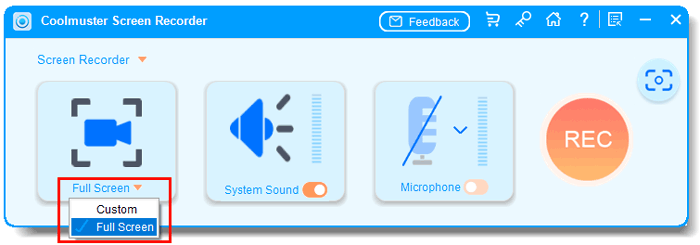
02Adjust the audio settings by enabling "System Sound" or "Microphone". You can also disable audio if you want to record silently.
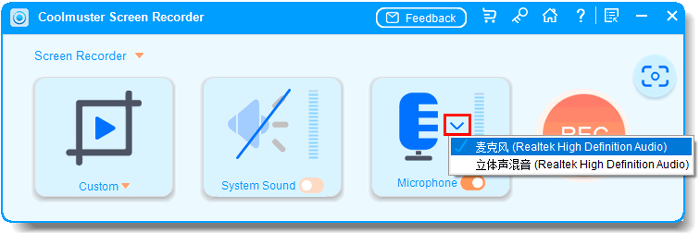
03Click the orange "REC" button and select "Start Recording". The screen recording will begin after a short countdown.
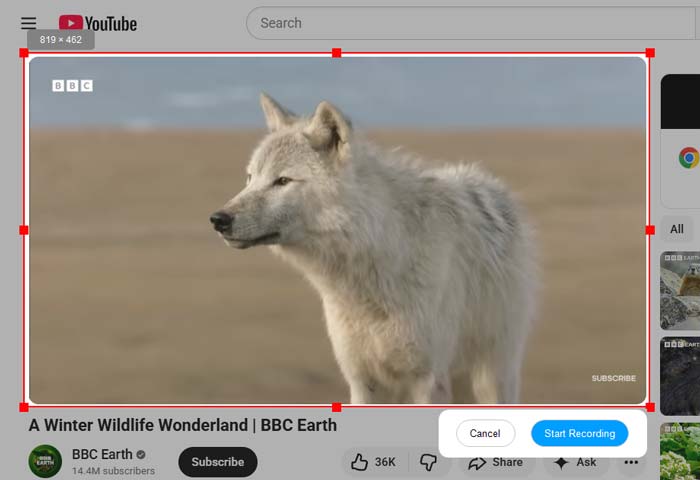
04When you finish recording, click "Stop Recording". The video will be saved as an MP4 file on your Lenovo laptop, and you can use the "Copy" option to quickly share it.

Video Tutorial:
Now you know how to screen record on a Lenovo laptop using different methods. If you need to screen record on a Lenovo laptop with audio, record high-quality videos, or capture professional tutorials and presentations, Coolmuster Screen Recorder is a recommended choice. It provides flexible recording options, clear audio capture, and an easy-to-use interface, helping you create smooth and high-quality screen recordings on your Lenovo laptop.
Related Articles:
How to Screen Record on Windows 10/11 Without Xbox Game Bar: 4 Ways
How to Screen Record on Acer Laptop Quickly: 4 Easy Methods
How to Screen Record on MSI Laptop with Ease: 3 Easy Methods
Step-by-Step Guide to Screen Record on Dell Laptop in Minutes






 Free Download for PC


