TL;DR: This guide explains how to screen record on MSI laptop with three easy methods. You can use Coolmuster Screen Recorder for high-quality and flexible recordings, Xbox Game Bar for quick captures without installing software, or OBS Studio for professional gameplay and content creation. Choose the method that best fits your needs and start recording your MSI laptop screen effortlessly.
MSI is well-known for its powerful gaming laptops and high-performance hardware, offering excellent performance for gaming, content creation, and daily tasks. With advanced processors and dedicated graphics cards, MSI laptops are ideal for handling demanding applications and recording tasks.
While using an MSI laptop, you may want to capture exciting gameplay, save important online meetings, or create step-by-step tutorials. However, many users still don't know how to screen record on an MSI laptop. In this guide, we will introduce several effective methods to help you record your screen on an MSI laptop. Let's look together.
If you are looking for a simple, efficient, and feature-rich way to record your MSI laptop screen, professional screen recording software is usually a better choice. Compared with built-in Windows tools, third-party screen recorders offer more customization options.
Coolmuster Screen Recorder is a reliable screen recording tool for MSI users. It allows users to easily record desktop activities, online videos, gameplay footage, meetings, and software tutorials. In addition, its intuitive interface makes it easy to use, even for beginners with no prior screen recording experience.
Key features of Coolmuster Screen Recorder:
How to screen record a video on MSI laptop?
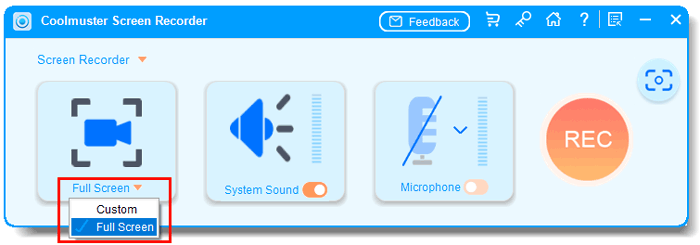
01Launch the software on your MSI laptop and choose "Full Screen" or "Custom" mode to select the area you want to record.
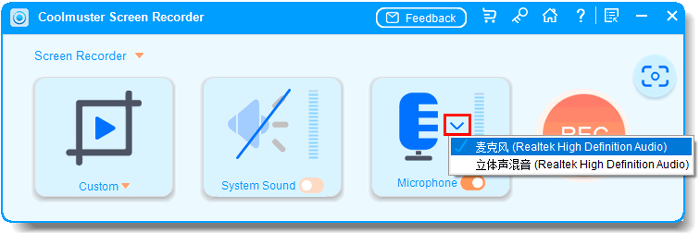
02Adjust the audio settings based on your needs by enabling "System Sound", "Microphone", or turning off audio recording completely.
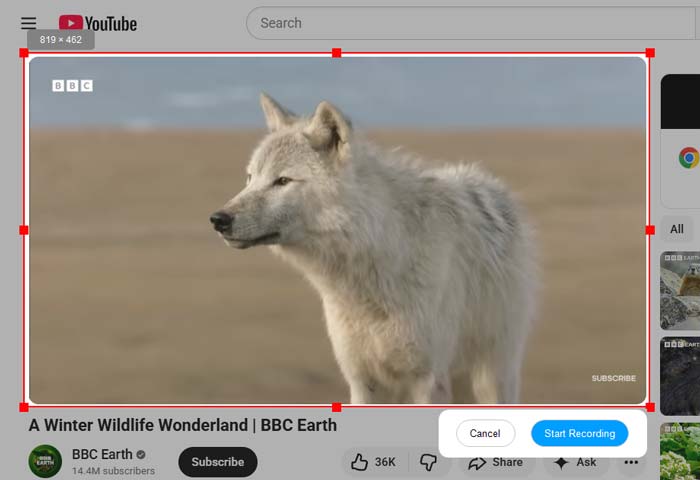
03Click the orange "REC" button and select "Start Recording". A countdown will appear, and the screen recording will begin automatically.
04Once the recording is finished, click "Stop Recording". The recorded video will be saved to your computer in MP4 format, and you can use the "Copy" option to share it quickly.

Video Tutorial:
If your MSI laptop runs Windows 10 or Windows 11, you can use the built-in Xbox Game Bar to record your screen directly. It does not require any additional software installation, making it a convenient option for quickly capturing gameplay or app activities.
However, it is important to note that Xbox Game Bar is mainly designed for game recording and cannot capture the entire desktop or File Explorer windows. Therefore, if you need to record your full screen, it may have some limitations.
Here is how to screen record on MSI laptop running Windows 11/10 with Xbox Game Bar:
Step 1. Press "Windows" + "G" on your MSI laptop to open Xbox Game Bar. If a prompt appears, confirm that the currently opened app is a game or supported application.
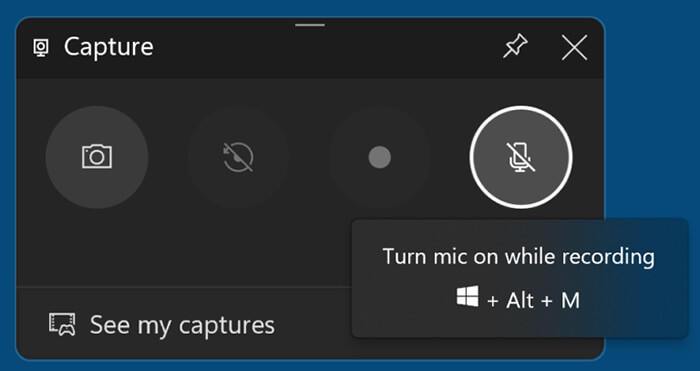
Step 2. Open the "Capture" widget and click the "Record" button, or press "Windows" + "Alt" + "R" to start recording immediately.
Step 3. Enable or disable the microphone option based on your needs. You can record your voice narration while capturing the screen or turn it off for silent recordings.
Step 4. When you finish recording, press "Windows" + "Alt" + "R" again or click the "Stop" button in the Capture widget to end the recording.
Step 5. The recorded video will be automatically saved in the "Captures" folder under "Videos" on your MSI laptop. You can open, edit, or share the recorded MP4 file whenever needed.
OBS Studio is a popular free and open-source screen recording and live streaming software widely used by game streamers, video creators, and online educators. If you want to perform more professional screen recording on your MSI laptop, OBS Studio is a great choice. It supports multiple scene switching, multiple audio source management, webcam overlays, and live streaming, making it suitable for handling complex recording tasks. However, due to its extensive features, beginners may need some time to learn how to use it effectively.
Here is how to screen record on MSI gaming laptop using OBS:
Step 1. Download and install OBS Studio on your MSI gaming laptop, then launch the program.
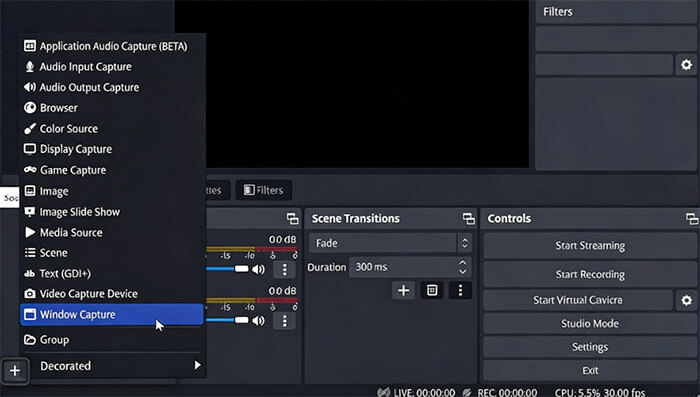
Step 2. Click the "+" icon in the Sources panel and select "Display Capture" to record your entire screen or choose "Game Capture" to capture specific gameplay.
Step 3. Add your preferred audio sources by selecting "Audio Input Capture" for microphone recording and adjusting "Desktop Audio" settings to capture system sound.
Step 4. Adjust recording settings by clicking "Settings" > "Output", then select the recording format, video quality, resolution, and save location according to your needs.
Step 5. Click "Start Recording" in OBS Studio to begin capturing your MSI laptop screen, gameplay, or other activities.
Step 6. When you finish recording, click "Stop Recording". OBS will automatically save the recorded video to the selected folder, where you can view, edit, or share the file.
Q1. Why can't I record my MSI laptop screen?
Your MSI laptop may fail to record due to permission issues, software errors, or system problems. Check the recording app permissions in "Windows Settings" > "Privacy & security", restart your laptop, or try another screen recorder like Coolmuster Screen Recorder.
Q2. How do you screen record on an MSI laptop using Snipping Tool?
On Windows 11, you can use the built-in Snipping Tool to record your MSI laptop screen. Open Snipping Tool from the Windows search bar, select the "Record" option, choose the recording area, and click "Start" to begin.
Q3. Can I record microphone audio while capturing gameplay on an MSI laptop?
Yes. You can record your microphone while recording gameplay on your MSI laptop. In Xbox Game Bar, enable "Record mic". In OBS, add your microphone through Audio Input Capture. With Coolmuster Screen Recorder, simply turn on the "Microphone" option before recording.
Learning how to screen record on an MSI laptop is much easier than you might think. Users can choose the most suitable method based on their specific needs. Xbox Game Bar is ideal for quick recordings, OBS Studio is better suited for professional users, while Coolmuster Screen Recorder provides a great balance between ease of use, stability, and comprehensive features.
Related Articles:
Step-by-Step Guide to Screen Record on Dell Laptop in Minutes
How to Record Gameplay on Xbox One: Complete Step-by-Step Guide
3 Effective Methods to Screen Record Instagram Story: Step-by-Step
[Solved] How to Record Google Meet on Any Device Easily in 2026






 Free Download for PC


