Losing precious photos, important contacts, messages, or app data on your OnePlus device can be devastating, whether it's caused by accidental deletion, device damage, theft, or even a factory reset. That's where cloud backup comes in. It provides a simple and reliable way to protect your data, ensuring you can restore everything anytime, anywhere on a new or repaired OnePlus phone.
In this guide, we won't limit you to just one solution. Instead, we'll walk you through several effective cloud backup methods, from built-in Android options to flexible third-party storage, so you can choose what works best for your needs. And if cloud storage isn't your preference, there's also a powerful offline alternative worth considering.
Backing up your OnePlus with a Google account is one of the easiest and most reliable methods, since it's already built into the Android system and doesn't require installing any extra apps. It automatically syncs your important data to Google Drive, making it easy to restore everything when switching devices or after a reset.
What You Can Back Up:
Step-by-Step Backup Guide:
Step 1. Open the Settings app on your OnePlus phone, then scroll down and tap "Google" (or go to "System & Update" > "Backup" on some models).
Step 2. From there, select "Backup" and turn on "Back up to Google Drive" to enable automatic cloud backup.
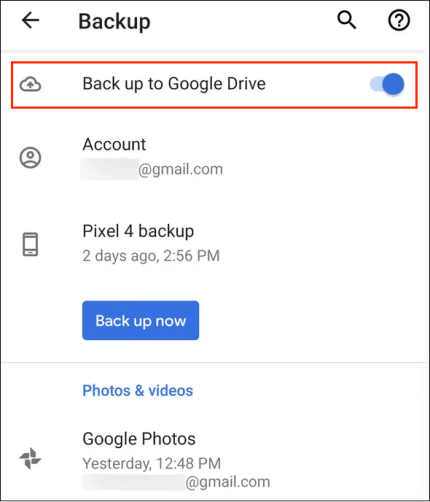
Step 3. Next, choose your preferred Google account (you can add a new account if needed), then tap "Back up now" to create an immediate backup. After that, your device will continue to back up data automatically when connected to Wi-Fi and charging.
For photos and videos, open Google Photos, tap your "profile" icon, go to "Photos settings" > "Backup & sync", and turn it on so your media files are uploaded to the cloud.
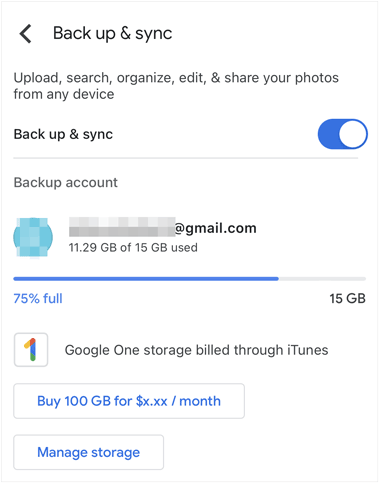
* Pros: Free to use, built into Android, supports automatic syncing and easy cross-device restore.
* Cons: Limited to 15GB of free storage shared across Google services.
If you prefer a brand-native solution, OnePlus Cloud is designed specifically for OnePlus devices and integrates smoothly with the system. It's a good option for users who want to back up essential data like contacts and messages while keeping everything within the OnePlus ecosystem.
What You Can Back Up:
Step-by-Step Backup Guide:
Step 1. Start by opening the Settings app and tapping your OnePlus account at the top. If you're not signed in yet, log in or create an account first.
Step 2. Then, select "OnePlus Cloud" and choose the types of data you want to back up by toggling on each category. You can enable Auto-sync to let your phone back up data in the background, or tap "Sync now" if you want to start the backup immediately.
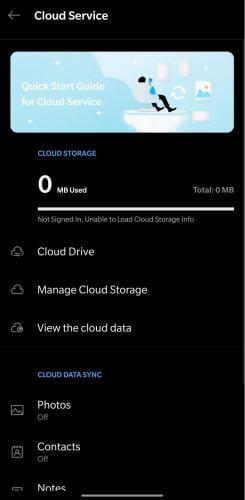
For photos and videos, go to Cloud Gallery and enable syncing. Keep in mind that backing up large media files may require upgrading to a premium storage plan.
* Pros: Native to OnePlus, easy to use, optimized for system data.
* Cons: Limited free storage, full media backup may require a paid plan.
If you don't need a full system backup and prefer more control over specific files, Dropbox is a flexible third-party option. It allows you to back up and access files across multiple devices, including phones, tablets, and computers.
What You Can Back Up:
Step-by-Step Backup Guide:
Step 1. First, download and install the Dropbox app from the Google Play Store, then open it and sign in to your account (or create one if needed).
Step 2. After logging in, you can enable Camera Uploads from the prompt or by going to "Settings" > "Camera Uploads", which will automatically back up your photos and videos.
Step 3. To upload specific files manually, tap the "+" icon, select "Upload files", then choose the files or folders you want from your OnePlus storage and upload them to Dropbox.
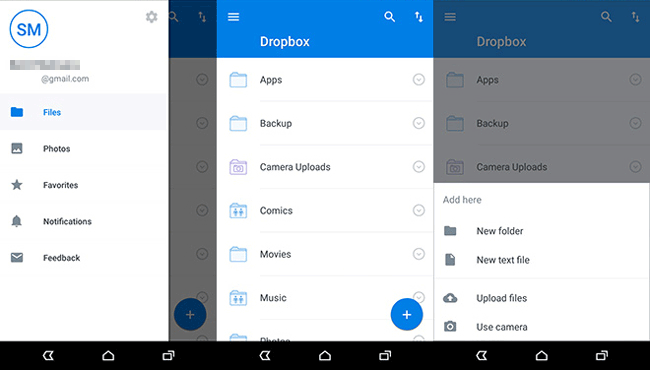
You can also customize your backup preferences in Settings, such as managing folders and enabling auto-sync for certain file types.
* Pros: Works across multiple platforms, supports selective backup, easy file sharing.
* Cons: Only 2GB of free storage, no full system or app data backup.
Cloud backup is convenient, but it depends heavily on internet connection and often comes with storage limits. If you have a large amount of data or care more about privacy, backing up your OnePlus to a computer is a more reliable choice.
In this case, Coolmuster Android Backup Manager is a great option. It allows you to back up your entire OnePlus device to a PC or Mac in just one click, no cloud storage or network required.
Why Choose Coolmuster Android Backup Manager?
Step-by-Step Guide to Back Up OnePlus to Computer Without Cloud:
01First, download and install Android Backup Manager on your Windows or Mac computer, then launch the program.
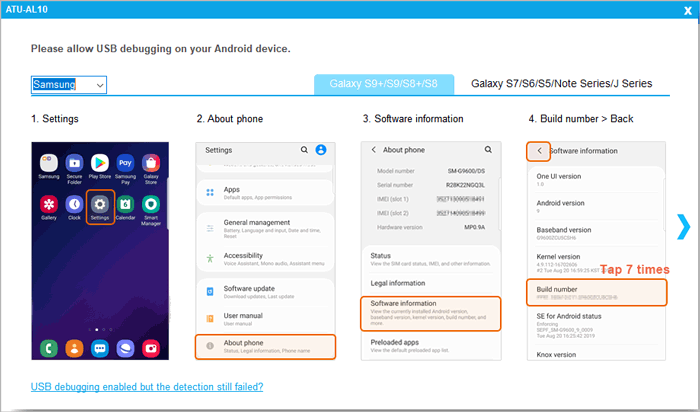
02Next, connect your OnePlus phone to the computer using a USB cable, and enable USB debugging on your device (go to "Settings" > "About Phone" > tap "Build Number" 7 times > "Developer Options" > "USB Debugging") so the software can detect your phone properly.
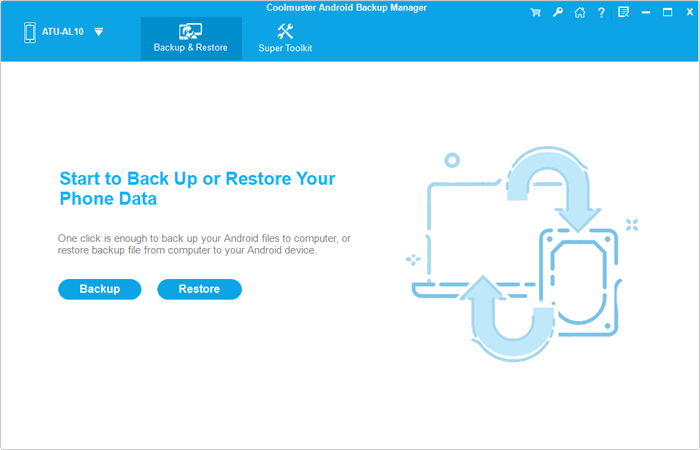
03Once your device is recognized, select the "Backup" option from the main interface.
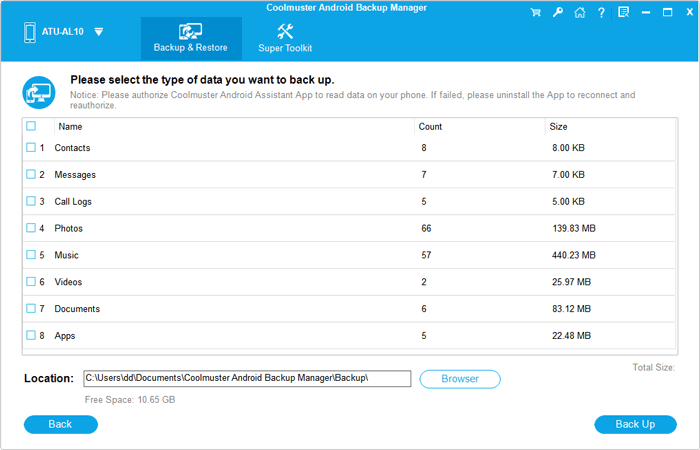
04Then, choose the data types you want to back up and select a location on your computer to store the backup files. After that, click "Back Up" and wait for the process to complete; all your OnePlus data will be safely saved on your computer.
If you prefer a more visual walkthrough, you can check out the video tutorial below to see how the backup process works step by step.
Backing up your OnePlus to the cloud is a smart way to keep your data safe and accessible. Whether you choose Google account for automatic system backups, OnePlus Cloud for a brand-integrated experience, or Dropbox for flexible file storage, each method offers its own advantages depending on what you need to protect and how you prefer to manage your data.
However, if you're looking for a more secure, unlimited, and offline solution, Coolmuster Android Backup Manager stands out as a reliable choice. It lets you back up all your OnePlus data to your computer in one click without worrying about storage limits or internet dependency, making it especially ideal for users who value privacy and full control over their backups.
Related Articles:
OnePlus Backup and Restore: 4 Simple Ways to Keep Your Data Safe
How to Sync OnePlus to PC | 4 Simple Methods for All Users
How to Back Up Android Photos to Cloud: Google Photos, OneDrive, Dropbox
How to Transfer Data from OnePlus to Laptop in 6 Workable Ways





 Free Download for PC
  Free Download for Mac

 Download for PC
 Download for Mac

