What would happen if all your text messages suddenly disappeared from your Redmi phone? From important verification codes to personal conversations, SMS still plays a vital role in daily communication. That's why learning how to back up Redmi messages is more important than ever.
In this guide, we'll show you 6 practical and reliable ways to back up SMS on Redmi, whether you want to save messages to a computer, cloud services, or local storage. No matter your situation, you'll find a method that works for you.
If you want a simple and reliable way to back up all your Redmi messages to a computer, Coolmuster Android Backup Manager is one of the best options. It allows you to back up SMS in one click and restore them anytime without data loss.
Why choose Coolmuster Android Backup Manager?
Steps to back up Redmi messages:
01Download and install Coolmuster Android Backup Manager on your computer, then launch the program.
02Connect your Redmi phone to the computer using a USB cable. Follow the on-screen instructions to enable USB debugging so the software can detect your device successfully.
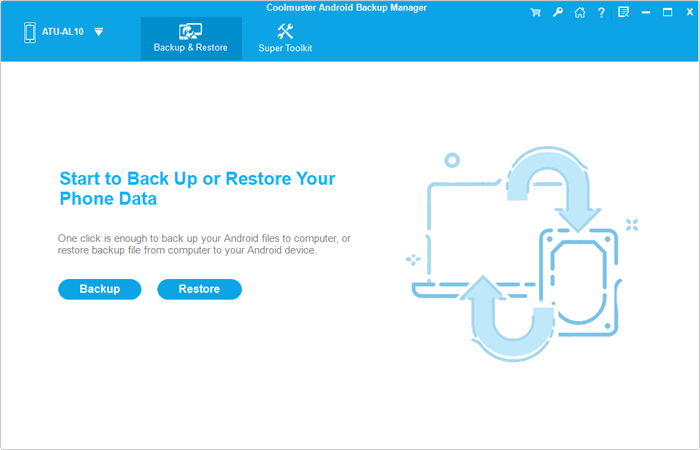
03Once connected, click on the "Backup" option from the main interface, select "Messages" from the data types, and choose a location on your computer to save the backup file.
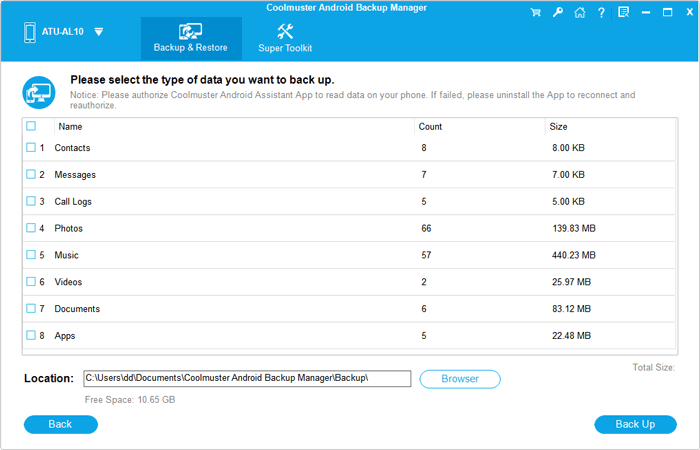
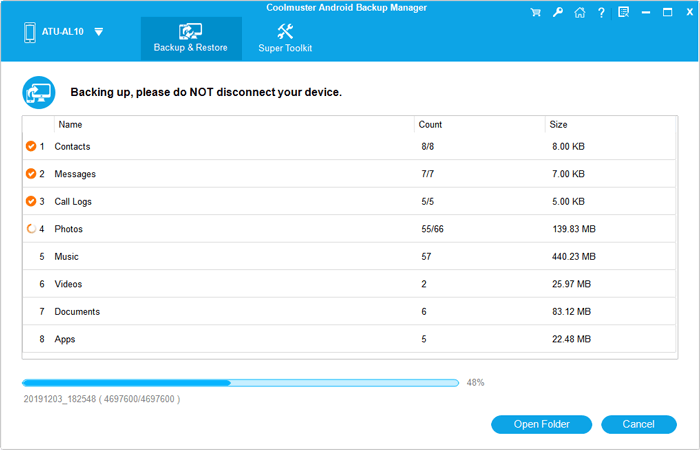
04Click the "Back Up" button to start the process, and your Redmi messages will be saved to the computer within seconds.
If you'd prefer a step-by-step video demonstration, take a look at this tutorial:
Mi Cloud provides a built-in and wireless way to back up Redmi messages without using a computer. If you prefer an automatic solution, Xiaomi Cloud can sync your SMS and keep them updated across your devices.
Step-by-step guide to back up Redmi messages:
Step 1. Open the Settings app on your Redmi phone, tap your profile or Xiaomi account at the top, and sign in with your Mi account if you haven't already.
Step 2. Enter the Xiaomi Cloud section from the account menu, where you can manage all synced data.
Step 3. Locate the "Messages" option and turn on sync. You can also enable automatic sync so your SMS will be backed up continuously in the background.
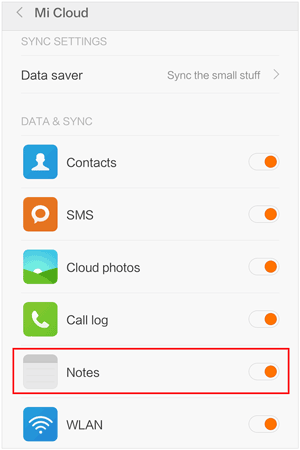
Step 4. Scroll down and tap "Sync now" (or pull down the page) to manually trigger an immediate backup of your messages.
Step 5. Once completed, you can access and view your synced messages by logging into the Xiaomi Cloud website from any browser.
For users who rely on Google services, backing up Redmi messages to your Google account is a convenient and flexible option. This method uses Android's built-in backup system, allowing you to restore SMS easily when switching to another Android device.
Step-by-step guide to back up Redmi messages with Google account:
Step 1. Open "Settings" on your Redmi phone, scroll down and tap "Google", then select "Backup". Make sure you are signed in with your Google account.
Step 2. Turn on the "Back up to Google Drive" option so your device can automatically save data to your Google account.
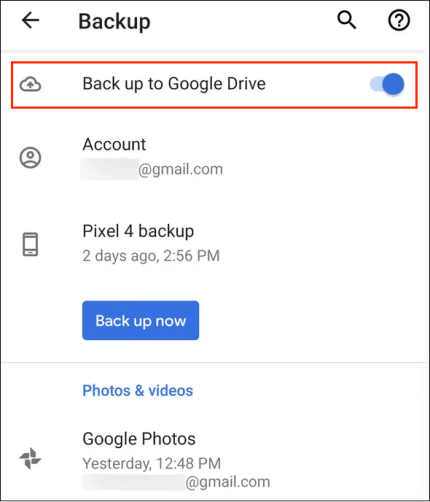
Step 3. Ensure that SMS messages are included in the backup data. You can also choose to back up other data, such as contacts and call logs, if needed.
Step 4. Tap "Back up now" to manually start the backup process. For a faster and smoother experience, keep your phone connected to a stable Wi-Fi network.
Mi PC Suite is an official desktop tool that allows you to manage and back up data from Redmi devices to a computer. It can be used to create a full backup of your SMS and other files for safekeeping. Here is how it works:
Step 1. Download and install Mi PC Suite on your Windows computer, then launch the program.
Step 2. Connect your Redmi phone to the computer using a USB cable, enable USB debugging on your device, and select the file transfer mode if prompted.
Step 3. Once connected, the software will automatically detect your phone and display it on the main interface.
Step 4. Click on the "Backup & Restore" section, then select "Messages" from the list of data types.
Step 5. Choose a location on your computer where you want to save the backup file.
Step 6. Click the "Backup" button and wait for the process to complete. Make sure your phone remains connected during the process.
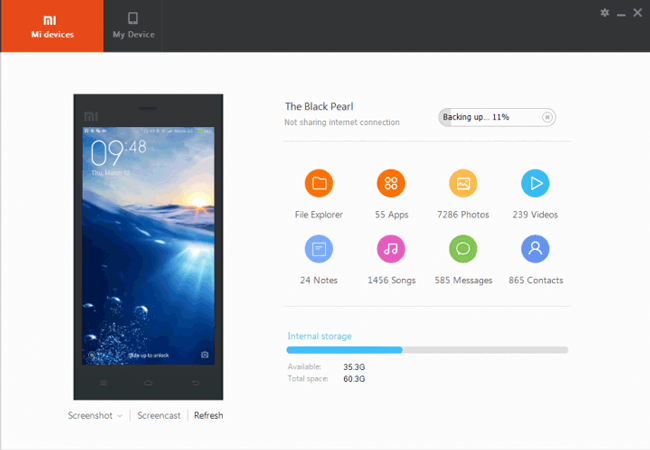
Note: Mi PC Suite is no longer actively updated and may not fully support newer Redmi models or MIUI versions. If your device cannot be recognized, consider using alternative methods such as professional backup tools or cloud-based solutions.
Local Backup is a built-in MIUI feature that allows you to back up Redmi messages directly to your phone's internal storage or SD card. This method is useful if you don't want to rely on cloud services or a computer.
The guide to back up Redmi messages locally:
Step 1. Open "Settings" on your Redmi phone, then go to "About phone" and tap "Backup & restore".
Step 2. Select "Local backups" and enter your lock screen password to proceed.
Step 3. Tap the "Back up" option, then choose "Messages" from the list of data types. You can uncheck other items if you only want to back up SMS.
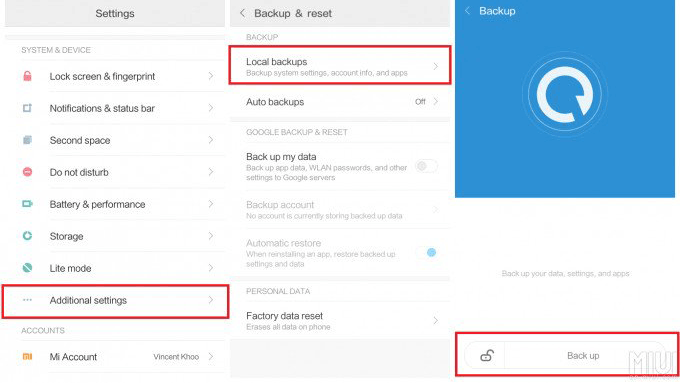
Step 4. Start the backup process and wait until it finishes. The backup file will be saved in your phone storage.
Step 5. If needed, you can copy the backup folder to a computer or SD card to prevent data loss, especially before performing a factory reset.
SMS Backup & Restore is a widely used third-party app designed to back up and restore SMS and MMS on Android devices. It offers flexible storage options and supports automatic scheduled backups. Follow these steps to do Redmi text message backup with SMS Backup & Restore:
Step 1. Download and install the app from Google Play, then open it on your Redmi phone.
Step 2. Grant the required permissions so the app can access your messages and storage.
Step 3. Tap "Set Up a Backup" on the main screen to begin.
Step 4. Select "Messages" as the backup content. You can also customize settings such as excluding MMS or selecting specific conversations.
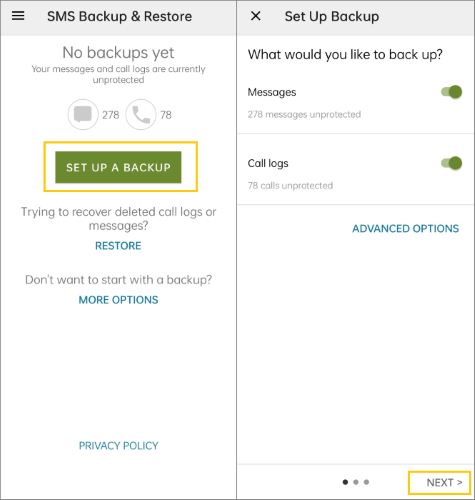
Step 5. Choose where to save the backup file, such as local storage, Google Drive, Dropbox, or email.
Step 6. Adjust optional settings like backup name or automatic schedule, then tap "Back Up Now" to start the process.
Step 7. Once completed, your messages will be saved as a backup file, which you can access and restore whenever needed.
Backing up Redmi messages is an essential step to protect your important SMS from unexpected data loss. In this article, we've covered 6 effective methods, including Xiaomi Cloud, Google account, local backup, desktop tools, and third-party apps. Each method comes with its own advantages, so you can choose the one that best fits your needs, whether you prefer a wireless solution or a more secure backup on your computer.
If you're looking for the easiest and most reliable way to back up Redmi messages, Coolmuster Android Backup Manager stands out as the best choice. With its one-click backup feature, wide compatibility, and safe data handling, it allows you to back up and restore SMS effortlessly without any technical hassle.
Related Articles:
Back Up Redmi Apps: 4 Reliable Methods for Data Safety
How to Perform Redmi Backup and Restore: Step-by-Step Methods
How to Retrieve Deleted Text Messages on Redmi [3 Simple Methods]
[Solved] How to Transfer Text Messages from Redmi to iPhone Easily?





 Free Download for PC
  Free Download for Mac

 Download for PC
 Download for Mac

