TL;DR:
If you want to know how to connect Redmi to PC, you can try these five methods:
Connecting your Redmi phone to a PC allows you to transfer photos, videos, documents, and other files or manage your phone from a larger screen. However, the best connection method depends on whether you prefer a USB connection, wireless transfer, or a tool with more comprehensive management features.
In this guide, we'll show you how to connect Redmi to PC in five different ways. Whether you want to connect your Redmi phone using a USB cable, Wi-Fi, portable hotspot, Microsoft Phone Link, or Bluetooth, you can choose the method that best suits your needs.
If you want to connect your Redmi phone to a PC and manage more than just basic files, Coolmuster Android Assistant is a convenient option. It supports both USB cable and Wi-Fi connections, so you can choose between a stable wired connection and a cable-free option. Once connected, you can transfer, back up, restore, and manage various types of Android data directly from your computer.
Key features of Coolmuster Android Assistant
A USB connection is a good choice when you want a stable connection for transferring or managing a large amount of data.
01Download and install Coolmuster Android Assistant on your Windows PC or Mac. Launch the program after installation.
02Connect your Redmi phone to the computer using a USB data cable. Unlock your phone and follow the on-screen instructions to enable USB debugging if prompted.
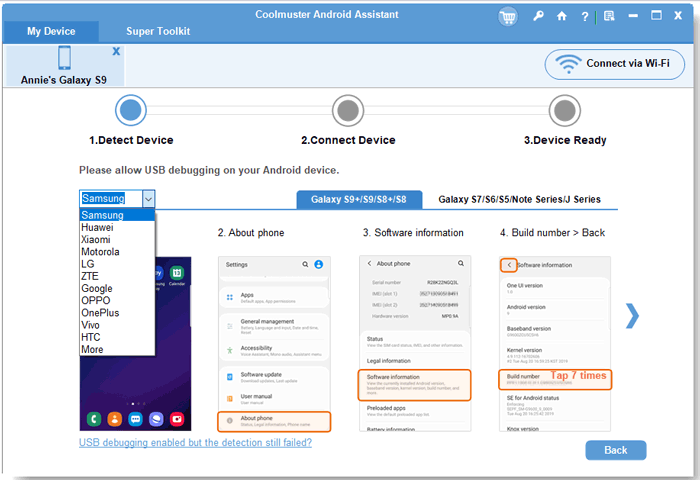
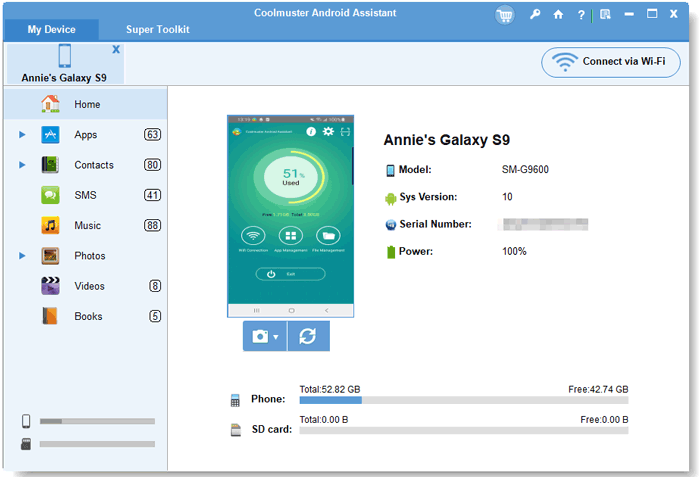
03Once the connection is successful, your Redmi phone information will appear in Coolmuster Android Assistant. You can then choose different categories, such as Contacts, SMS, Photos, Videos, Music, Apps, and more, to transfer or manage your data.
If you don't want to use a USB cable, Coolmuster Android Assistant also lets you connect your Redmi phone to your computer wirelessly. For this method, your Redmi phone and PC should be connected to the same local Wi-Fi network.
01Open the software and choose the Wi-Fi connection option from the connection interface.
02Follow the instructions provided by the software to download and install the Android version of Coolmuster Android Assistant on your Redmi phone.
03Open the Android Assistant app on your Redmi and use it to scan the QR code displayed on your computer. Make sure both devices are connected to the same Wi-Fi network.
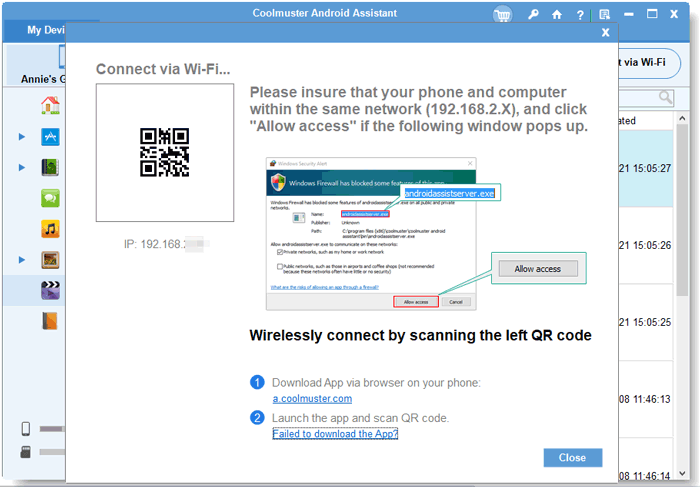
04After the connection is established, the Redmi phone will be recognized by the software. You can now transfer and manage supported phone data from your computer without using a USB cable.
Want to see how Coolmuster Android Assistant connects and manages Android data in practice? Watch the video tutorial below for a visual step-by-step guide.
Using a USB data cable is the most straightforward way to connect a Redmi phone to a PC without installing additional software. However, compared with Coolmuster Android Assistant, this method mainly gives you basic access to your phone's files and does not provide the same range of data management, backup, and restore features.
Step 1. Use a compatible USB data cable to connect your Redmi phone to the computer.
Step 2. Unlock your phone and swipe down from the top of the screen to open the notification panel. Tap the USB connection notification.
Step 3. Choose "Transfer files" or "File Transfer/Android Auto" from the available USB options.
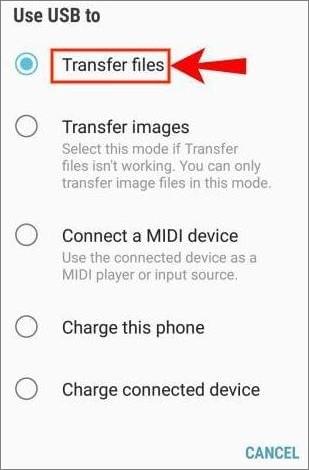
Step 4. On your computer, open "File Explorer" > "This PC" and find your Redmi phone under the connected devices. Double-click it to access the phone's internal storage and transfer files.
Note: If your PC doesn't recognize the Redmi phone, try another USB port or USB cable. Make sure the cable supports data transfer rather than charging only.
If you don't have a Wi-Fi network available, you can use your Redmi phone's portable hotspot to create a wireless network and connect your laptop to it. This method is useful when you want to connect your PC to the internet through your Redmi phone, although it is different from directly accessing the phone's files.
Step 1. Turn on Portable Hotspot on Redmi: Open "Settings" > "Portable hotspot". Then, enable Portable hotspot. You can also check or change the hotspot name and password here.
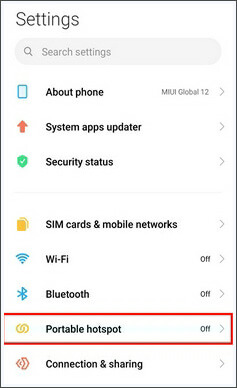
Step 2. Click the Wi-Fi icon on your Windows PC and look for the hotspot name of your Redmi phone.
Step 3. Select your Redmi hotspot, click "Connect", and enter the hotspot password.
Step 4. Once connected, your PC will use the Redmi phone's mobile data connection to access the internet.
This method connects your PC to the Redmi phone's network rather than directly connecting the phone's storage to the PC. Mobile data usage may apply depending on your carrier plan.
Microsoft Phone Link provides another wireless way to connect an Android phone to a Windows PC. Depending on your Redmi model and Android version, you can use it to access notifications, messages, photos, calls, and other supported features from your computer.
Step 1. Search for and open Phone Link on your Windows computer.
Step 2. Select "Android" when asked what type of phone you want to connect.

Step 3. A QR code may appear on the computer. Open or install the Link to Windows app on your Redmi phone and scan the QR code.
If prompted, sign in with the required Microsoft account and grant the necessary permissions.
Step 4. Follow the on-screen instructions to complete the pairing. Once connected, you can access the supported Phone Link features from your PC.
Bluetooth is another wireless option for connecting your Redmi phone to a computer. It's convenient when you don't have a USB cable available, although Bluetooth is generally slower than a wired connection for transferring large files.
Step 1. Turn on Bluetooth on your Redmi phone. Go to "Settings" > "Bluetooth". Then, turn Bluetooth on.
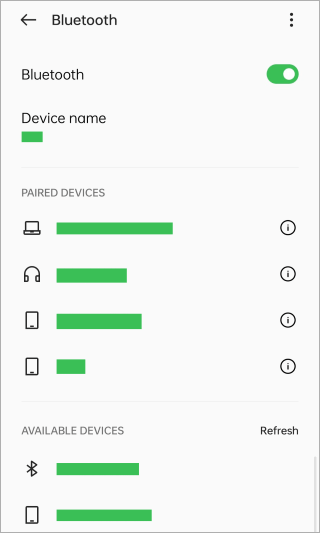
Step 2. Enable Bluetooth on your PC. On Windows, go to "Settings" > "Bluetooth & devices". Turn on Bluetooth and click "Add device".
Step 3. Choose Bluetooth from the available device types and select your Redmi phone from the list.
Step 4. A pairing code may appear on both devices. Make sure the codes match and confirm the connection on your Redmi phone and PC.
Step 5. After pairing, use the available Bluetooth file-transfer options on Windows to send or receive files.
Now you know how to connect Redmi to PC in several different ways. If you want a simple wired connection, a USB data cable is the easiest choice. For wireless options, you can use a portable hotspot, Microsoft Phone Link, or Bluetooth depending on what you want to do.
However, if you need to connect your Redmi phone and manage different types of data from your PC, Coolmuster Android Assistant is a more comprehensive option. It supports both USB and Wi-Fi connections, while also providing tools for transferring, managing, backing up, and restoring Android data.
Related Articles:
How to View Redmi Text Messages on Computer [2026 Guide]
How to Transfer Contacts from Redmi to Computer with 5 Methods





 Free Download for PC
  Free Download for Mac


