TL;DR:
This guide shows 5 ways to transfer contacts from Redmi to computer:
Keeping a backup of your contacts is always a smart idea, especially before switching phones, performing a factory reset, or updating your device. If you're looking for ways to transfer contacts from Redmi to computer, there are several methods available.
Many users may first think of using Mi PC Suite. While Mi PC Suite was once Xiaomi's official desktop management software, it has not received significant updates for years. As a result, it often struggles to recognize newer Redmi devices running the latest MIUI or HyperOS versions, including newer models such as Redmi 15. Therefore, it is no longer considered a reliable solution for contact management.
Fortunately, there are several effective alternatives. In this guide, we'll show you five practical ways to copy contacts from Redmi to a computer.
If you want the easiest and most efficient way to export contacts from Redmi to a computer, Coolmuster Android Assistant is an excellent choice. It allows you to view, manage, back up, and export contacts directly from your Redmi phone without relying on cloud services.
Why choose Coolmuster Android Assistant?
How to transfer contacts from Redmi to computer with ease?
01Download and install Android Assistant on your computer.
02Connect your Redmi phone to the computer using a USB cable. Enable USB debugging on your device when prompted.
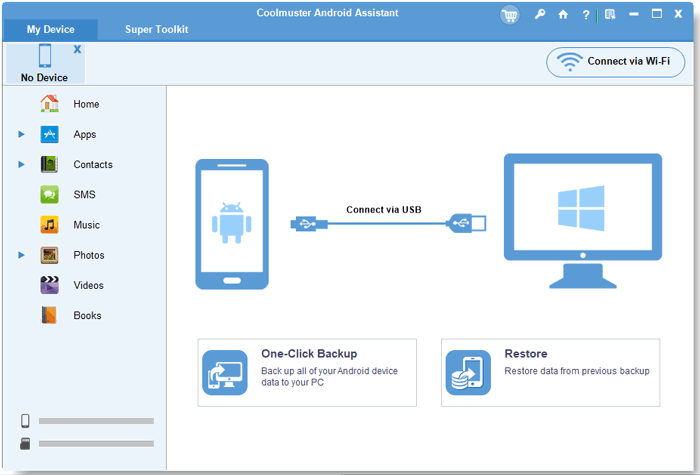
03Once your Redmi phone is successfully detected, you will see its information displayed on the main interface.
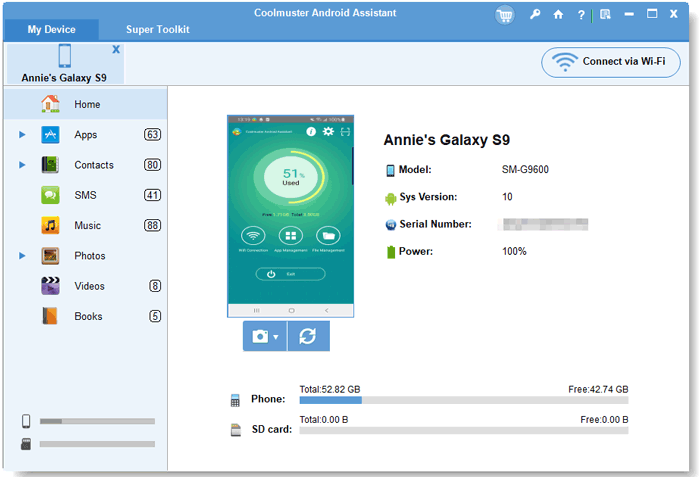
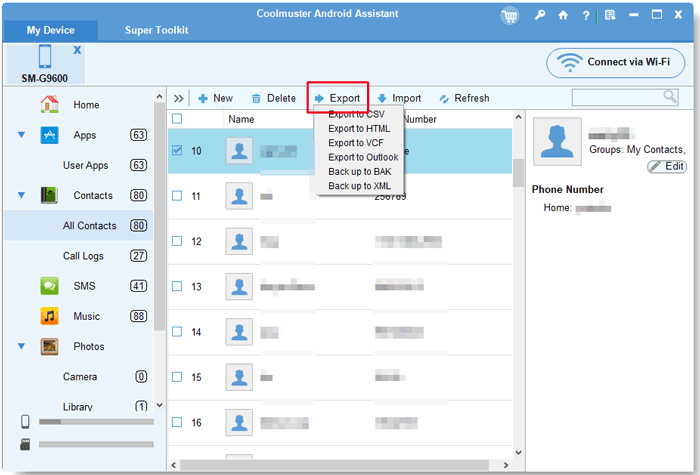
04Click "Contacts" from the left panel. The software will scan and display all contacts stored on your device.
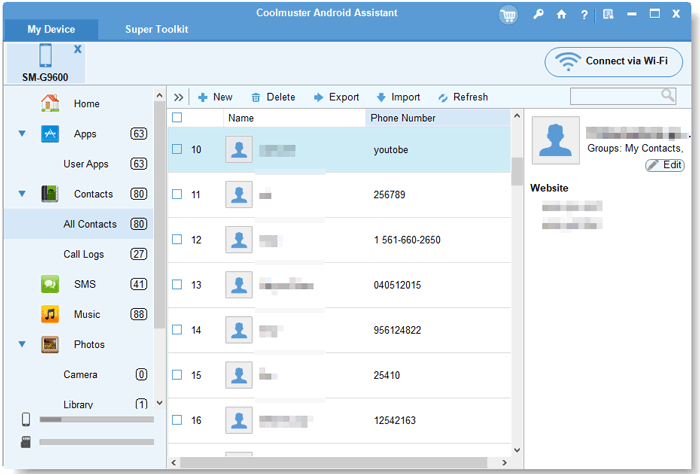
05Select the contacts you want to export, then click "Export" and choose a desired format such as CSV or VCF. Select a save location on your computer and start the transfer.
For a more intuitive guide, check out the video tutorial below:
For Redmi users who have logged in and synchronized contacts with a Google account, Google Contacts is a convenient cloud-based solution. This method requires no USB cable or extra software installation, and it realizes wireless contact synchronization and export. It is suitable for users who habitually use Google services and need cross-device contact management.
Step 1. Open Settings on your Redmi phone and go to "Accounts & Sync".
Step 2. Tap your Google account and make sure Contacts syncing is enabled.
Step 3. Wait for the contacts to sync completely.
Step 4. On your computer, open a browser and visit Google Contacts.
Step 5. Sign in with the same Google account used on your Redmi phone.
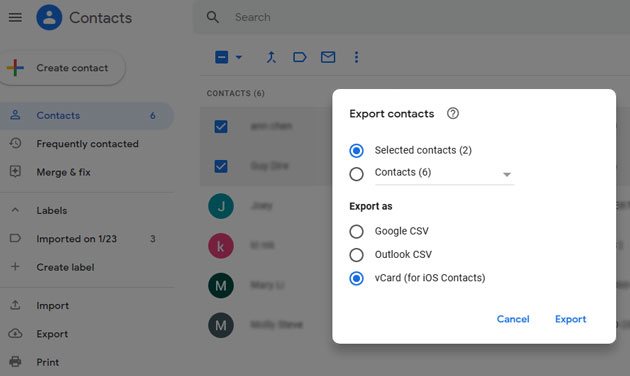
Step 6. Click "Export" from the left menu.
Step 7. Choose a format such as Google CSV, Outlook CSV, or vCard, then download the file to your computer.
VCF (Virtual Contact File) is a universal contact file format supported by almost all mobile phones, computers, and contact management software. Redmi phones have a built-in contact export function, allowing users to directly export local phone contacts to VCF files without any third-party tools. This is the lightest and fastest local transfer method for small-batch contact backup.
Step 1. Open the Contacts app on your Redmi phone.
Step 2. Tap the menu icon and enter "Settings".
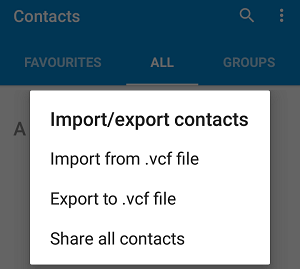
Step 3. Select "Import/Export Contacts".
Step 4. Tap "Export to .vcf File".
Step 5. Choose a storage location and save the file.
Step 6. Connect your Redmi phone to the computer with a USB cable.
Step 7. Open the phone's internal storage on your computer, locate the VCF file, and copy it to your PC.
Mi Cloud is the official cloud service of Xiaomi, pre-enabled on all Redmi phones. It can automatically sync local Redmi contacts to the Xiaomi cloud server. Users can log in to the Mi Cloud official website on a computer to view, manage, and export synced contacts. This method is highly compatible with Redmi devices and is the official recommended backup solution.
Step 1. On your Redmi phone, go to "Settings" > "Xiaomi Account" > "Xiaomi Cloud".
Step 2. Enable "Contacts Sync".
Step 3. Wait for the contacts to upload to Mi Cloud.
Step 4. On your computer, visit the Mi Cloud website and sign in with your Xiaomi account.
Step 5. Open the "Contacts" section.
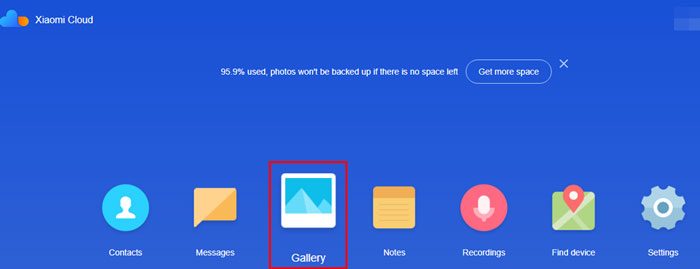
Step 6. Select the contacts you want to download.
Step 7. Choose "Export Contacts" and save the VCF file to your computer.
Email transmission is an ultra-convenient temporary transfer method, suitable for users who only need to back up a small number of contacts temporarily. It combines the built-in contact sharing function of Redmi phones with email services, realizing cross-device contact transmission without USB cables or cloud login operations.
Step 1. Open the Contacts app on your Redmi phone.
Step 2. Select the contact you want to transfer.
Step 3. Tap "Share Contact".
Step 4. Choose "Email" as the sharing method.
Step 5. Enter your own email address and send the contact as a VCF attachment.
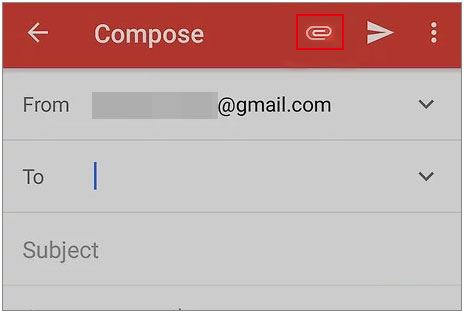
Step 6. Open the email on your computer and download the attachment.
If you need to transfer multiple contacts, you may first export them as a VCF file and then attach the file to an email.
Since the traditional Mi PC Suite is no longer fully compatible with newer Redmi devices, choosing a reliable and stable method to transfer contacts has become more important for proper data backup and management.
The five methods introduced in this guide can meet different user needs in various scenarios. Coolmuster Android Assistant is ideal for users who want a fast and complete one-click backup of contacts on a computer. Google Contacts and Mi Cloud provide convenient cloud-based synchronization for cross-device access. Exporting contacts as a VCF file is a simple offline solution that requires no internet connection, while email sharing works best for transferring only a few contacts quickly.
Depending on your contact volume, network conditions, and personal preference, you can choose the most suitable method to safely transfer and back up your Redmi contacts on a computer, ensuring your important contact information is always well preserved.
Related Articles:
How to Export Redmi Contacts to Excel with 3 Methods [100% Useful]
How to Sync Redmi to PC | 5 Easy Ways to Transfer Data
How to Transfer Contacts from Redmi to Redmi with 5 Easy Ways





 Free Download for PC
  Free Download for Mac


