Want to transfer music from computer to Redmi phone but don't know the easiest way? Whether you want to move MP3 files, albums, playlists, or downloaded songs, there are multiple methods available for Windows and Mac users. Some ways are suitable for transferring large music libraries quickly, while others are better for wireless syncing.
In this guide, we will show you how to transfer music from computer to Redmi using professional software, USB connection, cloud services, Bluetooth, and music streaming platforms. You can choose the method that best fits your needs.
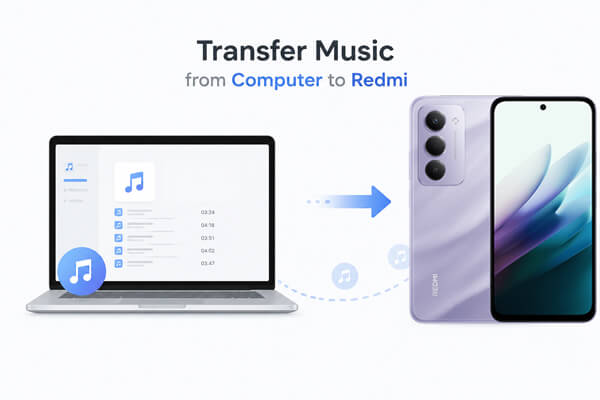
If you want the easiest and most efficient way to transfer songs from your computer to Redmi, Coolmuster Android Assistant is highly recommended. It allows you to transfer music files selectively or in batches without quality loss. Besides music, it also supports photos, videos, contacts, SMS, apps, and more.
Key features of Coolmuster Android Assistant:
How to transfer music from computer to Redmi with Android Assistant?
01Download and install Android Assistant on your computer. Launch the program and connect your Redmi phone to the computer using a USB cable.
02Enable USB debugging on your Redmi phone by following the on-screen prompts. Once connected successfully, you will see the main interface displaying your device information.
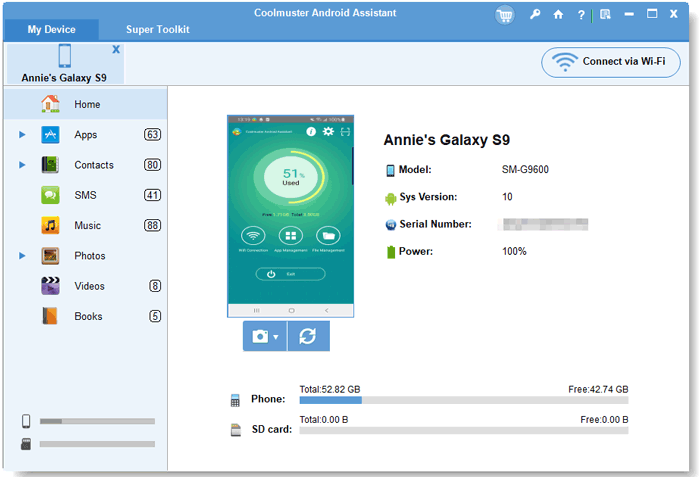
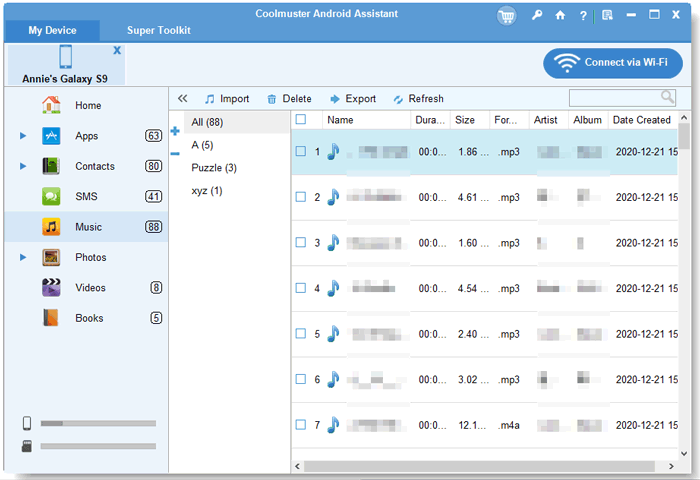
03Click the "Music" category from the left panel. Then tap the "Import" button on the top menu. You can browse and select the music files or folders you want to transfer from your computer.
If you'd prefer a step-by-step video demonstration, take a look at this tutorial:
Mi PC Suite is the official Xiaomi and Redmi device management software that helps users transfer, sync, and back up data easily. It is widely used for music transfer from computer to Redmi phone, offering stable performance and high compatibility with Xiaomi devices. With Mi PC Suite, you can safely sync music files without file errors or system compatibility issues, making it a reliable solution for Redmi music transfer.
How to sync music from a computer to Redmi via Mi PC Suite?
Step 1. Download and install Mi PC Suite on your Windows computer from the official Xiaomi website.
Step 2. Connect your Redmi phone to the computer using a USB cable, then allow file transfer or data access permissions on your phone when prompted.
Step 3. Launch Mi PC Suite and wait for the software to automatically detect your Redmi device.
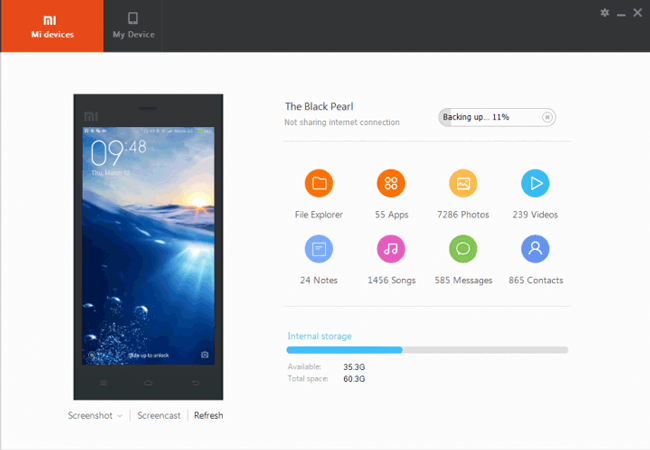
Step 4. Go to the music or file management section, then choose the option to import or add music files from your computer.
Step 5. Select the songs you want to transfer and confirm the sync process. The music will be transferred to your Redmi device within a few moments.
Transferring music from a computer to a Redmi using a USB cable is one of the most traditional and widely used methods. It does not require any third-party software or internet connection, making it a simple and reliable way to move music files such as MP3, WAV, or FLAC directly to your phone. With a stable connection, you can quickly copy large music collections from your computer to Redmi storage for offline listening anytime.
How to transfer songs via USB cable?
Step 1. Connect your Redmi phone to the computer using a USB cable, then unlock your phone and select "File Transfer" or "MTP" mode when prompted.
Step 2. Open "This PC" on your computer and locate your Redmi device under connected devices.
Step 3. Access the internal storage and open the "Music" folder. If it does not exist, create a new folder named "Music".
Step 4. Drag and drop the music files from your computer into the Music folder on your Redmi phone.
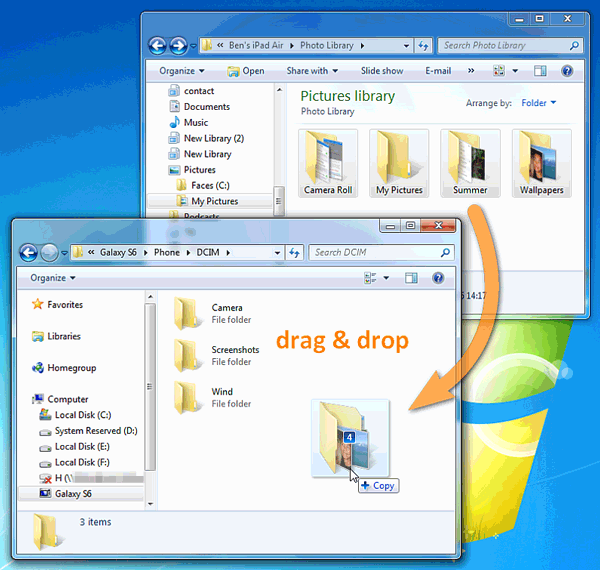
Step 5. Wait for the transfer to complete, then safely eject your device and disconnect the USB cable.
Cloud storage services provide a wireless and flexible way to transfer music from a computer to Redmi without using cables. Platforms such as Google Drive, Dropbox, and OneDrive allow you to upload music files from your computer and then access them on your Redmi phone anytime. This method is especially useful if you want to sync music across multiple devices or avoid using USB connections. Here is how it works:
Step 1. Upload your music files from your computer to a cloud storage service such as Google Drive, Dropbox, or OneDrive.
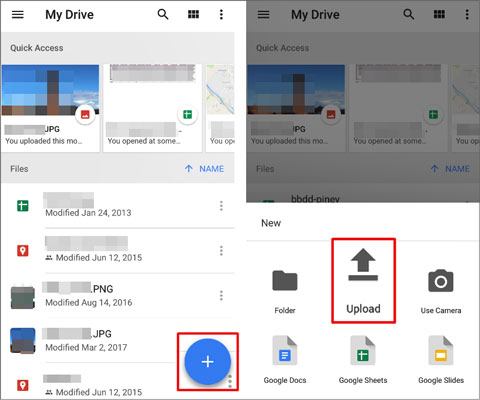
Step 2. Install the corresponding cloud storage app on your Redmi phone and sign in with the same account.
Step 3. Locate the uploaded music files within the app.
Step 4. Download the songs to your Redmi phone for offline playback if needed.
Bluetooth is a convenient wireless method for transferring a small number of music files from a computer to Redmi. It is suitable for users who do not want to use cables or install additional software. However, due to its slower transfer speed, it is more suitable for sending individual songs rather than large music libraries.
How to move music via Bluetooth?
Step 1. Turn on Bluetooth on both your computer and Redmi phone, then pair the two devices.
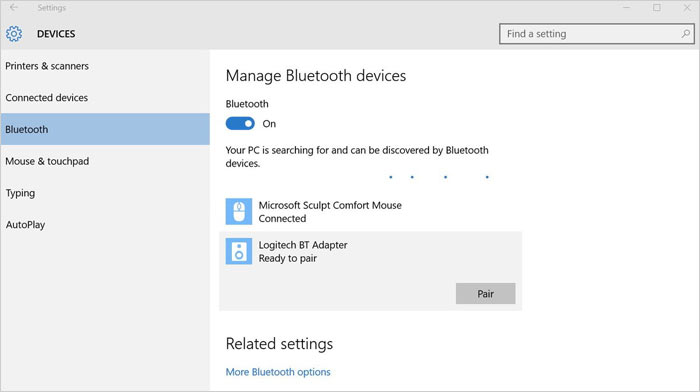
Step 2. On your computer, right-click the music file you want to send and choose "Send to" > "Bluetooth device".
Step 3. Select your Redmi phone from the available device list.
Step 4. Accept the file transfer request on your Redmi phone and wait until the transfer is completed.
YouTube Music provides a modern cloud-based way to access your music library across devices. By uploading your local music files to YouTube Music, you can stream them directly on your Redmi phone without taking up internal storage. This method is ideal for users who prefer online music streaming and want their songs available anytime, anywhere.
How to upload songs to YouTube Music?
Step 1. Open YouTube Music on your computer browser and sign in with your Google account.
Step 2. Click your profile icon and select "Upload music".
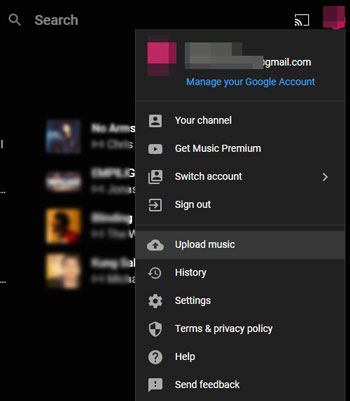
Step 3. Choose the music files from your computer and upload them to your library.
Step 4. Install the YouTube Music app on your Redmi phone and log in with the same account.
Step 5. Go to the "Library" section to access and play your uploaded songs.
There are several ways to transfer music from a computer to a Redmi, and each method has its own pros and cons:
If you want the most efficient and hassle-free way to transfer music, Coolmuster Android Assistant is the best choice. It offers fast transfer, easy file management, and supports backup and restore of Android data all in one tool.
Related Articles:
How to Transfer Music from Redmi to Redmi Easily and Quickly
4 Effective Ways to Transfer Music from iPhone to Redmi Easily
How to Sync Redmi to PC | 5 Easy Ways to Transfer Data
How to Perform Redmi Backup and Restore: Step-by-Step Methods





 Free Download for PC
  Free Download for Mac

 Download for PC
 Download for Mac

