Over time, your Android device accumulates various types of history—from browsing data to app usage - that can not only pose a privacy risk but also slow down your phone. This comprehensive guide explain what history to delete and provides step-by-step instructions on how to delete history on Android devices.

When we talk about "history", it encompasses several different data types that are stored across your Android device and associated Google Account. For optimal privacy and performance, you should consider deleting the following:
Browser History and Cache: The list of websites you've visited and the temporary files (images, scripts) saved by your browser (Chrome, Firefox, etc.). Deleting this improves privacy and frees up storage.
Google Search History: The list of queries you've entered into the Google search engine. This is often tied to your Google Account.
Google Activity History (Web & App Activity): A comprehensive record of your activity across Google services (search, Maps, YouTube) and non-Google websites/apps that use Google services.
Google Play Store Search History: The list of apps, games, movies, etc., you've searched for in the Play Store app.
Cookies: Small files stored by websites to remember your preferences and tracking data.
Sometimes, it also contains the stored passwords and autofill data, and the saved credentials and form data can be a security risk if your phone falls into the wrong hands.
Clearing browsing history and data from your Android's web browsers is a fundamental step for improving privacy and reclaiming storage space.
Delete the history of Google Chrome on Android:
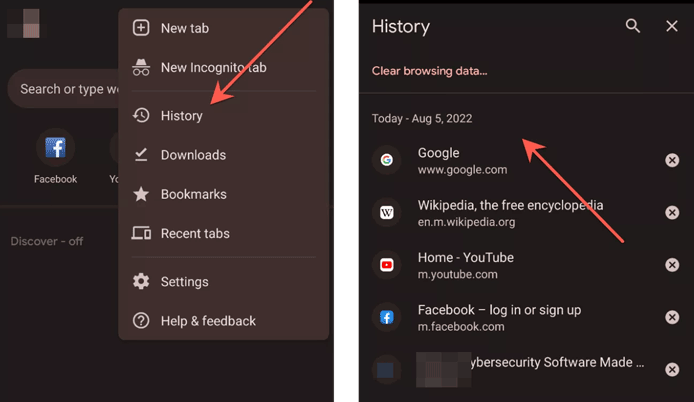
Step 1: Open the Chrome app, and tap the three-dot menu in the top right corner.
Step 2: Select "History", and tap "Clear browsing data..." at the top. In the "Basic" tab, choose a "Time range" (e.g., All time).
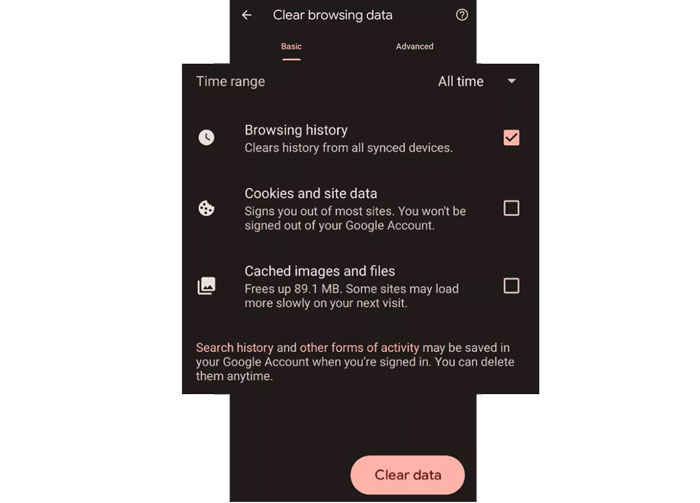
Step 3: Ensure "Browsing history", "Cookies and site data", and "Cached images and files" are checked. Tap "Clear data". You may also want to check the Advanced tab for more options like saved passwords and autofill data.
Remove the history of Firefox on Android:
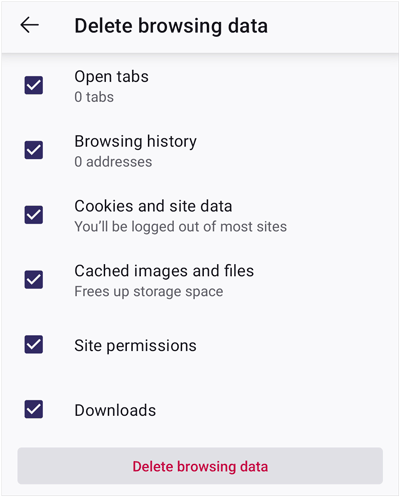
Step 1: Open the Firefox app on your Android phone, and click the three-dot menu in the bottom right corner or top right. Then choose "Settings".
Step 2: Scroll down to the "Privacy and Security" section, and click "Delete browsing data".
Step 3: Select the data you want to clear (Browsing history, Cookies, Cached images and files, etc.), and tap the "Delete browsing data" > "Delete" button.
While closely related to Google Activity, you can specifically clear the search history saved directly to your device and associated with your Google Account.
To delete Google search history on Android:
Step 1: Open the Google app on your Android device, and click your profile picture in the top-right corner.
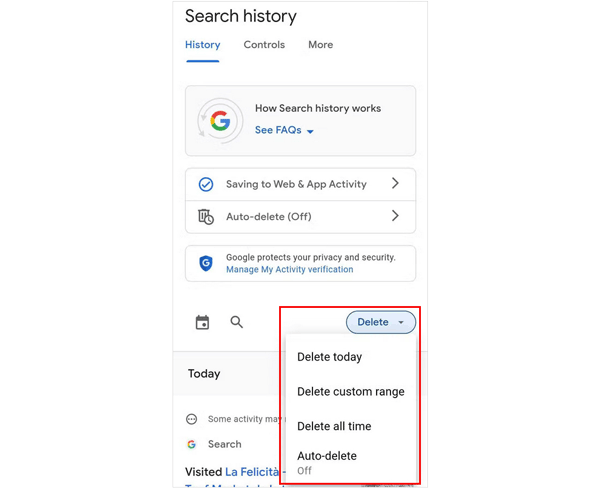
Step 2: Select "Search history". Here, select the search history you want to remove, and click "Delete".
Step 3: Then you can select a time range. You can choose "Delete today", "Delete all time" or "Delete custom range".
Google Activity is one of the most comprehensive history records, covering Web & App Activity, Location History, and YouTube History.
To delete Google Activity history on Android:
Step 1: Browse https://myactivity.google.com/ on your Android phone, and you log in to your Google Account.
Step 2: Now you can see your activity history on the screen. Please click "Delete".
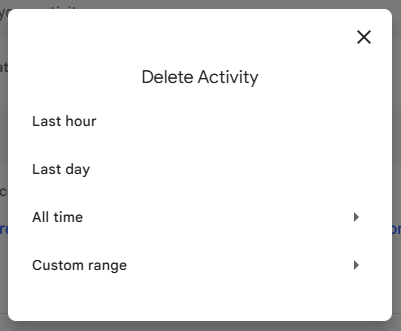
Step 3: Select a time period you want, such as "Last hour", "Last day", "All time", or "Custom range". Choose one, and your activity history during the period will be deleted.
You can also delete your search history on the Google Play Store on your Android device. However, clearing this history removes suggestions based on previous searches when you use the Play Store.
Here's how:
Step 1: Open the Google Play Store app, and tap your "Profile Picture" in the top right corner.
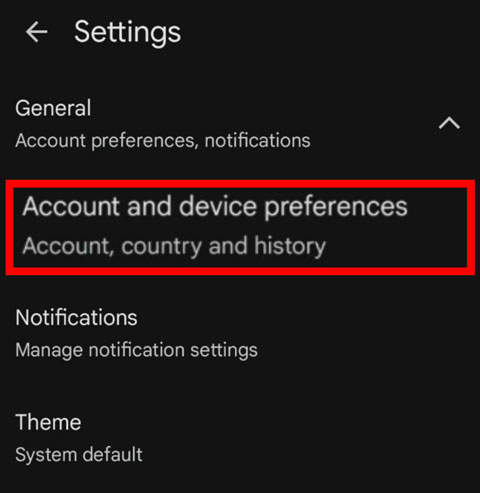
Step 2: Choose "Settings" > "General" > "Account and device preferences".
Step 3: Scroll down to the "History" section, and tap "Clear device search history" > "CLEAR HISTORY".
While manually clearing history is effective, third-party software like Coolmuster Android Eraser is designed to securely and comprehensively wipe all data, including various types of history, cache files, app data, and private records, often in a single process. This is particularly useful when preparing to sell or give away your device.
Tips: Back up your useful Android data before using this tool, or you will lose your data forever.
Main features of this Android eraser tool:
Download Coolmuster Android Eraser.
Here's how to delete all history and other data on Android via this program:
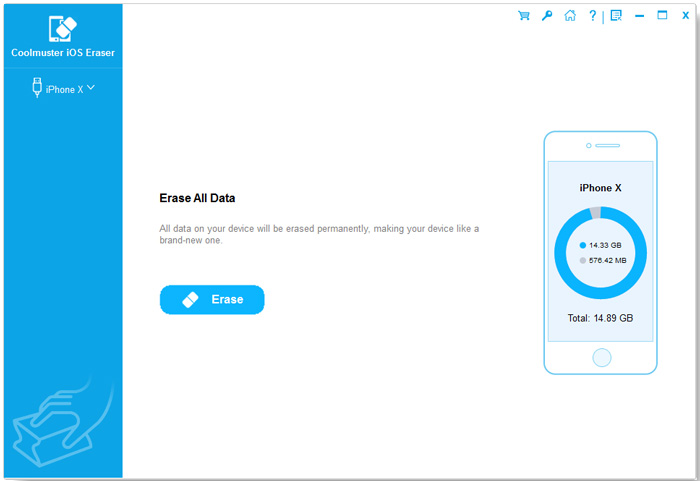
01Download and install Coolmuster Android Eraser software on your Windows or Mac computer. Then connect your Android device to the computer using a USB cable and enable USB debugging. Once connected, click "Erase" to go on.
02To select an erasure level, please click "Medium". After that, type "delete" in the specified area.
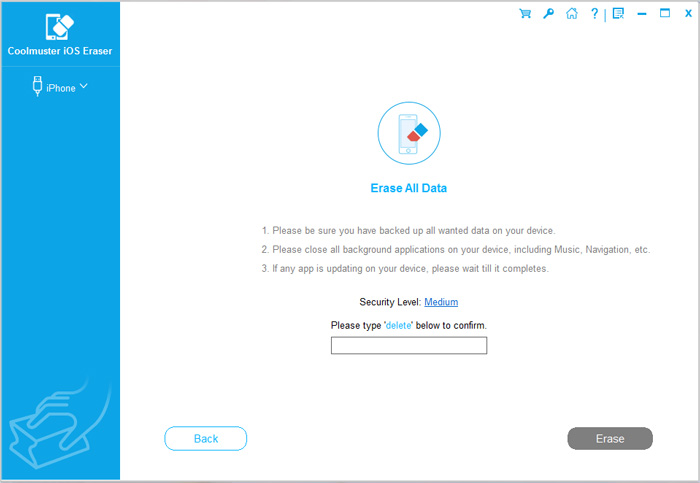
03Now, tap "Erase" > "OK" to start erasing your data. All your Android data will be wiped.
Here's the video guide (about 2 minutes and 34 seconds):
Regularly deleting history on your Android device is a simple but powerful habit that significantly protects your privacy and maintains device speed. You can choose to manually clear individual histories in your browsers, Google Account, and Play Store, or opt for a dedicated tool like Coolmuster Android Eraser for a complete wipe. No matter what history you want to delete, you now have the way.
Related Articles:
Android Internal Memory Gets Full? Why and How to Fix It Easily
How to Speed Up Android Phone Easily with 13 Fabulous Tips
iPhone vs. Android: What's the Difference, and Which One Should You Buy?







 Free Download for PC
  Free Download for Mac


