TL;DR:
This article explains 5 practical methods to export Samsung text messages to PDF, including software-based solutions and simple manual workarounds.
Need to export Samsung text messages to PDF for backup, printing, legal documentation, or record-keeping? Unfortunately, Samsung Messages does not provide a built-in option to directly save conversations as PDF files. However, there are several effective workarounds that allow you to convert your Samsung SMS messages into PDF format.
In this guide, we'll walk you through five practical methods to export Samsung text messages to PDF. Whether you want to save a single conversation or an entire message history, you'll find a suitable solution below.
Before diving into the detailed steps, here is a quick comparison table to help you choose the best method based on your needs.
| Method | Name Device Required | Retain Timestamp & Contacts | Batch Export Support | Editable Before Export |
| Coolmuster Android Assistant | Computer + Samsung phone | Yes | Yes | Yes |
| Screenshots | Phone only | Partial (visual only) | No | No |
| SMS Backup & Restore | Phone + Computer (optional) | Yes | Yes | No |
| Microsoft Word | Phone + Computer | No (manual input) | No | Yes |
| Google Messages for Web | Phone + Computer + Web browser | Yes | Partial | Limited |
Samsung Messages and most Android systems do not provide a built-in option that allows users to directly export text messages as PDF files for free. Because of this limitation, many users turn to third-party tools to complete the process more efficiently.
One of the most reliable solutions is Coolmuster Android Assistant, which enables you to extract SMS messages from a Samsung device and then convert them into a PDF format on a computer. Instead of generating a PDF directly from the phone, this tool first transfers your Samsung text messages to a computer in formats such as HTML or CSV. After that, you can easily convert the exported file into a PDF document.
Key features of Android Assistant:
How to export Samsung text messages to PDF with Android Assistant?
01Install Android Assistant on your computer and launch the program.
02Connect your Samsung phone to the computer using a USB cable, then enable USB debugging on your device. Once the connection is successful, the software will automatically recognize your phone.
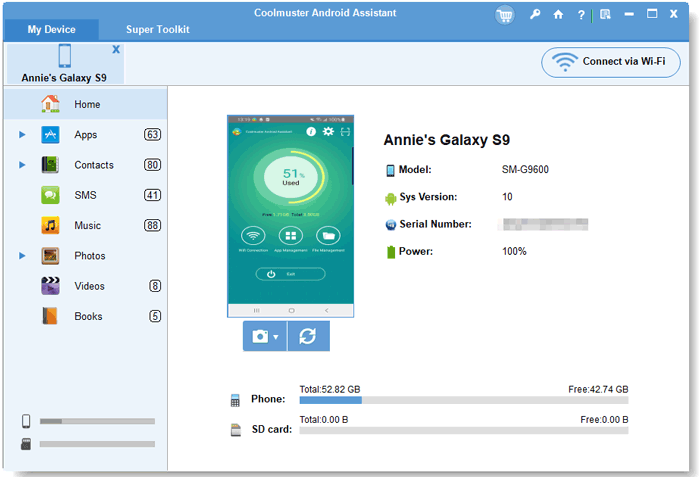
03From the left panel, click "SMS" to load all message conversations stored on your Samsung device. You can preview them and choose the conversations you want to export. Then, click the "Export" button at the top menu, then select "Export to HTML" or "Export to CSV" and choose a destination folder to save the file.
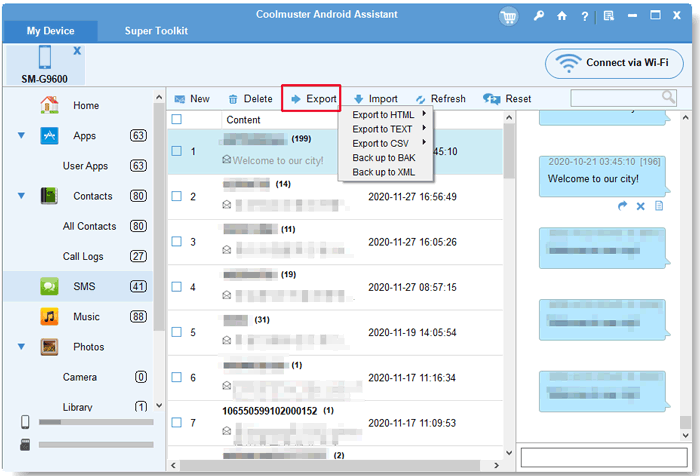
04After exporting, open the HTML file on your computer. You can then use a browser's print function (Ctrl + P or Command + P) and choose "Save as PDF" to complete the conversion.
The screenshot method is the simplest and most cost-free way to save Samsung text messages as a PDF. It does not require a computer or any third-party applications, making it highly accessible for all users.
This approach is especially suitable for saving a small number of important conversations that need to be quickly stored, shared, or viewed later. However, it is less practical for long chat histories or formal use cases such as legal documentation, since the content is stored as images rather than editable text.
How to save Samsung text messages as PDF via screenshots?
Step 1. Open the Samsung Messages app and go to the conversation you want to save.
Step 2. Take screenshots of the chat. If your device supports Scroll Capture, use it to capture longer conversations in a continuous image.
Step 3. Open the Gallery app and locate the captured screenshots.
Step 4. Select the images, then tap "Share" or "Print", depending on your device model.
Step 5. Choose "Save as PDF", then confirm to generate the final PDF file.
The SMS Backup & Restore method is a reliable and free solution for backing up Samsung text messages in bulk. It allows users to create a complete SMS backup file and later convert it into a PDF through a computer. While it does not generate a PDF directly, it is effective for preserving large volumes of message data.
This method is particularly suitable for users who want to back up their entire message history or archive conversations for long-term storage. However, it requires an additional conversion step before the backup file can be turned into a readable PDF document.
Steps to export Samsung SMS to PDF:
Step 1. Install the SMS Backup & Restore app from the Google Play Store.
Step 2. Open the app and tap "Set Up a Backup", then select "Messages".
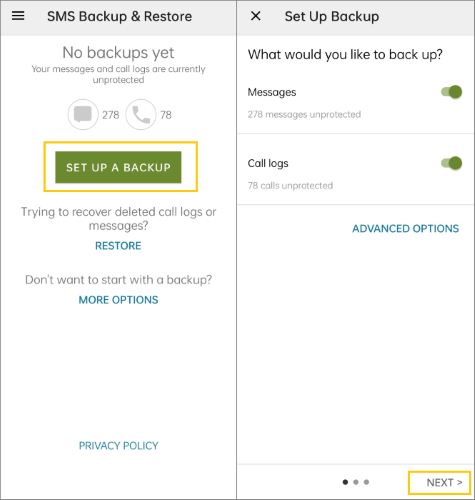
Step 3. Choose a storage location and complete the backup process to generate an XML file.
Step 4. Transfer the XML backup file to your computer.
Step 5. Open or convert the file using a suitable tool, then print or export it as a PDF.
The Microsoft Word method is a manual but flexible way to turn Samsung text messages into a PDF file. It works by copying message content and formatting it inside a document before exporting it as a PDF. Although it is not an automated solution, it provides full control over how the final file looks.
This method is best suited for users who only need to save a small number of messages and want to edit or reorganize the content before exporting. However, it is not efficient for large conversations or full message history backups.
How to use Microsoft Word to export Samsung text messages to PDF?
Step 1. Open the Samsung Messages app and copy the text messages you want to save.
Step 2. Transfer the copied content to a computer via email, cloud storage, or any file-sharing method.
Step 3. Paste the content into a Microsoft Word document.
Step 4. Adjust formatting such as spacing, timestamps, or names if needed.
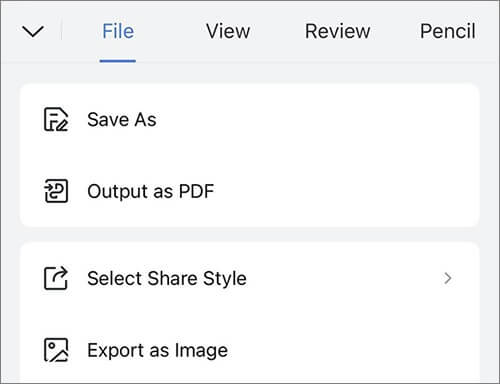
Step 5. Click "File" > "Save As", then choose "PDF" as the output format.
Google Messages for Web offers a convenient browser-based way to view Samsung text messages on a computer and export them as a PDF file. By syncing your phone with a web browser, you can easily print conversations and save them in PDF format.
This method is ideal for users who prefer working on a computer and want a relatively direct way to convert messages into PDF files. However, it depends on Google Messages and may offer limited formatting control.
Steps to export Samsung text messages to PDF with Google Messages for Web:
Step 1. Open the Google Messages app on your Samsung phone.
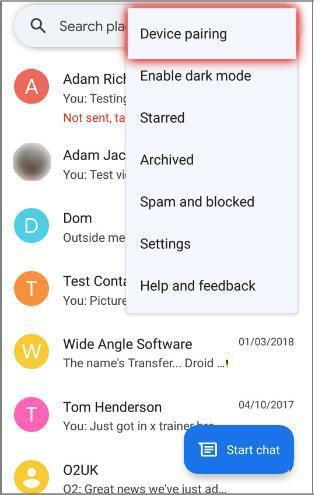
Step 2. Tap your profile icon and select "Device Pairing".
Step 3. Visit the Google Messages for Web page on your computer and scan the QR code.
Step 4. Once synced, open the conversation you want to export.
Step 5. Press "Ctrl" + "P" (Windows) or "Command" + "P" (Mac).
Step 6. Select "Save as PDF" and save the file to your computer.
1. How do I export an entire text conversation on Samsung?
The most reliable method is using a dedicated tool like Coolmuster Android Assistant, which supports full conversation export with timestamps and contact details.
2. Can Samsung messages be saved as a PDF directly?
No, Samsung Messages does not include a native "Save as PDF" option. You need to use screenshots, backup tools, or computer-based methods.
3. Will exported Samsung text messages include timestamps?
Yes, but it depends on the method. Tools like Coolmuster and Google Messages for Web preserve timestamps, while manual methods like Word may not.
This article summarizes 5 feasible and effective methods to export Samsung text messages to PDF, ranging from simple screenshots to professional software solutions. If you need a reliable, complete, and batch-friendly method, Coolmuster Android Assistant remains the best choice. For quick or occasional use, screenshots or Google Messages for Web can also work effectively.
Related Articles:
5 Practical Methods to Export Text Messages from Android to PDF
5 Effective Ways on How to Print Text Messages from Samsung
How to Transfer Messages from Samsung to Samsung in Minutes
How to Export Samsung Contacts to Excel Easily (4 Proven Ways)





 Free Download for PC
  Free Download for Mac


