If you've ever switched to a new Android phone or had to transfer contacts, you know how important it is to bring your contact list with you. VCF (vCard) files are a common format used for storing contact information, and importing them to your Android device is relatively straightforward. In this article, we will explore four effective methods for importing VCF files to Android.

The easiest and most common way to import a VCF file is by using the native Contacts application on your Android phone.
Here's how:
Step 1: Ensure the VCF file is saved on your Android device's internal storage or SD card. You can usually transfer it from your computer via a USB cable or email it to yourself and download the attachment.
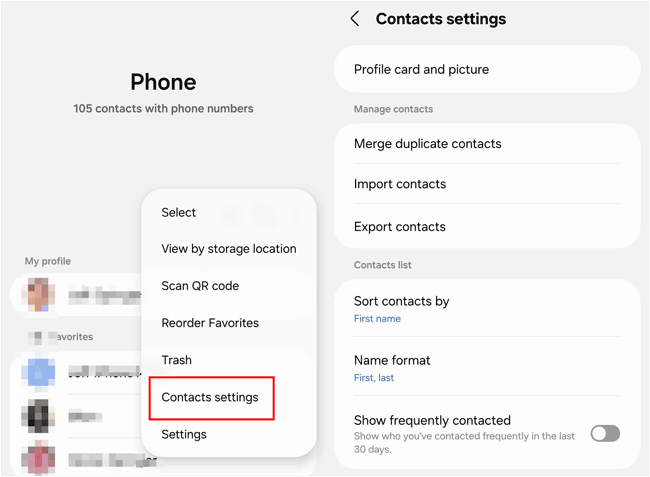
Step 2: Launch the Contacts application on your Android phone. Tap on the three-dot menu to open the menu options, then choose "Manage contacts" or "Contacts settings".
Step 3: Click "Import contacts" > "Phone or cloud storage". Then choose your VCF file from your Android phone.
Step 4: Check the "All" icon at the top, and click "Done". The contacts will be imported to your Android device.
If you want to directly import VCF to Android from your computer, Coolmuster Android Assistant can provide a convenient way for you, especially when dealing with large volumes of data. It also supports importing contacts from XML, BAK, and Outlook, and exporting Android contacts to your computer for backup without any hassle.
Key features of Coolmuster Android Assistant:
Download Coolmuster Android Assistant.
To import VCF to Android with this software:
01Please install Coolmuster Android Assistant on your computer first, and open the program. Then connect your Android device to the computer using a USB cable and follow the on-screen instructions to enable USB debugging, allowing the software to recognize your device.
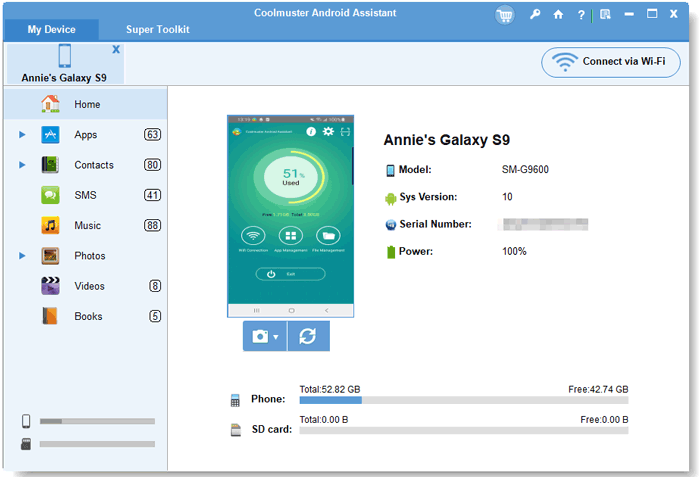
02Once the device is connected, navigate to the "Contacts" option within the software interface. Look for the "Import" button in the top menu. Click it and choose "Import vCard file".
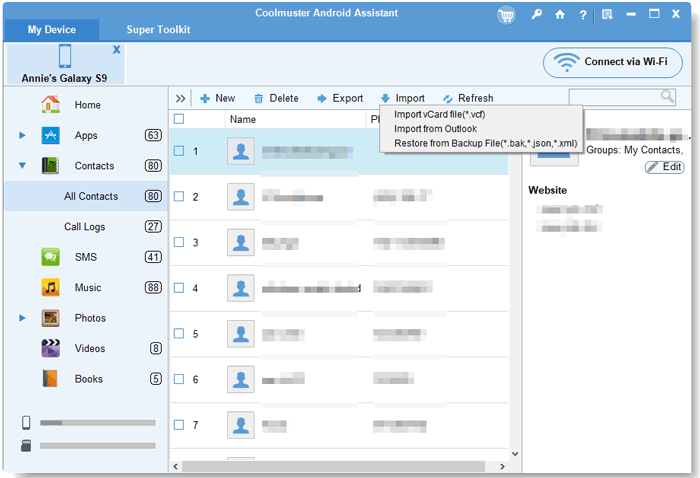
03A file browser window will appear. Navigate to the location on your computer where the VCF file is saved, select it, and click "Open" or "OK" to begin the import process. The software will then transfer the contacts directly to your connected Android phone.
Watch the video guide to import VCF to Android (about 1 minute):
You can also download and install the Vcf File Contact Import app from Google Play to your Android device, and then use it to import your contacts from VCF files, if the built-in "Import contacts" feature malfunctions.
Here's the guide:
Step 1: Launch the Vcf File Contact Import app on your Android device after downloading and installing it. Then click the screen and choose "Internal storage" on the pop-up.
Step 2: Select your VCF file from your phone. Then the app will display all the contacts on the screen. You can preview and select the contacts you want before importing them.
Step 3: Once selected, click the "Download" arrow icon, and tap "Yes". Then the contacts will appear on your Contacts app.

If you prefer to manage your contacts through your Google Account, which offers easy syncing across all your devices, you can import the VCF file directly via the Google Contacts web interface.
Here's how to import VCF to Android with Google Contacts:
Step 1: Open a web browser on your computer and go to the Google Contacts website. Log in to the same Google account that is linked to your Android device.
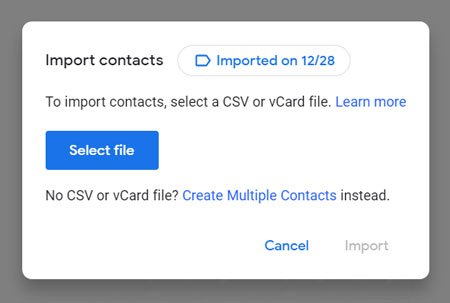
Step 2: In the left sidebar menu, look for the "Import" option. Click it. As a pop-up window will appear, asking you to "Select file". Click this button.
Step 3: Navigate to the location of the VCF file on your computer, select it, and click "Open". Click the final "Import" button in the pop-up window.
Step 4: Once the import is complete, the contacts will be saved to your Google Account. Ensure that your Android device's Google Account sync is enabled. The new contacts will automatically sync and appear on your Android phone.
Q1: Where should I place the VCF file before importing?
You can save your VCF file on your computer, Android internal storage, SD card, Google Drive, etc. It doesn't matter where you store the VCF file before importing.
Q2: Why won't my VCF file import?
Here are some common reasons:
Q3: What vCard versions does Android support?
Android generally supports vCard 2.1 and vCard 3.0. Some Android devices support VCard 4.0.
The Android Contacts app can help you import VCF without hassle. If you want to import VCF from your computer to your Android phone and manage your contacts directly, Coolmuster Android Assistant can provide comprehensive features. Anyway, all the methods in this guide can import VCF to Android with ease.
Related Articles:
How to Export Android Contacts to VCF | 3 Simple Ways
How to Import VCF to iPhone in 5 Easy Ways: A Comprehensive Guide
How to Back Up Contacts on Android? [Top-Chosen Worthwhile Methods]
Easily Transfer Contacts from Android to Android Phone [8 Best Ways]





 Free Download for PC
  Free Download for Mac


