You might be wondering how to transfer your entire Outlook contact list to Samsung Galaxy effortlessly. Many people know how to sync contacts from an Android phone to Outlook for backup, but few people have idea on how to export these contacts from Outlook to Android mobile phone. Therefore, you may have to copy contacts one by one manually. You may ask: why not put contacts in the SIM card? Well, sometimes the contacts number is beyond the capacity of the SIM card.
Then, is it difficult to import Outlook contacts to a Samsung phone? Not at all! Here in this article, we are going to share you with two different yet simple ways to transfer contacts from Outlook to Samsung phone.
You can use Coolmuster Android Assistant to transfer contacts from Outlook to Samsung Android phone with one click. This is a smart Android data management program to help you import and export your Android phone data, including contacts, text messages, call logs, photos, videos, music, documents and other types of files. You can also use this software to create new contacts and delete useless contacts on your Android phone.
Key features of this Android contact manager:
Download Coolmuster Android Assistant.
Once you have downloaded and installed the Android Assistant on your computer, you can then follow the steps in the below to transfer Outlook contacts to your Samsung mobile phone.
Step 1: Connect your Samsung phone to the computer
Launch the installed Android Assistant and link your Samsung phone to the same computer via a USB cable. Once the connection is enabled, the software will detect the connected Samsung device and show it on its primary interface.
Note: You need to enable USB debugging on your Samsung phone first if you haven't done it before.
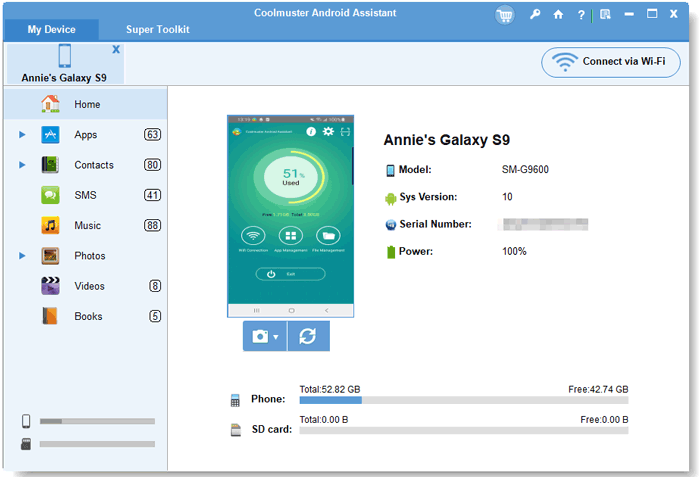
Step 2: Import Outlook contacts to Samsung phone
Tap on Contacts tab from the left side menu and then all the contacts on your Samsung phone will be scanned out. Just go to the top menu to click the "Import" > "Import from Outlook" options to transfer Outlook contacts to the connected Samsung phone.
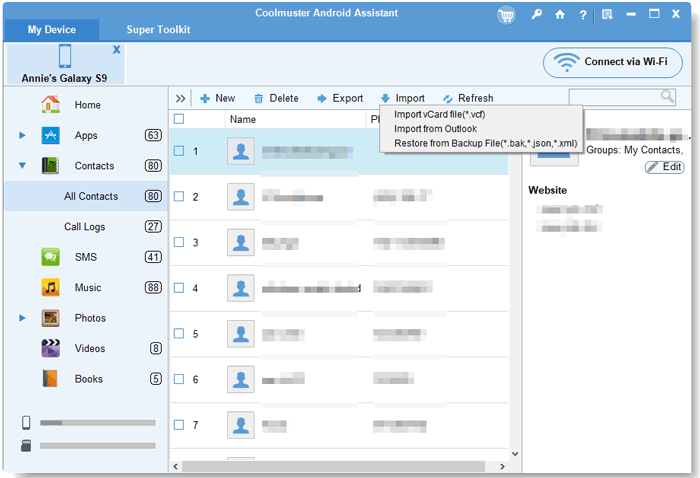
By the way, you can also click "Export" option to transfer contacts from your Samsung phone to Outlook for backup.
See, just within 1 click, you can effortlessly import Outlook contacts to your Samsung phone. This way is regarded as the easiest way to achieve this goal.
To tell you the truth, if you have already kept your contacts in a Windows PC with Outlook 2003/2007/2010/2013, and now you want to transfer them all from the Outlook to any Android mobile phone, you can follow the steps as below to export contacts from Outlook to a .csv file and then use Coolmuster Android Assistant to import those contacts in CSV format into your Android phone.
Phase 1. Export Contacts from Outlook to CSV File
Step 1: Open Outlook on your computer and click the options like: File -> Options -> Advanced -> Export.
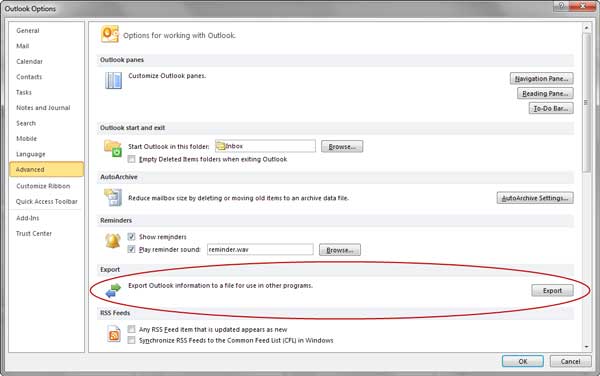
Step 2: After you click the "Export" button, there will be a new window pop up, asking you to choose an action to perform. Just choose "Export to a file".
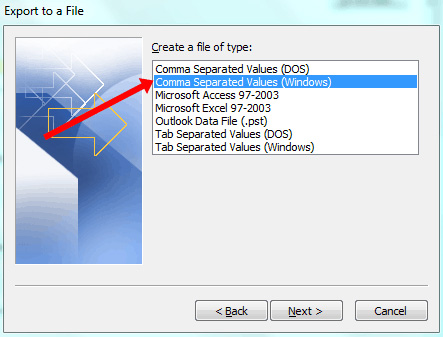
Step 3: Here, you will be asked to create a file of type in which the output contacts will be saved. Please select the Comma Separated Values - CSV and click "Next" button to continue.
Step 4: Select the "Contacts" folder to export from, name the contacts file and then click "Browse" button to choose a location for saving the contacts.
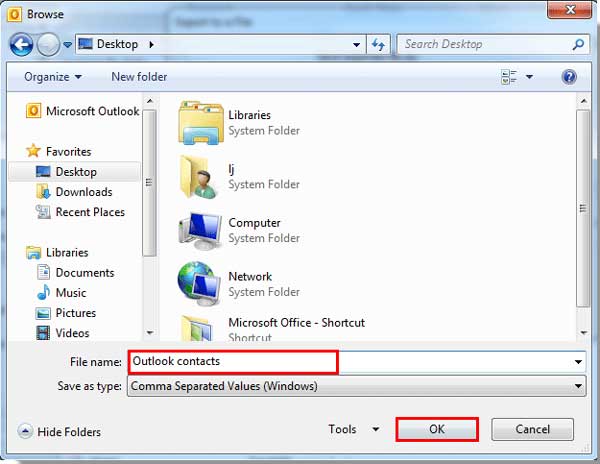
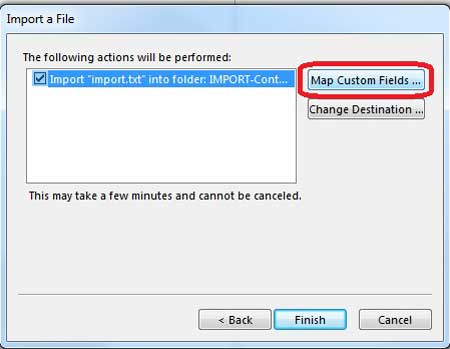
Step 5. Press on the "Map Custom Fields" if you have any custom fields in your contacts. After that, you can click "Finish" to begin to transfer contacts from Outlook 2010/2013 to computer as CSV file.
Ok, you have finished the most difficult step. Next, you can relax and use Coolmuster Android Assistant to help you do the rest job for you.
Phase 2. Sync Outlook Contacts with Samsung Galaxy Device
Step 1: Go to Google Contacts on your PC, and sign in with your Google Account. Then tap "Import" to select the CSV file, and import the contacts to Google Contacts.
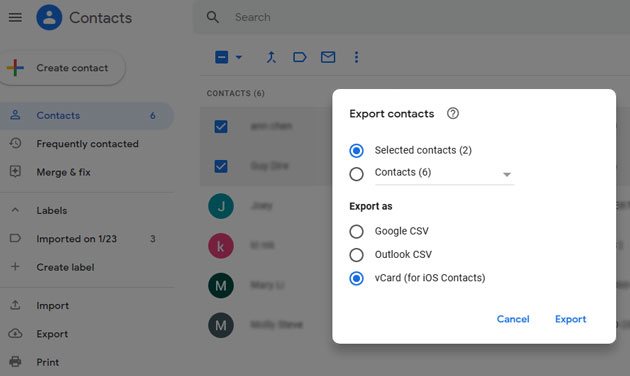
Step 2: Select all the contacts, and the "More actions" icon at the top right. Then choose "Export" > "vCard for Android or iOS". Then the contacts will be saved in a VCF file on your computer.
Step 3: Connect your Samsung Galaxy device to the computer with USB, and then choose "File transfer" on the mobile device. Then move the VCF file to your Samsung device.
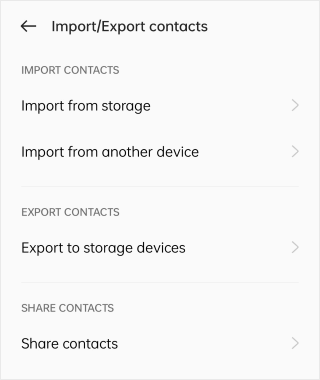
Step 4: After that, open the Contacts app on the Samsung phone, and choose "Manage contacts" > "Import or export contacts" > "Import from storage". Then select the VCF file from the internal storage. Once done, the contacts will appear on your phone.
As you can see, if you choose way 1, you can easily import your contacts from Outlook to your Samsung device with Coolmuster Android Assistant. Apart from that, Android Assistant can also help you transfer contacts, text messages, photos, videos, music, apps and more between Android phone/tablet and computer without any trouble. Explore more features by yourself!
Related Articles:
Recover Deleted Text Messages from Samsung Cell Phone
How to Transfer Text Messages from Samsung Phone to Computer





 Free Download for PC
  Free Download for Mac


