Data loss on an iPhone or iPad can be a stressful experience. Whether it's due to accidental deletion, device malfunction, or system crash, having a reliable tool to back up and restore your data is essential. In this 4Easysoft iOS Data Backup and Restore review, we'll take a deep dive into its features, pricing, pros and cons, and how to use it to ensure your precious data stays safe.
4Easysoft iOS Data Backup and Restore is a professional iPhone data backup and recovery software. It provides a simple, fast, and secure method to back up and restore various data on iOS devices, including photos, contacts, messages, call history, app data, and more.
Unlike traditional iTunes backup methods, 4Easysoft does not require the use of iTunes; users can directly back up and restore device data through the software without worrying about data loss or overwriting. Additionally, 4Easysoft iOS Data Backup and Restore allows users to perform selective backups and restores, meaning you can choose to back up or restore specific data files instead of the entire device's data, greatly enhancing the flexibility and efficiency of the operation.
Here are the key features of 4Easysoft iOS Data Backup and Restore:
* Supports Multiple Data Types for Backup: Includes over 20 types of data, such as photos, videos, messages, contacts, call logs, notes, calendars, bookmarks, app data, and WhatsApp data.
* Full Backup and Selective Backup: Users can choose to back up the entire device data or only specific data files, saving time and storage space.
* Two Backup Modes:
* Flexible Data Recovery Function: Backup data can be restored to iOS devices, Android phones, external drives, and other devices. Users can preview backup files before restoring to avoid overwriting important data.
4Easysoft iOS Data Backup and Restore offers a variety of pricing plans to suit different needs. Typically, there are two main options:
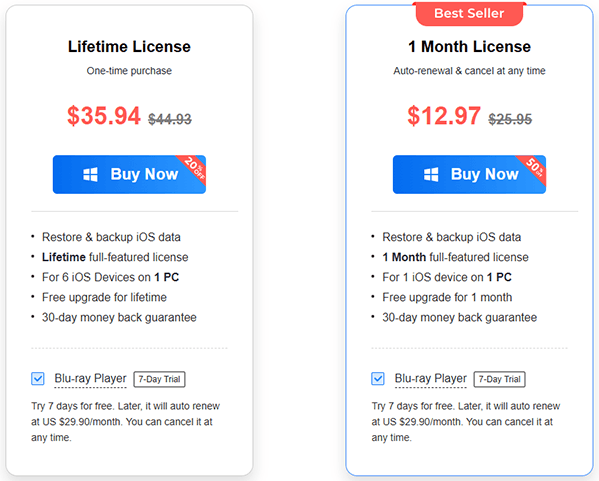
To help you make an informed decision, this 4Easysoft iOS Data Backup and Restore review will break down the tool's pros and cons in detail.
Pros:
* User-friendly interface, simple operation, suitable for beginners, no technical knowledge required.
* Supports backing up various types of data on the device, including photos, contacts, messages, etc., ensuring data security.
* Does not rely on iTunes, can independently perform backup and restore operations.
* Faster than iTunes and iCloud, ideal for users with large amounts of data.
* Only backs up or restores the necessary data, saving time and storage space.
* Encrypted backup mode protects sensitive data, especially important for privacy-conscious users.
* Strong compatibility, supports all the latest iOS versions and devices, avoiding compatibility issues.
Cons:
* Currently, the software only supports iOS devices, Android users cannot use it.
* Although there is a free trial version, its features are limited, and users cannot experience the full backup and restore functions. The full version needs to be purchased to unlock more advanced features.
* Compared to some free iOS backup tools, 4Easysoft's pricing may seem somewhat high to some users.
* The restore speed may be slower when restoring large amounts of data, especially with larger data sets, requiring patience during the process.
* Occasionally crashes when handling extremely large backup files, though this issue is usually fixed in updates.
Using 4Easysoft iOS Data Backup and Restore is simple and straightforward, even for users with no technical experience. Below are the detailed step-by-step guides for both backup and restore operations.
To Back Up iOS Data:
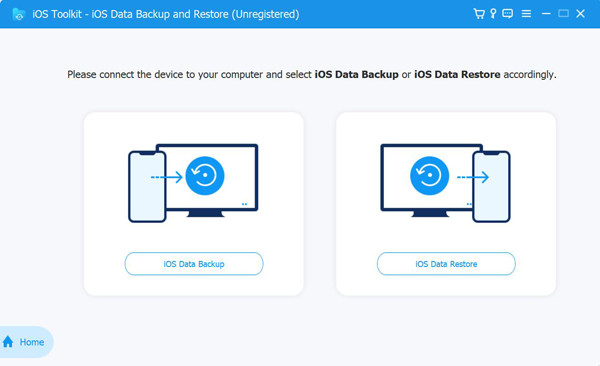
Step 1. Open 4Easysoft iPhone Data Recovery and click the "iOS Data Backup" button on the main interface. Next, connect your iOS device to your computer via USB. Once connected, click the "iOS Data Backup" button again.
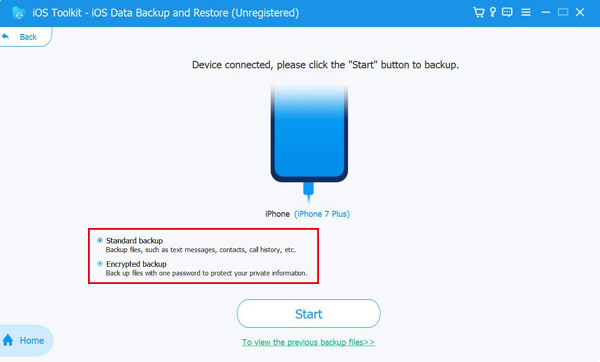
Step 2. You'll then have the option to choose between "Standard Backup" or "Encrypted Backup". If you need to protect sensitive information with a password, select "Encrypted Mode". After that, click "Start" to proceed.
Step 3. Select the data you want to back up, such as Media, Messages, Contacts, and Memos, based on your needs. Finally, click "Next" to quickly back up the selected data.
To Restore iOS Data:
Step 1. Click the "iOS Data Restore" button and connect your iOS device to the computer. You'll be able to view all your backup histories, including device information, backup size, and date.
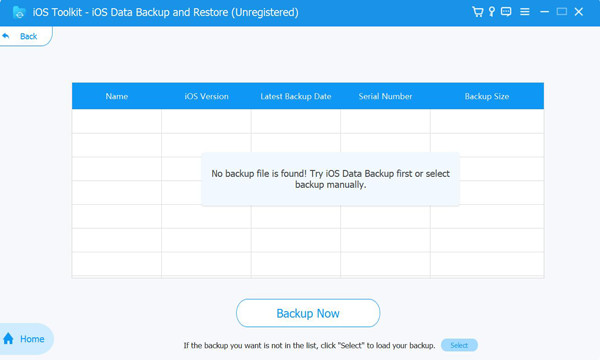
Step 2. Select the backup you want and click "View Now" to browse the detailed data. Then, choose the specific data you wish to restore. Please note that only Contacts and Notes can currently be restored to your device, while other data will be saved on your computer.
Although 4Easysoft iOS Data Backup and Restore is an excellent tool, if you're looking for a more feature-rich and user-friendly backup and restore solution, Coolmuster iOS Assistant may be a better choice. It also supports backing up and restoring iOS device data, while additionally managing all files on your iOS device, including photos, messages, contacts, and more. Furthermore, Coolmuster iOS Assistant offers more flexible file management features, allowing you to easily transfer, delete, and export data.
The highlights of Coolmuster iOS Assistant:
Follow these steps to back up and restore your iPhone/iPad using iOS Assistant:
01Download and install the appropriate version of the software. Open the program and connect your device to the computer using a USB cable. The software will automatically detect your device, and a pop-up window will appear.
02Tap "Trust" on your device and click "Continue" on your computer to proceed. Once your device is recognized, the main interface will display various file folders, allowing you to easily back up and restore your iPhone/iPad with just one click.
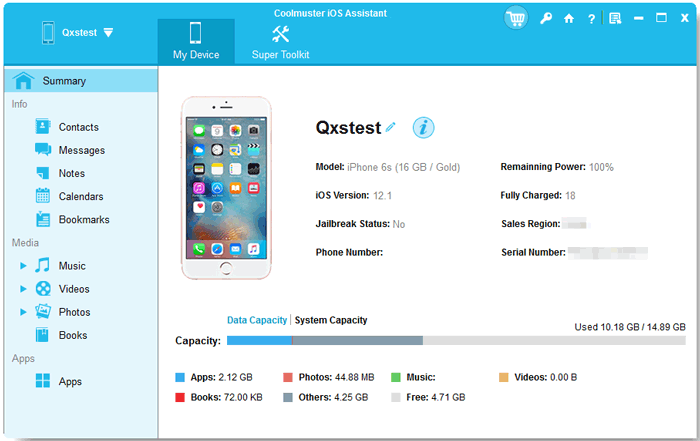
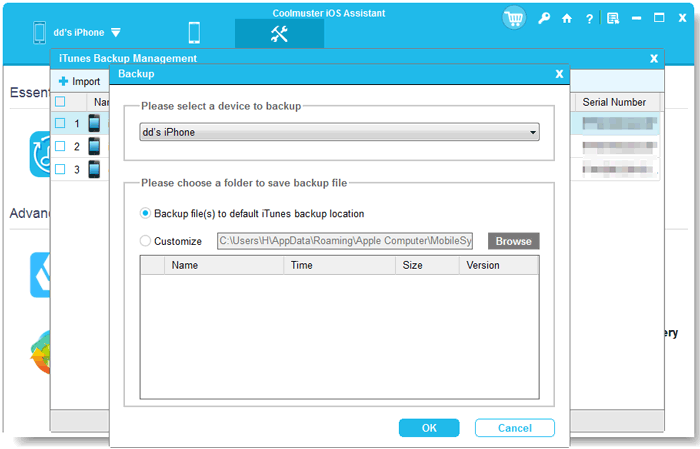
To Back Up iDevices to iTunes or a Computer: Go to "Super Toolkit" and click the "iTunes Backup & Restore" tab > Select the "Backup" option, choose your device from the drop-down menu, and click "Browse" to select a location for your backup files > Finally, click "OK" to begin backing up your iOS data.
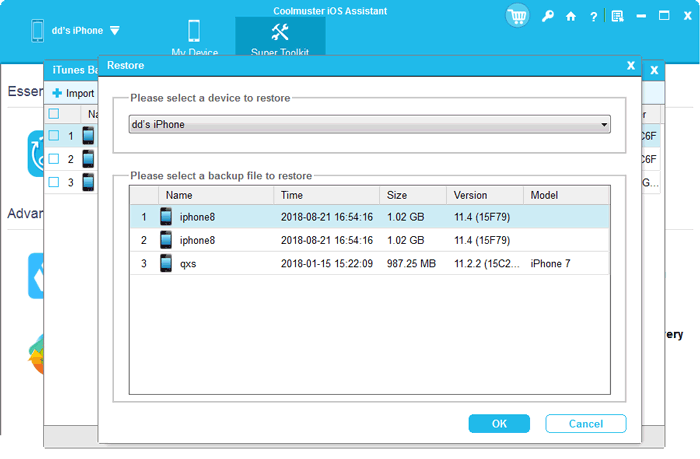
To Restore iTunes Backup to iDevices: Navigate to "Super Toolkit" > "iTunes Backup & Restore", and click the "Restore" option > Select your device from the drop-down menu, choose a backup file from the list, and click "OK" > Review the pop-up notes and click "OK" again to start restoring the iTunes backup to your iOS device.
Video Tutorial:
After a comprehensive review of 4Easysoft iOS Data Backup and Restore, it's clear that this is a reliable, easy-to-use tool for iOS data backup and restore. If you are looking for a more feature-rich alternative, Coolmuster iOS Assistant is highly recommended. It offers all the features of 4Easysoft iOS Data Backup and Restore, plus additional useful functions like bulk app management and contact editing, making it a better all-in-one solution for iOS data management. Whether you choose 4Easysoft iOS Data Backup and Restore or Coolmuster iOS Assistant, both tools can help you protect your precious iOS data and avoid the pain of data loss.
We hope this 4Easysoft iOS Data Backup and Restore review has provided you with all the information you need to make the right choice.
Related Articles:
4Easysoft iPhone Data Recovery Review: Features, Guide & Best Alternative
[Solved] How to Recover Data from iPhone Disabled Connect to iTunes?
Aiseesoft iOS Data Backup and Restore Review & Best Alternative
Apeaksoft iOS Data Backup & Restore Review: A Comprehensive Guide







 Free Download for PC
  Free Download for Mac


