iOS 18/26 brings a refreshed set of photo management tools, giving users a more intuitive way to edit and organize their photos. Still, the built-in Photos app doesn't satisfy everyone. Some users find its features limited or feel it doesn't fully match their workflow. Because of this, many people are now searching for a reliable iOS 18/26 photo manager alternative. In this article, we'll walk you through the major updates in the new Photos app, share what users are saying, and introduce the top alternatives to help you manage your iPhone photos with ease.
The Photos app in iOS 18/26 features the biggest redesign ever. Let's dive into the new unified interface, the removal of the tab bar, and the introduction of a sleek, single-scroll screen.
1. Consistent Interface Design
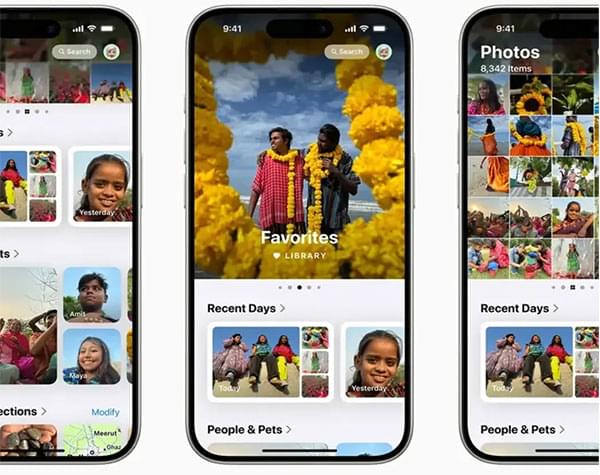
Apple has revamped the Photos app with a cleaner, more streamlined design. The traditional tab bar at the bottom has been replaced with a continuous, seamless scrolling experience, making it easier and more intuitive to navigate through your photos.
2. Single-Scroll Navigation
Rather than switching between different sections, you can now browse all your photos in one continuous scroll. This makes it quicker and more convenient to locate the images you want without having to navigate through multiple menus.
3. Photo Grid and Organized Collections
Looking for the best photo manager app iPhone users love? Check out the top 6 photo manager apps for iPhone to organize, back up, and protect your photos easily.
The iOS 18/26 Photos app is packed with new features aimed at making photo management more efficient and intuitive. Let's explore these exciting updates!
A More Unified Layout
Rather than having separate tabs like "For You" and "Albums", everything is now consolidated in one place for smoother navigation. The main photo grid displays around 30 images at a time, with the ability to swipe to zoom in or out. While the "Years" and "Months" views remain, the "Days" view has been replaced by a "Recent Days Collection", showcasing your most recent photos.
Filters and Sorting
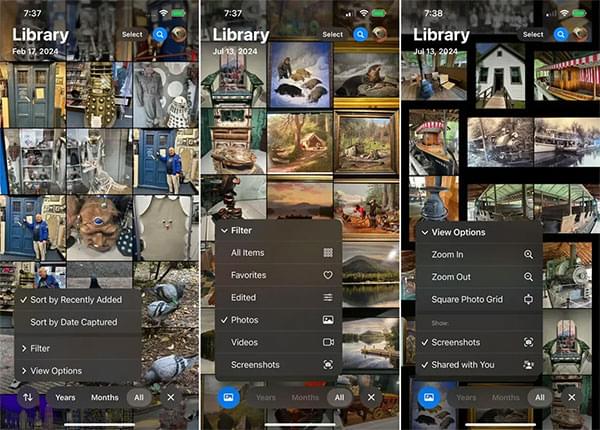
Swiping down in the library reveals new options for filtering and organizing your photos. You can sort by "Recently Added" or "Date Captured" and apply filters to display only "Favorites", "Edited Photos", "Videos", or "Screenshots".
Smarter Photo Collections
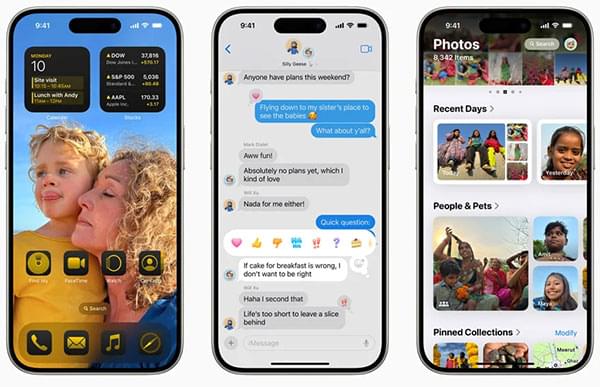
iOS 18/26 introduces intelligent albums that automatically group photos based on various criteria like subject, location, or media type. Some key collections include:
You can customize the order of these collections or remove any you don't use. The Pinned Collections feature also lets you quickly access your favorite albums or categories.
Enhanced Photo Editing Tools
The iOS 18/26 photo editing suite introduces AI-powered enhancements that automatically adjust key elements like brightness, contrast, and color balance. Additional tools, such as AI-driven cropping and straightening, help users perfect their photos with minimal effort.
Memory Maker
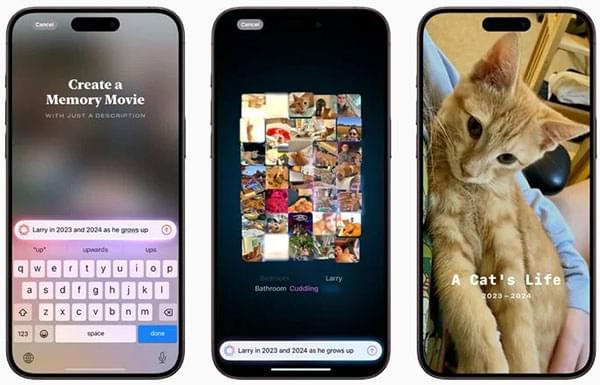
Memory Maker is a new feature that allows you to create personalized memory movies from your photos and videos. Simply type a phrase like "exploring Ireland" or "yummy food," and the app will automatically generate a mini-movie with a beginning, middle, and end. You can add music, customize the timeline, and share your creation on social media.
Clean Up
Coming soon, the "Clean Up" feature will allow you to remove unwanted objects from your photos with just one tap. Powered by AI, it eliminates distractions to enhance the overall look of your images. (How to Mass Delete Photos from iPhone?)
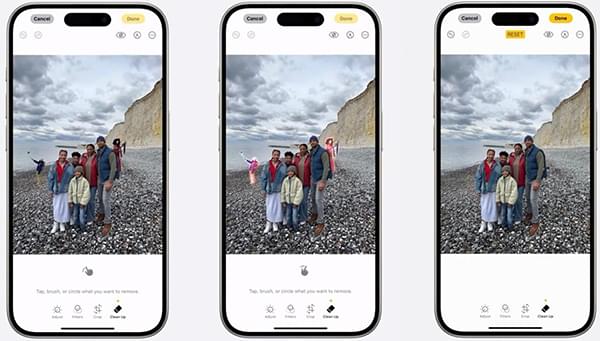
Image Playground Integration
Image Playground is an upcoming feature that will integrate with the Photos app, enabling you to generate images from text prompts, including pictures of your friends and family.
After the release of iOS 18/26, many users have expressed diverse opinions about its photo management features.
Positive User Feedback:
Negative User Feedback:
Given the mixed feedback on the iOS 18/26 Photos app, many users are exploring an alternative photo manager for iPhone. One highly recommended option is Coolmuster iOS Assistant. It allows you to effortlessly transfer, back up, and organize your photos on your computer. You can quickly move photos from your iPhone to a Mac or PC without losing their original quality. This is particularly beneficial for users with large photo libraries or those in need of a reliable backup solution.
Highlights of iOS Assistant:
Here is how to manage your iPhone photos using iOS Assistant:
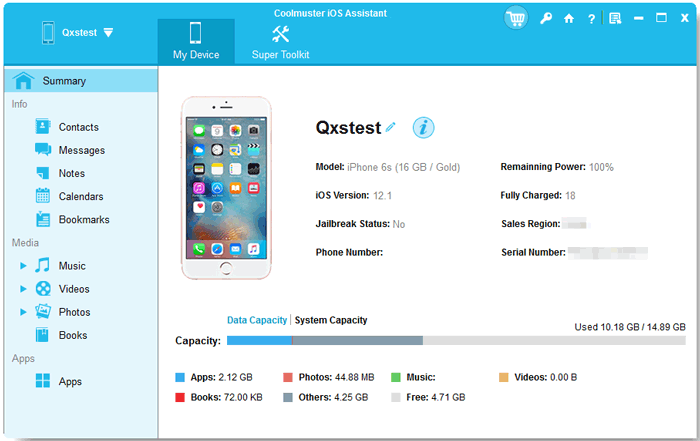
01After downloading the software, launch it on your computer. Next, connect your iPhone and trust the device. Once the connection is successful, the main interface of the software will appear.
02Click on "Photos" in the left panel, and you'll see all your iPhone photos displayed. From there, you can easily organize your iPhone photos on your computer.
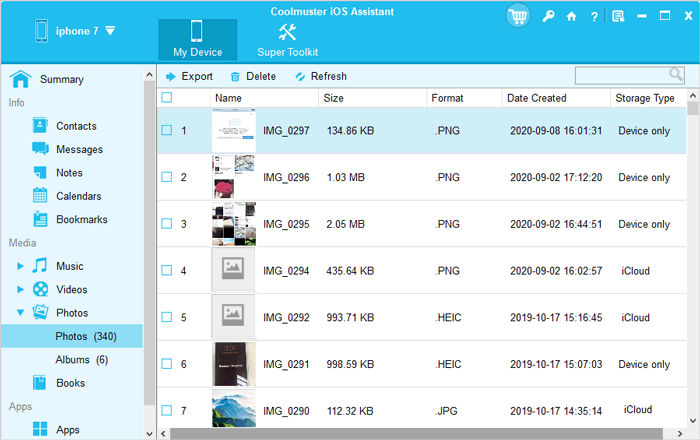
To transfer iPhone photos to your computer: Select the photos you wish to transfer and click the "Export" button to begin the transfer process.
To delete iPhone photos from your computer: Choose the photos you want to remove and click the "Delete" button to delete them from your iPhone.
Video Guide:
iOS 18/26's photo management has certainly brought several improvements, but it still doesn't meet the needs of all users. If you're looking for more flexible and comprehensive photo management features, Coolmuster iOS Assistant is the best iOS 18/26 photos manager alternative. It not only helps you manage photos more effectively but also provides convenient backup and transfer functions, making your photo management more flexible and efficient.
Related Articles:
Get the Best Photo Manager for Android | A List Contains 8 Options
Top 11 Alternatives to Google Photos (Free & Paid)
The Ultimate Guide on How to Manage iCloud Photos
Top 9 iOS File Managers for iPhone & iPad in 2025 [iOS 18/26 Supported]







 Free Download for PC
  Free Download for Mac


