TL;DR:
You can transfer iPhone Notes to a PC without iCloud by using a USB transfer tool, email, iTunes backup, or PDF sharing.
iPhone Notes can hold everything from quick reminders and shopping lists to important work details and personal records. But when you want to keep a copy on your Windows PC, iCloud isn't your only option. Whether you prefer a direct USB transfer, email sharing, or a local backup, there are several ways to move your notes without syncing them to the cloud. In this guide, we'll walk you through four practical methods, including a simple tool for exporting selected notes in batches.
Coolmuster iOS Assistant offers a simple way to transfer iPhone Notes to a PC without relying on iCloud. By connecting your iPhone to a computer with a USB cable, you can access your notes, preview their content, and selectively export the ones you need. It also supports transferring other iPhone data, such as contacts, messages, photos, videos, and calendars, making it a practical tool for managing and backing up your iPhone data on a computer.
Key features of Coolmuster iOS Assistant:
Free download Coolmuster iOS Assistant on your computer now:
How to Transfer iPhone Notes to PC Without iCloud:
01 Connect your iPhone to your PC using a USB cable. Launch Coolmuster iOS Assistant and follow the on-screen instructions to let the software recognize your device. Tap "Trust" on your iPhone if prompted.
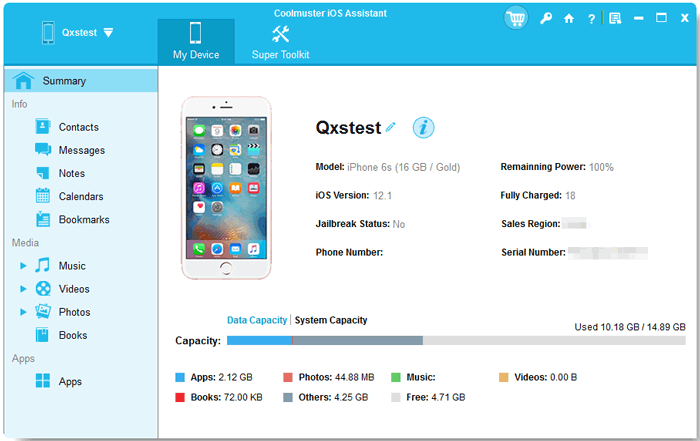
02 Once connected, select "Notes" from the left panel. The program will load your iPhone notes. Preview their contents and select the notes you want to transfer.
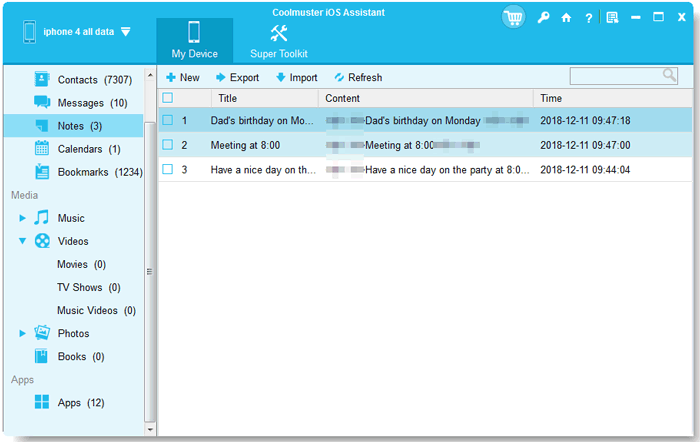
03 Click the "Export" button, choose a destination folder on your PC, and confirm the operation. The selected iPhone notes will be saved to your computer without using iCloud.
Video Guide:
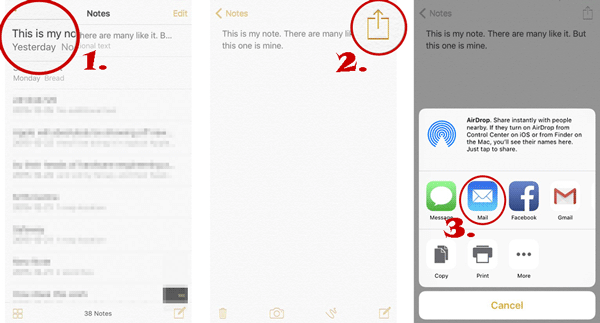
If you only need to transfer a few notes from your iPhone to your PC, email is a quick option. You don't need iCloud or any additional software. Simply share the notes through your email account and download them on your computer. However, this method is more suitable for transferring notes individually rather than exporting a large collection at once.
If you don't want to use iCloud, iTunes is another option for backing up your iPhone notes to a PC. It can create a local backup of your iPhone on your computer, which may include your notes if they are stored locally on the device. However, iTunes doesn't let you view or export individual notes from the backup. You need to restore the backup to an iPhone to access the data, so this method is better for creating a full device backup than transferring specific notes.
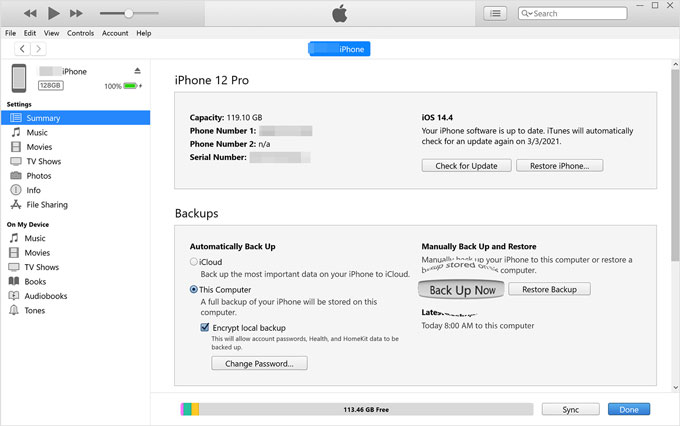
Once the backup is complete, your iPhone data is stored locally on your PC. Keep in mind that you cannot directly open the backup to view or extract individual notes. To view and extract data from iTunes backup, you can turn to the page How to Recover Data from iTunes Backup.
If you only need to save a few iPhone notes, you can use the built-in Notes app to export them as PDF files and then copy them to your PC via USB. This method doesn't require iCloud or additional software, but you'll need to export each note individually.
Note: Windows File Explorer cannot directly browse the iPhone Notes app or its internal storage. If your saved PDF isn't accessible through USB, use another supported transfer method, such as email or a file-sharing app, to move it to your PC. (How to Export Notes from iCloud?)
Q1: Can I transfer iPhone Notes to a Windows PC without iCloud?
Yes. You can use a third-party iPhone management tool, such as Coolmuster iOS Assistant, to transfer notes directly to your Windows PC. Other options include sharing notes via email or saving them as PDF files.
Q2: How do I transfer all my iPhone Notes to my computer at once?
The easiest way is to use a tool that supports batch export. Coolmuster iOS Assistant lets you preview your iPhone notes, select multiple items, and export them to your computer in one go.
Q3: Can I transfer iPhone Notes to PC without iTunes or iCloud?
Yes. You can use a USB-based transfer tool like Coolmuster iOS Assistant. It connects your iPhone directly to your PC, allowing you to access and export notes without relying on iTunes or iCloud.
Q4: Will transferring iPhone Notes to a PC delete them from my iPhone?
No. Exporting notes to a computer normally creates a separate copy and leaves the original notes on your iPhone unchanged. You can keep both copies for backup and future reference.
Q5: Can I open iPhone Notes on a Windows computer?
Yes, but the format matters. If you export notes as PDF files, you can open them with any compatible PDF reader. If you export them in another format, you'll need an application that supports that format. (How to Make PDF on iPhone Notes App?)
Moving iPhone Notes to a PC without iCloud doesn't have to be complicated. If you only need to save a few notes, email or PDF sharing may be enough. For a full device backup, iTunes is worth considering. However, if you want to browse, select, and export multiple notes directly, Coolmuster iOS Assistant offers a more convenient approach. Choose the method that best fits how many notes you need to save and how you plan to use them.
Related Articles:
[Complete Guide] How to Print Notes from iPhone or iPad?
How to Sync Notes from iPhone to Mac in 6 Reliable Ways






 Free Download for PC
 Free Download for Mac


