TL;DR:
Wondering how long iOS 27 takes to update and install? This guide covers the estimated time, common reasons for delays, and effective solutions for iOS 27 update issues.
How long does the new iOS 27 update take? How long does iOS 27 take to install? Released as Apple's latest major iPhone operating system update, iOS 27 brings a range of improvements, including enhanced performance, security updates, and new features designed to improve the overall user experience.
Like previous iOS versions, iOS 27 receives widespread attention from iPhone users who want to know how long the update and installation process will take. However, the exact iOS 27 update time may vary depending on factors such as device model, network speed, update size, and available storage space. So, how long does iOS 27 take to update and install? Keep reading.

iOS 27 is Apple's latest operating system update for iPhone users, bringing performance improvements, enhanced security, and new features to improve the overall user experience. Like previous iOS versions, iOS 27 is available as a free update for compatible iPhone models.
Before updating to iOS 27, make sure your iPhone has enough storage space, a stable internet connection, and sufficient battery power. The update time may vary depending on factors such as the iPhone model, network speed, update size, and current iOS version.
In the next sections, we will explain how long iOS 27 takes to download, update, and install, as well as why the process may take longer than expected.
How long does it take for iOS 27 to update? There is no fixed time for the iOS 27 update process. In most cases, updating to iOS 27 may take around 30 minutes to 1 hour to complete, including downloading the update file, preparing the system, and installing the new version. However, the exact iOS 27 update time depends on several factors, such as your iPhone model, internet speed, available storage space, and the iOS version you are currently using.
If you are updating from an older iOS version, the process may take longer because your iPhone needs to download a larger update package and complete more system changes. Before installation begins, iOS 27 also needs some time to verify and prepare the update files.
Generally, the iOS 27 update process consists of several stages, including optional and required steps. Each step may affect how long it takes to update your iPhone to iOS 27. Here is a breakdown:
1. Backup Your iPhone with iCloud or iTunes/Finder (Optional)
Although iOS updates are generally safe, it is recommended to back up your iPhone before installing iOS 27 to prevent unexpected data loss. The backup process usually takes around 5-30 minutes, depending on the backup size and connection speed.
2. iOS 27 Download
The download time for iOS 27 depends on your device model, update file size, and network connection. A faster Wi-Fi connection can significantly reduce the download time. In most cases, downloading iOS 27 may take around 5-30 minutes.
3. iOS 27 Installation
After downloading, your iPhone will verify and install iOS 27. The installation process usually takes about 10-20 minutes on newer iPhone models, while older devices may require more time.
Overall, how long does iOS 27 take to update? The complete process, from downloading to installation, typically takes around 20 minutes to 1 hour. However, the actual time may vary depending on your device condition and update environment.
How long does iOS 27 take to install? Since iOS 27 is currently available only in beta versions, the exact installation time may vary after the official release. However, based on previous major iOS updates, we can estimate the approximate installation time. In most cases, the iOS installation process takes around 10-30 minutes after the update file has been downloaded.
The installation time mainly depends on your iPhone model, available storage space, update size, and the current iOS version. Newer iPhone models usually complete the installation faster, while older devices may take longer because they need more time to process and apply system changes.
During installation, your iPhone will go through several stages, including preparing the update, verifying the update, installing the new iOS version, and restarting the device. The approximate time for each stage is as follows:
1. Preparing iOS 27 Update
The preparation stage usually takes about 5-15 minutes. During this process, your iPhone checks the update file and gets ready for installation. If your device has limited storage space or the update server is busy, this step may take longer.
2. Installing iOS 27
After preparation is complete, the actual installation usually takes around 10-20 minutes. Your iPhone screen may show the Apple logo and a progress bar during this stage. Avoid turning off your device or disconnecting it from power until the installation finishes.
3. Restarting and Finishing Setup
After installation, your iPhone will restart and complete some background processes. This final stage generally takes a few minutes before you can use your device normally.
Overall, based on previous iOS updates, iOS 27 will likely take around 15-45 minutes to install after the update file has been downloaded. However, the actual time may vary depending on your iPhone model, system condition, and update environment.
If iOS 27 takes longer than expected to update or install, it is usually caused by several factors. The update process involves downloading large files, preparing system changes, verifying the update, and installing the new software. Any issue during these stages may increase the overall update time. Here are some common reasons why iOS 27 may take so long to install or update.
1. Slow Internet Connection
A stable and fast internet connection is important when downloading iOS 27. Since major iOS updates usually require several gigabytes of storage, a slow Wi-Fi connection can significantly extend the download time. For a smoother update experience, use a reliable Wi-Fi network instead of cellular data.
2. Older iPhone Model
Your iPhone model can affect how long iOS 27 takes to install. Newer iPhone models usually process system updates faster because they have more powerful processors and better hardware performance. Older compatible iPhones may require more time to prepare and install iOS 27.
3. Apple Server Congestion
When a new iOS version is released, millions of users may try to download it at the same time. This can put heavy pressure on Apple's servers and slow down the download or verification process. Waiting a few hours or updating during less busy periods may help speed up the process.
4. Insufficient Storage Space
iOS 27 requires enough free storage space to download, prepare, and install the update files. If your iPhone does not have sufficient storage, the update may become slower or fail completely. Before updating, remove unnecessary files, apps, or large media files to free up space.
5. Background Processes and Device Condition
Apps running in the background, low battery, or temporary system issues may also affect the iOS 27 update speed. Closing unnecessary apps, charging your iPhone, and restarting the device before updating can help ensure a smoother installation process.
6. iOS 27 Beta Version Issues
Since iOS 27 is currently available in beta versions, some users may experience longer update times due to testing-related issues, bugs, or unstable performance. Beta updates may take longer to install compared with official releases because the system is still being optimized.
Although updating to iOS 27 is usually a smooth process, some users may encounter problems such as the update not appearing, iOS 27 getting stuck on "Preparing Update," installation failure, or the iPhone freezing during the update process. If you cannot update or install iOS 27 normally, using a professional iOS system repair tool can help fix these issues.
iOS System Recovery is a professional tool designed to repair various iOS system problems through a computer without deleting your personal data. It can help resolve common iPhone update issues and provide a smoother way to install or restore iOS versions.
Key Features of iOS System Recovery:
Here is how to fix issues of your iPhone taking too long to update and install using iOS System Recovery:
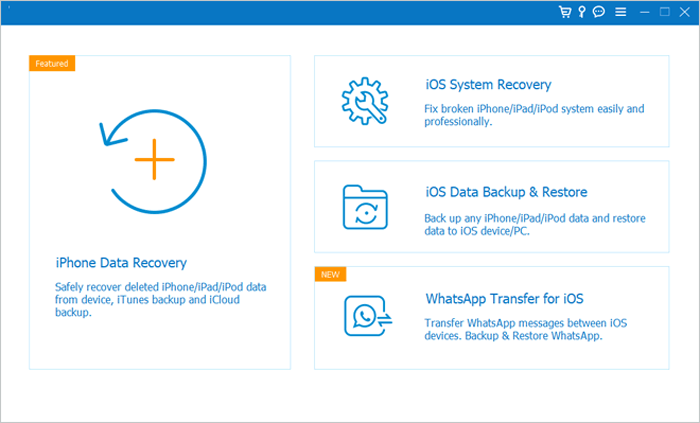
01To begin, download and install the iOS System Recovery software on your computer. Next, connect your iOS device to the PC. Navigate to the More Tools section and select iOS System Recovery from the available options. This action will lead you to the iPhone System Recovery window.
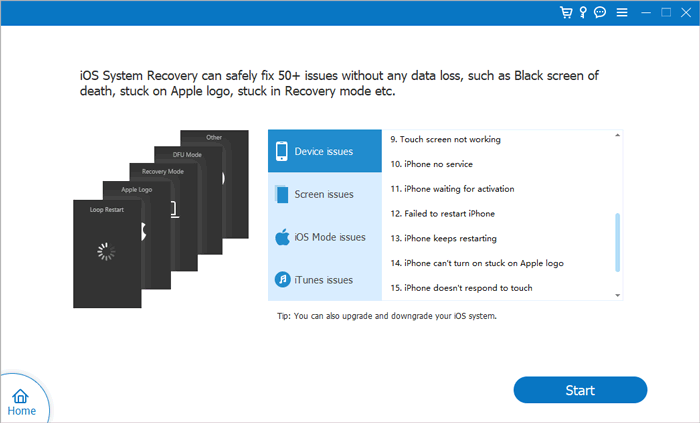
02To resolve the problem of your iPhone taking too long to update and install, tap on the Start button. This will initiate the process of fixing the issue. Follow the on-screen instructions to enter your device into DFU/Recovery mode.
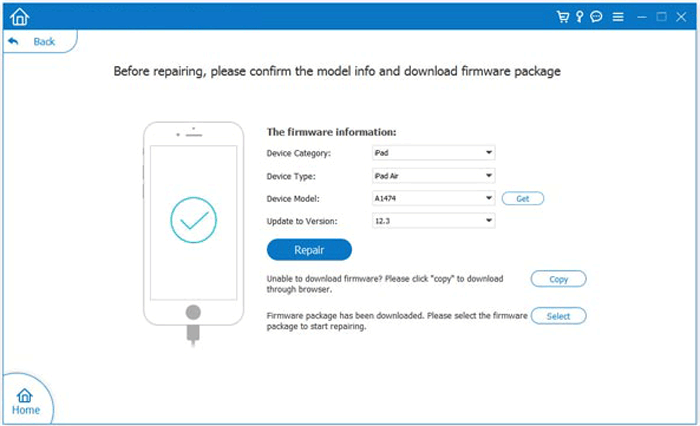
03Begin by clicking on the Repair button to initiate the downloading process of the appropriate iOS firmware.
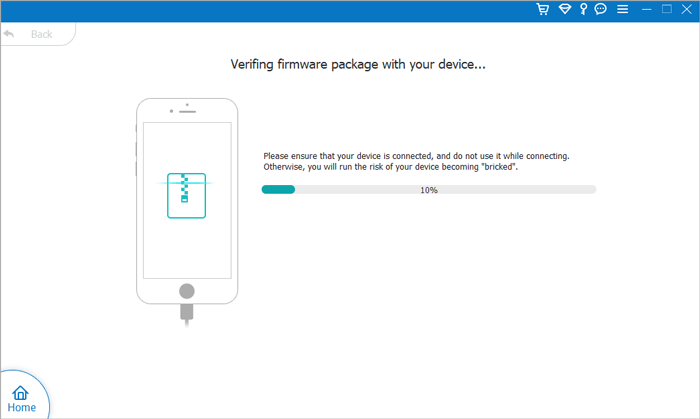
04Once the firmware has finished downloading, the application will proceed to repair your device. After the repair process is complete, restart your phone and head to the phone settings. Check to see that the latest iOS version is installed.
Q1. Can I downgrade to a previous iOS version after updating to iOS 27?
Yes, you may be able to downgrade from iOS 27 to a previous iOS version if Apple is still signing that version. However, Apple usually stops signing older iOS versions after a certain period, which means downgrading may no longer be available.
If you experience problems after installing iOS 27, you can use a professional iOS system repair tool like iOS System Recovery to fix system issues or restore your device.
Q2. Will installing iOS 27 delete my data?
Normally, installing iOS 27 will not delete your personal data, including photos, contacts, messages, and apps. iOS updates are designed to keep your data and settings intact during the upgrade process.
However, unexpected issues may occasionally occur during major system updates. Therefore, it is highly recommended to back up your iPhone using iCloud or iTunes/Finder before installing iOS 27.
Q3. What should I do if iOS 27 gets stuck or fails to install?
If iOS 27 gets stuck during the update process or fails to install, you can try several solutions. First, check your internet connection, make sure your iPhone has enough storage space, and restart your device.
If the problem continues, you can try updating again later when Apple's servers are less busy or use a professional iOS system repair tool to fix issues such as being stuck on the Apple logo, recovery mode loops, or update failures.
Q4. Why is my iOS 27 update taking so long?
The iOS 27 update may take longer due to factors such as slow internet speed, insufficient storage space, an older iPhone model, busy Apple servers, or beta version issues. Generally, waiting patiently or improving these conditions can help speed up the update process.
Q5. Should I install the iOS 27 beta version?
The iOS 27 beta version allows users to try new features before the official release, but it may contain bugs or performance issues. If you rely on your iPhone for important daily tasks, it is recommended to wait for the official stable version before updating.
iOS 27 brings new features and improvements to enhance the iPhone experience. However, some users may find the download and installation process takes longer than expected. Generally, iOS 27 may take around 30 minutes to 1 hour to update. If you encounter update errors or installation issues, you can use iOS System Recovery to repair system problems without data loss.
Before updating iOS 27, ensure your iPhone has enough storage space, a stable Wi-Fi connection, and a backup of important data for a smoother update process.
Related Articles:
How to Update iPhone Without iTunes [iOS 26/27 Supported]
iPhone Won't Update to iOS 26/27? Here's How to Solve It Quickly
How to Update iPhone Without Wi-Fi in 2026? [4 Simple Ways]
Unable to Check for Update on iPhone/iPad? 8 Easy Fixes Here




 Free Download for PC
  Free Download for Mac


