"To fix a glitch on my iPad where it randomly asks me to sign into iTunes when I open apps, I'm going to sign out of iCloud/my Apple ID and sign back in. Will I lose any data, and will everything be the same when I sign back in? What about apps that are not backed up or don't support iCloud? I don't want to lose anything."
- from Apple Community
Signing out of an Apple ID is sometimes necessary when troubleshooting iCloud issues, switching to a new account, selling a device, or resolving Apple service problems. However, many users hesitate to do so because they are worried about losing important data, apps, photos, contacts, or other personal information. So, if I sign out of my Apple ID will I lose everything? What exactly happens after signing out, and how can you do it without losing data? In this guide, we will explain the effects of signing out of an Apple ID and share safe ways to protect your data before signing out.
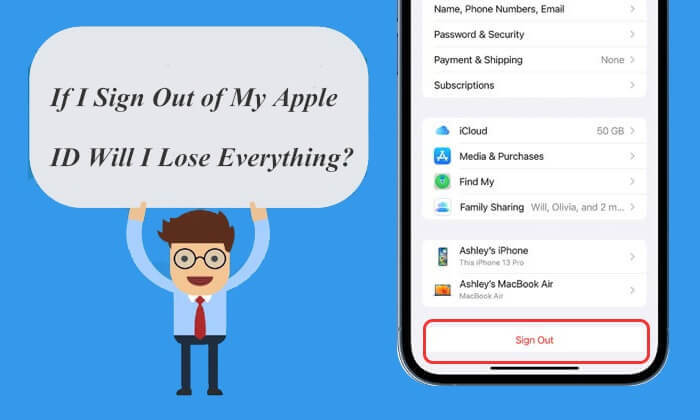
First, let's clarify what happens when you sign out of your Apple ID. When you sign out of your Apple ID on a device (such as an iPhone, iPad, or Mac), you are disconnecting that device from your Apple account. This means the device will no longer automatically sync or access certain data and services linked to that Apple ID.
So, does signing out of Apple ID delete everything? The answer is no. Signing out of your Apple ID will not erase your apps, photos, messages, or other data stored on your device. However, you may temporarily lose access to some data and services associated with that Apple ID, such as iCloud Drive files, iCloud Photos, Apple Music, and App Store services until you sign back in.
After signing out of your Apple ID, the apps installed on your device will not be automatically deleted. However, some app features may be limited, especially those that depend on Apple ID verification, iCloud syncing, or account access.
For example, you may need to sign in again to download new apps or update existing ones from the App Store. In addition, some apps that require Apple ID or subscription verification may not work properly until you sign back in.
If I log out of iCloud, will it delete my photos? No. After signing out of your Apple ID, photos stored on your device will not be automatically deleted. However, if you use iCloud Photos, some photos stored only in iCloud may not be available on your device after signing out.
Photos saved locally will remain on your device, while photos stored in iCloud will stay safe and can be accessed again after you sign back in with the same Apple ID. Any new photos taken while signed out will also no longer sync to iCloud.
After signing out of your Apple ID, Messages in iCloud and iMessage syncing may stop working. If you use the same Apple ID across multiple devices, new messages will no longer sync between them until you sign back in. However, signing out of your Apple ID will not delete existing message history, and messages already stored on your device will remain available.
Now, we know that signing out of Apple ID won't lose everything. Then, what happens when you sign out of Apple ID? If you sign out of your Apple ID on your iPhone, the following effects will occur:
In summary, signing out of your Apple ID will affect many features and services related to your Apple account, so it's best to back up important data before signing out. If you are only looking to resolve a specific issue, it might be better to consider changing settings rather than signing out of your account entirely.
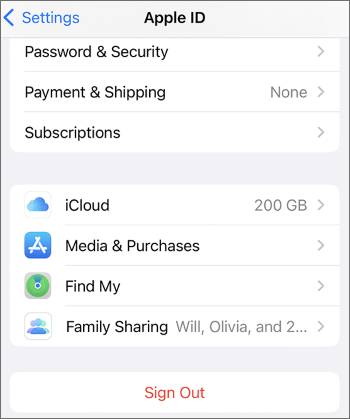
From the answer above, you can see that you can sign out of iCloud without losing data and information. Of course, you can also choose to keep a copy of your data on your device when signing out of your Apple ID. Next, follow these steps to sign out without losing your personal data:
Step 1. Open the "Settings" app on your iPhone.
Step 2. Tap your profile at the top, then scroll down and choose "Sign Out".
Step 3. Enter your Apple ID password to confirm.
Step 4. Select the data you want to keep on your device by toggling the switches.
Step 5. Finally, tap "Sign Out" again to complete the process. (Can't sign out of Apple ID?)
If you want to change your Apple ID but don't want to lose data, you can read this article:
How to Change Apple ID without Losing Data [Proven Tutorial]Although signing out of your Apple ID will not erase your iPhone data, backing up your device beforehand is still a smart choice. A backup can help prevent unexpected data loss and ensure that important files are safely saved before you sign out.
We recommend using Coolmuster iOS Assistant to back up your iPhone. It is a professional tool for backing up, managing, and transferring iOS data. With this software, you can selectively or completely back up supported iPhone data to your computer before signing out of your Apple ID.
Highlights of Coolmuster iOS Assistant:
Follow the steps below to back up your iPhone to a computer using iOS Assistant:
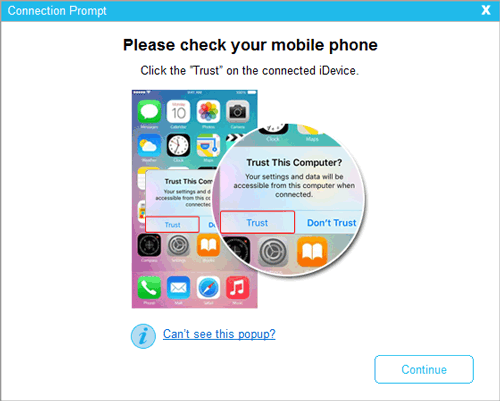
01Download, install, and open the program on your computer. Connect your iPhone with a USB cable. Tap "Trust" on your iPhone and select "Continue" on your computer.
02Once the program successfully detects your iPhone, you'll see its interface.
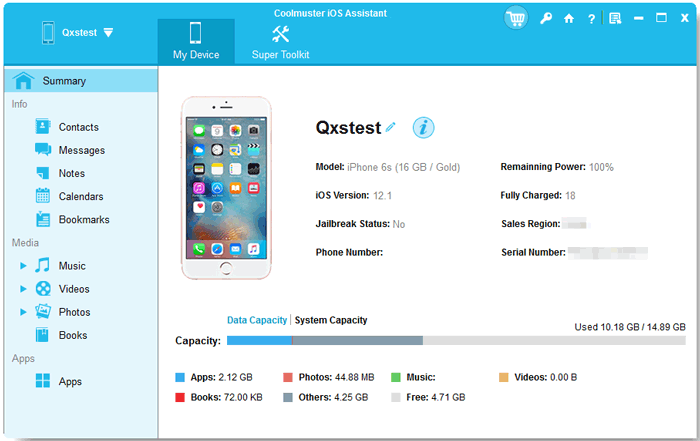
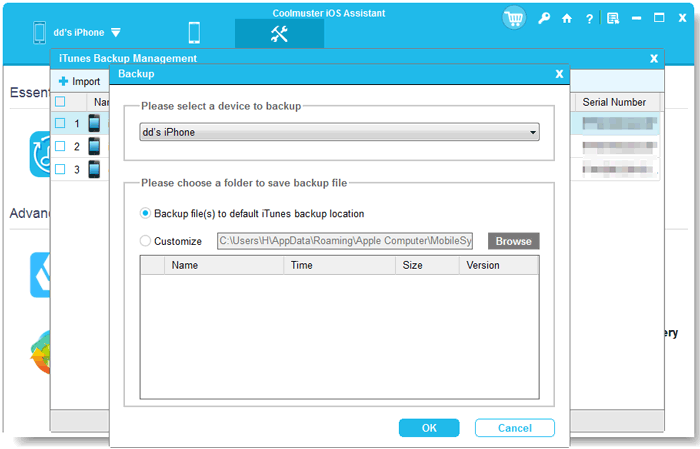
03To back up your entire iPhone, go to the "Super Toolkit" section, select the "iTunes Backup & Restore" tab, and click the "Backup" tab. Choose your device from the drop-down menu, click the "Browse" button to select a storage location for the backup file, and then click "OK" to begin the backup process.
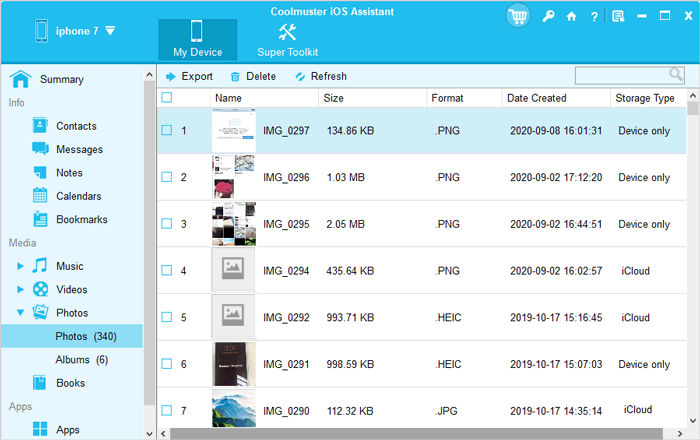
To back up specific data from your iPhone, go to the "My Device" section, select a data type from the left panel, preview and choose the items you want to transfer, and then click the "Export" button to start the transfer.
Video Tutorial:
Signing out of your Apple ID doesn't mean you will lose all your data. However, to avoid potential data loss and service interruptions, it is crucial to back up and transfer your data in advance. Coolmuster iOS Assistant is an excellent backup tool and is highly recommended. With proper preparation and measures, you can confidently sign out of your Apple ID without worrying about losing your data.
Related Articles:
[Solved] How to Transfer Data from One Apple ID to Another Seamlessly?
[Simple Guide] How to Delete Apple ID without Password on iPhone?
How to Sign Out of Apple ID Without Password? [4 Effective Ways]
[Solved] How Can You Fix It When iPhone Won't Back Up iCloud?







 Free Download for PC
  Free Download for Mac


