"How to disable camera from lock screen on iPhone? The camera accidentally gets toggled on from my lock screen all the time. It's obnoxious for it to be there and I have zero use for that being there. If I want to use my camera, I'll open my phone and use my camera."
- from Apple Community
The iPhone Lock Screen includes a Camera shortcut by default, allowing users to quickly capture photos and videos without unlocking their devices. However, some users may want to remove or disable this shortcut to prevent accidental camera activation or protect their privacy. So, can you remove the Camera from the iPhone Lock Screen? In this guide, we will explain whether it is possible and show you the available methods to disable or manage Camera access on your iPhone.
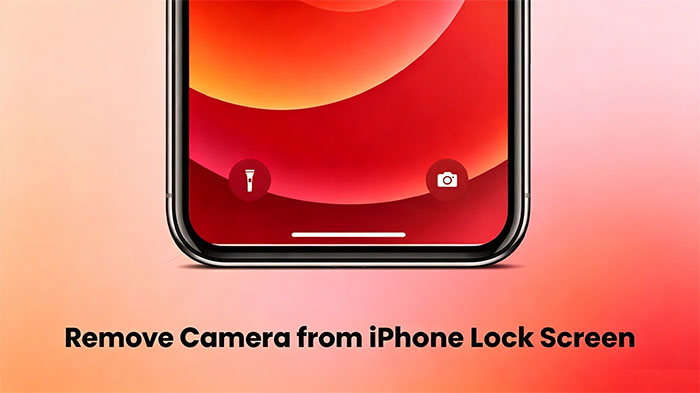
The Camera shortcut appears in the bottom-right corner of the iPhone Lock Screen by default, allowing users to quickly capture photos and videos without unlocking their devices. However, Apple does not provide a universal option to completely remove this shortcut from the Lock Screen. If you want to limit Camera access or prevent accidental use, you can adjust your iPhone settings based on your needs.
If your goal is to prevent the Camera from being used from the Lock Screen, you can manage Camera access through built-in iPhone settings. Depending on your iOS version, you can either disable the Camera app or customize the available Lock Screen controls. Follow the methods below to manage the Camera shortcut on your iPhone.
By using Screen Time, you can restrict access to the Camera app and prevent it from being opened from the iPhone Lock Screen. The exact steps may vary depending on your iOS version.
Remove Camera from Lock Screen on iPhone for iOS 15 and later
Step 1. Open "Settings" and go to "Screen Time", then tap "Continue".
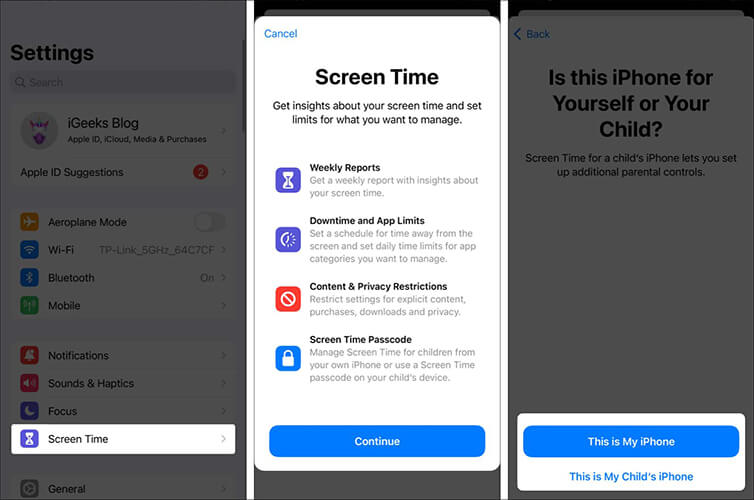
Step 2. Next, enable "Content & Privacy Restrictions" and navigate to "Allowed Apps" to turn off the "Camera".
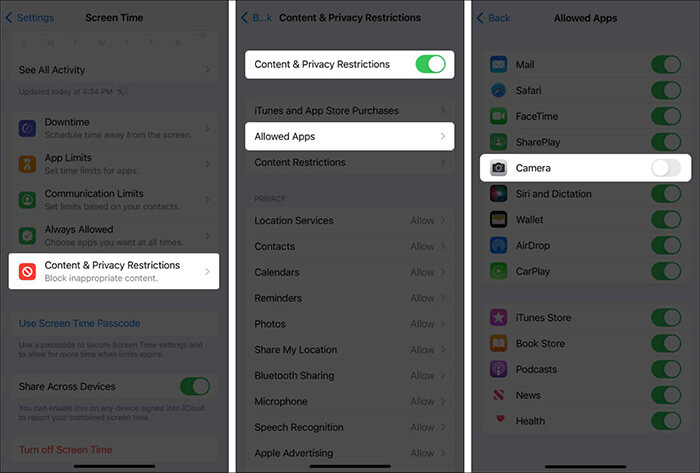
Step 3. Finally, return to the lock screen to confirm that the camera has been disabled.
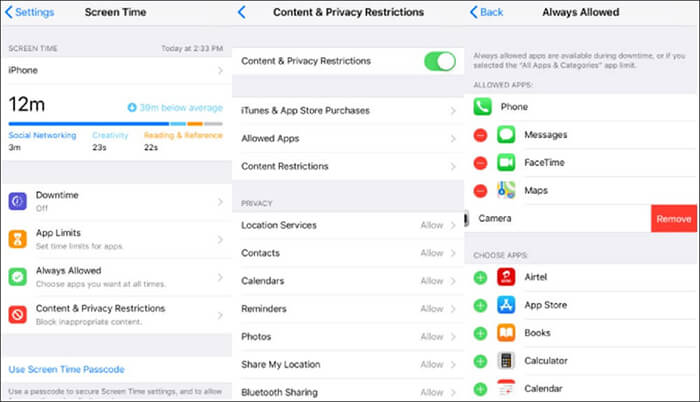
Step 1. Go to "Settings" > "Screen Time" > "Content & Privacy Restrictions", then toggle it on.
Step 2. Next, return to the previous menu, tap "Always Allowed", and you'll see a list of available apps. Select "Camera" and tap the "Remove" icon to disable it.
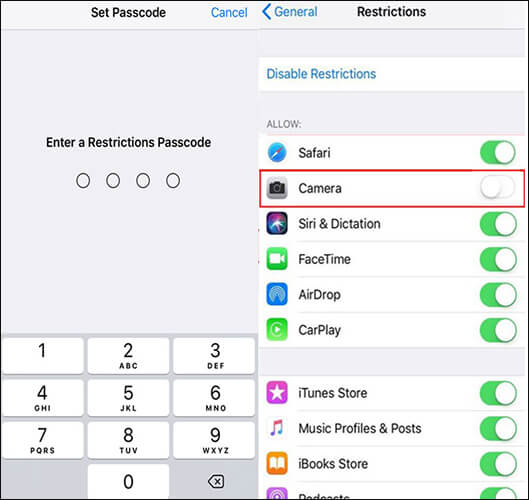
Step 1. Navigate to "Settings" > "General" > "Restrictions" and tap "Enable Restrictions".
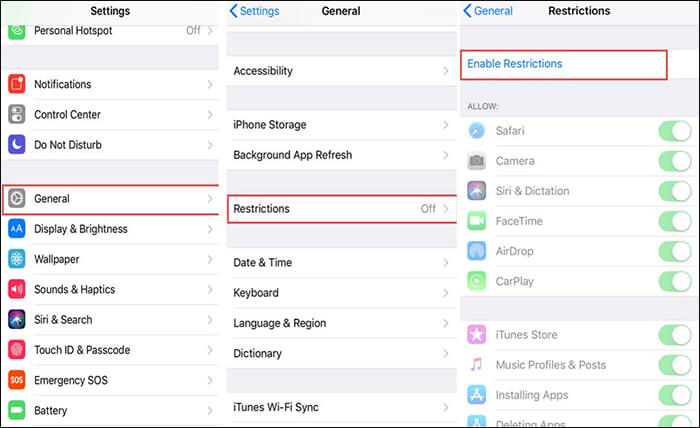
Step 2. After entering the restrictions passcode, toggle off the "Camera" option to disable the camera.
With iOS 18, Apple introduced more customization options for the iPhone Lock Screen, allowing users to change the controls displayed at the bottom of the screen. If your iPhone supports this feature, you can replace the default Camera shortcut with another control, helping prevent accidental access to the Camera from the Lock Screen.
Follow these steps to customize the Lock Screen controls:
Some photos disappeared from iPhone suddenly, and you need to know why and how. This article tells you what to do when you are facing this problem.
Photos Disappeared from iPhone? Here Are 9 Fixes You Can Try
If you do not want to completely disable the Camera app but often open it accidentally from the iPhone Lock Screen, adjusting a few settings can help reduce unwanted camera activation. Features like Raise to Wake and Tap to Wake make it easier to quickly access your iPhone, but they may also cause the screen to turn on unexpectedly when your device is in your pocket or when you pick it up.
Follow the methods below to prevent accidentally opening the Camera from the Lock Screen.
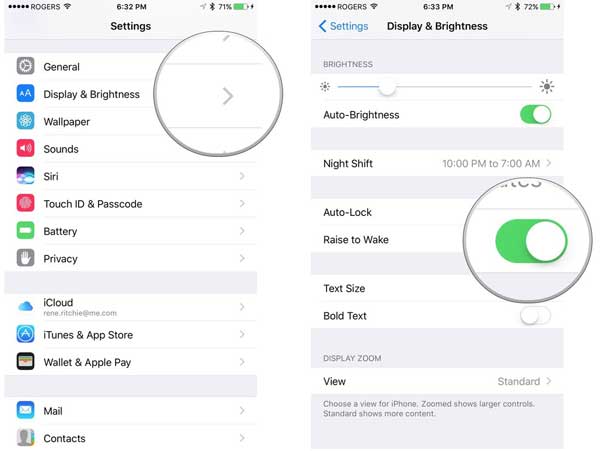
The Raise to Wake feature automatically turns on your iPhone screen when you lift the device. Although convenient, it can sometimes cause accidental touches on the Lock Screen. Disabling it can help reduce unintended Camera activation.
Here is how to turn off Raise to Wake:
Step 1. To disable "Raise to Wake", open the "Settings" app, go to "Display & Brightness", then scroll down and toggle it off.
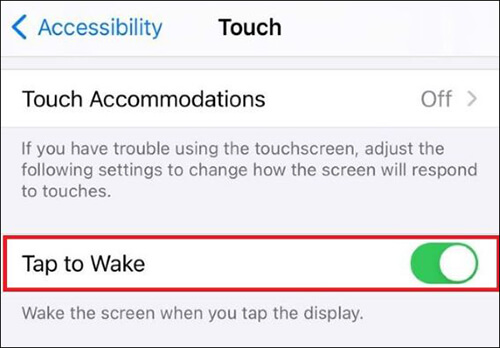
Step 2. To disable "Tap to Wake", open the "Settings" app, select "Accessibility", tap on "Touch", and toggle it off.
After disabling this option, your iPhone screen will no longer wake automatically when you pick it up. You will need to press the Side button to wake the Lock Screen.
Tap to Wake allows your iPhone screen to turn on when you tap the display. If you frequently touch your screen accidentally, turning off this feature can help prevent unintended actions, including opening the Camera shortcut. (iPhone Tap to Wake Not Working?)
Follow these steps to disable Tap to Wake:
Once disabled, your iPhone screen will only wake when you press the Side button or use another supported wake method.
On iPhones running iOS 18 or later, you can customize the controls displayed at the bottom of the Lock Screen. If available on your device, you can replace the Camera shortcut with another control to reduce accidental access.
To change the Lock Screen control:
By adjusting these settings, you can minimize accidental Camera openings while keeping your iPhone Lock Screen more convenient and secure.
Besides managing the Camera shortcut on your iPhone Lock Screen, you may also need to deal with lock screen issues caused by a forgotten passcode. When you forgot your iPhone passcode, you may be locked out of your device and unable to access your apps, photos, or other important data.
In this situation, iPhone Unlocker provides a simple solution to remove various iOS screen locks without requiring the original passcode. It can help you regain access to your iPhone and use your device normally again.
Highlights of iPhone Unlocker:
Follow the steps below to unlock your iPhone screen without a password:
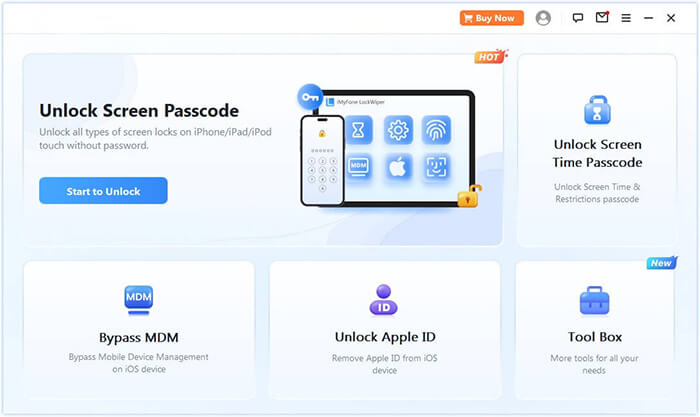
01Launch the iPhone Unlocker and select the "Unlock Screen Passcode" mode. Click "Start to Unlock", then press "Start" and connect your iPhone to the computer using a USB cable.
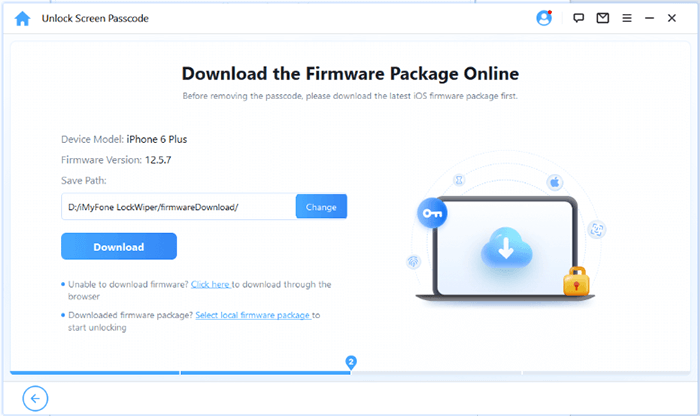
02Put your iPhone into Recovery Mode or DFU Mode. The software will automatically detect your device model. You can choose a different storage location for the firmware package, then click "Download" to begin the download.
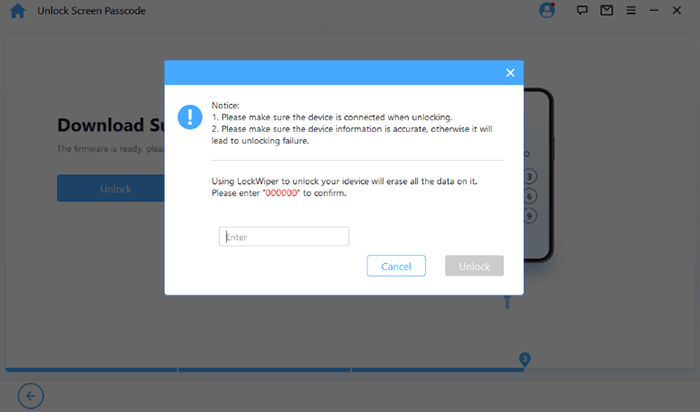
03Click "Unlock" to proceed. Carefully read the prompt, enter "000000" to confirm your consent to unlock the device, and then click "Unlock" again.
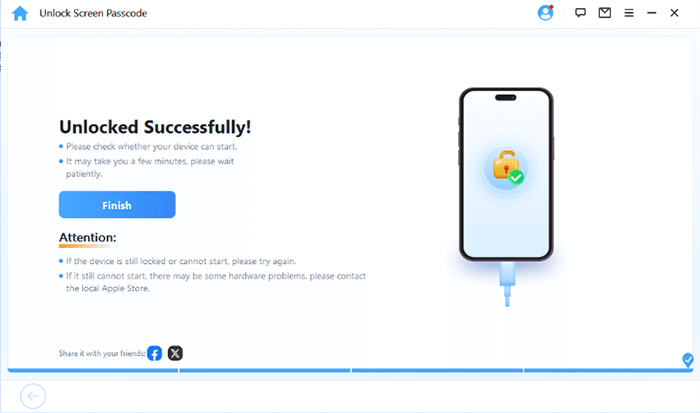
04After a few minutes, your iPhone screen passcode will be successfully removed.
Q1. Why can't I find an option to remove the Camera from my iPhone Lock Screen?
Apple does not provide a dedicated setting to completely delete the Camera shortcut from the Lock Screen on all iPhone models and iOS versions. The available options depend on your device and system version. You can either disable Camera access through Screen Time or customize Lock Screen controls on supported iOS versions.
Q2. Can I remove the Camera app from my iPhone completely?
Yes, you can delete the Camera app from the Home Screen like other built-in apps on supported iOS versions. However, removing the app does not always remove the Camera shortcut from the Lock Screen. To restrict Camera access, you need to adjust related settings instead.
Q3. Will disabling Camera affect my photos and videos?
Disabling Camera access temporarily prevents you from opening the Camera app and taking new photos or videos. Your existing photos and videos stored in the Photos app will not be deleted or affected. You can restore Camera access anytime by changing the restriction settings.
Q4. Can I disable the Camera on my iPhone without using Screen Time?
It depends on your iPhone model and iOS version. Some newer iOS versions allow more Lock Screen customization, while older versions may require Screen Time restrictions. If you only want to avoid accidental camera activation, adjusting wake settings can also help.
Q5. Can I lock the Camera app with Face ID on iPhone?
On newer iOS versions that support app locking, you can require Face ID, Touch ID, or a passcode to open certain apps. However, this feature is different from removing the Camera shortcut from the Lock Screen and may not apply to every built-in app.
Q6. How can I access the Camera again after disabling it?
To restore Camera access, open "Settings", go to "Screen Time", find the Camera restriction option, and enable it again. Once the restriction is removed, the Camera app and related features will work normally.
The Camera shortcut on the iPhone Lock Screen provides quick access to photos and videos, but some users may prefer to disable it to avoid accidental activation or improve privacy. While iOS does not always allow you to completely remove the Camera shortcut, you can restrict Camera access with Screen Time or customize available Lock Screen controls on supported versions.
In addition, if you ever forget your iPhone passcode and cannot access your device, tools like iPhone Unlocker can help remove the screen lock and restore access to your iPhone.
Related Articles:
[Solved] How to Fix iPhone Camera Keeps Refocusing in 2026?
5 Ways to Fix the iPhone Frozen on Lock Screen Issue with Ease
How to Unlock iPhone Without Passcode Using Camera [2026 Updated]
How to Unlock iPhone Without Swiping Up? [Comprehensive Guide]




 Free Download for PC
  Free Download for Mac


