TL;DR: If your iPhone Tap to Wake is not working, it's usually caused by disabled settings, iOS glitches, low power mode, screen protector issues, or outdated software rather than hardware failure. This guide explains 10 proven fixes—from checking Tap to Wake settings and restarting your iPhone to updating iOS, resetting system settings, and adjusting display features.
If basic troubleshooting doesn't work, a professional iOS system repair tool like iOS System Recovery can fix deeper system issues without data loss and restore Tap to Wake functionality quickly.
Tap to Wake is a very useful feature on the iPhone that allows users to wake the device simply by tapping the screen, without having to press the power button. Whether you want to check the time, view notifications, or quickly unlock your phone, this feature provides a more convenient user experience. However, many users have reported encountering the issue of "iPhone Tap to Wake not working". Even after tapping the screen multiple times, the device may fail to respond.
Then, why is your iPhone Tap to Wake not working? This article will take an in-depth look at the possible causes of the problem and provide a series of proven solutions to help you restore the feature quickly.
Before jumping into the fixes, it's important to understand what may be causing the issue. Why is my iPhone screen not waking up when I touch it? Here are some common reasons why your iPhone Tap to Wake is not working:
If the Tap to Wake feature stops working due to a system glitch, trying various methods one by one can be time-consuming and may not fully resolve the issue. In such cases, using a professional iOS system repair tool is often a more efficient solution.
iOS System Recovery is software specifically designed to fix a wide range of iOS system problems. It can address issues such as Tap to Wake not working, iPhone stuck on the Apple logo, black screen, white screen, failed updates, and system crashes, all while preserving your device data in Standard Mode.
The highlights of iOS System Recovery:
Here is how to fix iPhone double tap to wake not working with iOS System Recovery:
01Download and install iOS System Recovery on your computer. Launch the program after installation.
02Connect your iPhone to the computer using a functional USB cable. Select "iOS System Recovery" from the main interface and click "Start".

03Choose "Standard Mode" to repair the system without data loss, or select "Advanced Mode" if a deeper repair is required. Then click "Confirm".

04Check the displayed device information, download the appropriate firmware package if prompted, and click "Repair". Wait for the repair process to finish. Once completed, your iPhone should restart normally and the Tap to Wake feature should work again.

If the issue is not caused by a serious system malfunction, it can often be resolved by adjusting settings or performing some basic operations. Below, we will troubleshoot the problem in order from the simplest to the more complex steps.
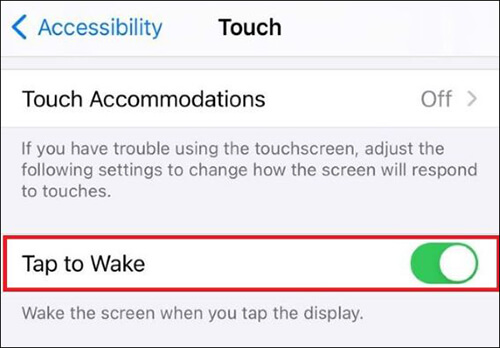
One of the most common reasons for the iPhone tap screen to wake not working problem is that the feature has been accidentally turned off. This can happen after an iOS update, settings reset, or simple user error. Therefore, before trying any more complex methods, first make sure that this feature is enabled.
Here are the steps:
Step 1. Launch the "Settings" app on your iPhone.
Step 2. Navigate to "Accessibility" > "Touch".
Step 3. Locate "Tap to Wake" and switch the toggle On if it is disabled.
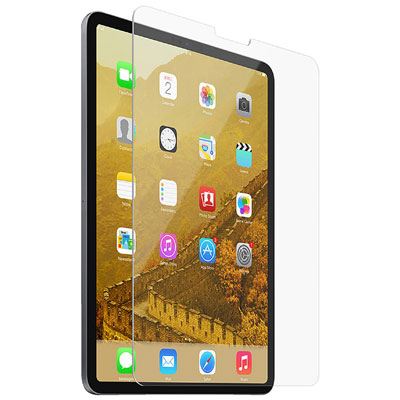
A bulky case or poorly applied screen protector can make your screen less responsive, which may cause the iPhone tap screen to wake not to work. Remove the case and check the screen protector—if it's cracked or has gaps, replace it to see if the feature works again.
Temporary software glitches can sometimes prevent certain functions from responding properly. A force restart refreshes the system and clears minor software bugs that may be causing the iPhone Tap to Wake not working issue. Here are the steps:
For iPhone 8 and Later:
For iPhone 7/7 Plus:
For iPhone 6s and Earlier:

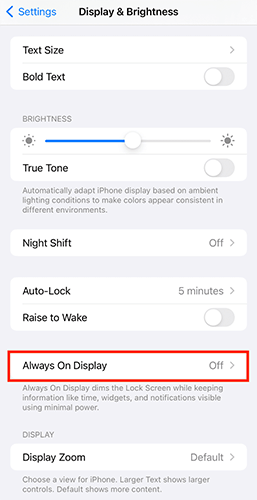
Always On Display is a relatively new feature available on iPhone 14 Pro models. Since Apple continues to refine and optimize this feature, it may occasionally affect other display-related functions. To see if it is causing issues with Tap to Wake, try disabling Always On Display and test the feature again.
Here is how to do it:
Step 1. Open "Settings" and tap "Display & Brightness".
Step 2. Select "Always On Display" and turn it off.
Step 3. Check whether Tap to Wake is working properly.
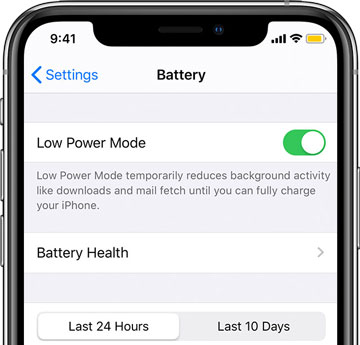
Have you turned on Battery Saver on your iPhone? It's a useful feature for extending battery life when your charge is low. However, it also disables certain functions, including Tap to Wake. Try turning it off to see if that resolves the issue.
Step 1. Open "Settings" and tap "Battery".
Step 2. Find "Low Power Mode" and switch it off.
If your iPhone Tap to Wake is not working because of an iOS bug, installing the latest update may resolve the problem. Apple regularly releases updates containing bug fixes, security patches, and performance improvements.
Here is how to update your iPhone:
Step 1. Open "Settings" and tap "General".
Step 2. Select "Software Update".
Step 3. If an update is available, tap "Download and Install". (iPhone won't update?)

After updating, check whether the Tap to Wake issue has been resolved.
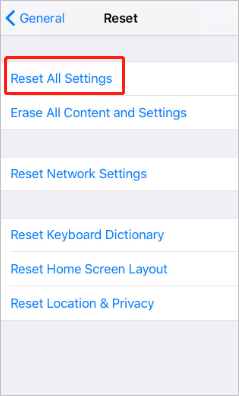
Incorrect settings can sometimes cause unexpected behavior across your device. Resetting all settings restores system preferences to their default values without deleting your personal data.
To reset all settings, follow the steps below:
Step 1. Open "Settings" and go to "General".
Step 2. Tap "Transfer or Reset iPhone", then select "Reset" > "Reset All Settings".
Step 3. When prompted, confirm by tapping "Reset All Settings".
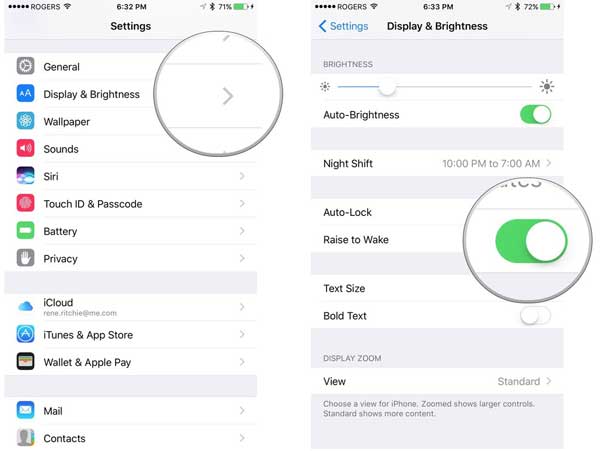
If your iPhone Tap to Wake not working issue remains unresolved, you can temporarily use Raise to Wake as an alternative way to activate your screen. This feature automatically wakes your iPhone whenever you pick it up. Here is how to do it:
Step 1. Open "Settings" and tap "Display & Brightness".
Step 2. Find "Raise to Wake" and turn it on by switching the toggle next to it.
If all software-based solutions fail, the issue is likely related to hardware, such as a damaged touch layer, a loose display cable, or a malfunctioning internal component. In this case, it is recommended to contact Apple Official Support for diagnostics.
If iPhone Tap to Wake isn't working, in most cases it's not a serious hardware issue, but rather caused by settings, system bugs, or environmental factors. You can start by troubleshooting with basic methods step by step. If the problem persists, you can use the system repair tool iOS System Recovery. It can fix iOS-related issues without data loss and quickly and safely restore your iPhone's Tap to Wake functionality.
Related Articles:
[Ultimate Guide] How to Fix an iPhone Power Button Stuck?
How to Fix Touch ID Not Working on iPhone/iPad in No Time? (Incredibly Simple)
[100% Work] How to Fix iPhone Proximity Sensor Not Working?
How to Fix an iPhone Stuck on Loading Screen Quickly & Safely?




 Free Download for PC
  Free Download for Mac


