"Why is my iPhone attempting data recovery?"
"What happens after attempting data recovery on my iPhone?"
...
Attempting data recovery typically refers to the process or interface where an iPhone automatically tries to recover data when data loss or damage is encountered on the device. This may occur in situations such as accidental file deletion, iOS system crashes, or failed updates. Have you ever encountered a similar situation? If you are experiencing issues attempting data recovery on an iPhone, we will introduce possible solutions for this problem to help you get rid of it.
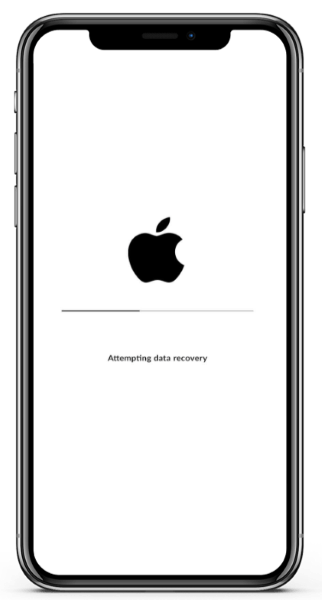
"Attempting Data Recovery" on iPhone refers to the process where the iPhone automatically attempts to fix and recover internal device data after detecting data anomalies or system issues during the system startup. It typically appears in the following scenarios:
Under normal circumstances, this screen will disappear within a few minutes, and the iPhone will automatically boot into the system. However, if it gets stuck for an extended period, it indicates that there may be a more serious problem with the data or system.
There are several possible reasons why your iPhone might get stuck in the "Attempting Data Recovery" loop. Understanding these factors can help you diagnose and resolve the issue more effectively. Here are some common causes:
Here are some methods we suggest you try to get out of the iPhone update attempting data recovery loop.
If you encounter the "iPhone attempting data recovery after update" issue, don't panic. If your iPhone has a Home button, simply press it and wait for the recovery or update process to finish.
However, this method isn't always guaranteed to work. If the issue persists, try the solutions listed below.
A force restart is one of the best solutions to fix iPhone functionality issues. It is the easiest and most effective fix. A force reboot can help solve the issue if the iPhone says attempting data recovery. Since iPhones are of various models, there are different instructions to perform a hard reset.
iPhone 8/8+ & newer versions:
iPhone 7/7+ versions:
iPhone 6s & earlier versions:

Still attempting data recovery screen? You should try putting the iPhone into Recovery Mode. However, ensure you are using the latest version of iTunes on your computer. Generally, this technique is very useful if the iOS update isn't successful. A recovery mode may be the solution to get out of this loop. However, be aware that this approach will probably erase all your data on your iPhone. So, creating a backup is important.
Here is how to do it:
Step 1. First, plug your iPhone device into the PC.
Step 2. Next, put the iPhone into Recovery Mode:
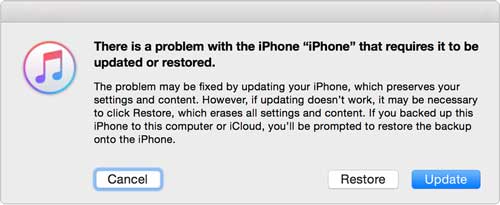
Step 3. Now, launch iTunes, and instantly, a pop-up notification will appear with options for "Restore" and "Update".
Step 4. Choose the "Update" option. iTunes will attempt to reinstall the iOS. Wait and see if the problem will be fixed.
Step 5. If "Update" doesn't resolve the issue, you can select "Restore", but keep in mind this will erase all data on the iPhone.
If nothing helps resolve the problem, you need to use a professional third-party tool like iOS System Recovery. This impeccable repair tool fixes all problems related to the iOS system. So, if you are still stuck on attempting a data recovery loop, you should use this tool and repair your iPhone device instantly.
With iOS System Recovery, you don't need to be an expert before using it. Its intuitive and friendly interface makes it easier to navigate through. The software fixes many iOS system problems. So, whether your iPhone is stuck in attempting data recovery, disabled and failed to unlock, or has a black/white/blue screen of death, iOS System Recovery lets you fix the iPhone to normal condition without data loss.
The top features of iOS System Recovery:
* Repair iOS devices back to normal in a few clicks.
* Fix most system issues on iPhones/iPads, such as iPhones stuck in attempting data recovery loop, stuck in headphone mode/Apple logo, etc.
* No data loss during most of the repairing processes.
* Compatible with most iPhone models.
* Two repair modes to fix iOS devices.
* Easy to use without tech skills.
Follow these steps to repair an iPhone that is stuck in the attempting data recovery loop:
01After downloading and installing the software on the computer, open it. On the left panel, select "More tools" > "iOS System Recovery".

02The program will automatically detect the iPhone error and display it on the interface. Then, click "Start" to proceed.

03Confirm the iPhone information. If needed, select the correct details from the drop-down menu. Once done, click the "Repair" button to fix the iPhone error immediately.

If none of the previous solutions work, it's likely a hardware or software issue. Contacting Apple Support can provide expert guidance and a proper solution.
If the attempting data recovery process fails, you may lose all your files. But don't panic. Simply download Coolmuster iPhone Data Recovery on your Windows PC or Mac. It can not only recover data directly from the device, but also selectively recover lost files from iTunes or iCloud backups without overwriting data or resetting the device.
Main features of Coolmuster iPhone Data Recovery:
Now, let's see how to recover iPhone data without a backup using iPhone Data Recovery:
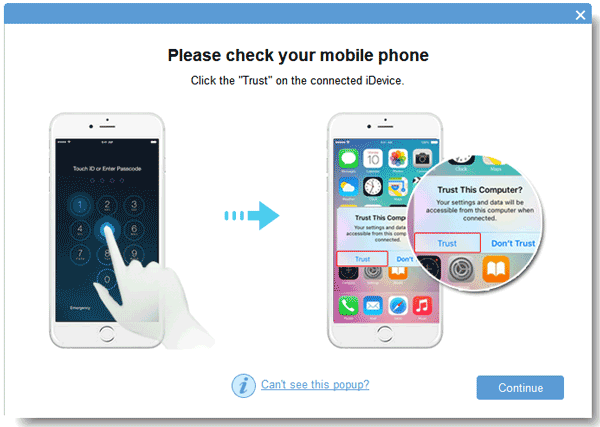
01After downloading and installing the tool, launch it on your computer. Connect your iPhone via a Lightning cable. Tap "Trust" on your iPhone when prompted.
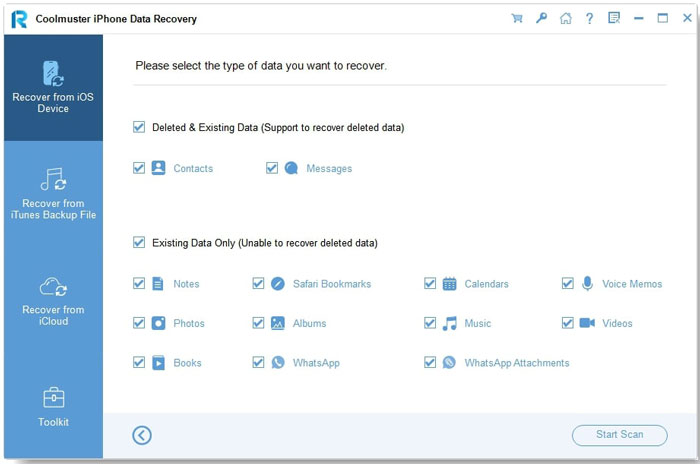
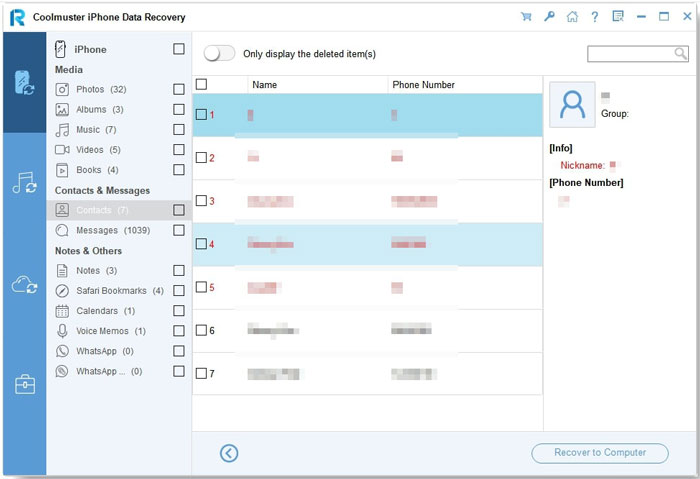
02Once connected, choose the data types you want to recover and click "Start Scan". The software will scan your iPhone and display the results.
03Select a category to view details, and check "Only display deleted item(s)" to see deleted files. After selecting the files to restore, click "Recover to Computer" to save them to your PC.
Video Tutorial:
Hopefully, when you encounter an iPhone 17/16 attempting data recovery issue, you'll be able to resolve it and eliminate the attempting data recovery screen from your iPhone. If you want to fix your iPhone without losing data, iOS System Recovery is the most reliable solution. If the recovery fails and retrieving important files is your priority, Coolmuster iPhone Data Recovery offers a dependable backup solution.
We hope this guide has been helpful. If it has, feel free to share it with others who may be facing similar issues.
Related Articles:
How to Fix an iPhone Stuck in DFU Mode in 4 Effective Ways?
[Solved] How to Fix iPhone Taking Forever to Update iOS 18/26?
[Solved] How to Fix the iPhone Screen Keeps Going Black Issue?
iPhone Lost Contacts After Update? Here's How to Get Them Back







 Free Download for PC
  Free Download for Mac


