If your iPhone is stuck on the Apple logo, frozen in recovery mode, or keeps restarting after an iOS update, you may be searching for a reliable repair solution. Instead of restoring via iTunes or visiting a repair store, many users turn to third-party iPhone system repair tools for faster results. FoneGeek iOS System Recovery is one of the tools that is frequently mentioned. So what problems can it actually solve? What is its success rate in fixing issues? Is it worth paying for?
In this FoneGeek iOS System Recovery review, we will thoroughly analyze the software's features, pricing, pros and cons, user reviews, and the actual usage process to help you make an informed decision.
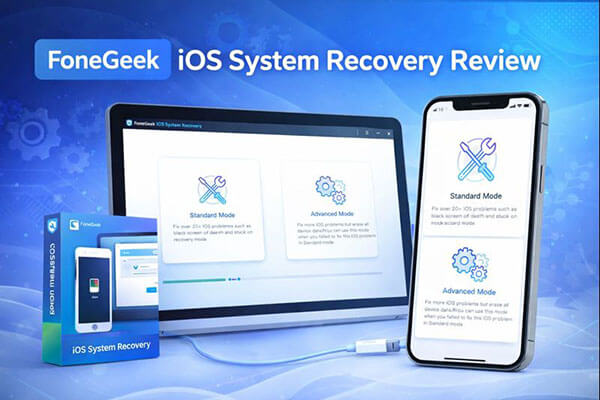
FoneGeek iOS System Recovery is an iOS system repair tool designed for iPhone, iPad, and iPod touch, primarily used to resolve various system issues without requiring the user to have a technical background. It can fix over 200 iOS/iPadOS/tvOS system problems.
Main features of FoneGeek iOS System Recovery:
* Resolve a range of iOS issues, including iPhone black screen, white Apple logo, boot loop, and more.
* Repair system errors on iOS/iPadOS/tvOS without risking any data loss.
* Easily upgrade to iOS 18 or downgrade from iOS 18 to iOS 17 without the need for jailbreaking.
* Enter or exit recovery mode on iPhone/iPad for free.
* Fully compatible with the latest iOS 18/26 and the newest iPhone 17/Air models.
Pricing is a key factor in any FoneGeek iOS System Recovery review, especially since the software is not fully free. While users can download and install the program at no cost, repairing an iOS device requires a paid license. FoneGeek typically offers several license options:
For Basic:
For Full Toolkit:
For Business: $49.95
The free version only allows users to scan and detect system issues. To actually fix the problem, you must upgrade to a paid plan.
To help you better assess whether this software is right for you, here are its advantages and drawbacks.
Pros:
* Intuitive interface design, easy for beginners to get started.
* Support over 200 iOS/iPadOS/tvOS system issues.
* Free to enter/exit Recovery Mode on iPhone/iPad.
* Offer a "Standard Mode", which the official claims does not erase data.
* Compatible with both Windows and macOS systems.
* Support multiple iOS versions and iPhone models.
Cons:
* The free version cannot fully complete repairs.
* The Advanced Mode will erase all data.
* Success rate for repairing severe system damage is unstable.
* Difficult to determine if it will successfully repair in one attempt before paying.
* Only applicable to system issues, cannot fix hardware damage.
User reviews play an important role in evaluating whether a tool performs as advertised. Here are some real reviews of this software.
"This program is so excellent. I'm very excited that my old iPhone 7, which was not responding for months, has been recovered by this program! I definitely recommend this tool if your iPhone is not working".
- by Joshua
"I can't downgrade the software, says that my iPhone is ready to fix when I import the IPSW to downgrade, but it's stuck at 3% can i get my money back?"
- by JV
"Fortunately, I found this program and successfully repaired my iPhone".
- by Larry
"I had an iPad stuck in recovery mode, and the device couldn't upgrade to iOS 15 even with iTunes. But FoneGeek helps me solve this issue!"
- by Camille
Understanding the actual repair process helps users decide whether the software fits their needs. Below is a clear breakdown of how FoneGeek iOS System Recovery works in practice.
Here is how to use FoneGeek iOS System Recovery to fix your iPhone:
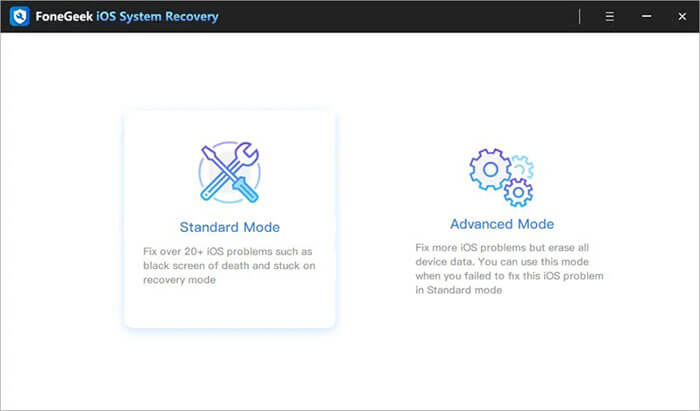
Step 1. Download, install, and launch FoneGeek iOS System Recovery on your computer, then select "Standard Mode" from the homepage.
Step 2. Connect your iPhone or iPad to the computer using a USB cable. If your device is in normal mode and running iOS 12 or later, unlock it first and then click "Next".
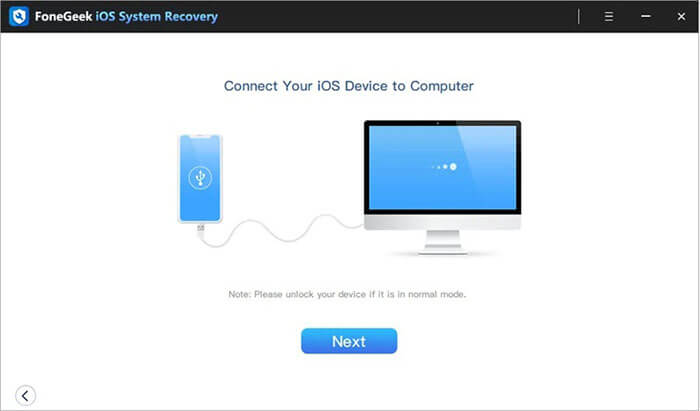
Note: If the device is not detected, the program will prompt you to put the device into Recovery Mode or DFU mode to proceed.
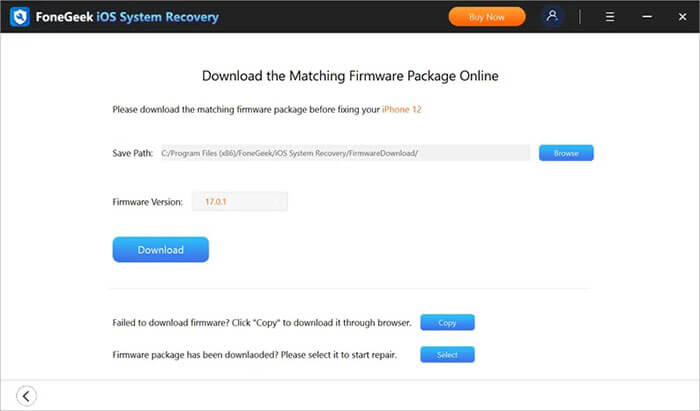
Step 3. The program will display the device model and show available iOS system versions. Choose your preferred version and click "Download" to get the firmware package.
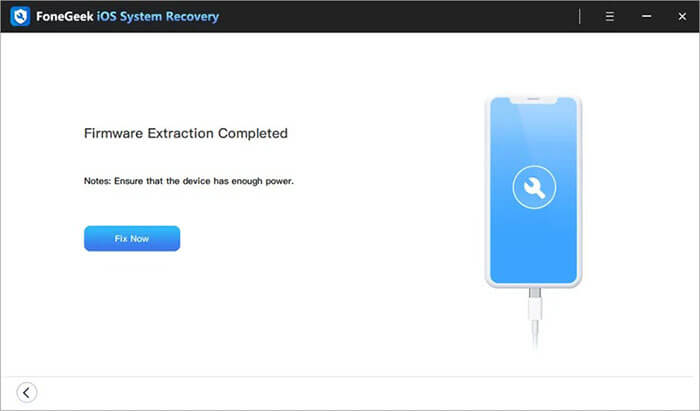
Step 4. Wait for the program to complete the download and verify the firmware, then click "Fix Now" to begin repairing your iOS device and restoring it to a normal state.
While FoneGeek iOS System Recovery can be an effective solution, it lacks some of the strong customer reviews that might inspire greater consumer confidence. If you're seeking a tool with more experience in the market and a proven track record of device repairs, iOS System Recovery could be your best option. It's perfect for those who need a quick, reliable, and efficient solution.
The highlights of iOS System Recovery:
How to use iOS System Recovery to fix your iPhone without losing data:
01Install and launch iOS System Recovery on your Windows/Mac computer. Connect your iPhone via USB and select "iOS System Recovery".

02Click "Start", and the software will begin detecting issues with your iPhone.

03Choose your repair mode, select your iPhone model from the list, and click "Repair".

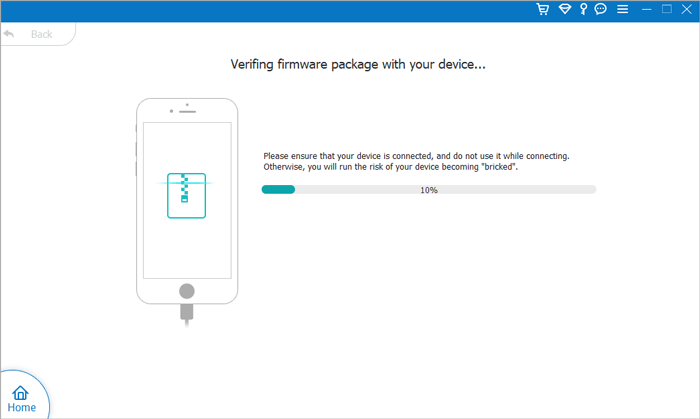
04The software will download the necessary firmware to fix your iPhone. Once the download is complete, your iPhone will be restored to normal.
Q1. Is FoneGeek iOS System Recovery safe to use?
Yes, the software is generally safe when downloaded from its official website. However, backing up your data before repair is strongly recommended.
Q2. Is FoneGeek iOS System Recovery free to use?
No. You can scan and detect problems for free, but repairing your device requires a paid license.
Q3. Can FoneGeek fix all iOS system problems?
No. While it can fix many common issues, it may fail with severe system corruption or hardware-related problems.
This FoneGeek iOS System Recovery review shows that the software is a decent option for fixing common iOS system issues with minimal effort. It's easy to use and works well for lighter problems, but its limited free version and inconsistent success with serious errors may disappoint some users.
If you want a more robust, higher-success solution with better system compatibility, iOS System Recovery is a more reliable alternative worth considering.
Related Articles:
EaseUS iOS System Repair Review: Features, Pricing, Pros, Cons & Best Alternative
A Comprehensive Tuneskit iOS System Recovery Review in 2026
Does Recovery Mode Delete Everything on iPhone? Here's the Answer!
UltFone iOS System Repair Review: Is It Worth Buying in 2026?







 Free Download for PC
  Free Download for Mac


