Many users rely on iCloud Notes to sync across multiple devices while using an iPhone, iPad, or Mac. However, sometimes you may encounter a frustrating issue: iCloud notes not syncing. This not only affects productivity but can also cause important information to disappear. Don't worry! In this article, we'll walk you through the potential causes of the issue and provide practical solutions.
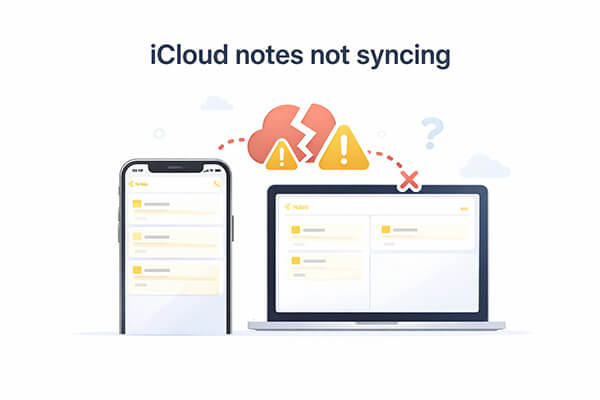
If your iCloud Notes are not syncing across devices, it could be caused by the following reasons:
* iCloud Notes syncing might be disabled, preventing content from syncing across devices.
* Unstable Wi-Fi or cellular data can cause syncing issues.
* Different Apple IDs on devices prevent syncing.
* iCloud server outages can temporarily disrupt syncing.
* Older system versions may cause compatibility issues and syncing problems.
After we know the reasons, here are eight effective ways to fix iCloud Notes not syncing. You can try them one by one.
To ensure your iCloud Notes sync across all devices, make sure to enable the feature on each one.
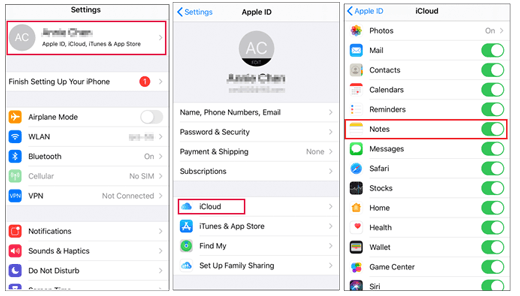
On iPhone and iPad: Go to "Settings", tap "your name" at the top, then select "iCloud" and toggle the switch next to "Notes" under "APPS USING ICLOUD" to "ON".
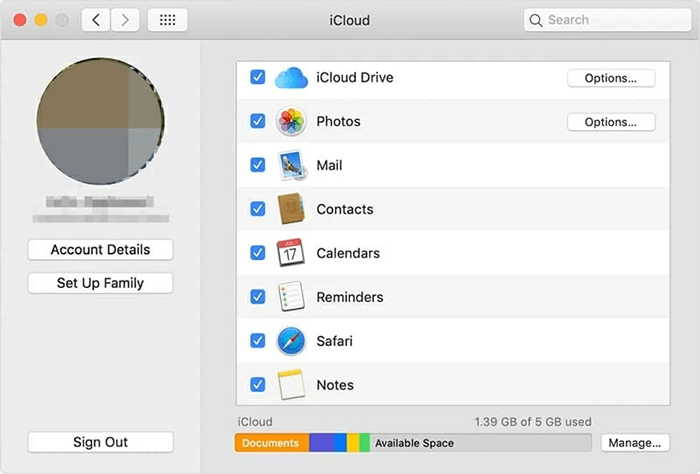
On Mac: Click the "Apple icon" in the top-left corner, choose "System Settings" (or System Preferences depending on macOS version), then go to "Apple ID" > "iCloud" and turn on the switch for "Notes".
iCloud syncing is highly dependent on network stability. Unstable Wi-Fi or VPN interference can cause syncing failures. Try switching to a stable Wi-Fi network or toggling your cellular data off and on. Sometimes, a simple network switch can trigger iCloud to resync.
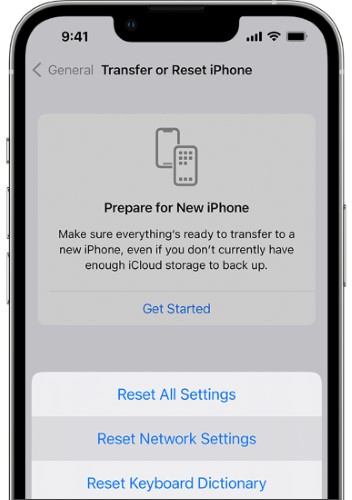
If the issue persists, go to "Settings" > "General" > "Transfer or Reset iPhone" > "Reset" > "Reset Network Settings" to clear potential connection issues (this won't delete data, but it will erase Wi-Fi passwords).
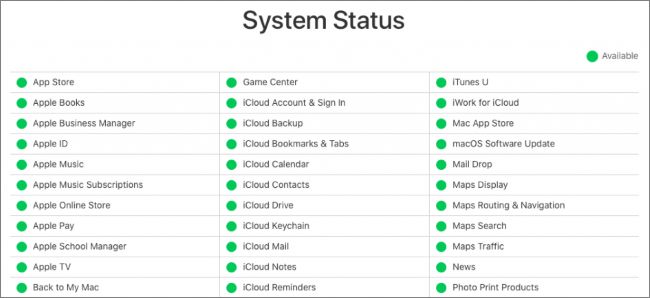
If your settings and network are fine, but notes still won't sync, the issue might be with iCloud services themselves. Visit the Apple System Status page to check if iCloud Notes shows as operating normally (green status). If it's down, you'll need to wait for Apple to resolve the issue.
iCloud account issues, login information not syncing, or using different Apple IDs on multiple devices can prevent notes from syncing properly. Ensure all devices are signed into the same Apple ID and check for any security alerts or prompts to re-authenticate your account.
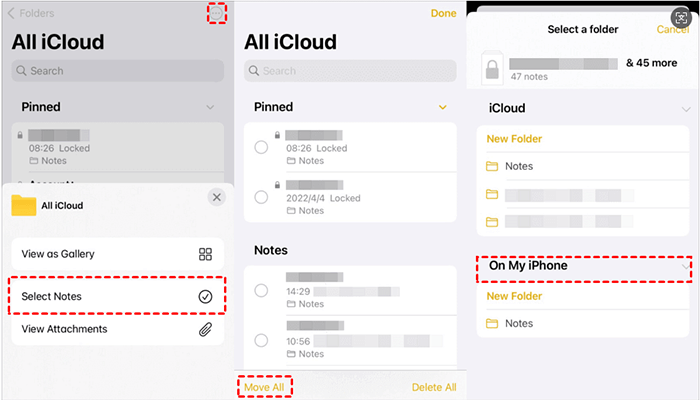
Notes not stored in the "iCloud" group won't sync across devices. If you're experiencing syncing issues, check whether your notes are in the iCloud section. If they're not, you can easily move them. Here are the steps:
Step 1. Open the Notes app on your iPhone or iPad.
Step 2. Select the note you want to move.
Step 3. Tap the "More" button (three dots in a circle) at the top.
Step 4. Choose "Move Note".
Step 5. Pick a folder under the "iCloud" section and tap it.
If you want to transfer notes from one iCloud to another iCloud, you can read this article to learn how to do it.
How to Transfer Notes from One iCloud to Another in 4 Easy Ways?Another effective solution for fixing notes not syncing between iPhone and Mac is to sign out of iCloud on both devices and then sign back in. This is especially useful when content syncs on most devices but not on one or two of them.
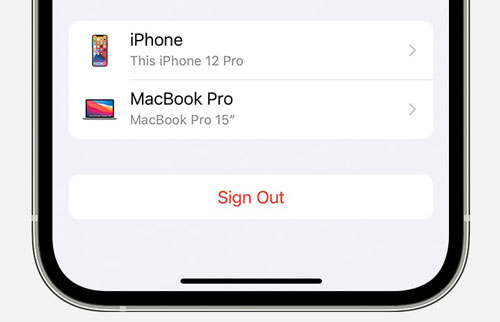
On iPhone: Go to "Settings", tap your "Apple ID" at the top, scroll down and select "Sign Out", then wait about 30 seconds before signing back in.
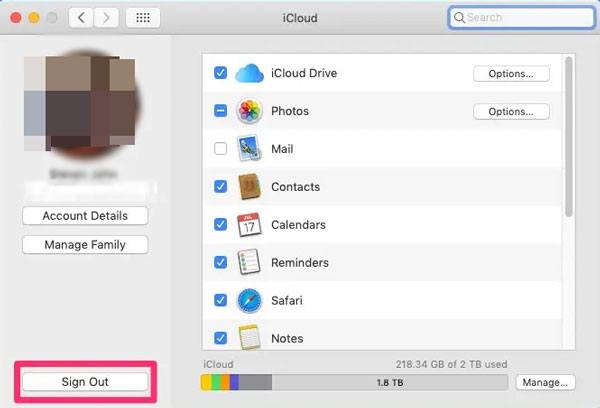
On Mac: Open "System Preferences", click "iCloud", select "Sign Out", and after 30 seconds, sign back in to your iCloud account.
If your device has been running for too long, it may cause background syncing services to malfunction. Restarting your iPhone, iPad, or Mac can often quickly resolve temporary iCloud Notes syncing issues.
For iPhone:

For Mac: Click the "Apple menu" and select "Restart" to reboot your Mac.
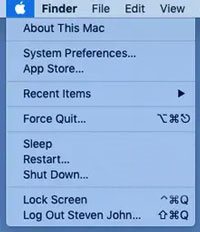
If your notes still aren't syncing between your Mac and iPhone, it may be caused by a bug in iOS or macOS. Luckily, updates often resolve these issues.
To update Mac: Click the "Apple menu" in the top-left corner, select "System Preferences" > "Software Update", and if a new version is available, click "Update Now" or "Upgrade Now".
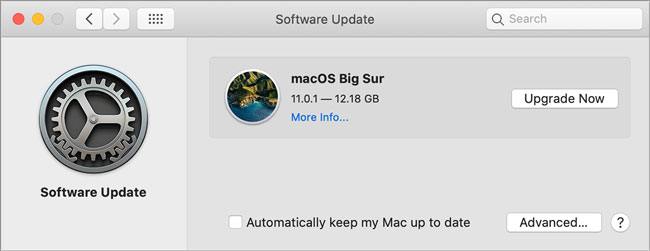
To update iOS: Open the "Settings" app, tap "General" > "Software Update", and wait for your device to check for updates. If one is available, follow the instructions to install it. (iPhone won't update?)

If you've tried the methods above but the iCloud Notes not syncing issue persists, or you're concerned about losing important notes again, consider trying other reliable tools. Coolmuster iCloud Backup Recovery offers a more stable alternative. It can easily sync or recover unsynced iCloud notes to your computer. With this powerful tool, syncing notes and other iOS data becomes fast, simple, and secure.
Key features of Coolmuster iCloud Backup Recovery:
Here is how to sync iCloud Notes to your computer using iCloud Backup Recovery:
01Launch the software and enter your Apple ID and password in the provided fields, then click the arrow icon to log in. The software will proceed to the next screen.
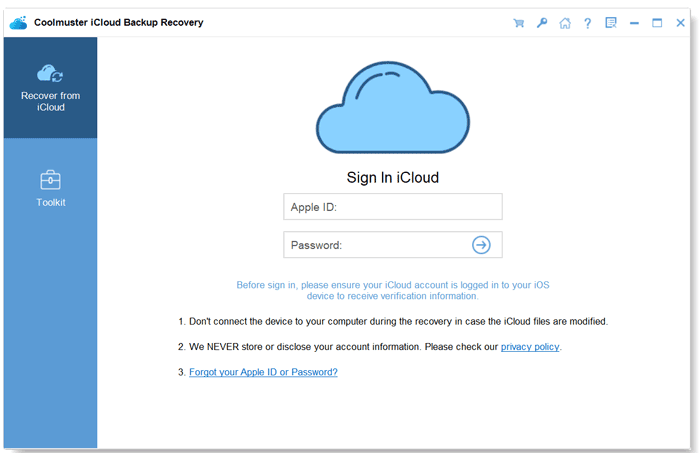
Note: If you have two-factor authentication enabled on your device, you'll be prompted to enter the verification code. Tap "Verify" to complete the authentication.
02The next screen will display the data categories from your iCloud account. To extract only your notes, simply check the "Notes" option and then click"Next" to access your iCloud notes.
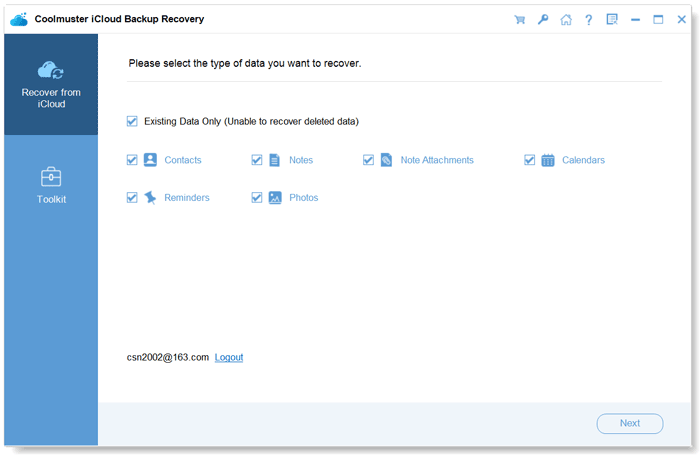
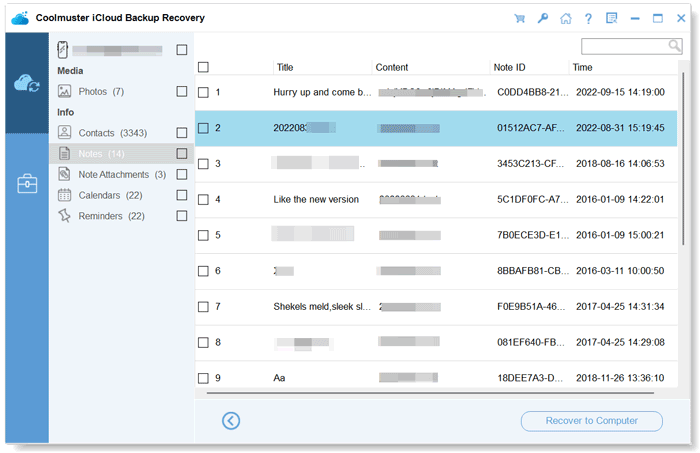
03All the notes in your iCloud account will be scanned and displayed. You can select the notes you wish to download to your computer and click the "Recover to Computer" button at the bottom.
Video Tutorial:
In conclusion, while iCloud Notes not syncing issues can be frustrating, the methods provided above can help you quickly resolve this issue. For a more efficient solution, Coolmuster iCloud Backup Recovery is a reliable tool to sync your iCloud notes to your computer effortlessly. Why not give it a try and see how it works for you?
Related Articles:
Easy Guide: How to Sync Notes from iPhone to Mac with or without iCloud
iPhone Notes Disappeared After Update: Troubleshooting Tips and Solutions
How to Fix iCloud Drive Not Syncing on Windows 11/Mac/iOS Devices?
How to Restore Notes on iPhone from iCloud? [3 Easy Methods]






 Free Download for PC
  Free Download for Mac


