"I'm trying to use the new Call Screening feature in iOS 26, but it doesn't activate. I'm in Mexico, my phone language is set to Spanish (Mexico), region is Mexico, Apple Intelligence is on, Siri is on, and its language is set to Spanish (Mexico), and I've enabled the Call Screening option that asks the caller to state a reason for the call. When I receive calls from unknown numbers, it just rings normally without screening. I've restarted the phone and checked settings several times. Apple's feature availability page says Call Screening is available in Mexico, so I'm not sure what I'm missing."
- from Apple Community
Apple's iOS 26 introduces a variety of new features, with one of the most discussed being the Call Screening option. This feature helps users avoid unwanted interruptions by asking callers to state their name and reason for calling before you decide whether to answer. However, many users have reported issues with the iOS 26 Call Screening, such as it not working or being unavailable on their iPhones.
If you're facing issues with the iOS 26 Call Screening not working, don't worry. This guide will explain what the feature is, why it might not be working, and provide five effective solutions to resolve the problem.
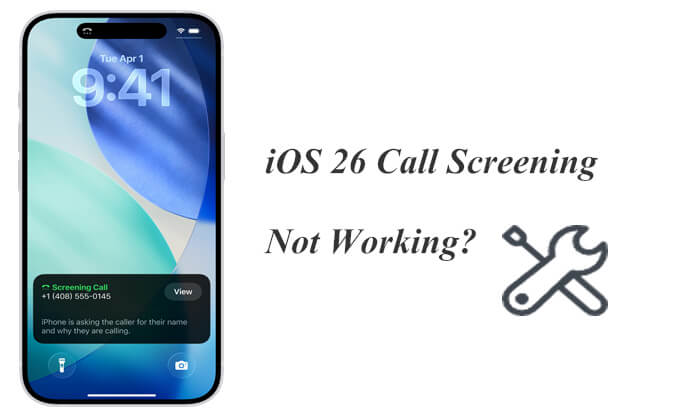
Call Screening is a highlight of iOS 26, enhancing the Live Voicemail feature with a smart twist. When an unknown caller rings, your iPhone prompts them to state their name and the purpose of the call. You'll see a live transcription of their response as it happens, letting you decide on the spot whether to answer, decline, ignore, or send a text reply—all without ever picking up the phone.
If Call Screening isn't working on your iPhone in iOS 26, there are a few common reasons why this might happen:
* Apple may not have rolled out Call Screening in your country yet.
* If you haven't updated to the latest iOS 26 version, the feature might be missing or not functioning properly.
* Incorrect language or region settings could interfere with Call Screening.
* The feature might be turned off by default in your Phone settings.
* As with any new iOS update, small bugs can sometimes affect functionality.
* Your mobile carrier may not support the feature yet.
* Third-party call-blocking or spam-filtering apps might be conflicting with Apple's built-in tool.
If your iOS 26 Call Screening is not working, here are 9 easy ways to get things back on track. These simple steps can help you fix iOS 26 Call Screening issues without any technical expertise needed.
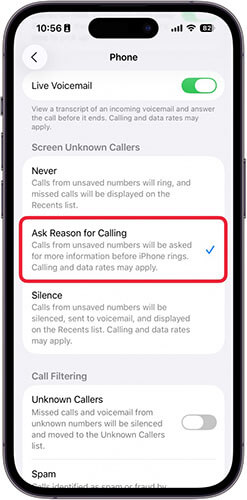
One of the most common reasons for iOS 26 Call Screening not working is that the feature isn't enabled. After major updates, some settings may revert to default, which disables Call Screening. Enabling the feature gives the system permission to analyze incoming calls.
Here is how to turn on Call Screening on iOS 26:
Step 1. Open the "Settings" app, scroll down, and tap on "Apps".
Step 2. Select "Phone", then scroll to the "Screen Unknown Callers" section and choose "Ask Reason for Calling".
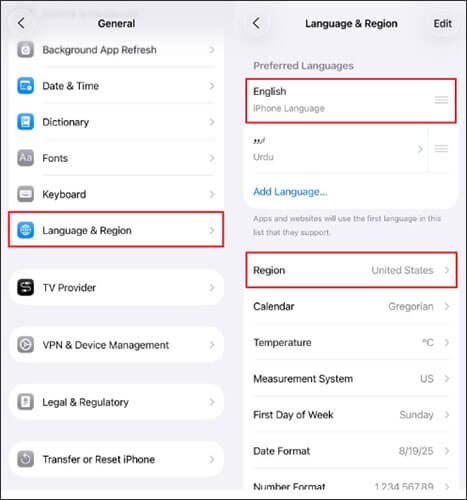
The Call Screening feature is only available in select countries. If your region or language is unsupported, the feature may not appear or function correctly. To resolve the Call Screening issue, follow these steps to check your region and language settings:
Step 1. Go to "Settings" > "General" > "Language & Region".
Step 2. Set the Region to "United States" and the Language to "English".
Step 3. Restart your iPhone and check if the issue with screen unknown callers in iOS 26 is resolved.
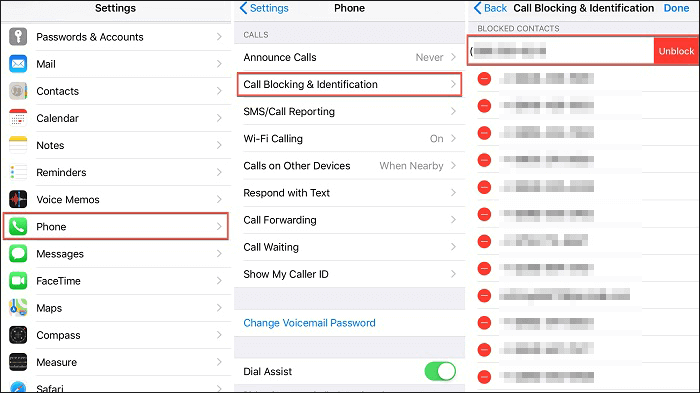
Third-party apps designed to block spam or filter calls can sometimes interfere with iOS's built-in Call Screening feature. These apps often try to manage incoming calls, which can conflict with Apple's native system, preventing the iOS Call Screening prompt from showing up or causing it to malfunction.
To resolve this, disable any external apps managing your calls. This will help restore system stability and minimize the risk of important calls being mistakenly blocked. It also ensures that your iPhone can properly use its real-time transcription service for unknown numbers.
Here's how to do it:
Step 1. Open the "Settings" app on your iPhone.
Step 2. Scroll down and tap "Phone".
Step 3. Select "Call Blocking & Identification".
Step 4. On the next screen, you'll see a list of apps that have permission to block or identify calls. Turn off the toggle for any third-party apps listed here.
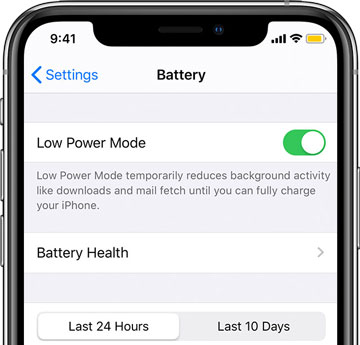
iOS 26's Call Screening feature uses background processes to analyze incoming calls for spam or unwanted calls. When Low Power Mode is turned on, the system limits background activity to conserve battery, which can cause Call Screening to malfunction or be delayed.
To restore the feature's full functionality, simply turn off Low Power Mode. Here's how to do it:
Step 1. Open the "Settings" app on your iPhone.
Step 2. Scroll down and tap "Battery".
Step 3. Find "Low Power Mode" and toggle it off. The switch will turn gray, indicating it's disabled.
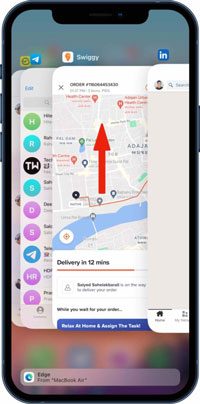
If you're still having trouble with the Apple call screen feature, try restarting the Phone app. Sometimes, the app can freeze, become overloaded, or encounter a minor glitch. Restarting it refreshes its internal processes, allowing the Call Screening feature to function properly. This method resolves app-specific issues without requiring a full device restart.
Here are the steps:
Step 1. Swipe up from the bottom of your screen and pause in the middle to open the App Switcher. On iPhones with a Home button, double-press the "Home" button instead.
Step 2. Locate the "Phone" app in the list of recently used apps.
Step 3. Swipe up on the Phone app card to force close it.
Step 4. Return to the Home Screen and reopen the Phone app.
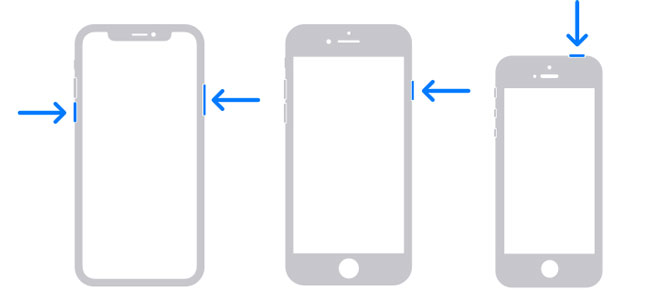
If force-quitting and restarting the Phone app doesn't work, you can try restarting your iPhone. This can refresh system processes and clear temporary glitches.
For iPhone X, 11, 12, 13, or later:
For iPhone 6, 7, 8, or SE (2nd or 3rd generation):
For iPhone SE (1st generation), 5, or earlier:
If Call Screening on iOS 26 isn't working, it might be due to a buggy update. Apple frequently releases quick patches to fix issues, and reinstalling iOS can also help resolve the problem.
Here is how to do it:
Step 1. Go to "Settings" > "General" > "Software Update" and install the latest version. (iPhone software update failed?)
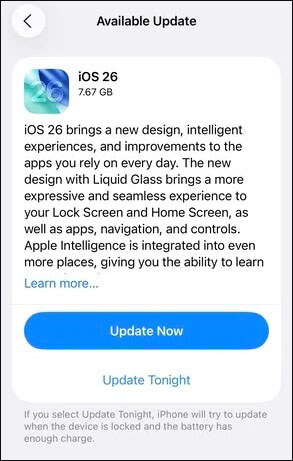
Step 2. If the issue persists, back up your data and reinstall iOS 26 using iTunes or Finder.
Step 3. After reinstalling, restart your device and check if the Call Screening feature is now working.
If you've tried all the basic methods but the Call Screening feature on your iPhone is still not working, your device may be facing deeper system issues. iOS System Recovery is the most reliable solution. This tool can fix various iOS system problems, including the iOS 26 Call Screening not working, without erasing your personal data.
Highlights of iOS System Recovery:
How to use iOS System Recovery to fix iOS 26 Call Screening not working without losing data:
01Install and launch iOS System Recovery on your Windows/Mac computer. Connect your iPhone via USB and select "iOS System Recovery".

02Click "Start", and the software will begin detecting issues with your iPhone.

03Choose your repair mode, select your iPhone model from the list, and click "Repair".

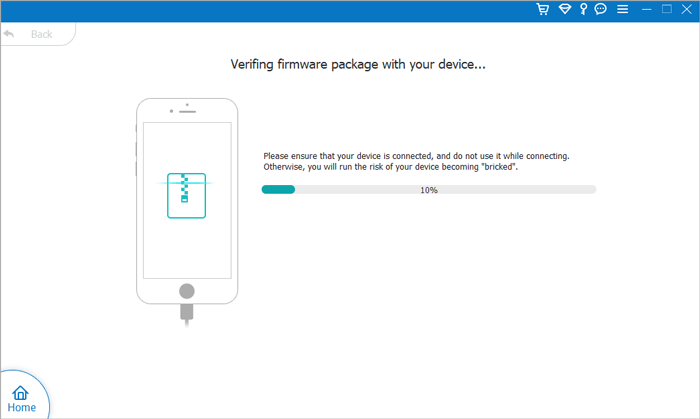
04The software will download the necessary firmware to fix your iPhone. Once the download is complete, your iPhone will be restored to normal.
If Call Screening on iOS 26 is still unavailable after trying all the fixes, the issue might be related to your device, region, or account. Contact Apple Support for direct assistance—they can verify whether the feature is available in your area and offer advanced troubleshooting. If it's a known bug, Apple may already be working on a fix.
The Call Screening feature in iOS 26 can significantly reduce spam calls, but it may not work properly due to factors like settings, region, app conflicts, or system errors. With the detailed steps in this article, you can troubleshoot and resolve most issues. For persistent iOS system errors, the iOS System Recovery tool offers a thorough solution. This powerful tool is specifically designed to safely fix various underlying iOS issues without causing any data loss.
If the Call Screening feature still isn't working after trying all methods, contacting Apple Support may be your final option. Don't let issues with iOS 26's Call Screening feature prevent you from enjoying a smoother calling experience.
Related Articles:
How to Fix Contacts Not Showing Up on iPhone 17/16/15/14 in Seconds?
Why Does My iPhone Call Log Delete Itself? Reasons and How to Recover
How to Fix Messages Not Restored from iCloud Backup? -11 Useful Tips
Step-by-Step Guide to Delete iOS Update on iPhone/iPad Easily







 Free Download for PC
  Free Download for Mac


